How to Show Total in Power BI
- George Apostolov
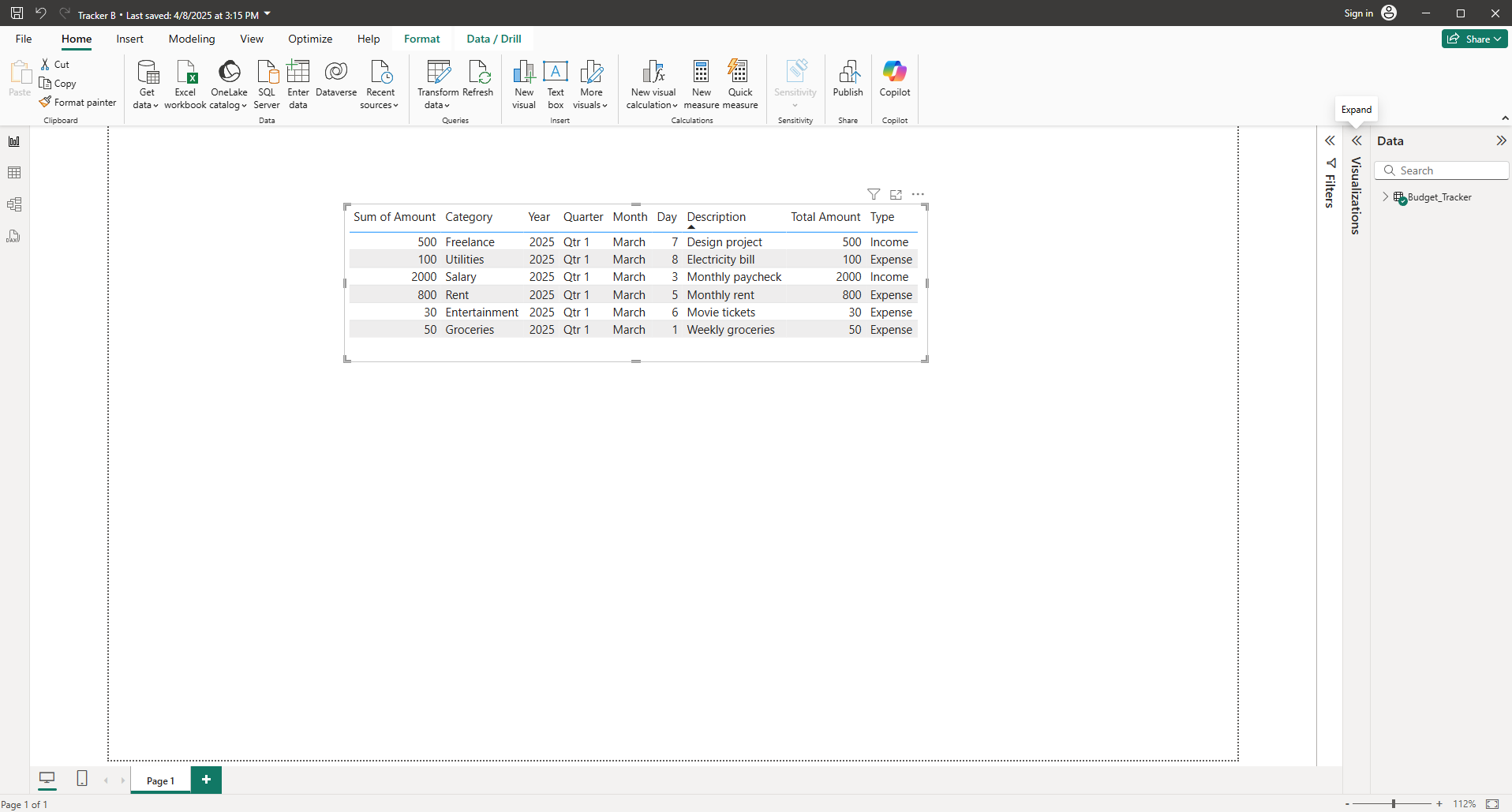
How to Show Total in Power BI: step-by-step guide
Select your table and click the 'Visualization' pane.
In the 'Visualizations' pane, go to the 'Format' section.
Select the 'Totals' option.
Enable the 'Totals' to show the total in Power BI.
That's it! You have successfully shown the total in Power BI.
Quick answer: To show the total in Power BI, select your table, open the Visualization pane, and go to the Format section. Next, select the Totals option and enable Totals to complete the process.
About this Power BI tutorial
Display totals in your Power BI tables by enabling the Totals option within the Format section of the Visualization pane. This guide shows how to show Total in Power BI in 5 steps, starting with "Select your table and click the 'Visualization' pane" and finishing with "That's it! You have successfully shown the total in Power BI". The interactive demo above is a click-through copy of the real Power BI interface, so you can rehearse each step before doing it in your own account.
Frequently asked questions
How many steps does it take to show Total in Power BI?
5 steps. Each one is listed in order above, and the demo highlights exactly where to click.
Can I try it without changing my own account?
Yes. Clicking through the demo doesn't touch your Power BI data or settings. Once you know the flow, repeat it in your own workspace.
This tutorial is filed under Power BI. Related guides: How to Sort Data in Power BI, How to Sort Months in Power BI Visual and How to Star in Power BI. Last reviewed 05 Oct 2026.

Create your first interactive demo in minutes
No credit card required • Start building today