How to Sync Discord to Shortcut Through Zapier
How to Sync Discord to Shortcut Through Zapier: step-by-step guide
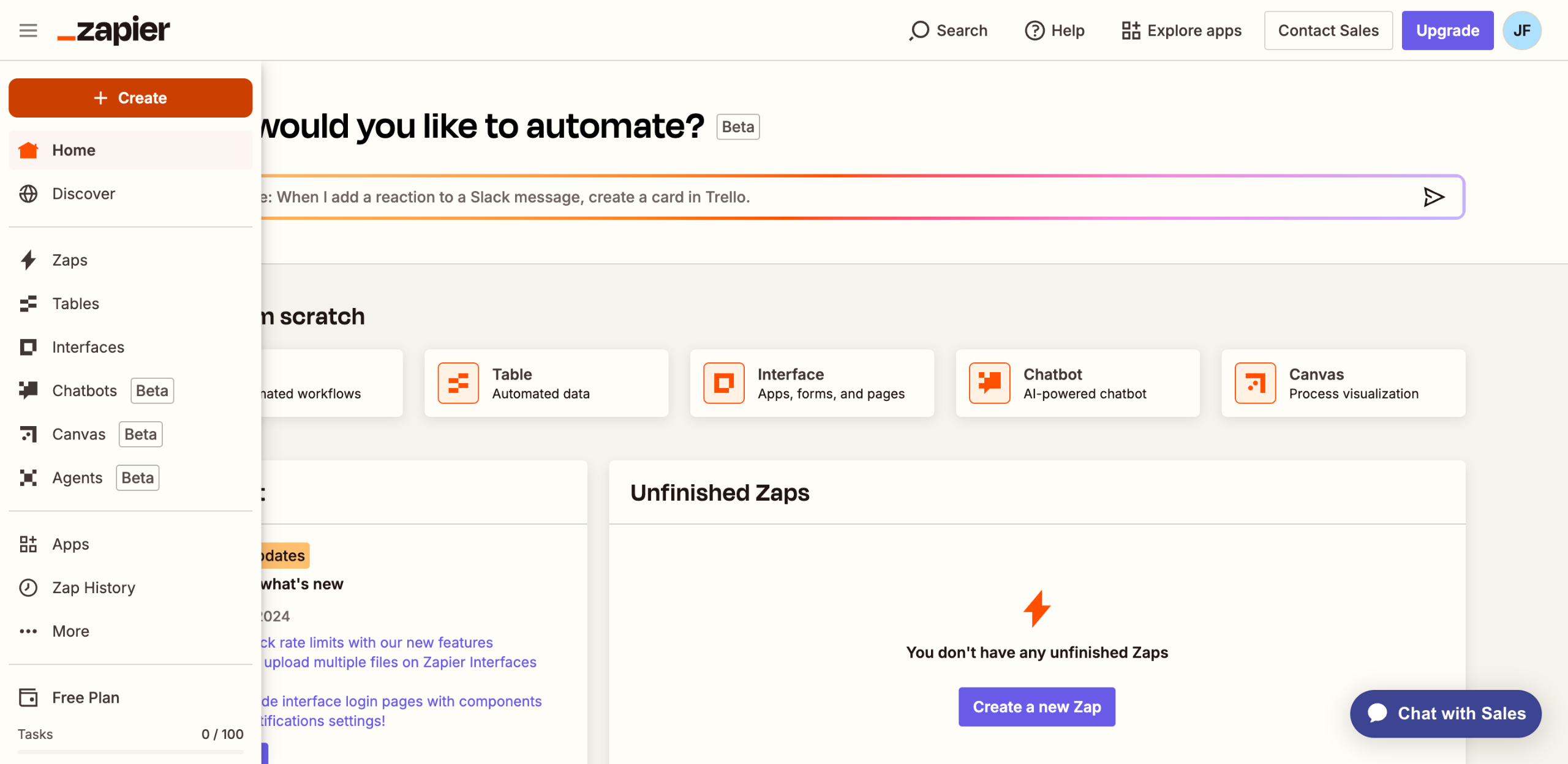
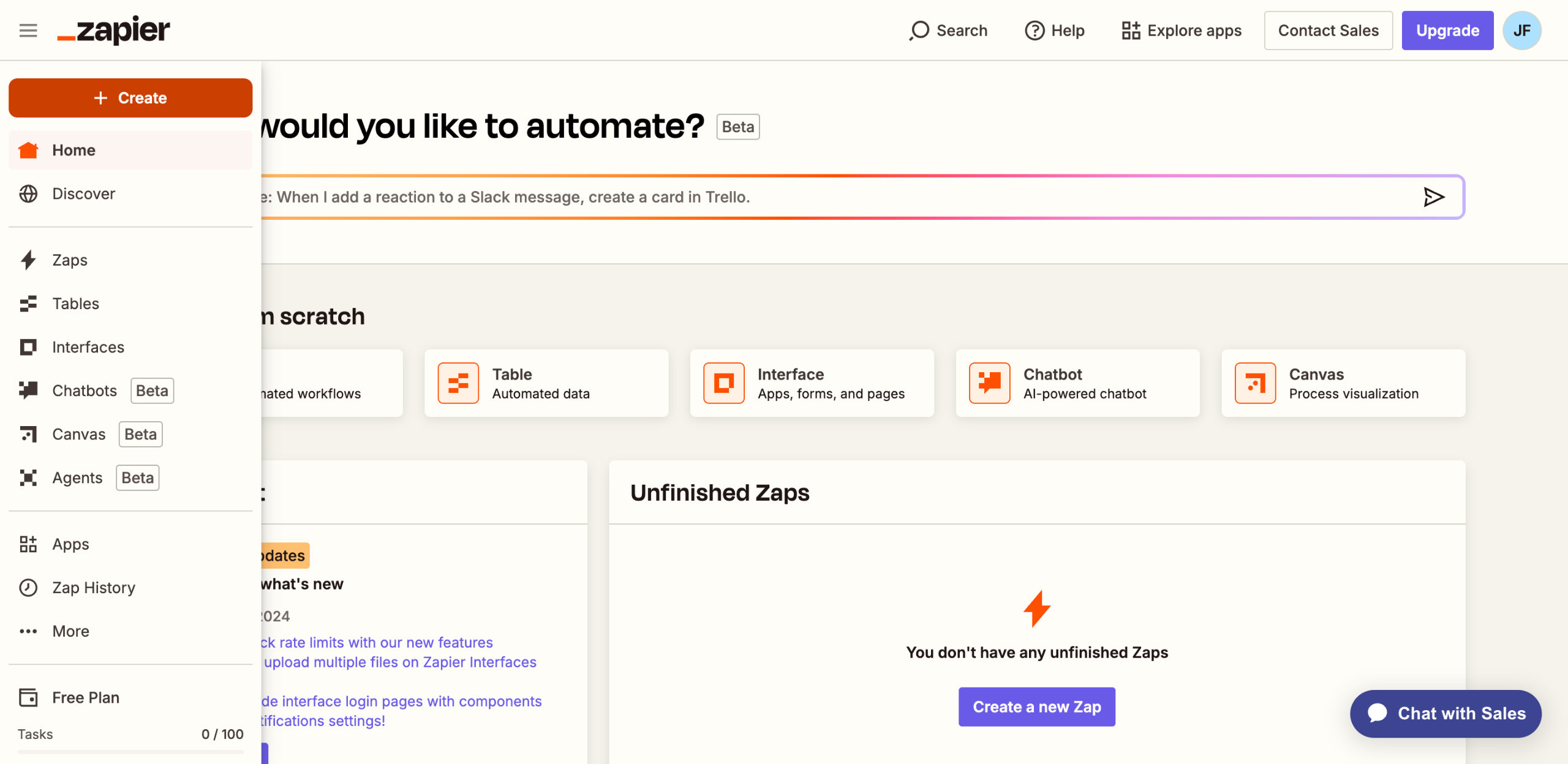
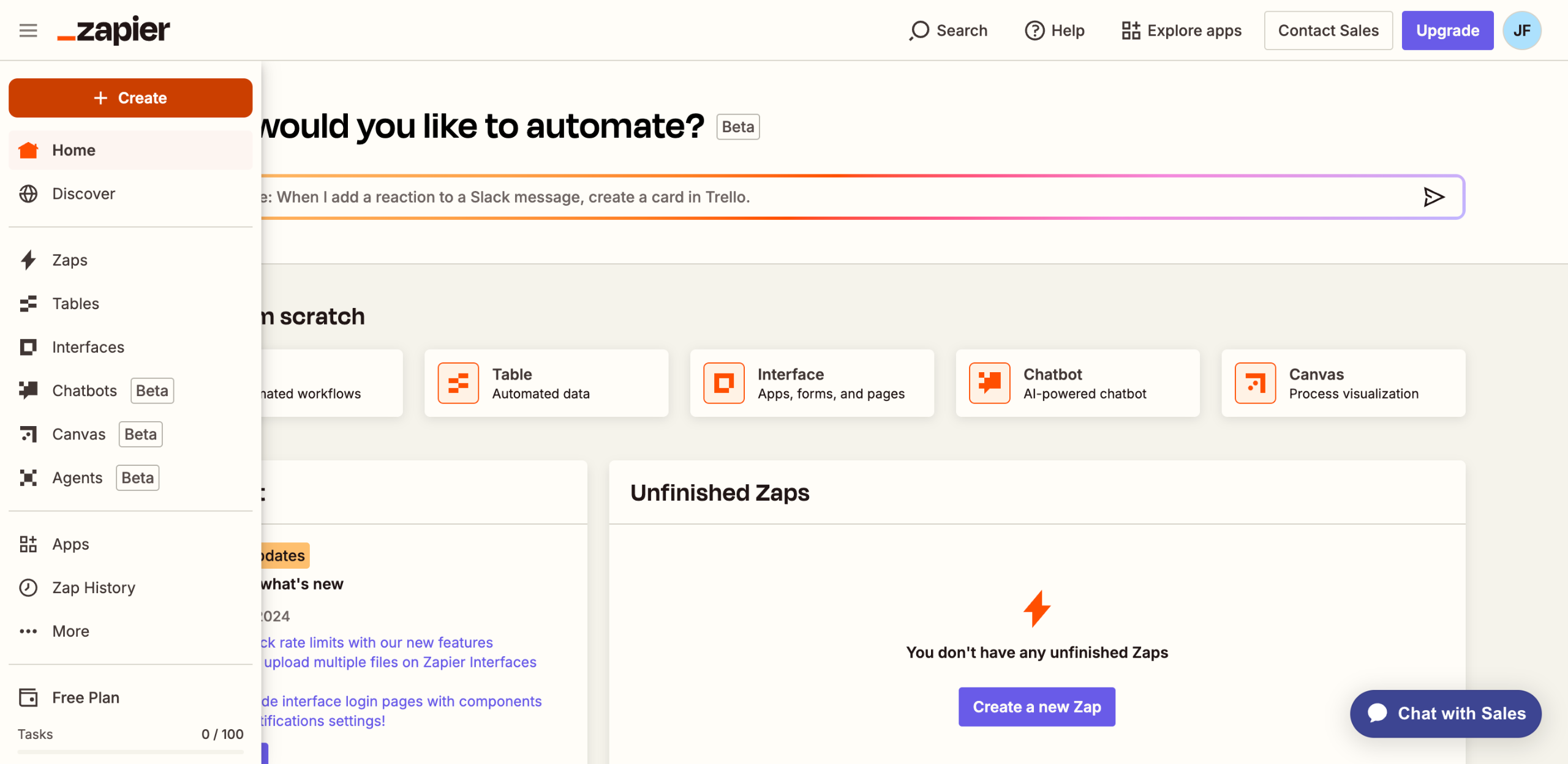
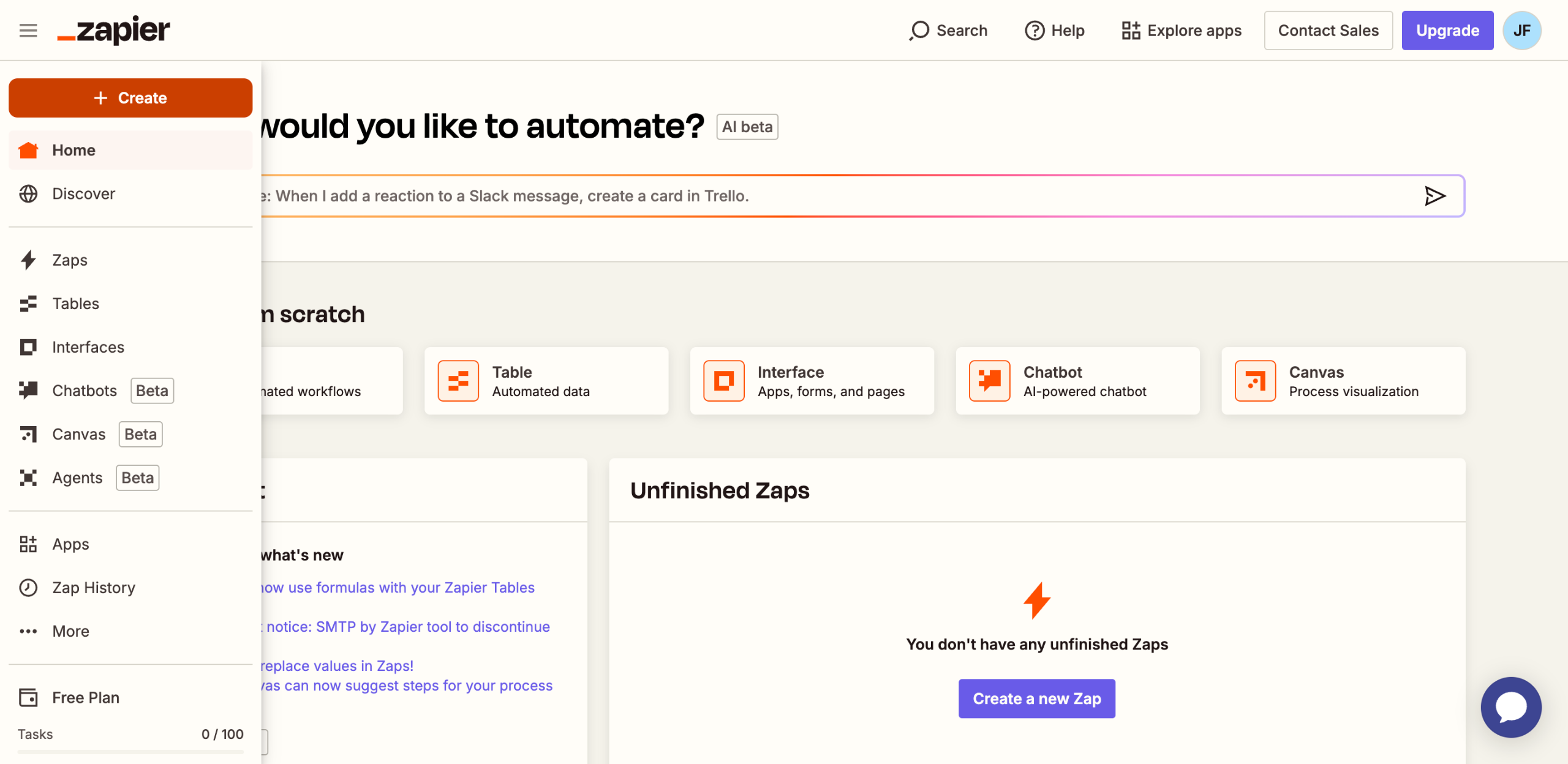
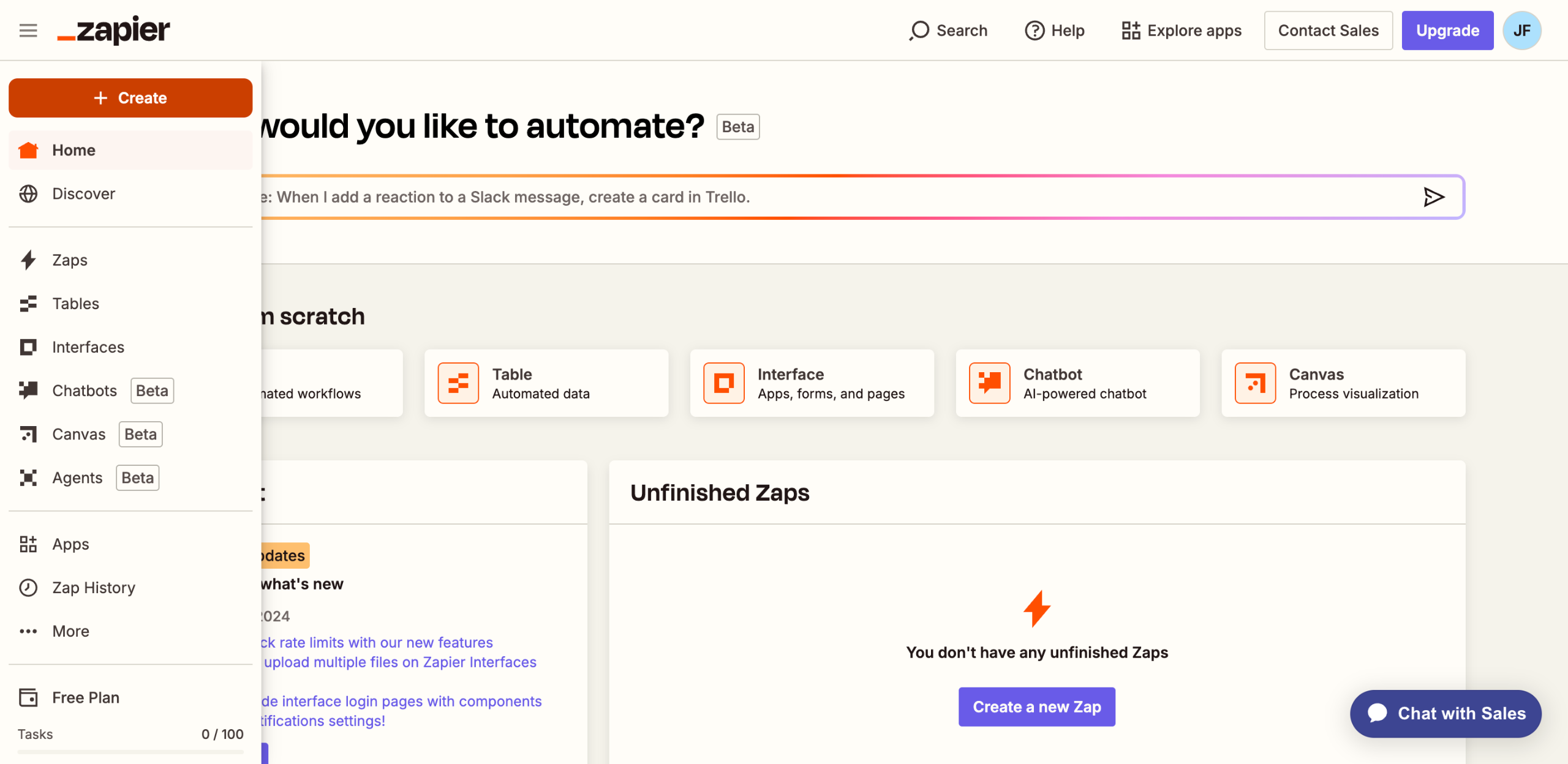
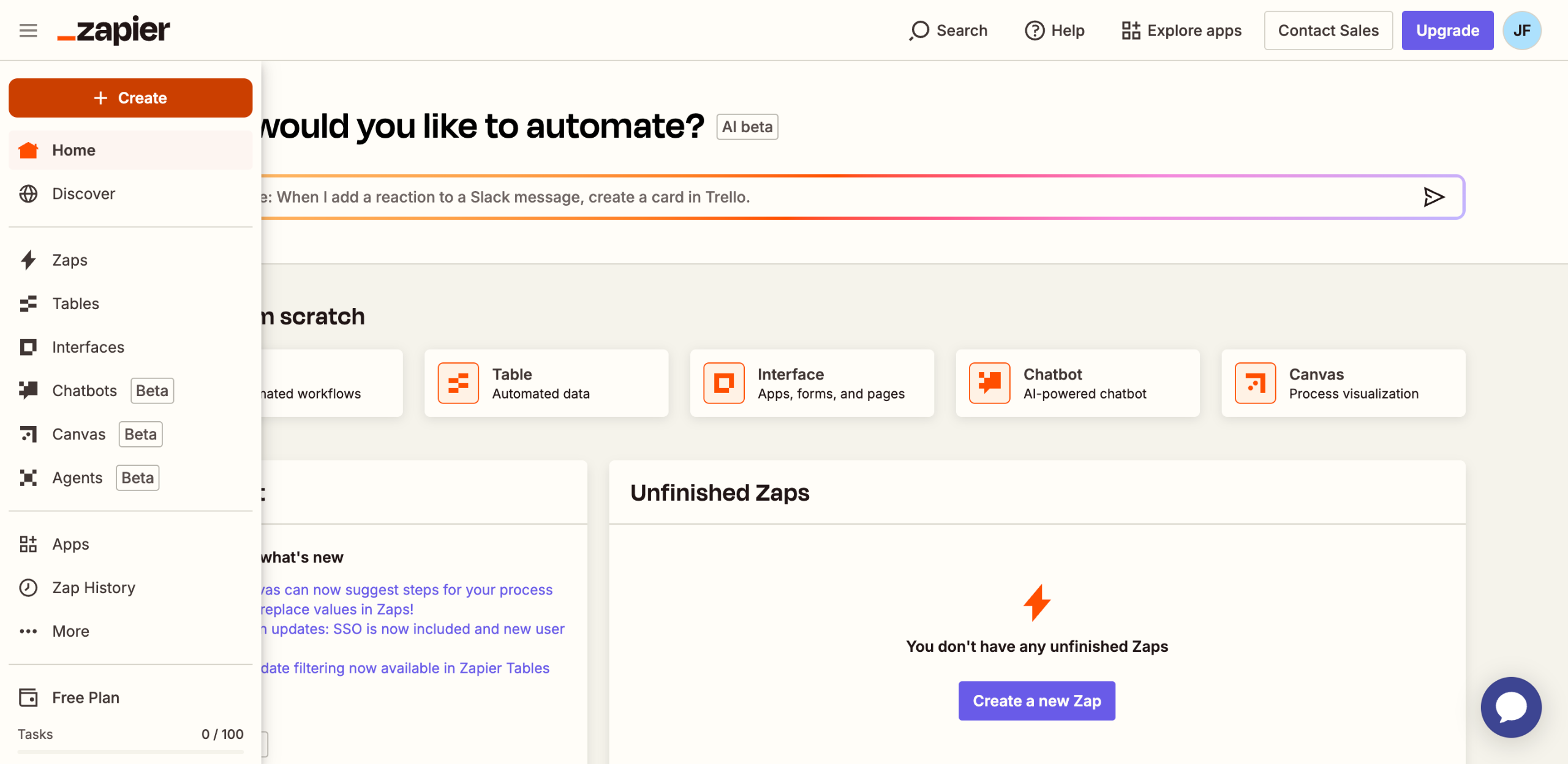
Navigate to the left-side panel, then click 'Create'.
Choose 'Zaps' from the list of options.
After that, tap the 'Trigger' tab to start the integration process.
Search for 'Discord' and then select it from the suggested results.
Next, specify your preferred 'Trigger Event'.
Tap 'Sign In' afterwards, then log into your active Discord account.
Subsequently, select the Discord server you wish to use and then click 'Continue'.
Tick the checkbox beside the permissions you wish to allow, then click 'Authorize' to continue.
Provide the information needed to set up the Trigger accordingly.
Once done, click 'Continue' to run your input and test the Trigger.
Choose the record you wish to use and then click 'Continue With Selected Record'.
Following that, search for 'Shortcut' and select it as the Action app.
Next, click the drop-down menu and pick the specific 'Action Event' you wish to execute.
Tap 'Sign In' afterwards to proceed.
Subsequently, enter the API token associated with your Shortcut account and then click 'Yes, Continue to Shortcut'.
One by one, fill out the input fields with the required information related to the integration.
Once done, click 'Continue' to publish and enable the integration.
After completing these steps, your Discord account will be synced to Shortcut based on your input.
Quick answer: To sync Discord to Shortcut, create a new Zap on Zapier, set Discord as the trigger app by logging in, selecting a server, and configuring the trigger event. Then, select Shortcut as the action app, connect your account using your API token, fill out the required fields, and publish the integration.
About this Zapier tutorial
Connect Discord to Shortcut using Zapier by setting up your trigger, linking your accounts, and configuring the action settings. This guide shows how to sync Discord to Shortcut Through Zapier in 18 steps, starting with "Navigate to the left-side panel, then click 'Create'" and finishing with "After completing these steps, your Discord account will be synced to Shortcut based on...". The interactive demo above is a click-through copy of the real Zapier interface, so you can rehearse each step before doing it in your own account.
Frequently asked questions
How many steps does it take to sync Discord to Shortcut Through Zapier?
18 steps. Each one is listed in order above, and the demo highlights exactly where to click.
Can I try it without changing my own account?
Yes. Clicking through the demo doesn't touch your Zapier data or settings. Once you know the flow, repeat it in your own workspace.
This tutorial is filed under Zapier and Discord. Related guides: How to Sync Facebook Lead Ads to Klaviyo Through Zapier, How to Sync Facebook Messenger to Discord Using Zapier and How to Sync Facebook Page Engagement Insights to Google Sheets Using Zapier. Last reviewed 05 Oct 2026.

Create your first interactive demo in minutes
No credit card required • Start building today