How to Unlock a Page in Canva
- George Apostolov
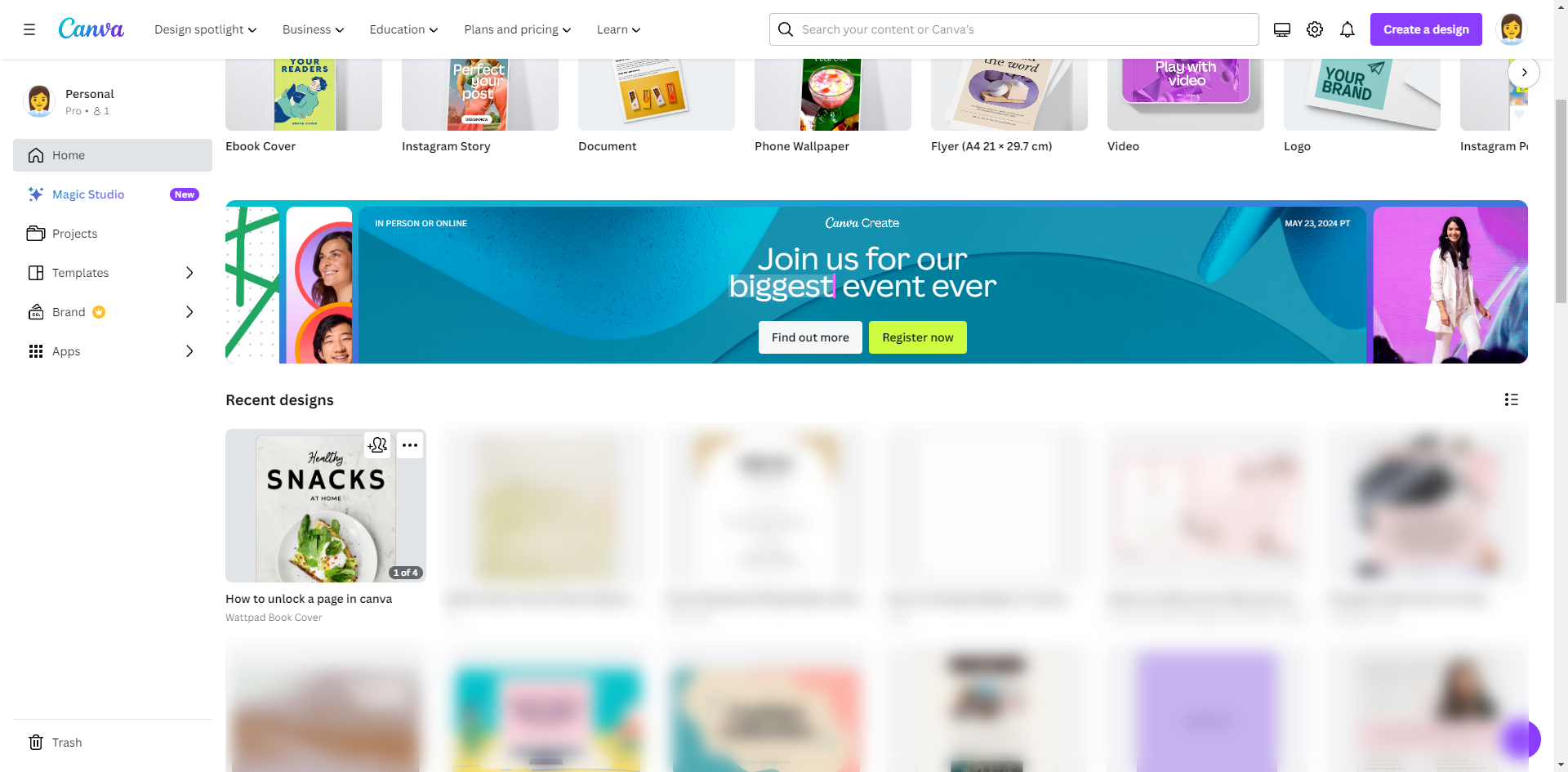
This guide is an interactive LiveDemo. Create interactive demos of your own product: Interactive demo software · Interactive product tours for your website · Start free
How to Unlock a Page in Canva: step-by-step guide
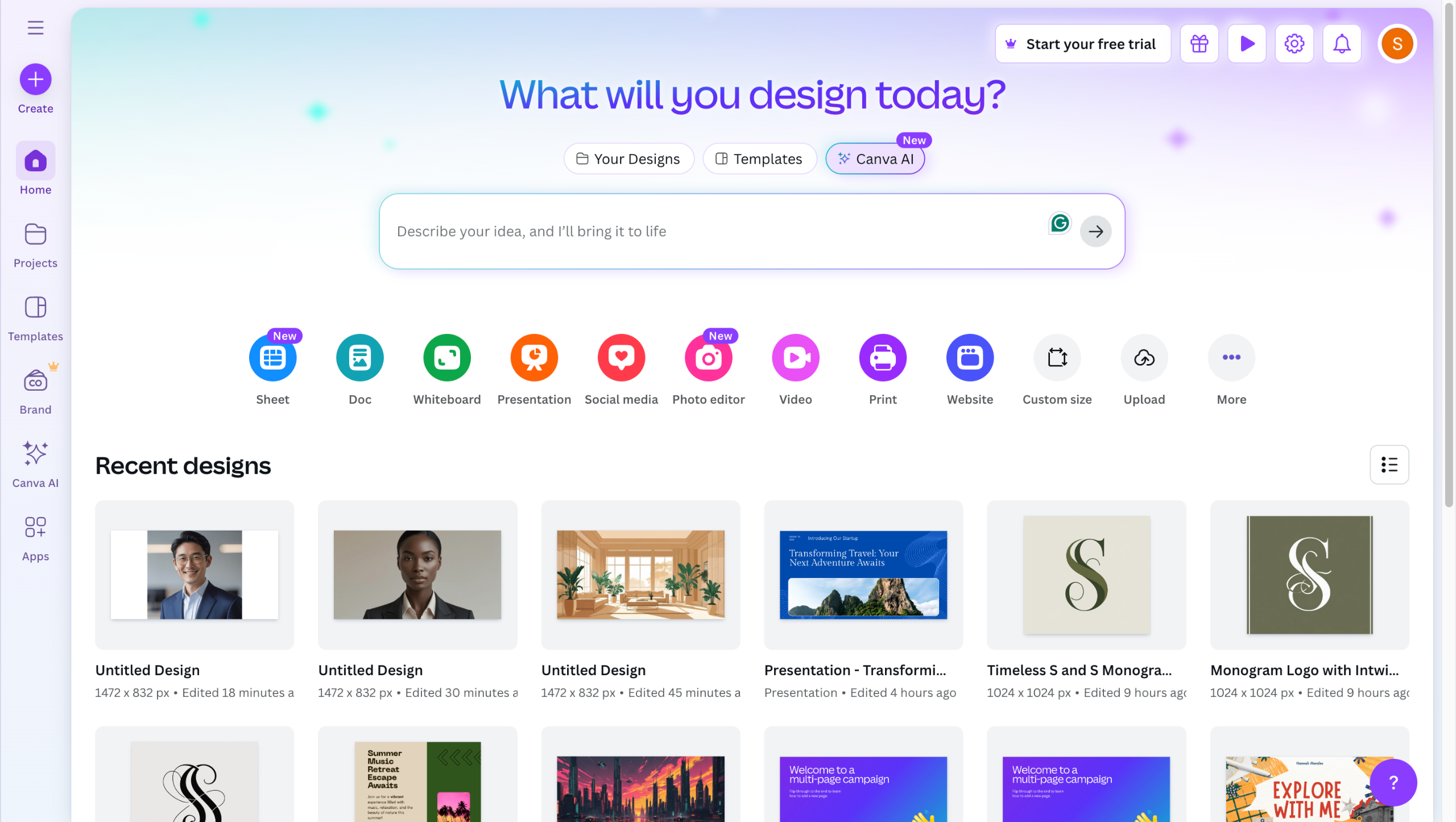
Open the design containing the page you want to unlock.
Click the page thumbnail you want to lock.
Above the page, select 'Lock page'.
To unlock a page, select the locked page.
Select the 'Unlock' or 'Unlock position' located above the page to unlock the page.
Quick answer: To unlock a page in Wattpad using Canva, open the design containing the locked page. Click the locked page thumbnail, then select the Unlock or Unlock position option located above the page.
About this Canva tutorial
Unlock a page in Canva by selecting the locked page thumbnail and clicking the Unlock or Unlock position button above it. This guide shows how to unlock a Page in Canva in 5 steps, starting with "Open the design containing the page you want to unlock" and finishing with "Select the 'Unlock' or 'Unlock position' located above the page to unlock the page". The interactive demo above is a click-through copy of the real Canva interface, so you can rehearse each step before doing it in your own account.
Frequently asked questions
How many steps does it take to unlock a Page in Canva?
5 steps. Each one is listed in order above, and the demo highlights exactly where to click.
Can I try it without changing my own account?
Yes. Clicking through the demo doesn't touch your Canva data or settings. Once you know the flow, repeat it in your own workspace.
This tutorial is filed under Canva. Related guides: How to Upload AI File to Canva, How to Use AI in Canva and How to Use AI Photo Editor in Canva. Last reviewed 05 Oct 2026.

Create your first interactive demo in minutes
No credit card required • Start building today