Google Data Studio - Getting Started
- George Apostolov
Google Data Studio - Getting Started: step-by-step guide
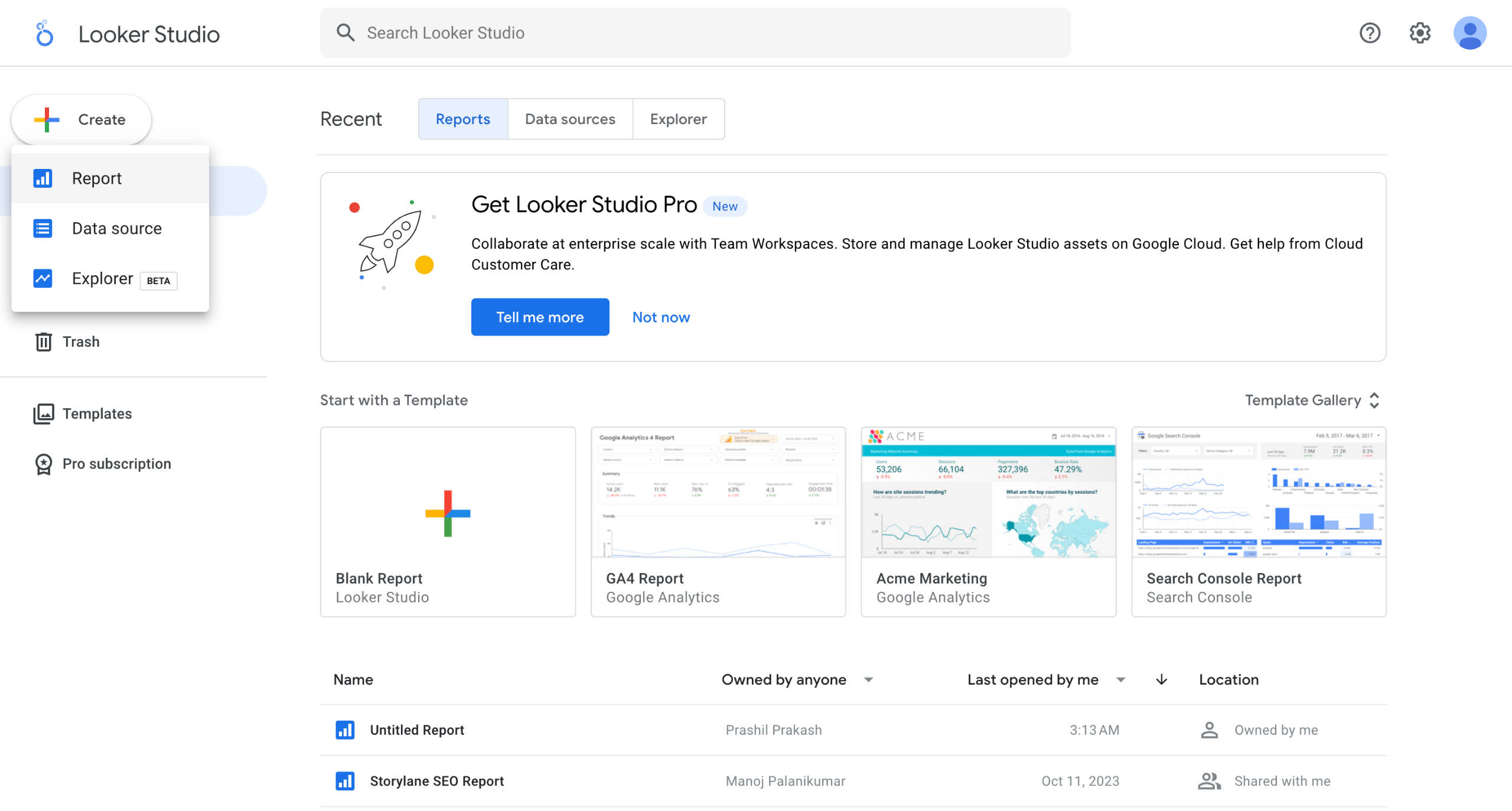
Click on Create and select Report from the dropdown.
If it's your first time on Looker Studio, you will need to fill some basic info to proceed.
Select your Google Connectors where you want your data to come from. Let's pick Google Analytics.
Select the relevant Account and Property to be the source of your data.
Hit Add.
You will see a message appear informing you about the data you are about to add to the report. Click ADD TO REPORT.
Make sure to give a name to your report.
This is your canvas where you can showcase whatever data you want to track.
The first column helps you adjust any visualisation and the other helps you adjust the metrics and dimensions.
Add or change dimensions like Events, Session Channel Default group etc.
Add the metric you want to showcase and watch it pop up on the canvas.
You can drag data from the right column and drop it on the canvas.
And voila! You now have it displayed over the canvas.
Quick answer: To create a report in Google Data Studio, click Create and select Report, fill in basic info if needed, and choose your Google Connectors like Google Analytics. Select your Account, Property, and hit Add, then confirm by clicking ADD TO REPORT. Name your report, and use the canvas and columns to adjust visualizations, dimensions, and metrics.
About this Google tutorial
Build your first Google Data Studio report by connecting data sources, adding metrics, and customizing visualizations on the canvas. This guide covers google Data Studio - Getting Started in 13 steps, starting with "Click on Create and select Report from the dropdown" and finishing with "And voila! You now have it displayed over the canvas". The interactive demo above is a click-through copy of the real Google interface, so you can rehearse each step before doing it in your own account.
Frequently asked questions
How many steps does google Data Studio - Getting Started take?
13 steps. Each one is listed in order above, and the demo highlights exactly where to click.
Can I try it without changing my own account?
Yes. Clicking through the demo doesn't touch your Google data or settings. Once you know the flow, repeat it in your own workspace.
This tutorial is filed under Google. Related guides: Google Tag Manager - Getting Started, How to Use the Google Calendar Pack in Coda and Verify Google Search Console. Last reviewed 05 Oct 2026.

Create your first interactive demo in minutes
No credit card required • Start building today