How to Use Monday.com for Project Management
- George Apostolov
How to Use Monday.com for Project Management: step-by-step guide
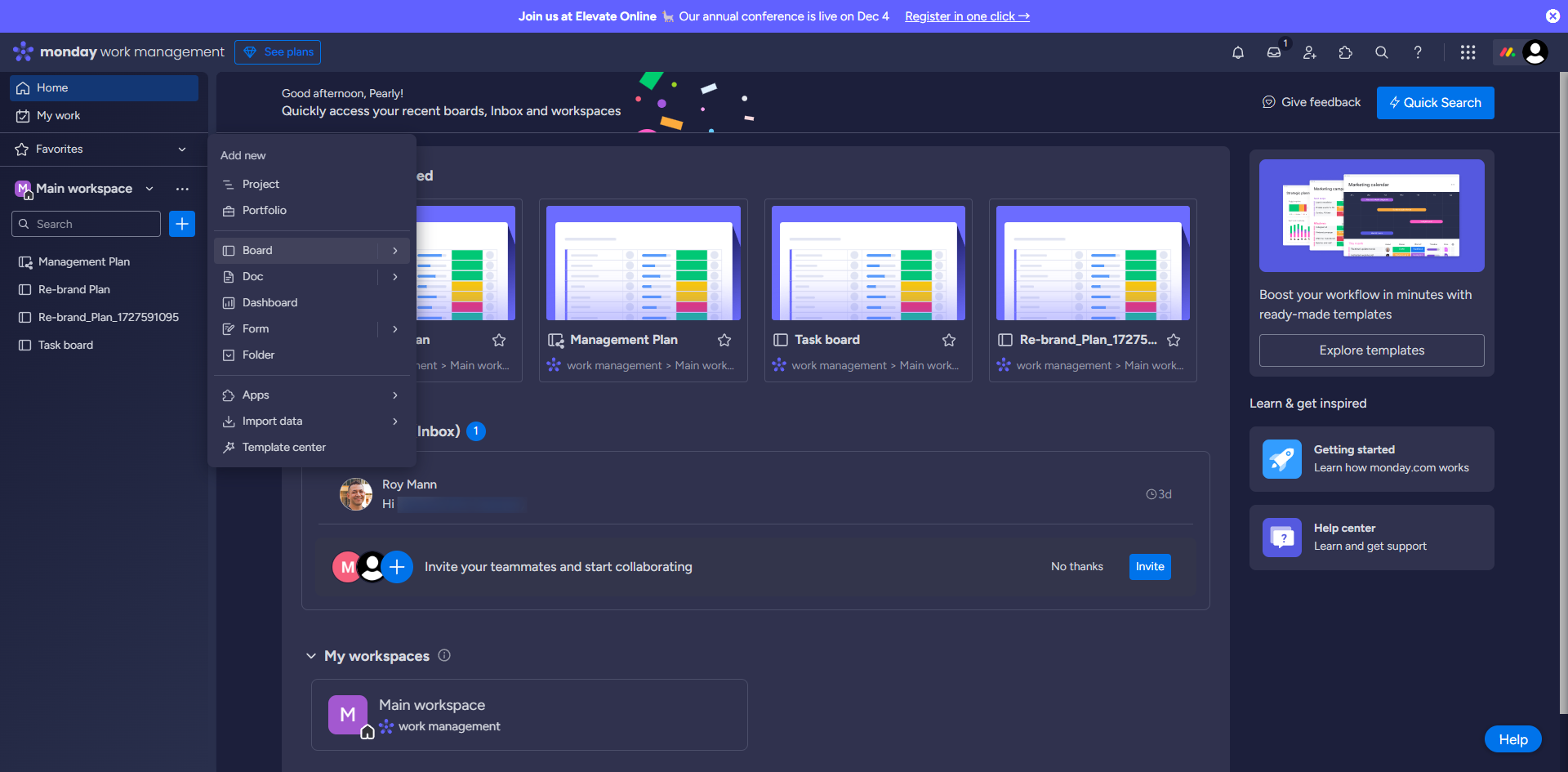
To create a new board, click the add icon then select 'Board'.
You can choose between a main board or a private/shareable board.
Select 'Projects' and click 'Create Board'.
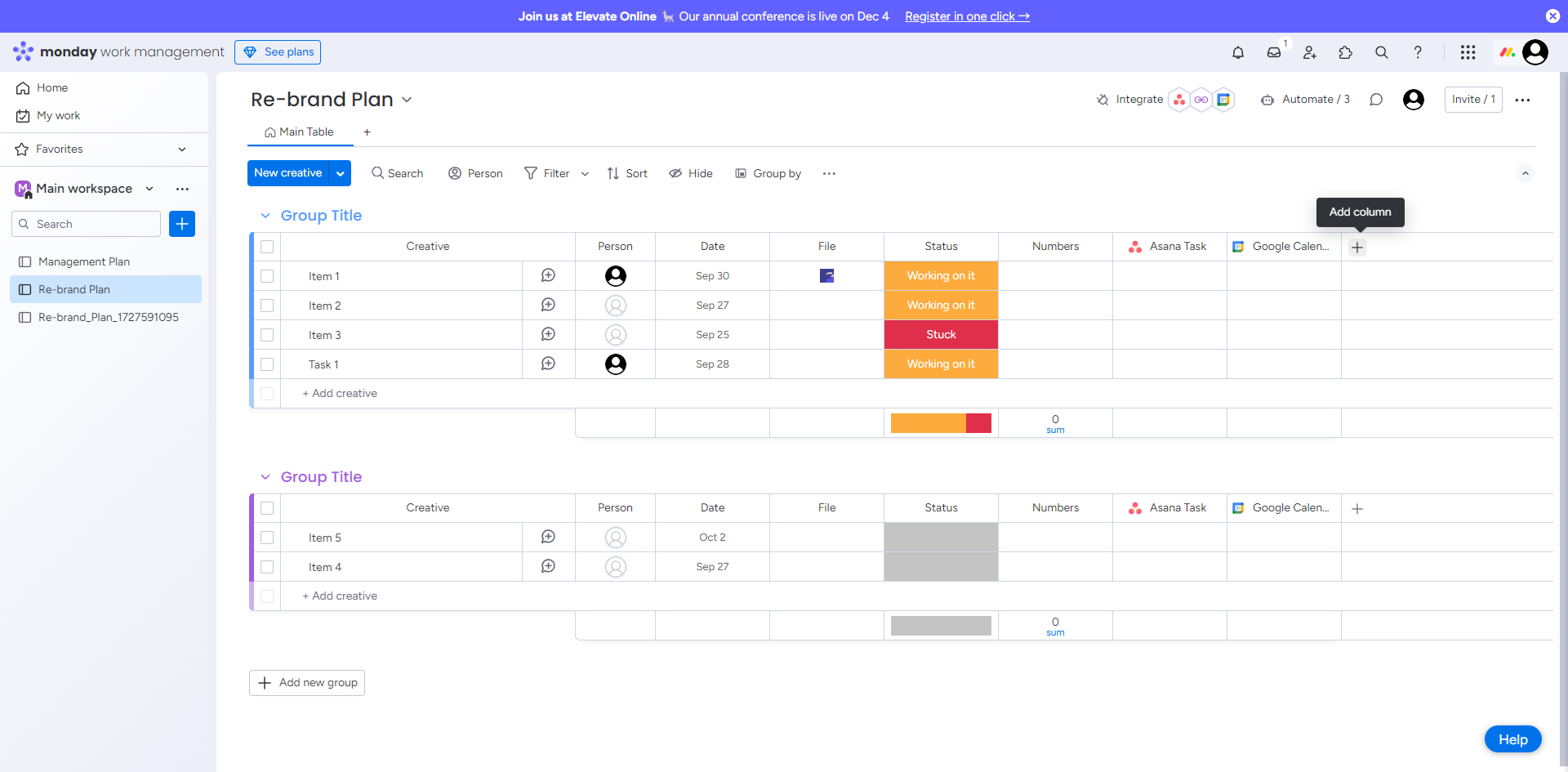
Use the 'Person Column' to assign tasks to your team members.
Track your tasks by using a status column.
Use the 'Date Column' to set deadlines for each task.
Add 'columns' to track different data for each task by clicking the add icon.
You may add columns such as formula, priority and numbers.
You can set an automation by clicking 'Automate'. It can help you automatically update statuses, notify team members, or even create recurring
View progress with dashboards by clicking the add icon beside the dashboard.
Switch to the Gantt view to visualize tasks over time and ensure you’re meeting deadlines.
Add widgets like Gantt and Pie chart. They allow you to see task completion rates, upcoming deadlines, or team workload in one glance.
Click on the add message icon for updates within each task to communicate. Team members can leave comments, attach files, and provide status updates.
In the 'Update Section', you can also @mention team members to notify them or request information.
Click 'Integrate' to connect with various tools such as Slack, Jira, Google Calendar, Outlook, Microsoft Teams, and more.
Click the message icon to regularly communicate with your team members.
By leveraging Monday.com’s customization, automations, and powerful views, you can effectively manage projects from start to finish while keeping your team aligned and productive.
Quick answer: To manage projects in Monday.com, create a board, assign tasks using person and status columns, and set deadlines. Track data with custom columns, set automations, and view progress using dashboards and Gantt views. Communicate via updates, @mentions, and messages, and integrate external tools to keep teams aligned.
About this Monday.com tutorial
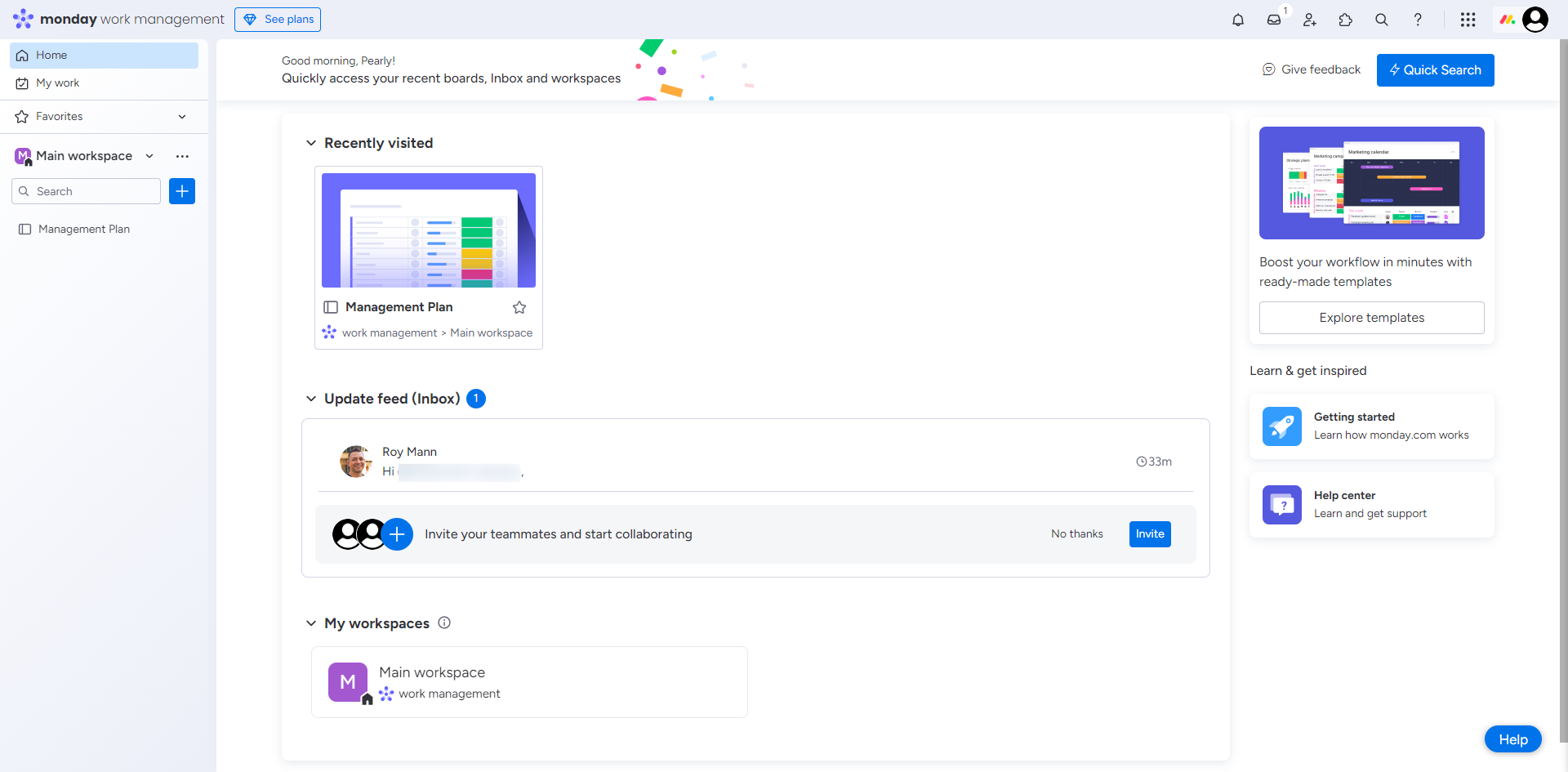
Streamline your workflow with Monday.com by setting up boards, automating tasks, tracking progress with dashboards, and integrating with external tools. This guide shows how to use Monday.com for Project Management in 17 steps, starting with "To create a new board, click the add icon then select 'Board'" and finishing with "By leveraging Monday.com ’s customization, automations, and powerful views, you can eff...". The interactive demo above is a click-through copy of the real Monday.com interface, so you can rehearse each step before doing it in your own account.
Frequently asked questions
How many steps does it take to use Monday.com for Project Management?
17 steps. Each one is listed in order above, and the demo highlights exactly where to click.
Can I try it without changing my own account?
Yes. Clicking through the demo doesn't touch your Monday.com data or settings. Once you know the flow, repeat it in your own workspace.
This tutorial is filed under Monday.com. Related guides: ManyChat Monday Integration, Miro Monday.com Integration and How Do You Do Repeat Tasks on Mondays. Last reviewed 05 Oct 2026.

Create your first interactive demo in minutes
No credit card required • Start building today