How Do Goals Work in ActiveCampaign
- George Apostolov
How Do Goals Work in ActiveCampaign: step-by-step guide
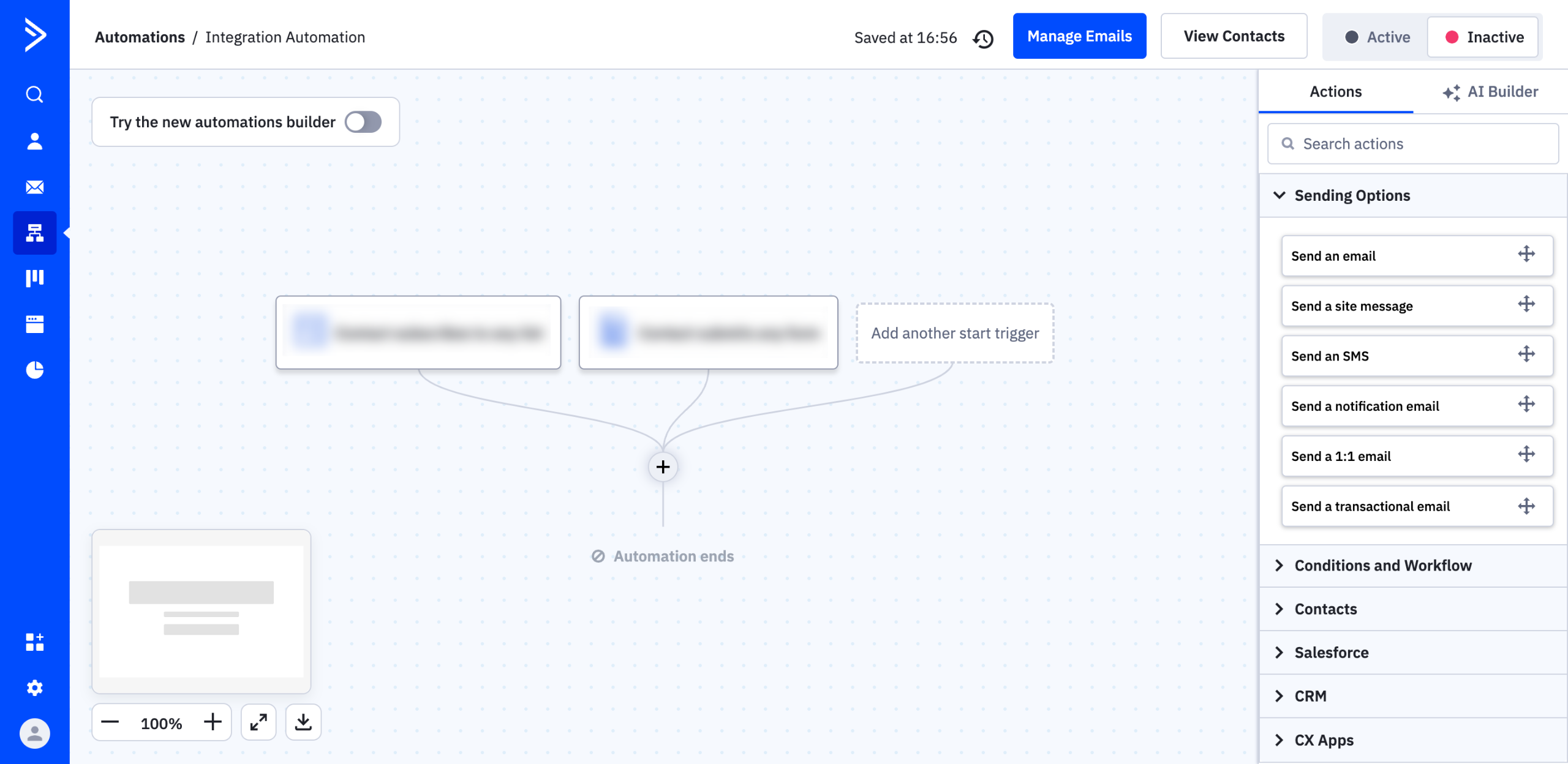
On automation's editor dashboard, click the 'Add' icon below the Trigger section.
Select 'Conditions and Workflow' from the list of options.
After that, click 'Goal' to insert this item into your ActiveCampaign automation.
Craft a unique goal name and then enter it into the provided input field.
Next, add a personalized set of conditions for your goals. Simply configure the condition settings based on your preference and provide all the necessary information.
Finally, insert additional Goal triggers by selecting specific options from the drop-down menus below 'And When This Goal is' and 'If the Contact Does Not Meet the Goal Conditions'.
Once done, click 'Save'.
After completing these steps, your customized ActiveCampaign Goals will be added to the automation and enabled accordingly.
Quick answer: To add goals in ActiveCampaign, open the automation editor, click the Add icon under the Trigger section, select Conditions and Workflow, and choose Goal. Enter a unique goal name, configure your custom conditions, set the additional goal triggers from the drop-down menus, and click Save to enable them.
About this ActiveCampaign tutorial
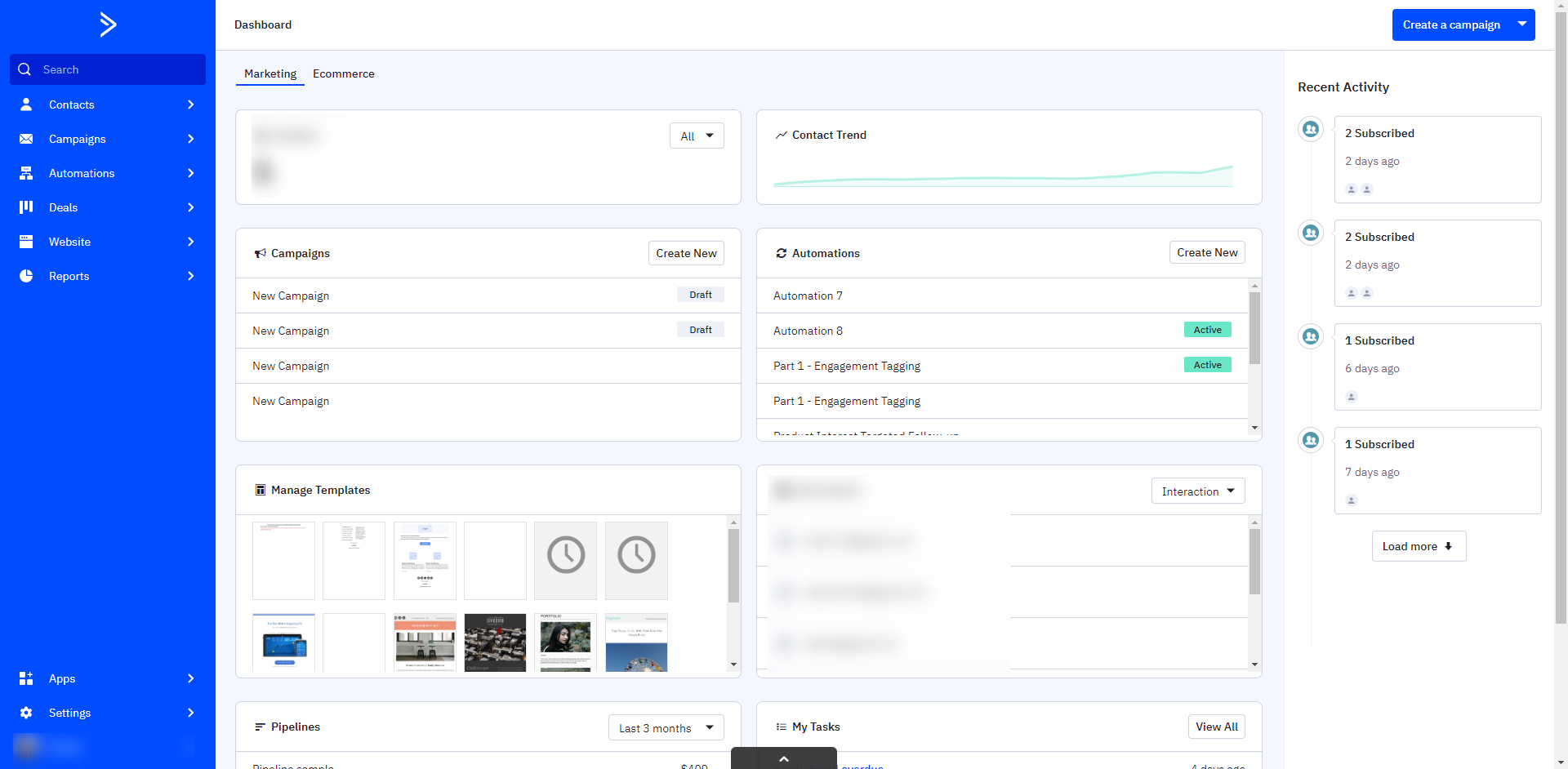
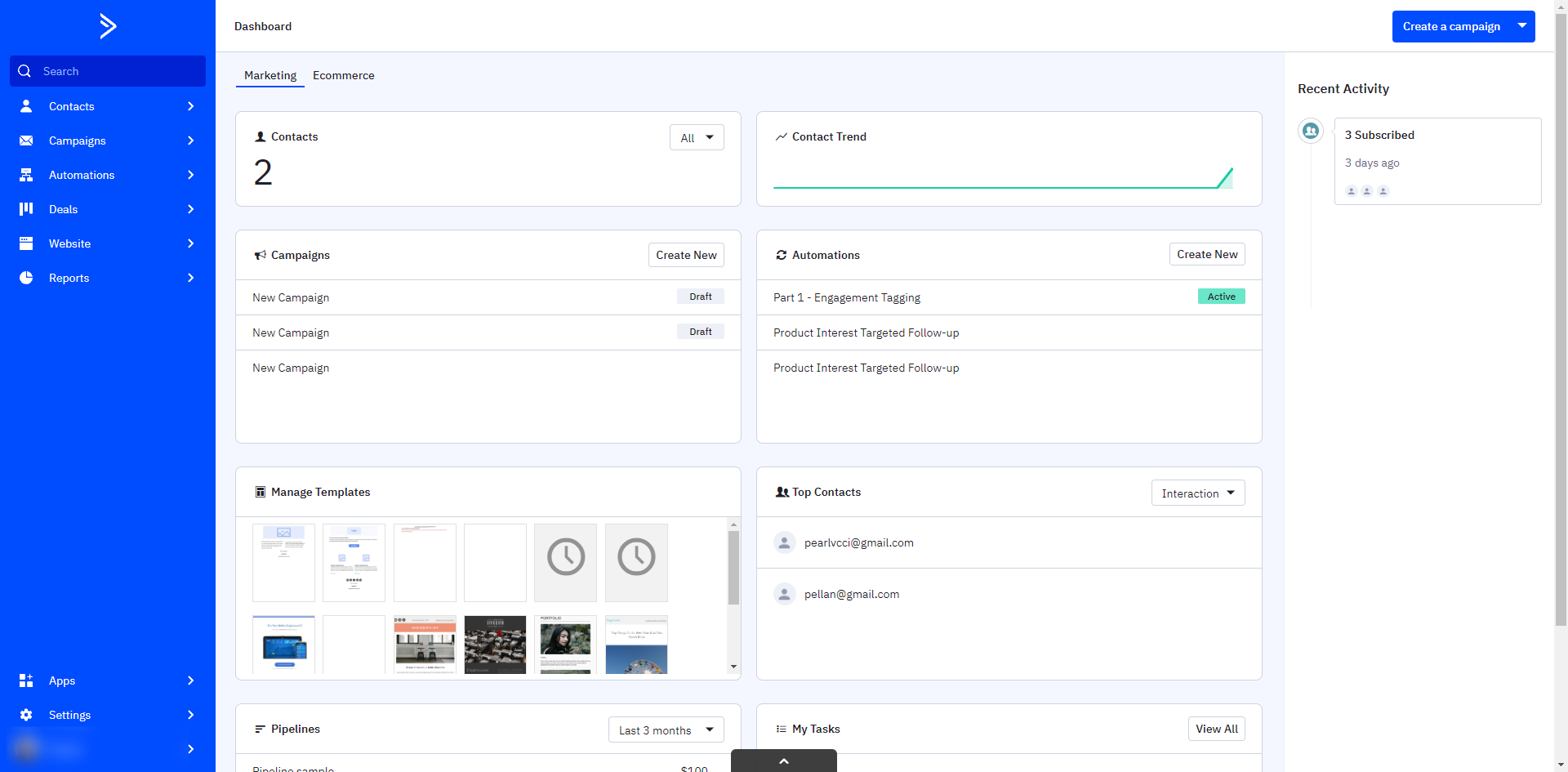
Configure and enable custom goals inside your ActiveCampaign automations by setting conditions and specific triggers. This guide covers how Do Goals Work in ActiveCampaign in 8 steps, starting with "On automation's editor dashboard, click the 'Add' icon below the Trigger section" and finishing with "After completing these steps, your customized ActiveCampaign Goals will be added to the...". The interactive demo above is a click-through copy of the real ActiveCampaign interface, so you can rehearse each step before doing it in your own account.
Frequently asked questions
How many steps does how Do Goals Work in ActiveCampaign take?
8 steps. Each one is listed in order above, and the demo highlights exactly where to click.
Can I try it without changing my own account?
Yes. Clicking through the demo doesn't touch your ActiveCampaign data or settings. Once you know the flow, repeat it in your own workspace.
This tutorial is filed under ActiveCampaign. Related guides: How Do I Change The Default Footer in My Emails, How Do I View Who Received My Email Campaign in ActiveCampaign and How to Add a Contact to an Automation in ActiveCampaign. Last reviewed 05 Oct 2026.

Create your first interactive demo in minutes
No credit card required • Start building today