How to Add Coupon Code to Klaviyo Email
- George Apostolov
How to Add Coupon Code to Klaviyo Email: step-by-step guide
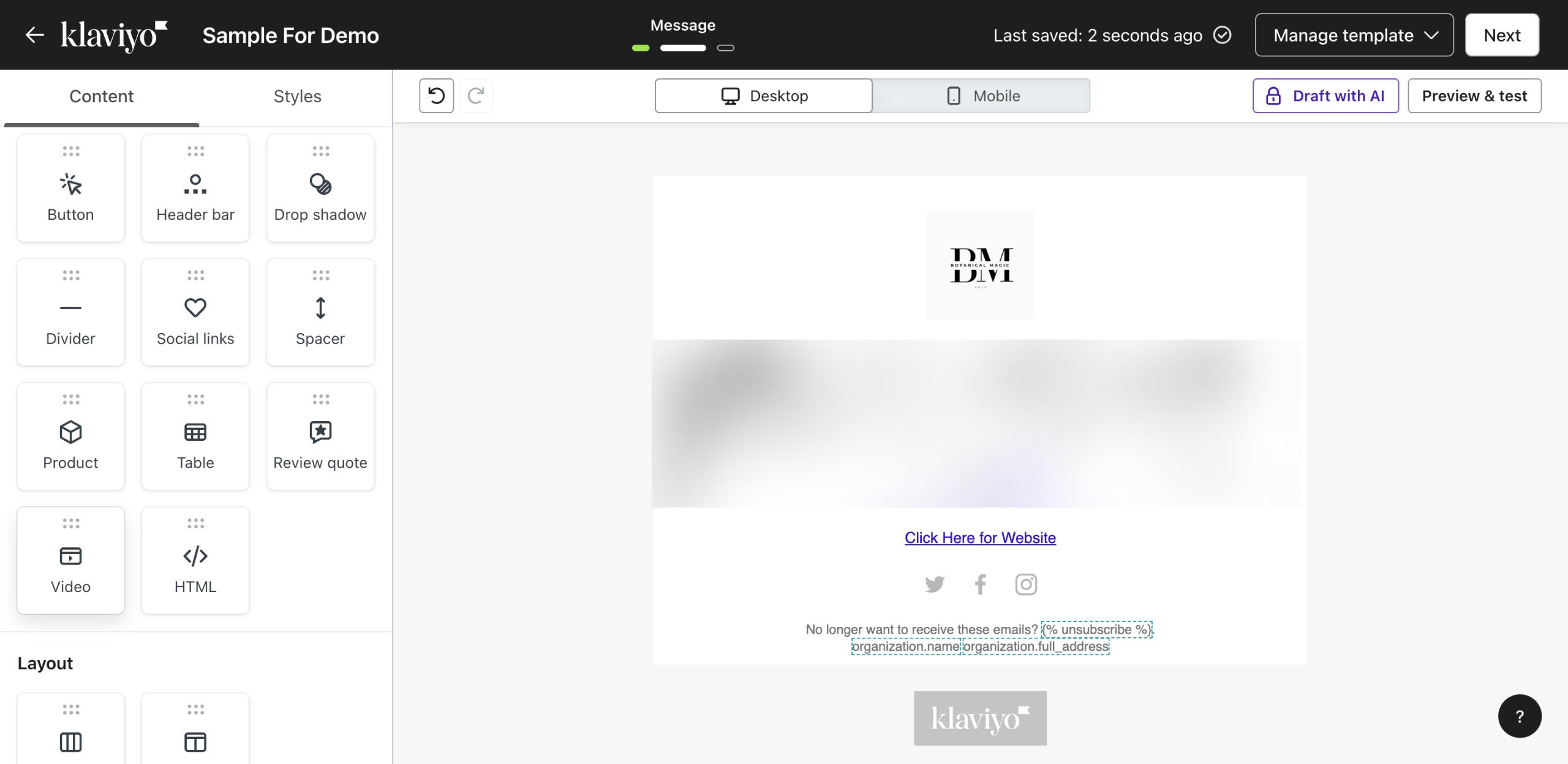
First, let's open your email template and get ready to add content blocks.
Click on 'Coupon' to add a section where your coupon code will appear.
Give your coupon code a unique name that you can track later in your analytics.
Set your discount parameters here - percentage off, minimum purchase, or free shipping.
Access these formatting controls to make your coupon code stand out visually.
Adjust the typography to ensure your coupon code is easy to read and copy.
Select a font that makes your coupon code clear and unmistakable for subscribers.
Use these design elements to create visual emphasis around your coupon offer.
Choose a color scheme that draws attention to your coupon code section.
Create a compelling message explaining the value of your coupon and how to redeem it.
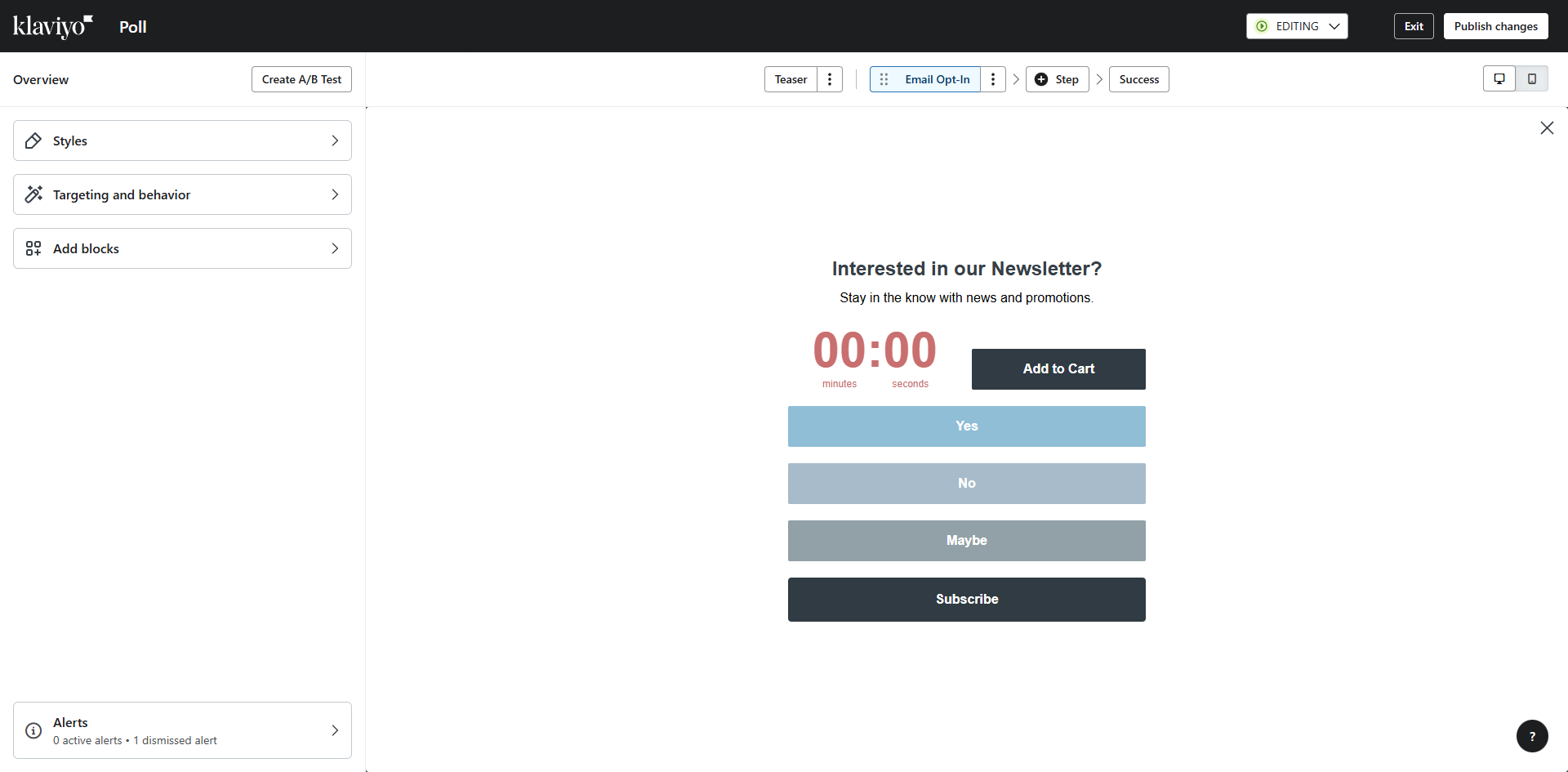
Review your email once more, then select 'Publish changes'.
Quick answer: To add a coupon code to your email in Klaviyo, open your template, click 'Coupon', and name your code. Next, set your discount parameters, adjust typography and formatting, and choose a color scheme for visual emphasis. Finally, add a redeeming message and select 'Publish changes'.
About this Klaviyo tutorial
Insert and style trackable discount codes in your Klaviyo email templates with custom typography, parameters, and color schemes. This guide shows how to add Coupon Code to Klaviyo Email in 11 steps, starting with "First, let's open your email template and get ready to add content blocks" and finishing with "Review your email once more, then select 'Publish changes'". The interactive demo above is a click-through copy of the real Klaviyo interface, so you can rehearse each step before doing it in your own account.
Frequently asked questions
How many steps does it take to add Coupon Code to Klaviyo Email?
11 steps. Each one is listed in order above, and the demo highlights exactly where to click.
Can I try it without changing my own account?
Yes. Clicking through the demo doesn't touch your Klaviyo data or settings. Once you know the flow, repeat it in your own workspace.
This tutorial is filed under Klaviyo. Related guides: How to Add a Dynamic Add to Cart Block in Klaviyo, How to Add a Gif to Klaviyo and How to Add a Google Font in Klaviyo. Last reviewed 05 Oct 2026.

Create your first interactive demo in minutes
No credit card required • Start building today