How To Add Background Video In Webflow
- George Apostolov
How To Add Background Video In Webflow: step-by-step guide
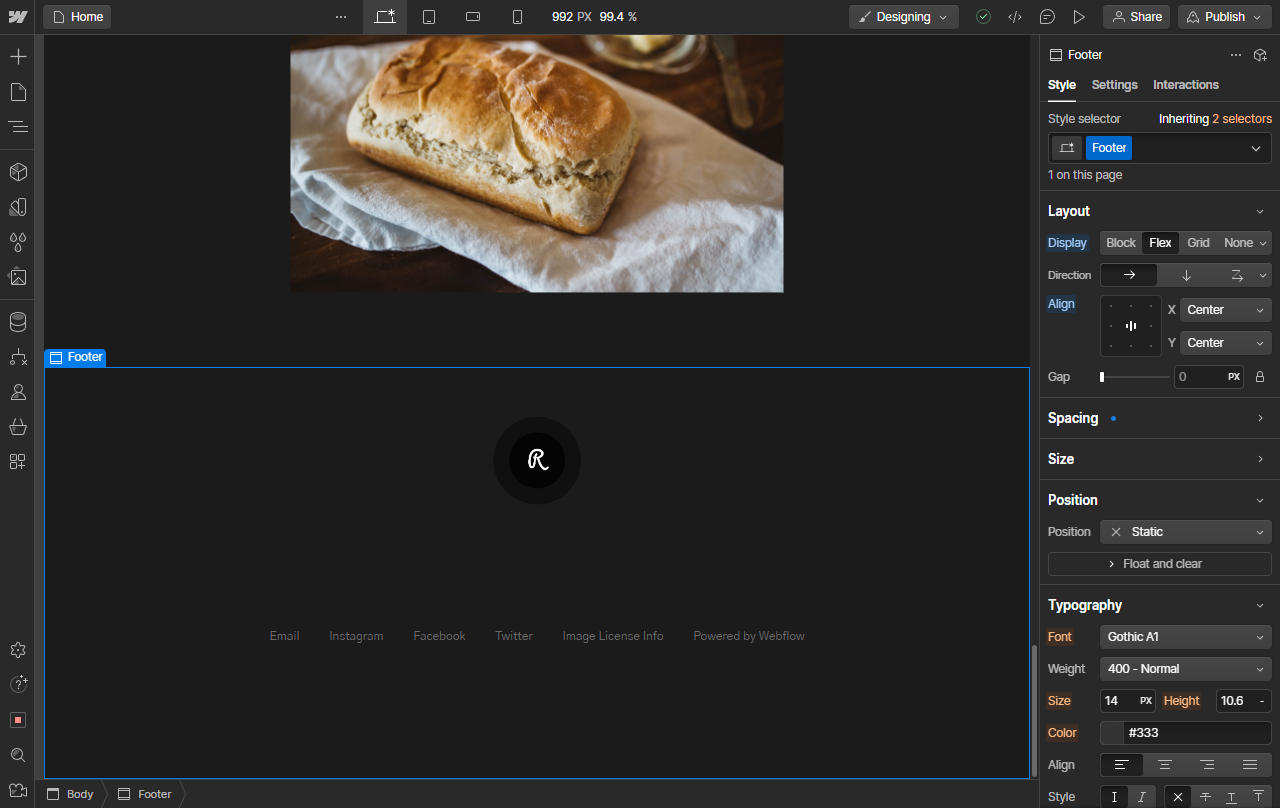
Go to the Add Elements section in the left sidebar menu.
Use the search bar or look under the Advanced section for Background Video.
Once you add this to your section. A pop-up menu will open allowing you to upload a video, configure a few settings, all of which can also be found on the right sidebar menu.
Configure options and upload a video to use as background for this section.
You will notice the video in a small player once uploaded. Close this menu.
You will now notice that this background element is taking up space in your section. To fix this, we will position it out of plane.
On the right sidebar, under Position, locate the Position option.
Change this to Absolute. This will fix the background element to its parent.
Now that our background video is in the background, it still has no width.
Go to the Size section in the right sidebar menu.
Set Width to 100% for full width. Also consider modifying the height as required.
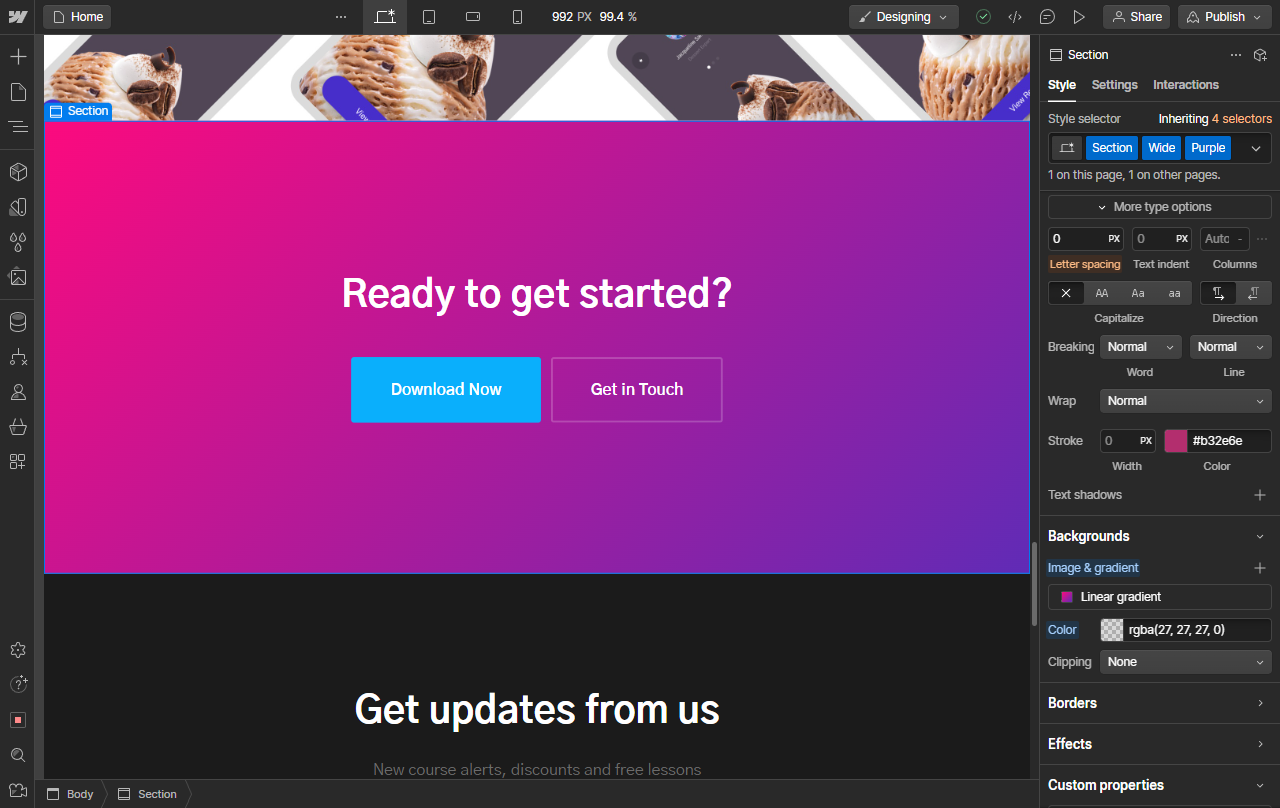
Now that we have our background video, it is still not visible due to the section's own backgrounds. To change this, select the section.
Locate the Background section at the bottom on the right sidebar menu and delete any existing backgrounds, gradients or images.
You will notice your background video is now fully visible.
Use the Webflow Preview to see your video play in the background on the live website.
Quick answer: To add a background video in Webflow, insert the Background Video element from the left sidebar, upload and configure the video, set its position to absolute and width to 100%, and remove any conflicting section backgrounds.
About this Webflow tutorial
Add and configure background videos in Webflow by positioning elements absolutely, setting full width, and removing conflicting section backgrounds. This guide shows how to add Background Video In Webflow in 15 steps, starting with "Go to the Add Elements section in the left sidebar menu" and finishing with "Use the Webflow Preview to see your video play in the background on the live website". The interactive demo above is a click-through copy of the real Webflow interface, so you can rehearse each step before doing it in your own account.
Frequently asked questions
How many steps does it take to add Background Video In Webflow?
15 steps. Each one is listed in order above, and the demo highlights exactly where to click.
Can I try it without changing my own account?
Yes. Clicking through the demo doesn't touch your Webflow data or settings. Once you know the flow, repeat it in your own workspace.
This tutorial is filed under Webflow. Related guides: How To Add Bullet Points In Webflow, How To Add Calendly To Webflow and How To Add Canonical Tag In Webflow. Last reviewed 05 Oct 2026.

Create your first interactive demo in minutes
No credit card required • Start building today