tags. Do not include the and tags, your code is automatically placed inside them.","url":"https://livedemo.ai/tutorials/how-to-add-javascript-to-webflow/#step-5"},{"@type":"HowToStep","position":6,"name":"Validate and save your changes.","text":"Validate and save your changes. Note that all code applied here will be applied to all pages of your project.","url":"https://livedemo.ai/tutorials/how-to-add-javascript-to-webflow/#step-6"},{"@type":"HowToStep","position":7,"name":"To apply JavaScript to a specific page, from inside the editor, go to the Pages tab in the left sidebar menu.","text":"To apply JavaScript to a specific page, from inside the editor, go to the Pages tab in the left sidebar menu.","url":"https://livedemo.ai/tutorials/how-to-add-javascript-to-webflow/#step-7"},{"@type":"HowToStep","position":8,"name":"Hover over the page name to reveal a small gear icon for settings.","text":"Hover over the page name to reveal a small gear icon for settings. Click to open.","url":"https://livedemo.ai/tutorials/how-to-add-javascript-to-webflow/#step-8"},{"@type":"HowToStep","position":9,"name":"Scroll to the bottom to find the Custom Code section.","text":"Scroll to the bottom to find the Custom Code section. Click to expand.","url":"https://livedemo.ai/tutorials/how-to-add-javascript-to-webflow/#step-9"},{"@type":"HowToStep","position":10,"name":"Note that although you can add JavaScript to the head section of your page, it can increase the load time f...","text":"Note that although you can add JavaScript to the head section of your page, it can increase the load time for your page. Instead, it is recommended to add scripts before the tag, for which you may scroll down to the Before the tag section.","url":"https://livedemo.ai/tutorials/how-to-add-javascript-to-webflow/#step-10"},{"@type":"HowToStep","position":11,"name":"Embed your JavaScript code inside this section for best performance.","text":"Embed your JavaScript code inside this section for best performance. Make sure you wrap your code inside the tags. Do not include the and tags, your code is automatically placed inside them.","url":"https://livedemo.ai/tutorials/how-to-add-javascript-to-webflow/#step-11"},{"@type":"HowToStep","position":12,"name":"Save your changes and publish your project to see them live.","text":"Save your changes and publish your project to see them live.","url":"https://livedemo.ai/tutorials/how-to-add-javascript-to-webflow/#step-12"}],"author":{"@type":"Person","name":"George Apostolov"},"publisher":{"@id":"https://livedemo.ai/#organization"},"datePublished":"2025-09-05T21:48:45.141Z","dateModified":"2026-10-05T20:45:57.864Z"},{"@type":"BreadcrumbList","@id":"https://livedemo.ai/tutorials/how-to-add-javascript-to-webflow/#breadcrumb","itemListElement":[{"@type":"ListItem","position":1,"name":"Home","item":"https://livedemo.ai/"},{"@type":"ListItem","position":2,"name":"Tutorials","item":"https://livedemo.ai/tutorials/"},{"@type":"ListItem","position":3,"name":"Webflow","item":"https://livedemo.ai/tutorials/categories/webflow/"},{"@type":"ListItem","position":4,"name":"How To Add JavaScript To Webflow","item":"https://livedemo.ai/tutorials/how-to-add-javascript-to-webflow/"}]}]}
LiveDemo - Open-source alternative to Storylane, Navattic, and Arcade | Product Hunt

How To Add JavaScript To Webflow


How To Add JavaScript To Webflow: step-by-step guide

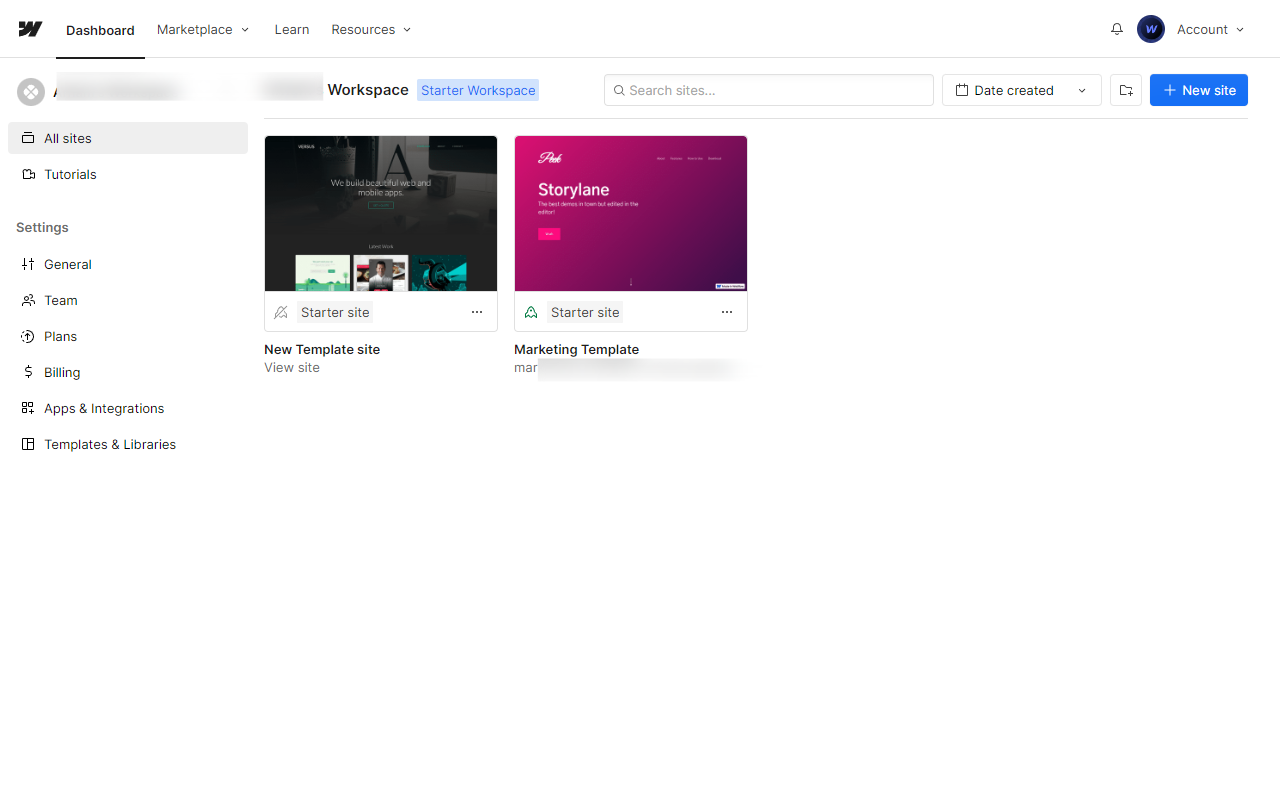
  1. From the Webflow dashboard locate your project thumbnail and click on the three dotted icon to view options.

  2. Click on Settings.

  3. From the left sidebar, navigate to the Custom code section.

  4. This page will contain different sections for head, body and footer. Although you may add JavaScript code inside the head, it can slow your page load times. Instead it is recommended to add it in the body section.

  5. Scroll down to find the section that says Add code before </body> tag and enter your code. Make sure you wrap your code inside the <script> and </script> tags. Do not include the <body> and </body> tags, your code is automatically placed inside them.

  6. Validate and save your changes. Note that all code applied here will be applied to all pages of your project.

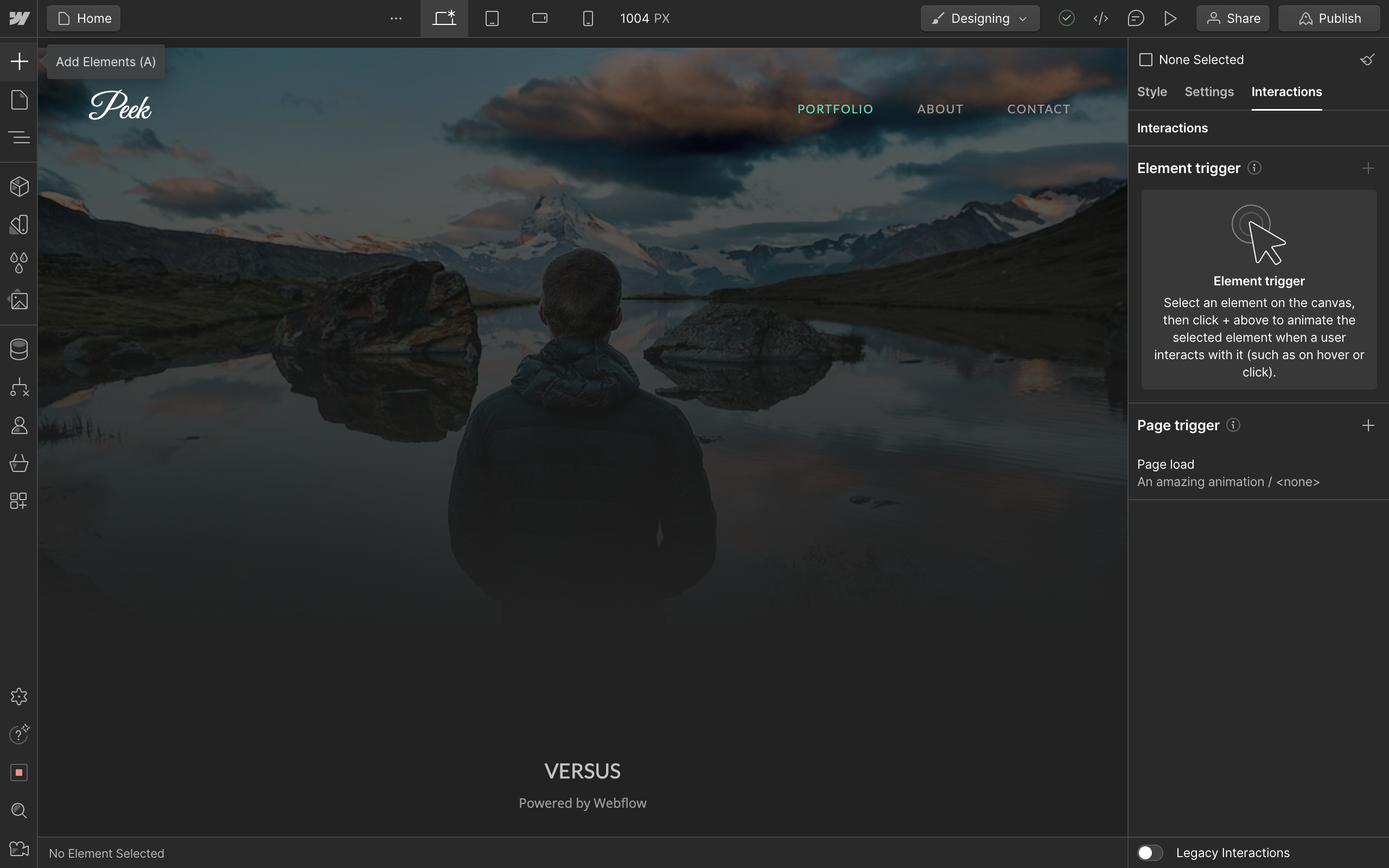
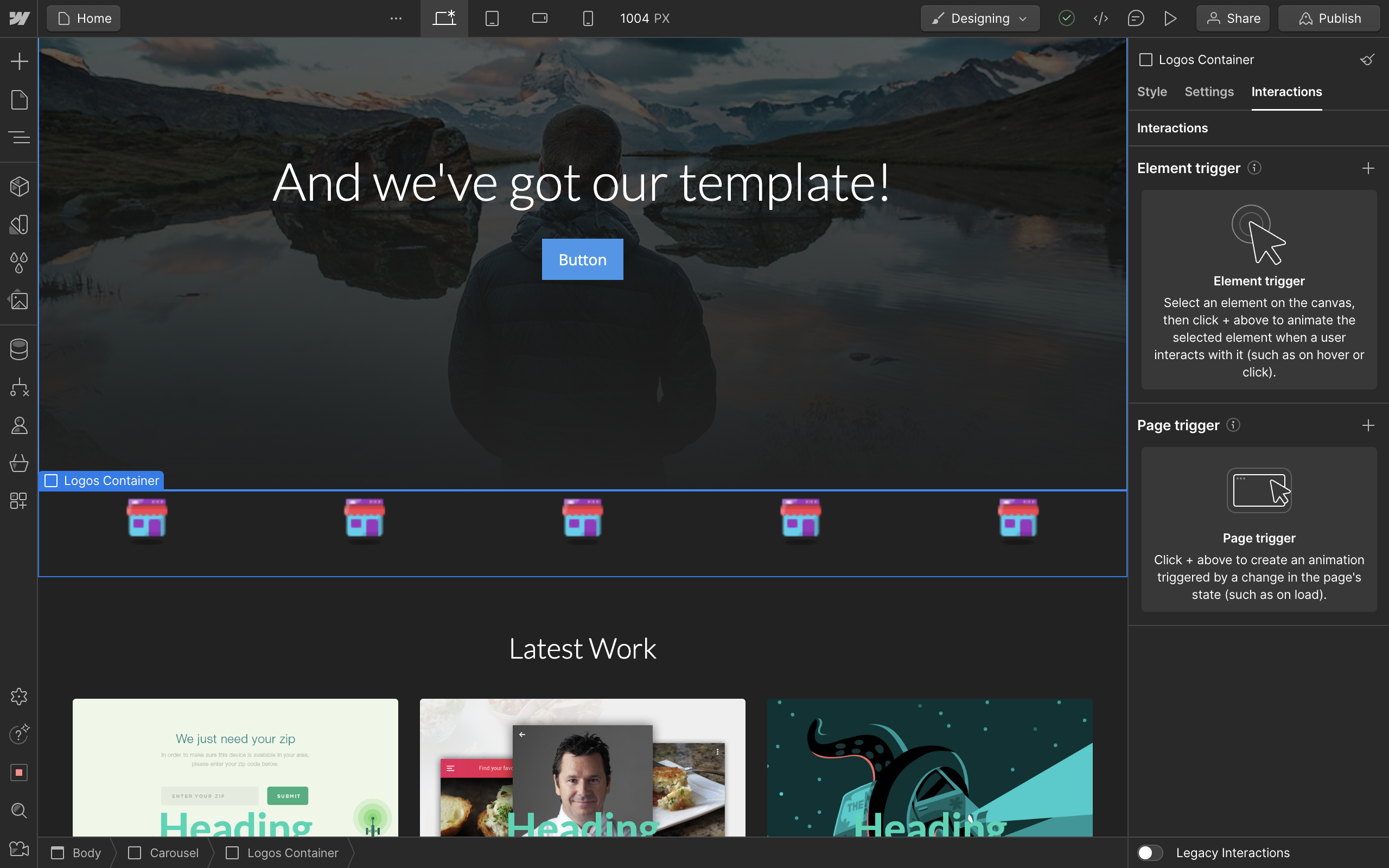
  7. To apply JavaScript to a specific page, from inside the editor, go to the Pages tab in the left sidebar menu.

  8. Hover over the page name to reveal a small gear icon for settings. Click to open.

  9. Scroll to the bottom to find the Custom Code section. Click to expand.

  10. Note that although you can add JavaScript to the head section of your page, it can increase the load time for your page. Instead, it is recommended to add scripts before the </body> tag, for which you may scroll down to the Before the </body> tag section.

  11. Embed your JavaScript code inside this section for best performance. Make sure you wrap your code inside the <script> and </script> tags. Do not include the <body> and </body> tags, your code is automatically placed inside them.

  12. Save your changes and publish your project to see them live.

Quick answer: To add JavaScript to Webflow, click the project settings icon from the dashboard, navigate to the Custom code section, and enter your code wrapped in script tags before the body tag. Alternatively, apply it to a specific page via the Pages tab settings, then save and publish your project.

About this Webflow tutorial

Embed custom JavaScript code into your Webflow project globally or on specific pages by updating the custom code settings before publishing. This guide shows how to add JavaScript To Webflow in 12 steps, starting with "From the Webflow dashboard locate your project thumbnail and click on the three dotted..." and finishing with "Save your changes and publish your project to see them live". The interactive demo above is a click-through copy of the real Webflow interface, so you can rehearse each step before doing it in your own account.

Frequently asked questions

How many steps does it take to add JavaScript To Webflow?

12 steps. Each one is listed in order above, and the demo highlights exactly where to click.

Can I try it without changing my own account?

Yes. Clicking through the demo doesn't touch your Webflow data or settings. Once you know the flow, repeat it in your own workspace.

This tutorial is filed under Webflow. Related guides: How To Add Pages In Webflow, How To Add Slider In Webflow and How To Add Text In Webflow. Last reviewed 05 Oct 2026.

LiveDemo - Open-source alternative to Storylane, Navattic, and Arcade | Product Hunt
🚀

Create your first interactive demo in minutes

No credit card required • Start building today

Start free→

This website uses cookies to enhance the user experience.

AcceptDecline