How to Begin a New Research Study Using SurveyMonkey
- George Apostolov
How to Begin a New Research Study Using SurveyMonkey: step-by-step guide
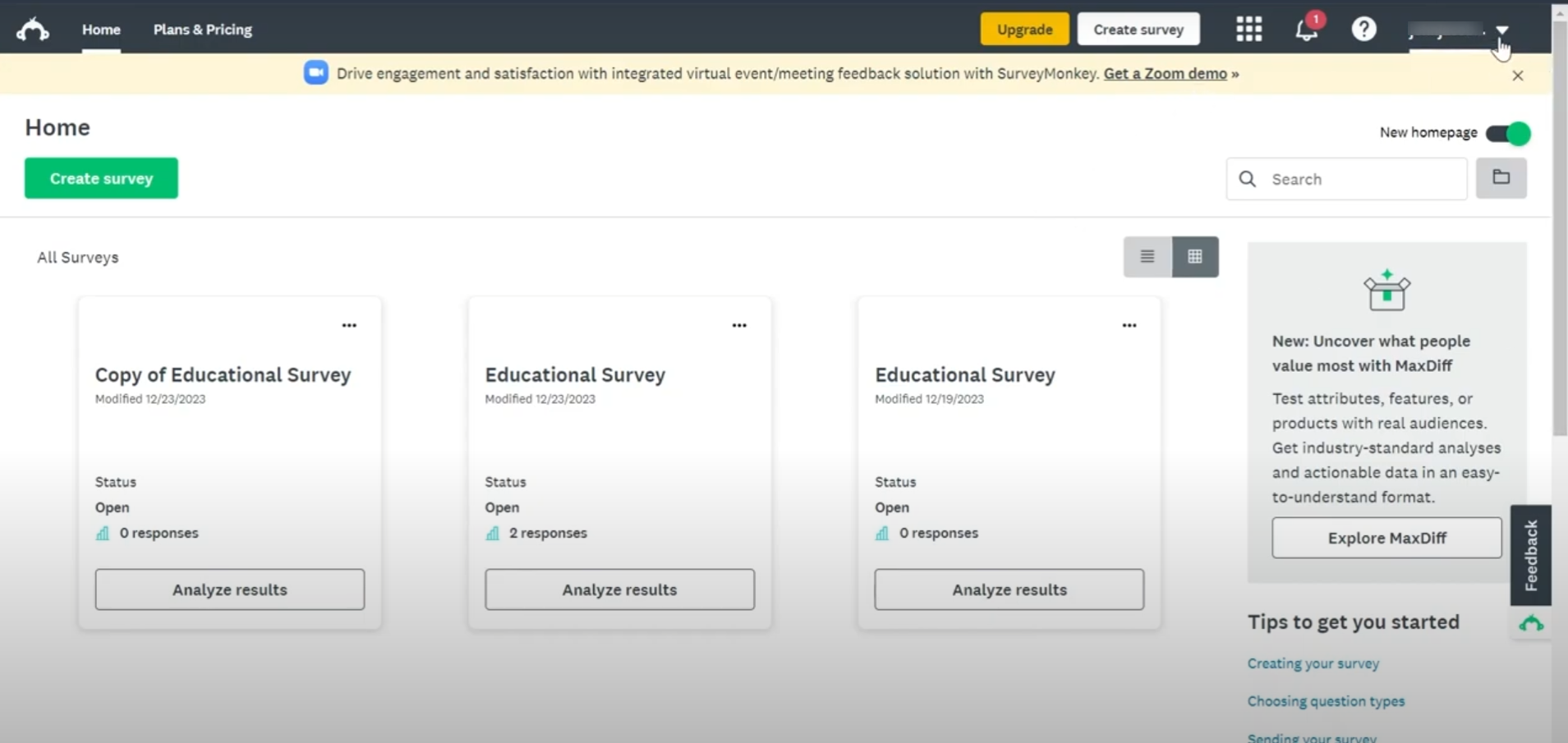
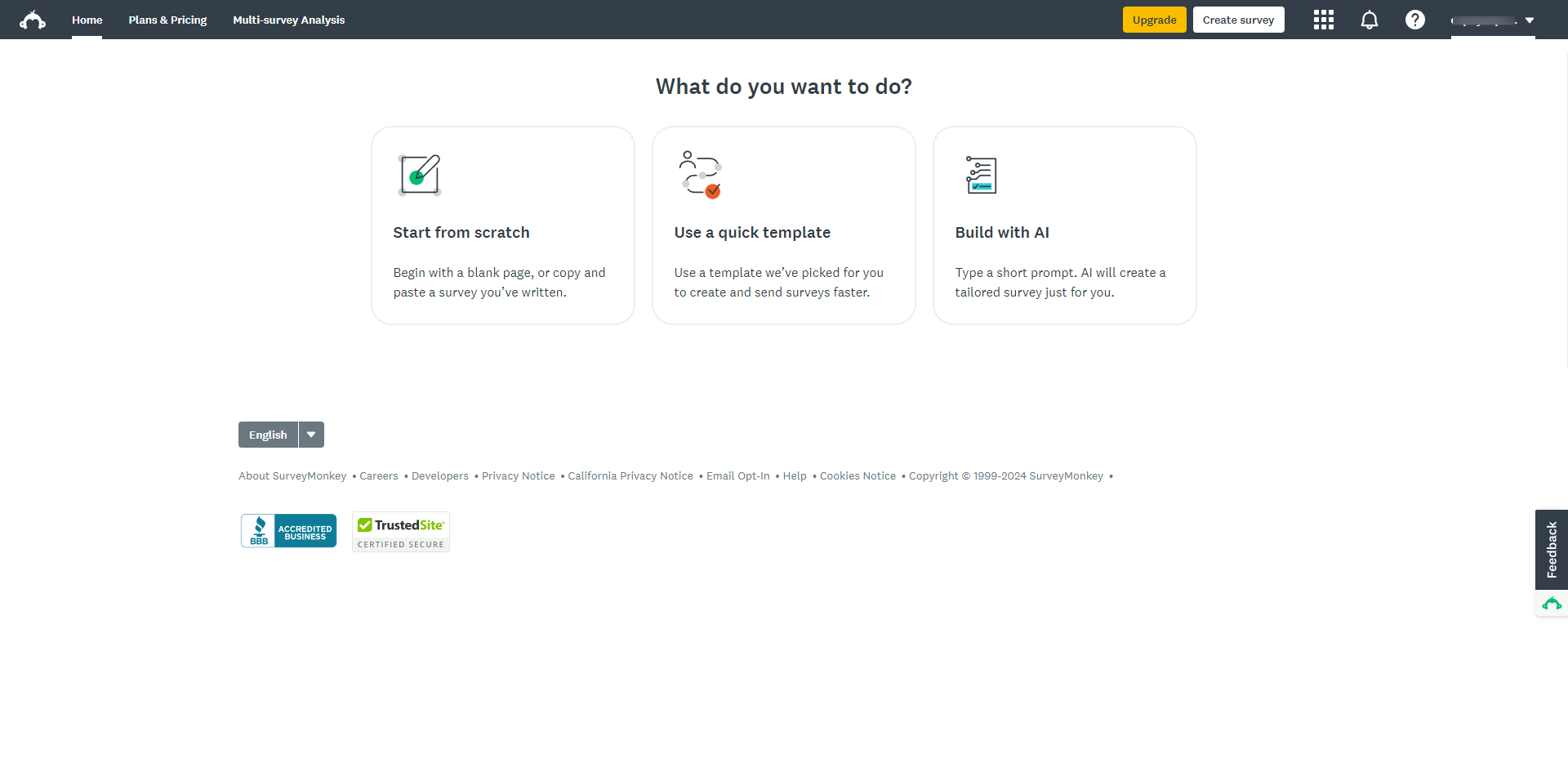
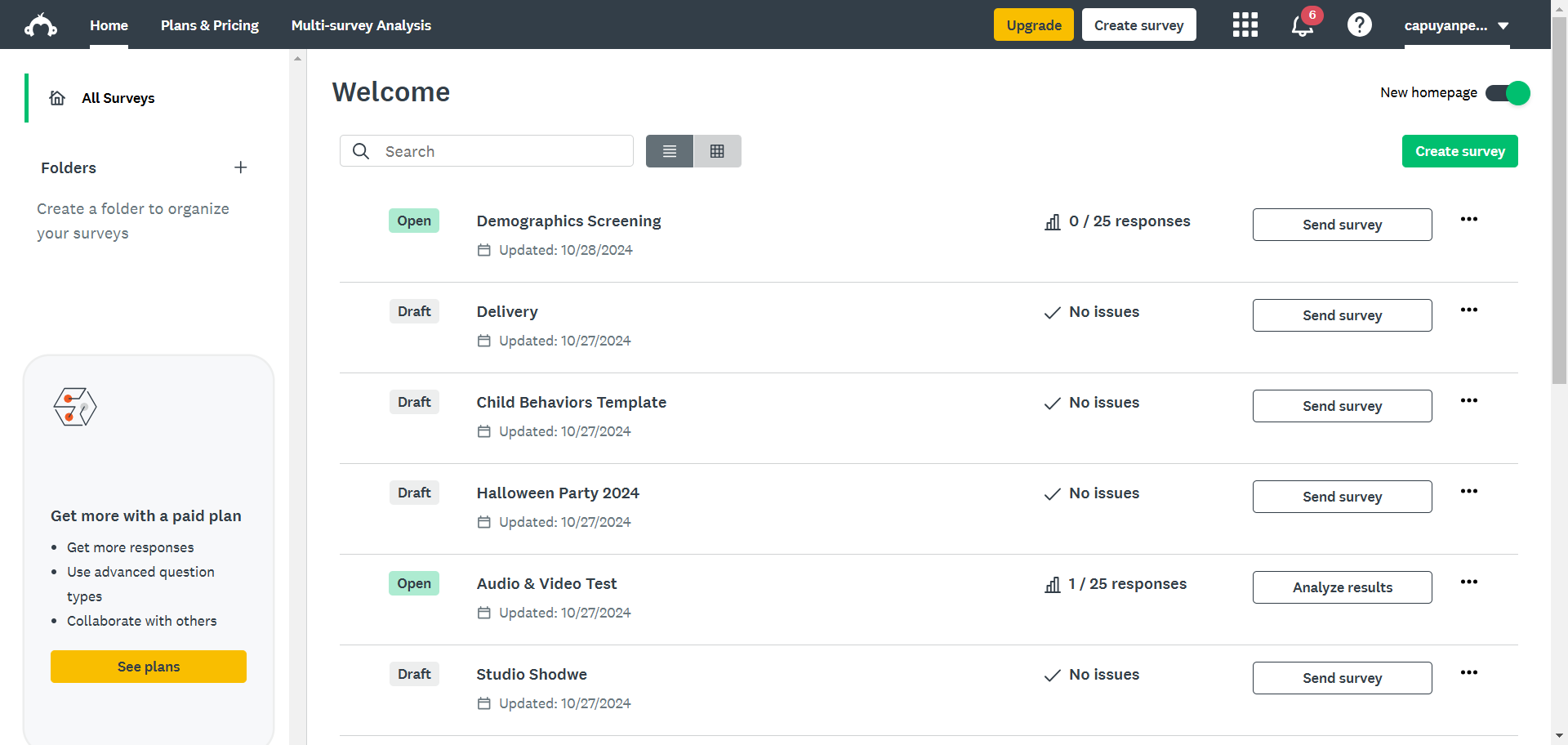
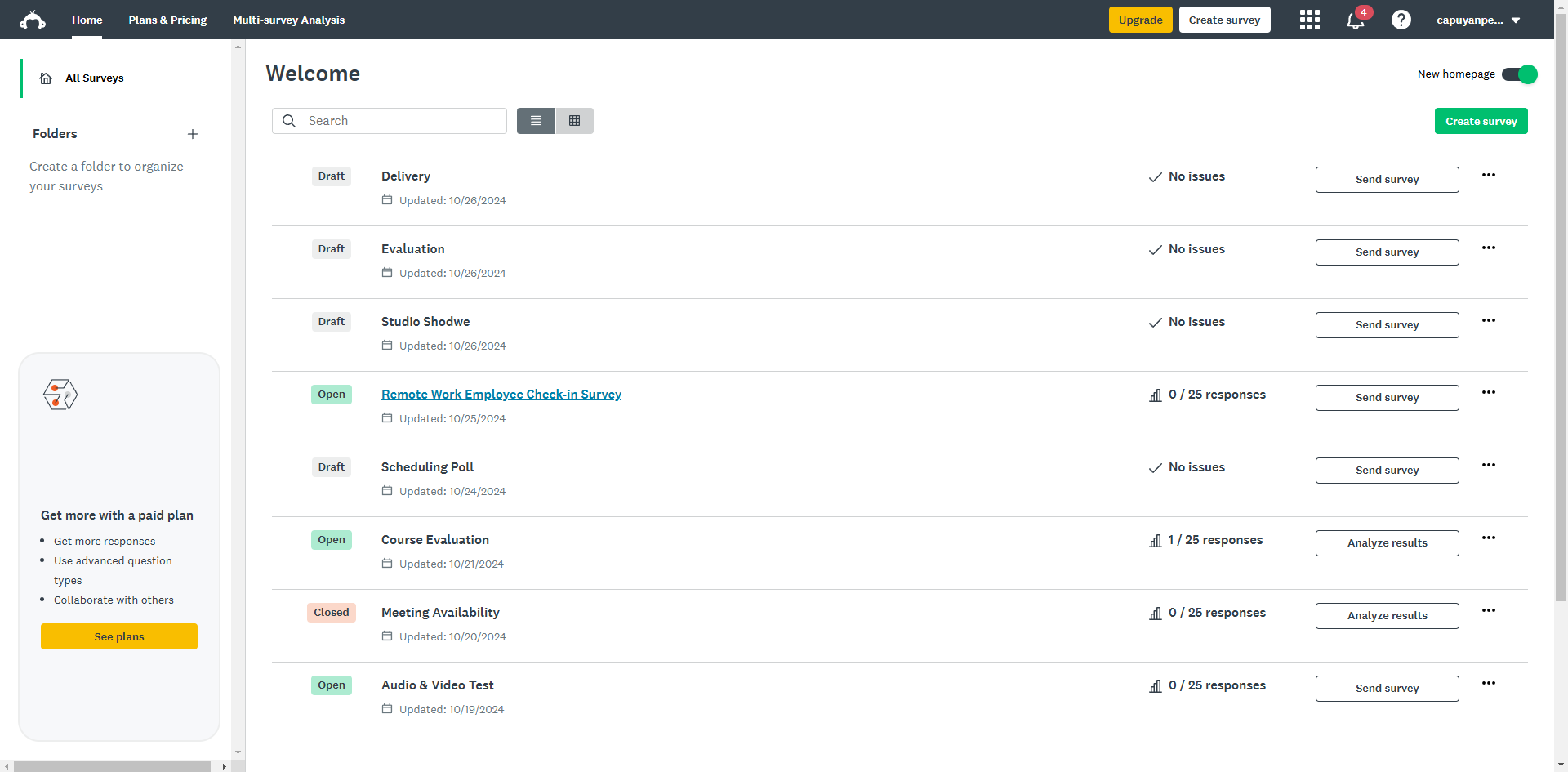
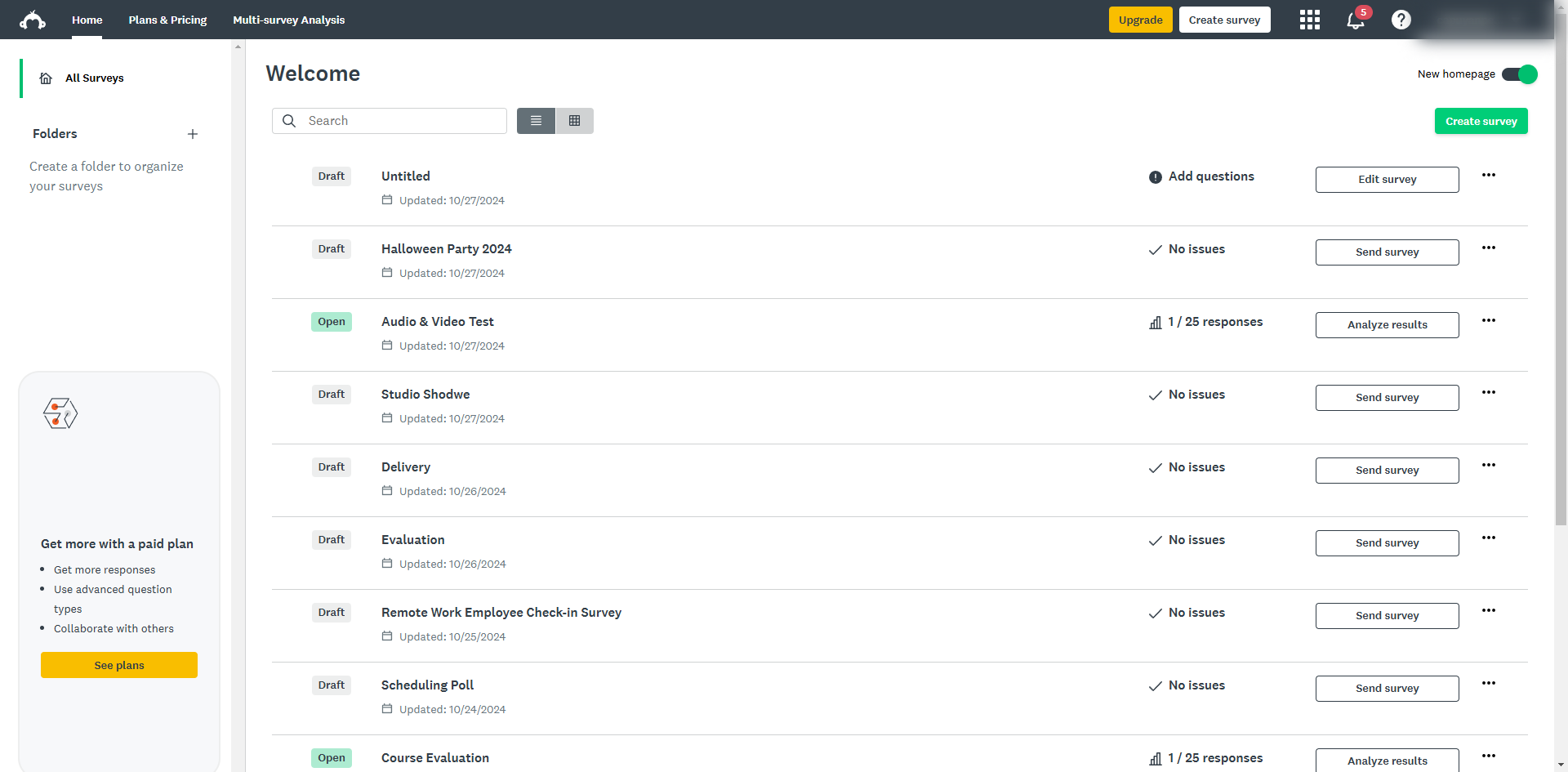
Once logged in, click on the 'Create Survey' button.
You can start from scratch or choose a pre-made template.
Select your preferred template.
To confirm, click 'Use this template'.
Use clear, unbiased language and avoid leading questions.
Select a question type for your survey.
Click 'Save'.
You can set up conditional branching by clicking the 'Logic' option so participants see only the questions relevant to them based on their previous answers.
Set your rule and condition.
Once done, click 'Save'.
Click the 'Preview survey' feature to experience the survey from a respondent’s perspective. Check for clarity and flow.
Once you're satisfied, click 'Continue'.
Select a method of how you would like to distribute your research.
Click 'Copy' to share your research survey and start collecting data.
Quick answer: To begin a new research study using SurveyMonkey, click Create Survey, select a template and confirm, add questions with saved types, set up optional logic rules, preview and continue, then select a distribution method and copy the link.
About this SurveyMonkey tutorial
Start a new research study in SurveyMonkey by creating a survey, adding questions, configuring logic, and copying the distribution link. This guide shows how to begin a New Research Study Using SurveyMonkey in 14 steps, starting with "Once logged in, click on the 'Create Survey' button" and finishing with "Click 'Copy' to share your research survey and start collecting data". The interactive demo above is a click-through copy of the real SurveyMonkey interface, so you can rehearse each step before doing it in your own account.
Frequently asked questions
How many steps does it take to begin a New Research Study Using SurveyMonkey?
14 steps. Each one is listed in order above, and the demo highlights exactly where to click.
Can I try it without changing my own account?
Yes. Clicking through the demo doesn't touch your SurveyMonkey data or settings. Once you know the flow, repeat it in your own workspace.
This tutorial is filed under SurveyMonkey. Related guides: How to Cancel SurveyMonkey Subscription, How to Center an Image on Intro Page in SurveyMonkey and How to Change Language in SurveyMonkey. Last reviewed 05 Oct 2026.

Create your first interactive demo in minutes
No credit card required • Start building today