How to Build Interactive Coda Forms That Connect to External Systems
- George Apostolov
How to Build Interactive Coda Forms That Connect to External Systems: step-by-step guide
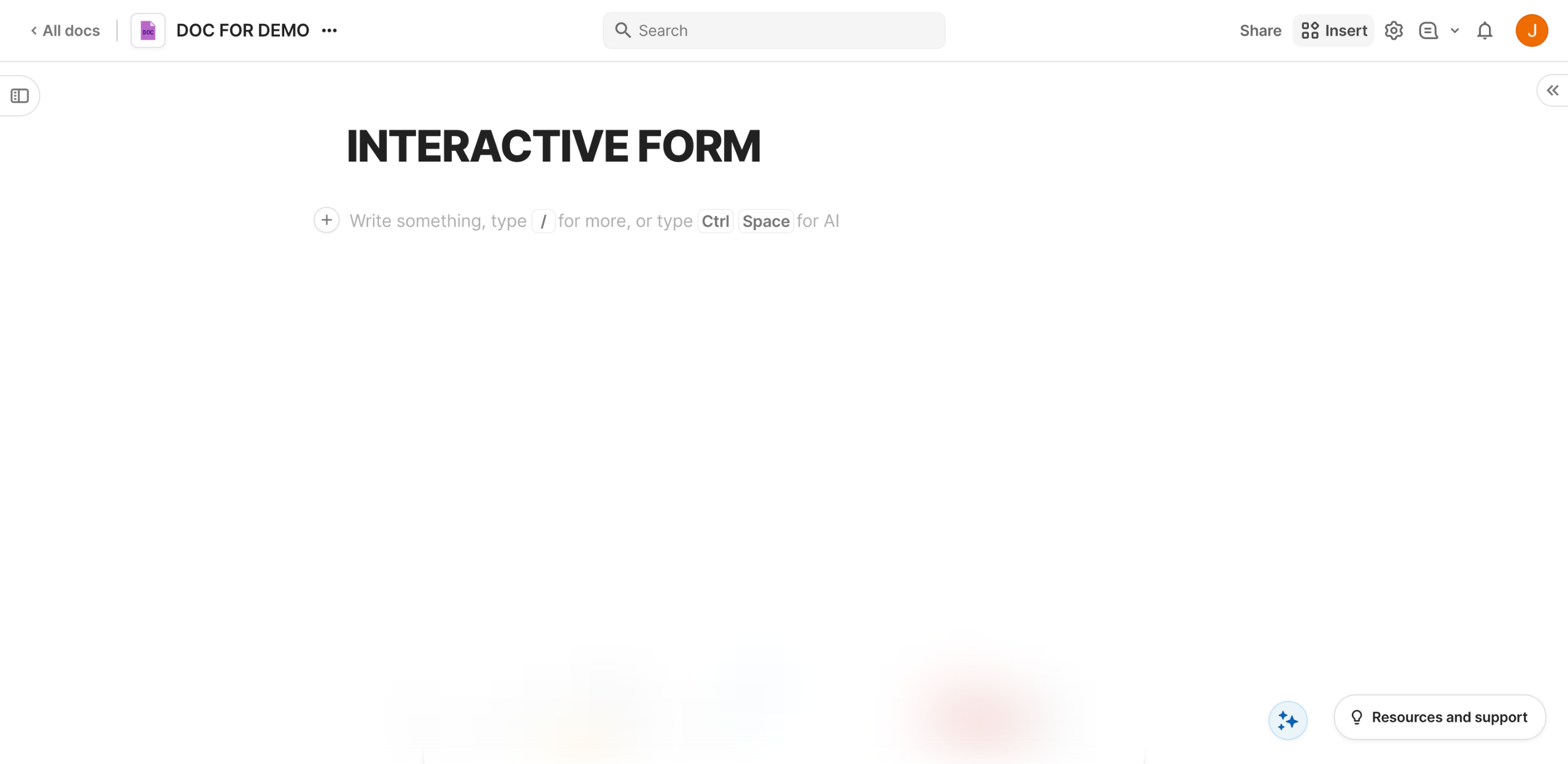
Inside your Coda doc, go to the top-right corner and click 'Insert'.
Click the provided search bar and type 'Form'.
After that, select 'Form' from the choices under Tables and drag it to the main workspace for further customization.
Come up with a unique form name and enter it into the provided input field. To customize its style, use the options in the floating bar to make your desired changes.
Subsequently, head over to the Form Results table and double-click on the cell in the column header to edit its content. Type the labels accordingly.
Head back to the form and click its corresponding 'Edit Layout' button to make further customizations.
Review the default settings and adjust each input according to your liking.
After that, click 'Done' to apply the changes.
If you're already satisfied with the current calibration of your Coda form, click 'Publish Form'.
Tap 'Create Link' afterwards.
To connect the form to external systems like data collection sites and platforms, tap 'Copy Link'. Use this URL to share your forms via social media posts, messages, and the like.
On the one hand, click 'Advanced' and use the embed code instead if you want to add your Coda form to a website or other similar platforms.
Quick answer: To build interactive forms that connect to external systems in Coda, insert and customize a form, edit the Form Results table, adjust layout settings, and publish or copy the link to share.
About this Coda tutorial
Build and connect interactive Coda forms to external platforms by customizing layouts, editing result tables, and sharing via links or embeds. This guide shows how to build Interactive Coda Forms That Connect to External Systems in 12 steps, starting with "Inside your Coda doc, go to the top-right corner and click 'Insert'" and finishing with "On the one hand, click 'Advanced' and use the embed code instead if you want to add you...". The interactive demo above is a click-through copy of the real Coda interface, so you can rehearse each step before doing it in your own account.
Frequently asked questions
How many steps does it take to build Interactive Coda Forms That Connect to External Systems?
12 steps. Each one is listed in order above, and the demo highlights exactly where to click.
Can I try it without changing my own account?
Yes. Clicking through the demo doesn't touch your Coda data or settings. Once you know the flow, repeat it in your own workspace.
This tutorial is filed under Coda. Related guides: How to Build Reports From HubSpot Data in Coda, How to Build Social Media Calendars in Coda with Buffer and How to Calculate Averages in Coda. Last reviewed 05 Oct 2026.

Create your first interactive demo in minutes
No credit card required • Start building today