How To Connect Google Analytics To Webflow
This guide is an interactive LiveDemo. Create interactive demos of your own product: Interactive demo software · Interactive customer onboarding guides · Start free
How To Connect Google Analytics To Webflow: step-by-step guide
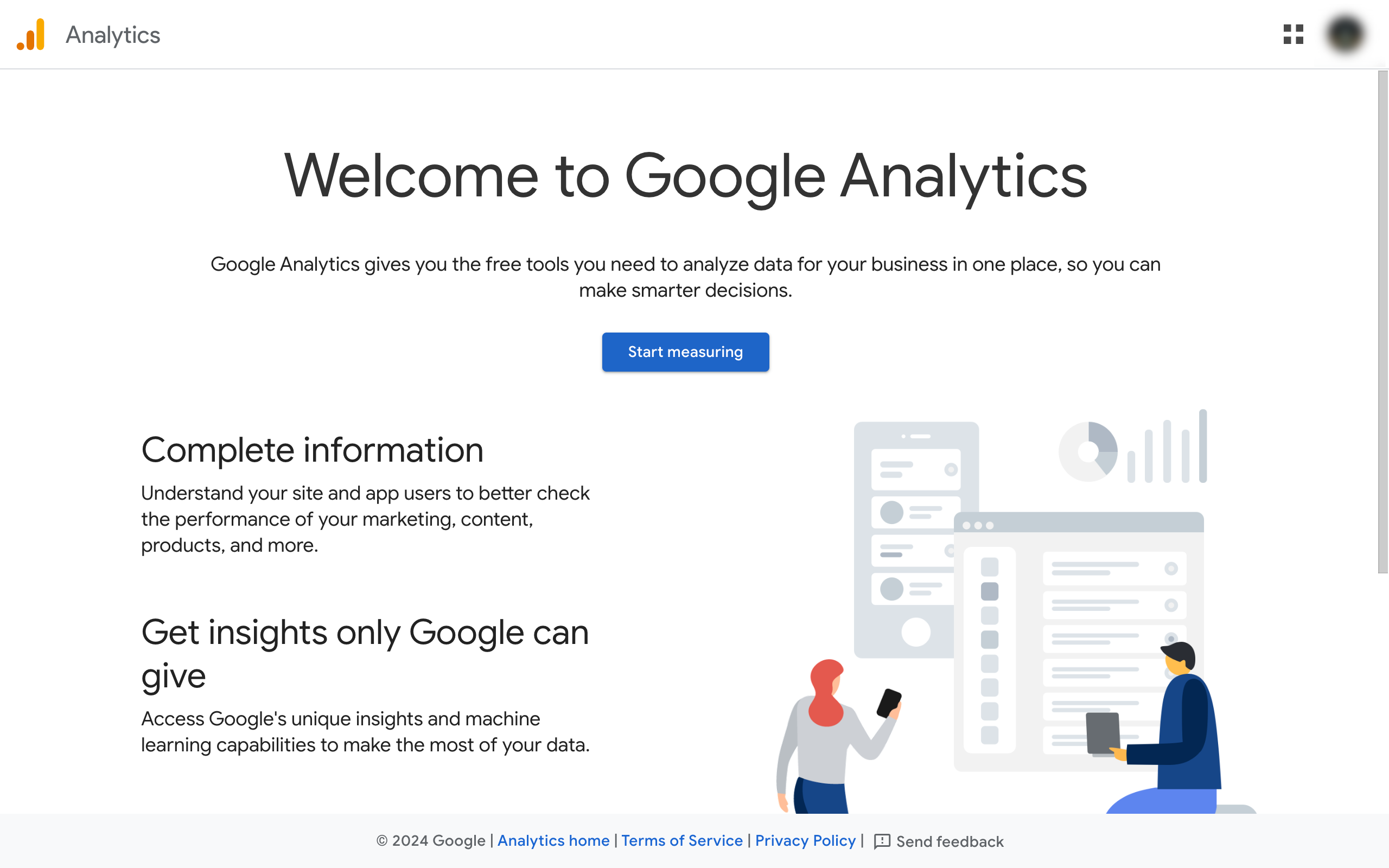
Begin by navigating to the Google Analytics page, if not already set up you will be met with a Start measuring button to get started.
Enter a name for your account.
Scroll down and click on Next.
Enter a name and other details for your Google Analytics 4 property and click Next.
Describe your business and click Next.
Pick the best options for your use case and click on Create.
Accept the terms by clicking on I Accept to begin using your GA Account.
For our Webflow project, select Web as a platform.
Enter the URL for your project and a name for your analytics stream and then click on Create & continue on the top right.
You will now have the option to set up your Google tags, although you can still use the manual option to add it to your Webflow project using the custom code feature, we will be using the G-ID. To find your ID, close this window.
Click on your stream listing.
Under Stream details, copy the Measurement ID.
Close the menu and click on Next.
Now your setup is complete, click on Continue to go to Home.
You will now gather data which will be visible here.
Now back into Webflow, go to your Dashboard.
Locate your project and click on the three dotted icon for more options.
Select Settings.
Go to the Apps & Integrations section from the left sidebar menu.
Locate the Google Analytics section and the Measurement ID field under it.
Paste your Measurement ID that you previously copied here and click on Save.
A pop-up will verify your changes have been saved.
You can now publish your project to push all changes to live to begin collecting data and analytics which will reflect in your Google Analytics Dashboard.
Quick answer: To connect Google Analytics to Webflow, set up your account and property on Google Analytics, select Web as a platform, copy your Measurement ID from the stream details, and paste it into the Google Analytics section within your Webflow project settings before saving and publishing your project.
About this Google tutorial
Link Google Analytics to Webflow by adding your Measurement ID to project settings and publishing changes to start tracking data. This guide shows how to connect Google Analytics To Webflow in 23 steps, starting with "Begin by navigating to the Google Analytics page, if not already set up you will be met..." and finishing with "You can now publish your project to push all changes to live to begin collecting data a...". The interactive demo above is a click-through copy of the real Google interface, so you can rehearse each step before doing it in your own account.
Frequently asked questions
How many steps does it take to connect Google Analytics To Webflow?
23 steps. Each one is listed in order above, and the demo highlights exactly where to click.
Can I try it without changing my own account?
Yes. Clicking through the demo doesn't touch your Google data or settings. Once you know the flow, repeat it in your own workspace.
This tutorial is filed under Google and Webflow. Related guides: How to connect google calendar to notion, How to connect google calendar to slack and How to connect google console in semrush. Last reviewed 05 Oct 2026.

Create your first interactive demo in minutes
No credit card required • Start building today