How to Collaborate in Amplitude Notebooks
- George Apostolov
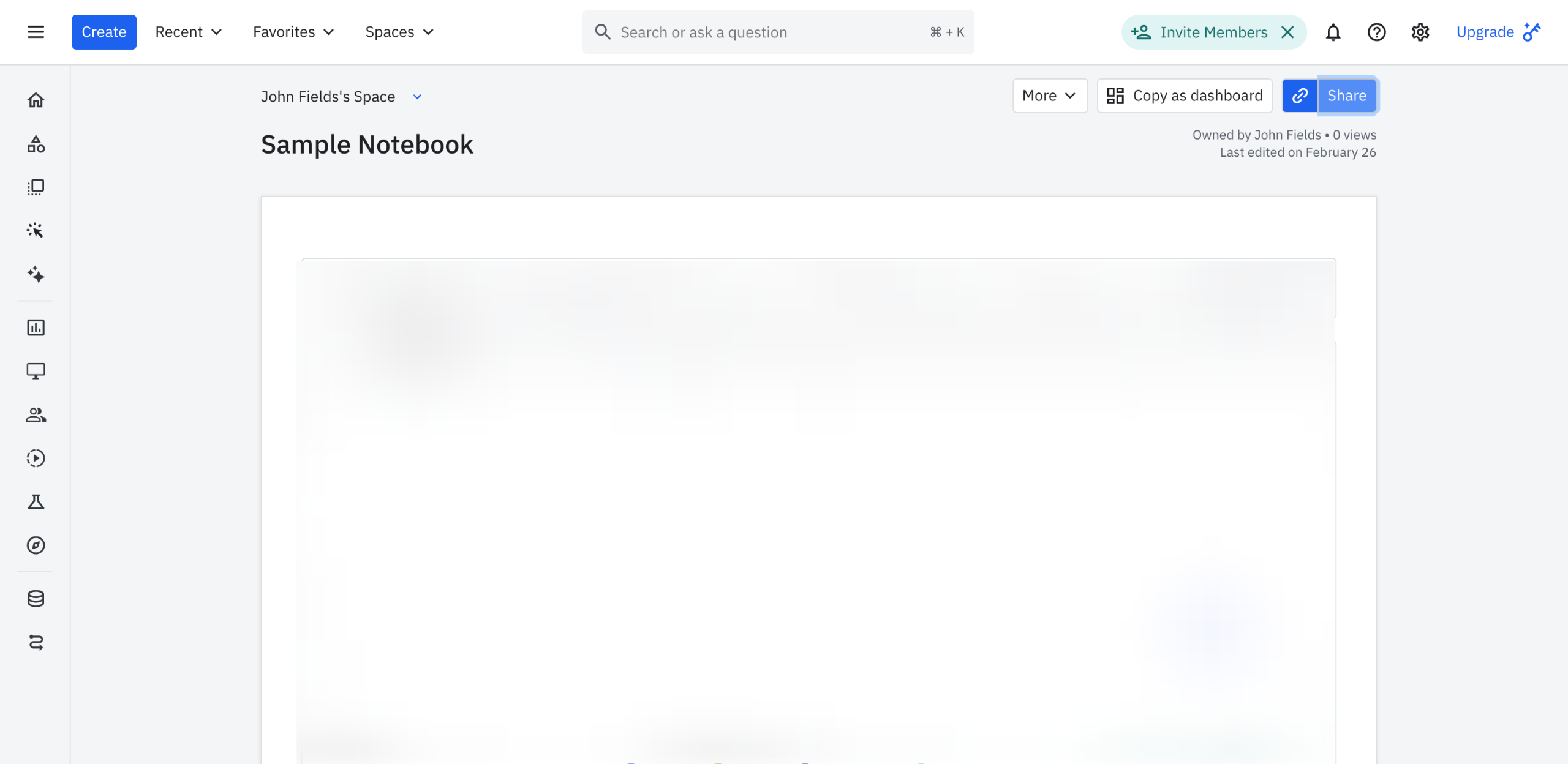
How to Collaborate in Amplitude Notebooks: step-by-step guide
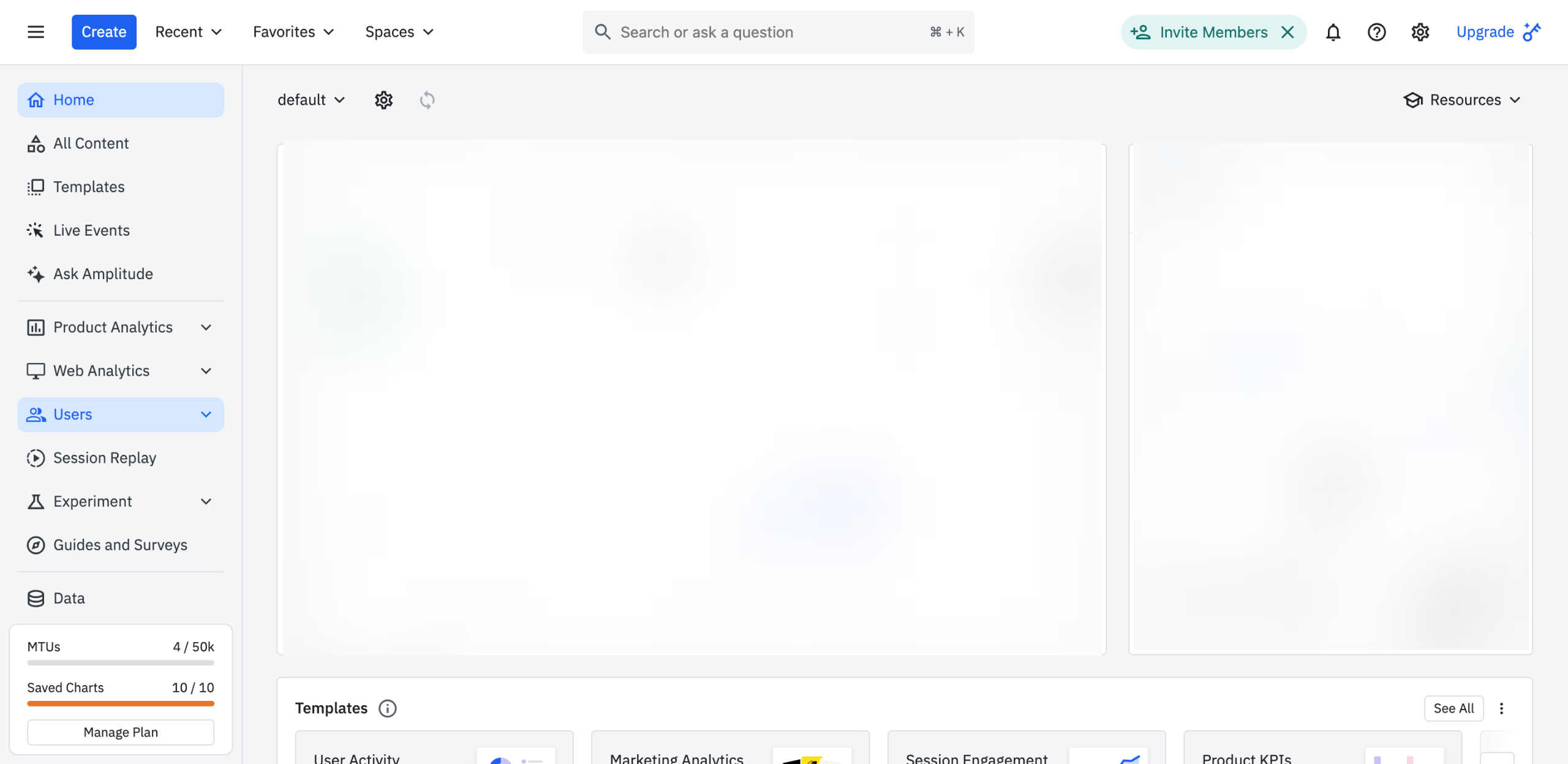
Inside Amplitude's Notebook Editor, tap 'Share' at the top-right corner.
Following that, click the 'Add People' input field under the Share tab and then type the name or email address of the user with whom you wish to collaborate. Select its profile from the suggested results.
Tap the access menu afterwards, then pick your preferred permission from the available options.
Subsequently, click the message box down below and type a short note if you want to.
Once done, tap 'Share' to proceed.
At this point, you can now collaborate with the selected user. To get started, click the 'More' option.
Choose 'Comment' afterwards.
Under the Notebook Comments tab, click the message box and start typing your thoughts or feedback. If necessary, you can mention the user as well to send the notifications to another end.
Once done, tap 'Comment'.
Finally, your comments will be posted instantly. Just repeat the same series of steps to continue collaborating with your teammate within your Amplitude notebook.
Quick answer: To collaborate in Amplitude Notebooks, tap Share, add people by name or email, set permissions, and send the invite. Then, open More, select Comment, type your feedback with optional mentions, and click Comment to post your thoughts.
About this Amplitude tutorial
Collaborate effectively in Amplitude notebooks by sharing documents, assigning permissions, and posting comments for teammates. This guide shows how to collaborate in Amplitude Notebooks in 10 steps, starting with "Inside Amplitude's Notebook Editor, tap 'Share' at the top-right corner" and finishing with "Finally, your comments will be posted instantly. Just repeat the same series of steps t...". The interactive demo above is a click-through copy of the real Amplitude interface, so you can rehearse each step before doing it in your own account.
Frequently asked questions
How many steps does it take to collaborate in Amplitude Notebooks?
10 steps. Each one is listed in order above, and the demo highlights exactly where to click.
Can I try it without changing my own account?
Yes. Clicking through the demo doesn't touch your Amplitude data or settings. Once you know the flow, repeat it in your own workspace.
This tutorial is filed under Amplitude. Related guides: How to Compare Cohorts in Amplitude, How to Compare Metrics in Amplitude Charts and How to Create a Basic Chart in Amplitude. Last reviewed 05 Oct 2026.

Create your first interactive demo in minutes
No credit card required • Start building today