How to Create a Dashboard in Amplitude
- George Apostolov
This guide is an interactive LiveDemo. Create interactive demos of your own product: Interactive demo software · Interactive customer onboarding guides · Start free
How to Create a Dashboard in Amplitude: step-by-step guide
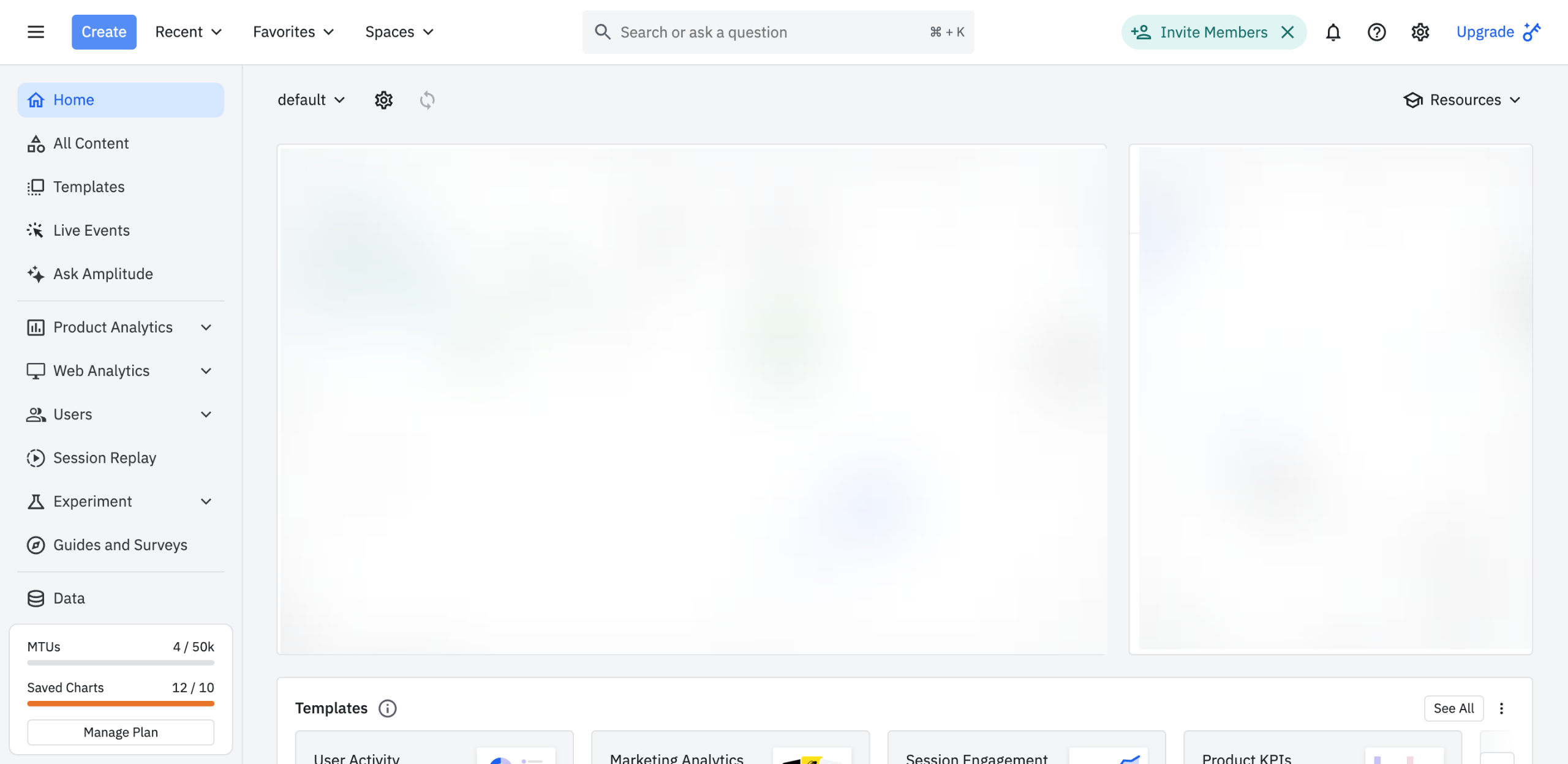
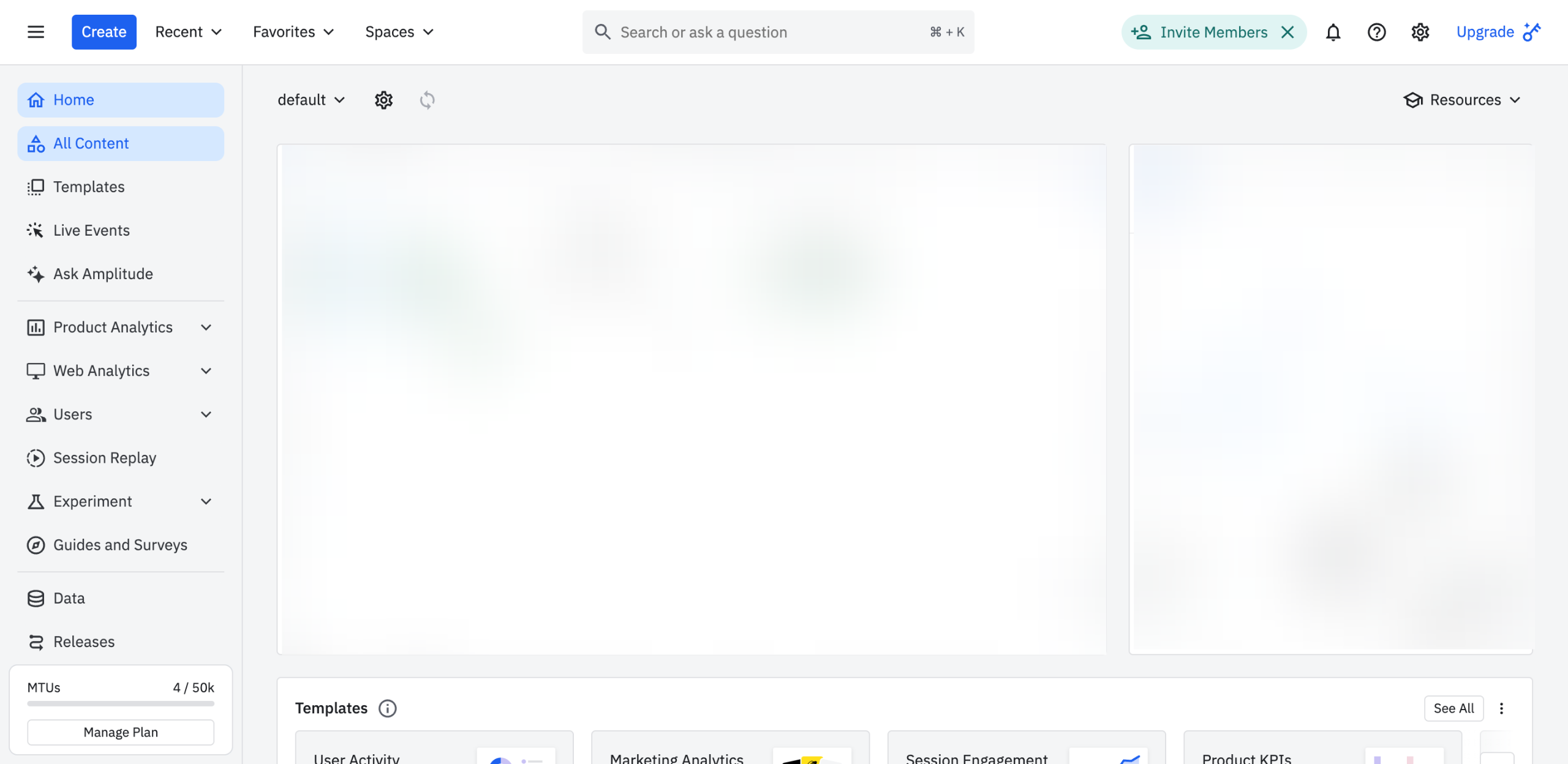
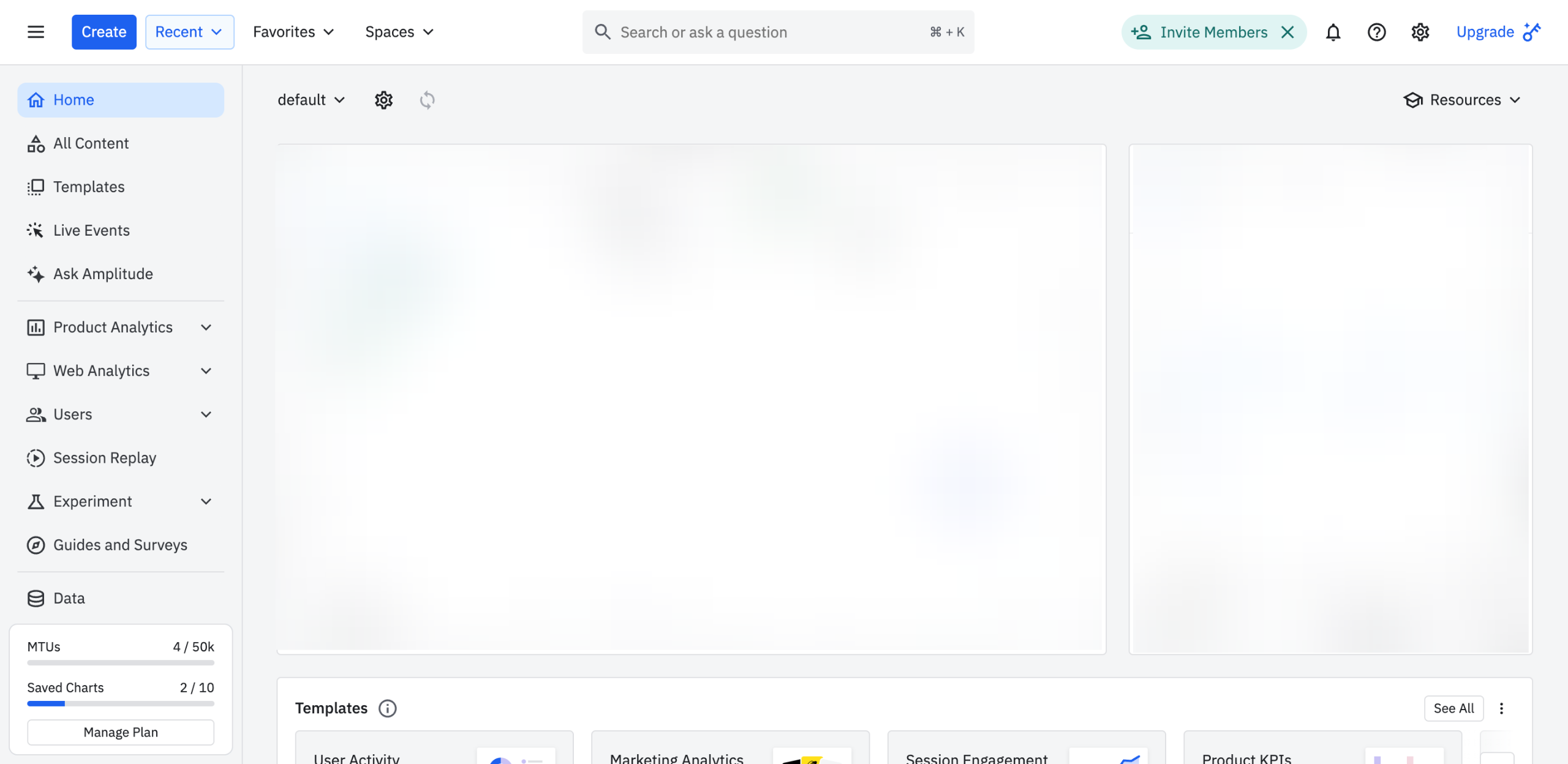
Navigate to the top-left corner and click 'Create'.
Hover your mouse cursor over the 'Dashboard' option, then click 'Start From a Blank Dashboard'.
Following that, tap 'Add Content'.
Select the type of content you want to add. For instance, you may choose existing content or create a new chart, text, video, and image.
As for existing content, find the item you prefer to use and then click the 'Add Item' button next to it.
Tap the 'Title' field afterwards, then enter a unique label that best describes your dashboard.
Subsequently, write a short dashboard description and then type it into the provided input field.
After completing these steps, the dashboard will be created based on your input. You may now customize it further, add more content, or share a copy with others.
Quick answer: To create a dashboard in Amplitude, click Create, select Dashboard, and start from a blank dashboard. Next, tap Add Content and choose existing or new items, clicking Add Item as needed. Finally, enter a unique title and a short description into their respective input fields to complete your dashboard.
About this Amplitude tutorial
Build and customize a new data dashboard in Amplitude by adding content, setting a unique title, and writing a description. This guide shows how to create a Dashboard in Amplitude in 8 steps, starting with "Navigate to the top-left corner and click 'Create'" and finishing with "After completing these steps, the dashboard will be created based on your input. You ma...". The interactive demo above is a click-through copy of the real Amplitude interface, so you can rehearse each step before doing it in your own account.
Frequently asked questions
How many steps does it take to create a Dashboard in Amplitude?
8 steps. Each one is listed in order above, and the demo highlights exactly where to click.
Can I try it without changing my own account?
Yes. Clicking through the demo doesn't touch your Amplitude data or settings. Once you know the flow, repeat it in your own workspace.
This tutorial is filed under Amplitude. Related guides: How to Create a Notebook in Amplitude, How to Create Custom Metrics in Amplitude and How to Create Feature Flags in Amplitude. Last reviewed 05 Oct 2026.

Create your first interactive demo in minutes
No credit card required • Start building today