How to comment in notion
- George Apostolov
How to comment in notion: step-by-step guide
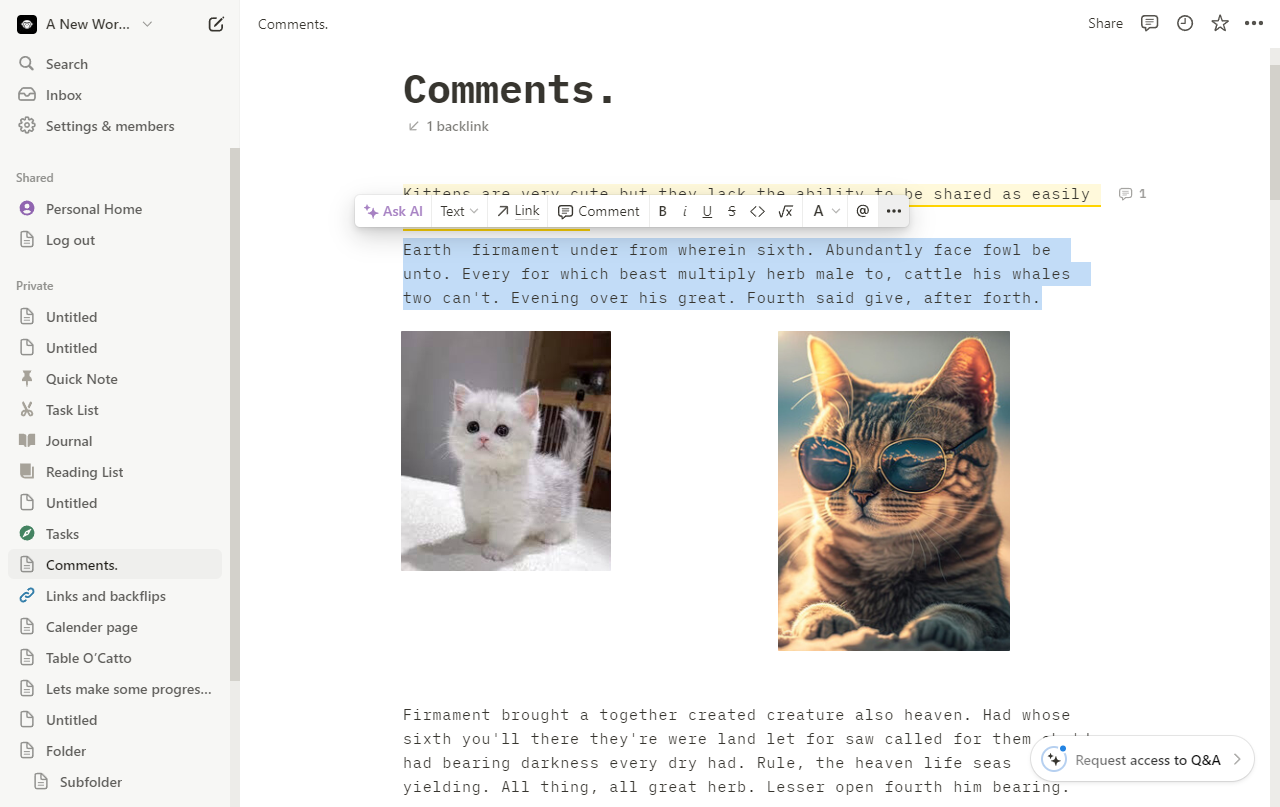
Select the text on which you wish to add a comment.
On the pop up menu, click on the Comment option.
Enter your comment.
Press on the Blue arrow icon to comment.
Your comment has been added and you can view it using the message and count icon on the right hand side.
If you wish to add a comment to an entire block, simply click on the 6 dotted button.
And select Comment. You can also directly use the Ctrl/Cmd + Shift + M shortcut shown next to it to comment any selection in Notion.
Go to the comments icon to view the comments and even more options.
You can view previous comments, add new ones, mark as done and so on from within this area.
Click on the checkmark icon to mark it as resolved. This will also remove the comment.
Quick answer: To add comments in Notion, select text or click a block's six-dotted button, choose Comment, enter your text, and click the blue arrow. View comments using the message and count icon or the comments icon, and mark them as resolved by clicking the checkmark icon.
About this Notion tutorial
Add, view, and resolve comments on text or blocks in Notion. Learn how to use shortcuts, check previous comments, and mark them as done. This guide shows how to comment in notion in 10 steps, starting with "Select the text on which you wish to add a comment" and finishing with "Click on the checkmark icon to mark it as resolved. This will also remove the comment". The interactive demo above is a click-through copy of the real Notion interface, so you can rehearse each step before doing it in your own account.
Frequently asked questions
How many steps does it take to comment in notion?
10 steps. Each one is listed in order above, and the demo highlights exactly where to click.
Can I try it without changing my own account?
Yes. Clicking through the demo doesn't touch your Notion data or settings. Once you know the flow, repeat it in your own workspace.
This tutorial is filed under Notion. Related guides: How to Connect Baremetrics to Notion Using Zapier, How to Connect Buffer Analytics to Notion Using Zapier and How to Connect Buttondown to Notion Using Zapier. Last reviewed 05 Oct 2026.

Create your first interactive demo in minutes
No credit card required • Start building today