How to Create a Form in ClickUp
- George Apostolov
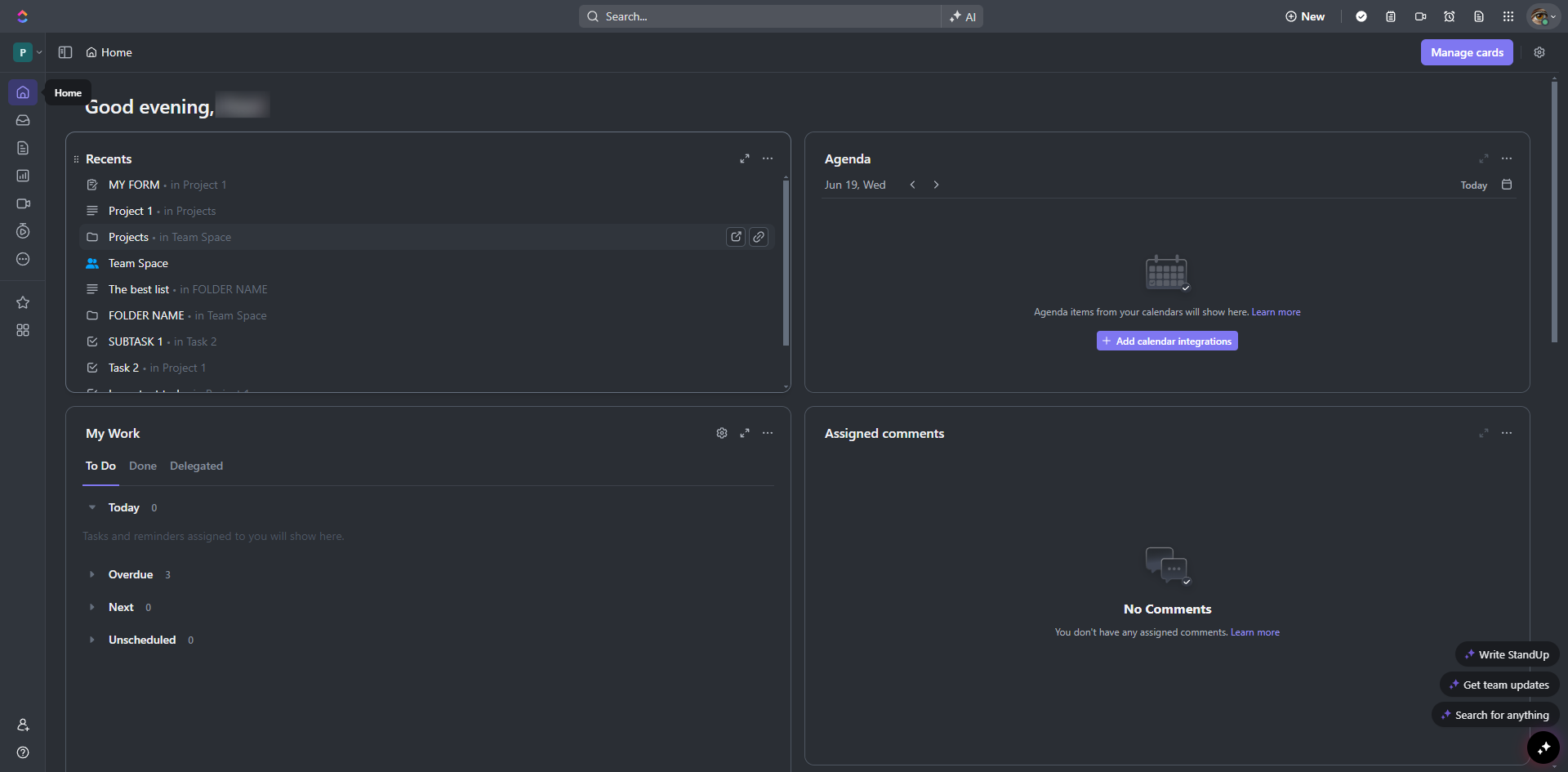
How to Create a Form in ClickUp: step-by-step guide
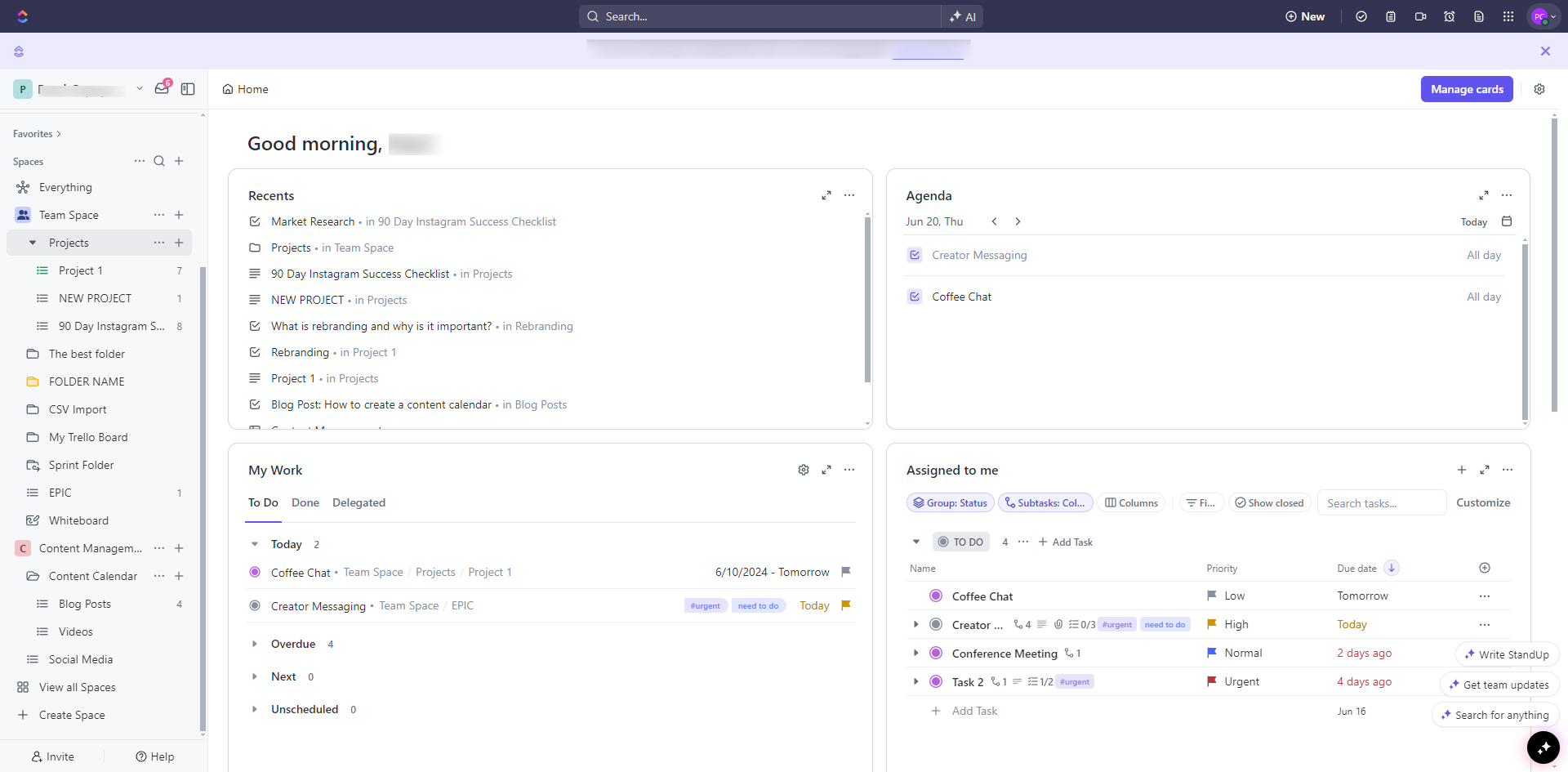
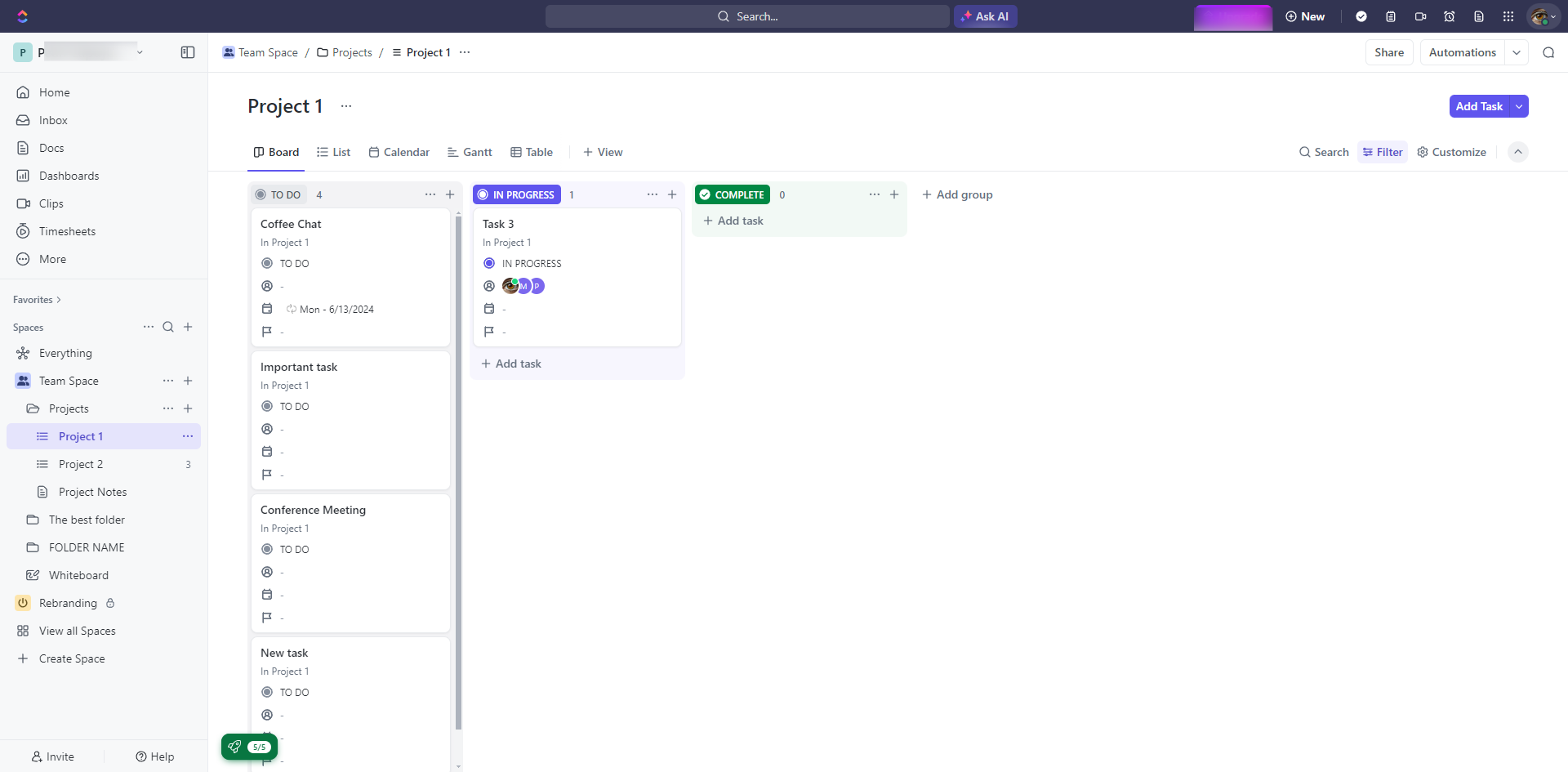
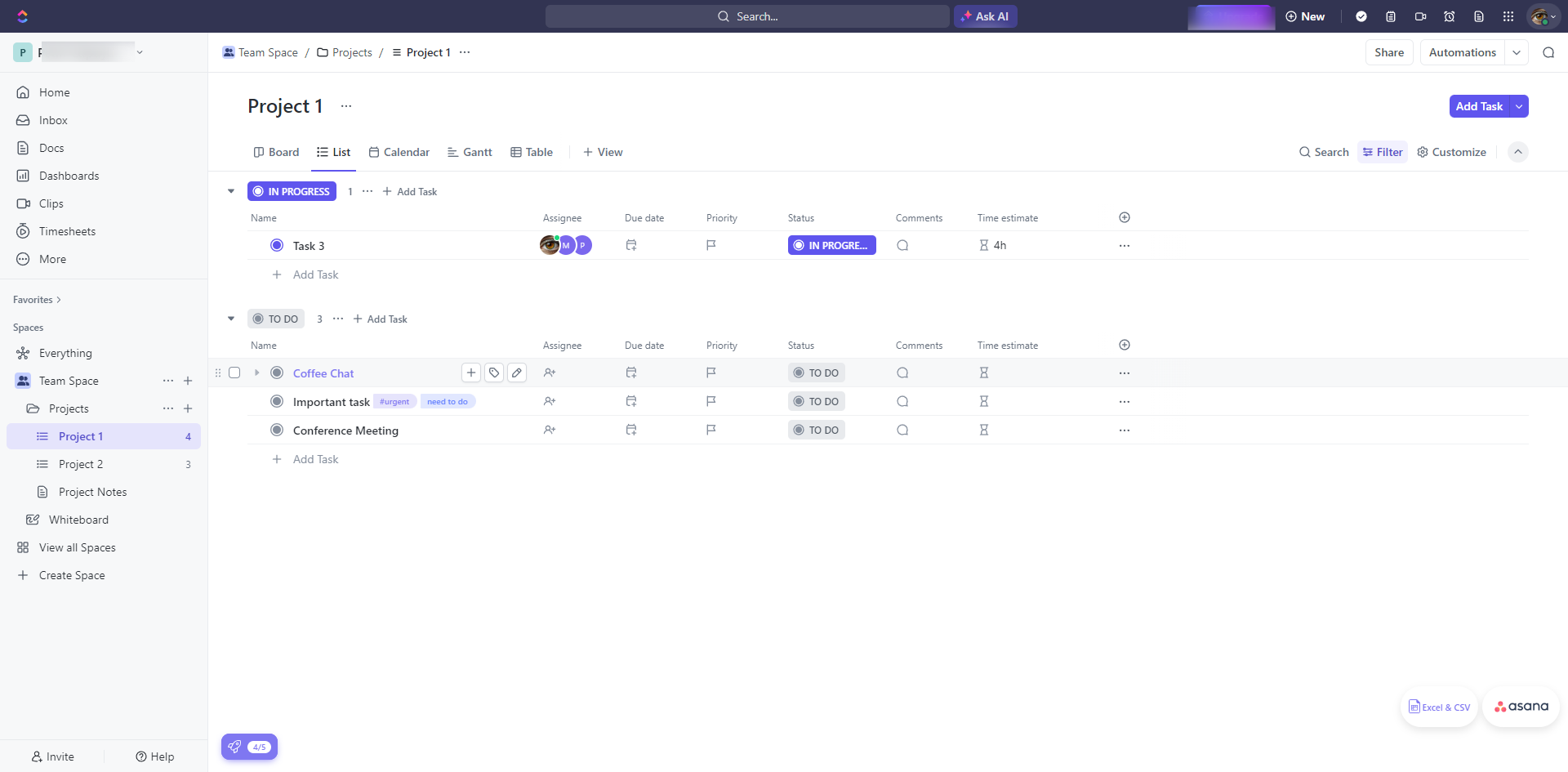
Navigate to the list where you want to create your form.
Click the '+ View' button next to the existing views at the top of the screen.
From the list of available views, select 'Form'.
Give your form a name.
Add descriptions about your form.
In the form editor, add fields by dragging the task fields into the form area.
Drag and drop fields to rearrange their order.
Click on each field to customize its label, description, placeholder text, and other settings.
If you have custom fields in your tasks, you can add them to the form.
Set the form's title, fields and description that users will see after submitting the form.
Click 'Preview'.
Copy the shareable link to distribute the form to your team, clients, or stakeholders by clicking 'Copy Link'.
ClickUp also provides an embed code if you want to embed the form on a website or external page just click the drop down arrow and select 'Copy code'.
That's it! A notification pops up and changes will be automatically saved.
Quick answer: To create a form in ClickUp, navigate to your list, add a Form view, name it, and add a description. Next, drag and drop task fields into the editor, customize their settings, and set the submission details. Finally, preview the form and copy the shareable link or embed code to distribute it.
About this ClickUp tutorial
Build and share custom online forms easily in ClickUp. Add fields, customize settings, and get embed codes or shareable links for your team. This guide shows how to create a Form in ClickUp in 14 steps, starting with "Navigate to the list where you want to create your form" and finishing with "That's it! A notification pops up and changes will be automatically saved". The interactive demo above is a click-through copy of the real ClickUp interface, so you can rehearse each step before doing it in your own account.
Frequently asked questions
How many steps does it take to create a Form in ClickUp?
14 steps. Each one is listed in order above, and the demo highlights exactly where to click.
Can I try it without changing my own account?
Yes. Clicking through the demo doesn't touch your ClickUp data or settings. Once you know the flow, repeat it in your own workspace.
This tutorial is filed under ClickUp. Related guides: How to Create a Gantt Chart in ClickUp, How to Create a Mind Map in Clickup and How to Create a Project in ClickUp. Last reviewed 05 Oct 2026.

Create your first interactive demo in minutes
No credit card required • Start building today