How to Create a Space in Clickup
- George Apostolov
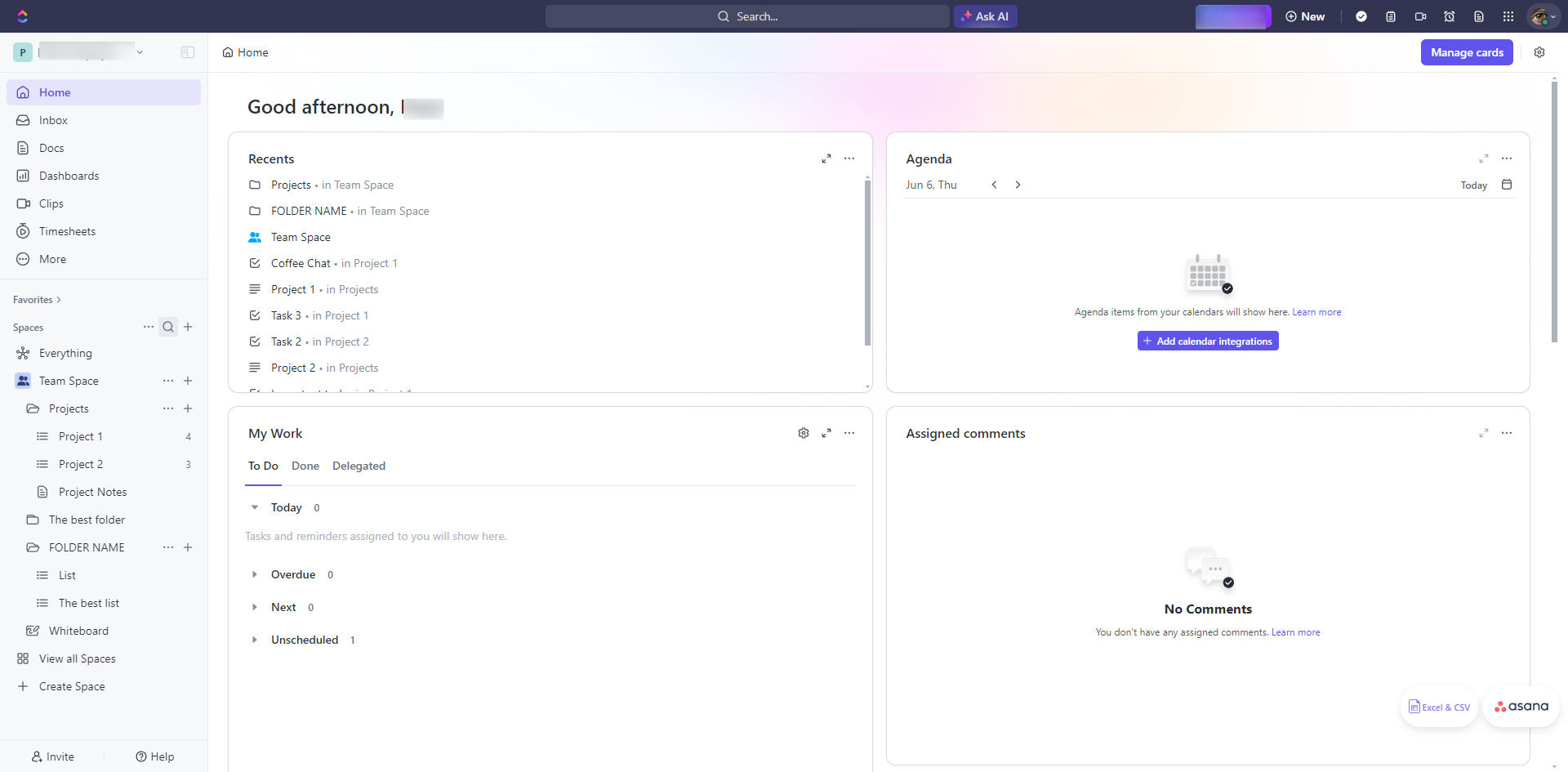
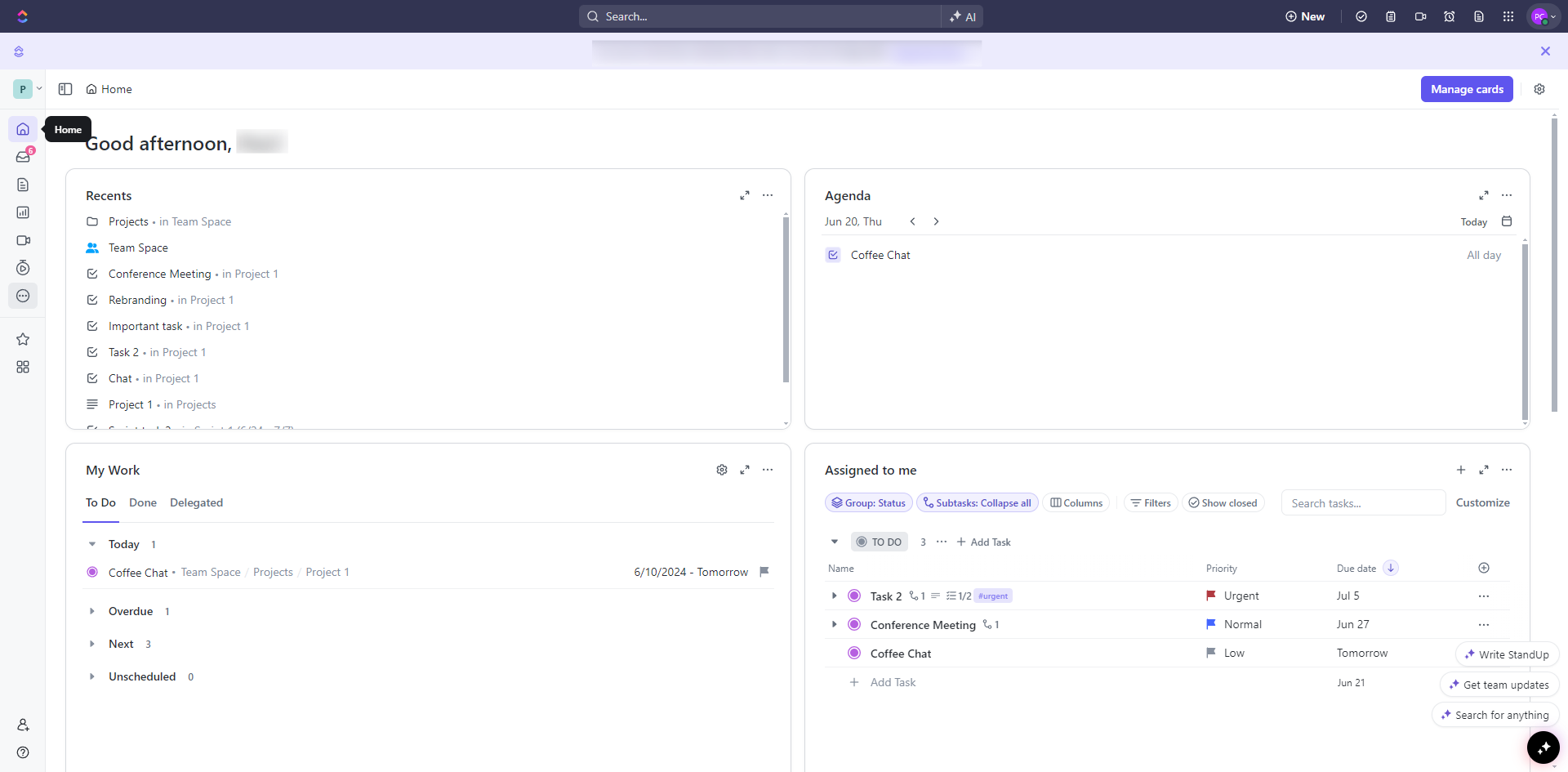
How to Create a Space in Clickup: step-by-step guide
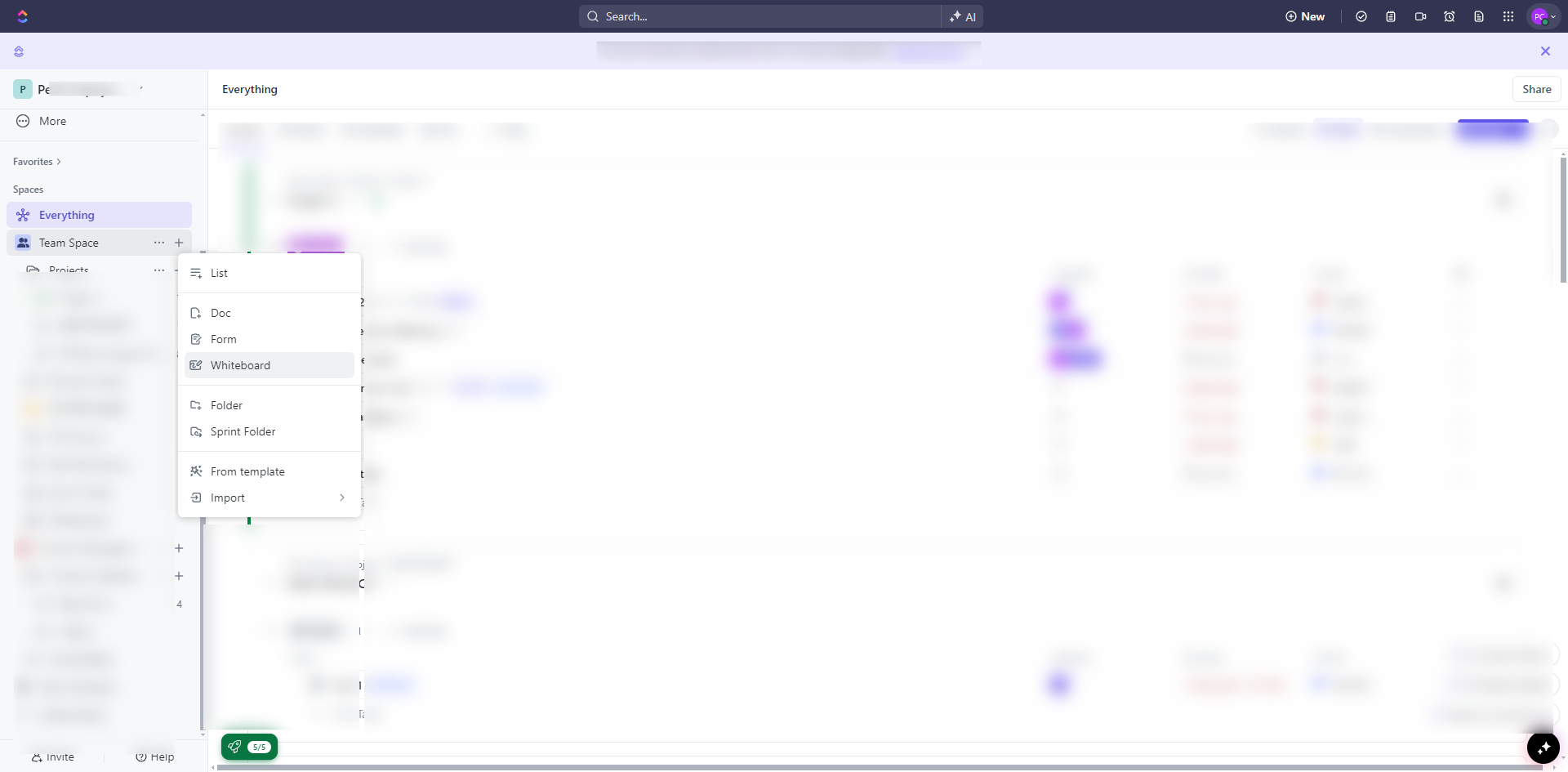
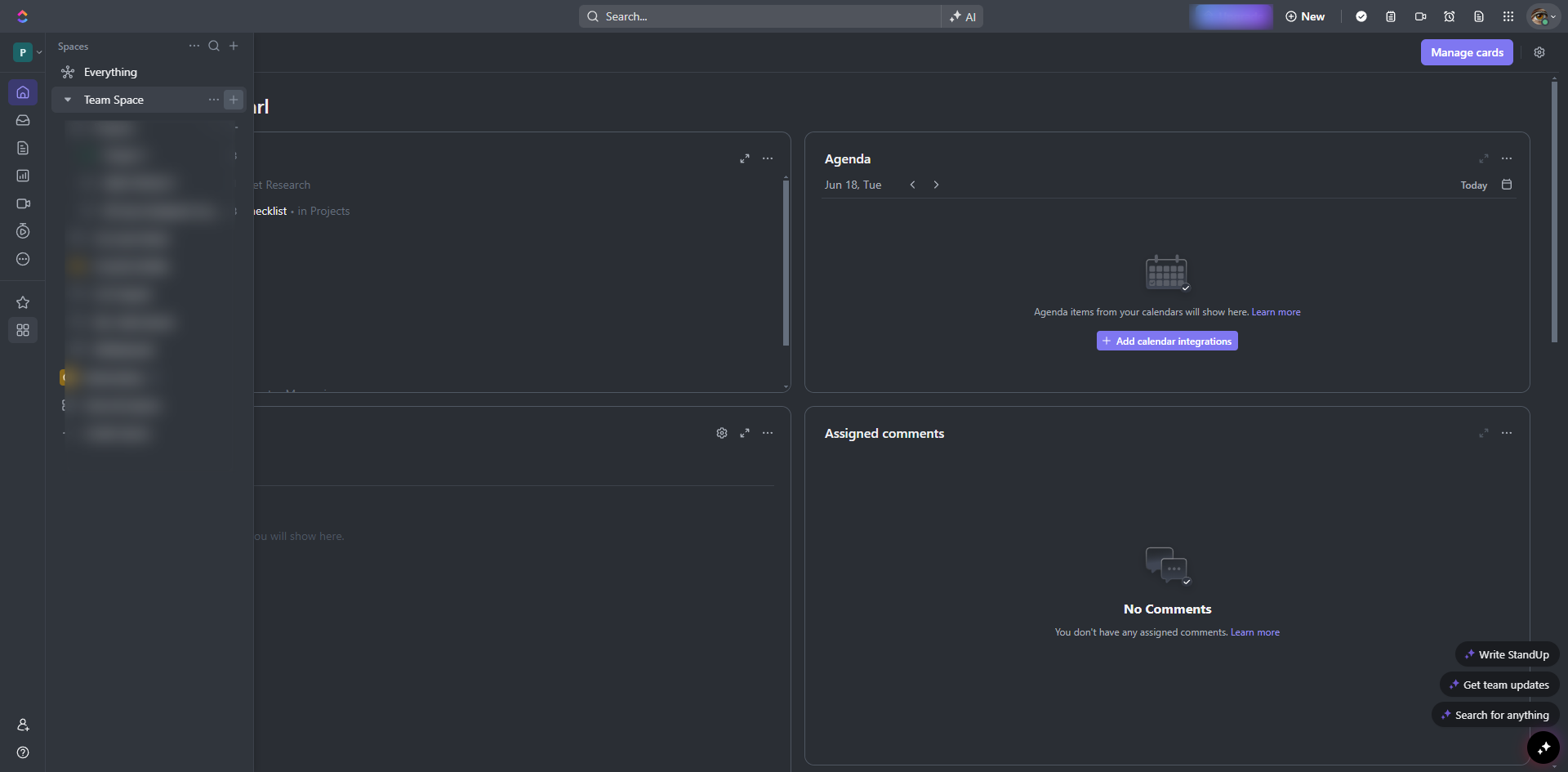
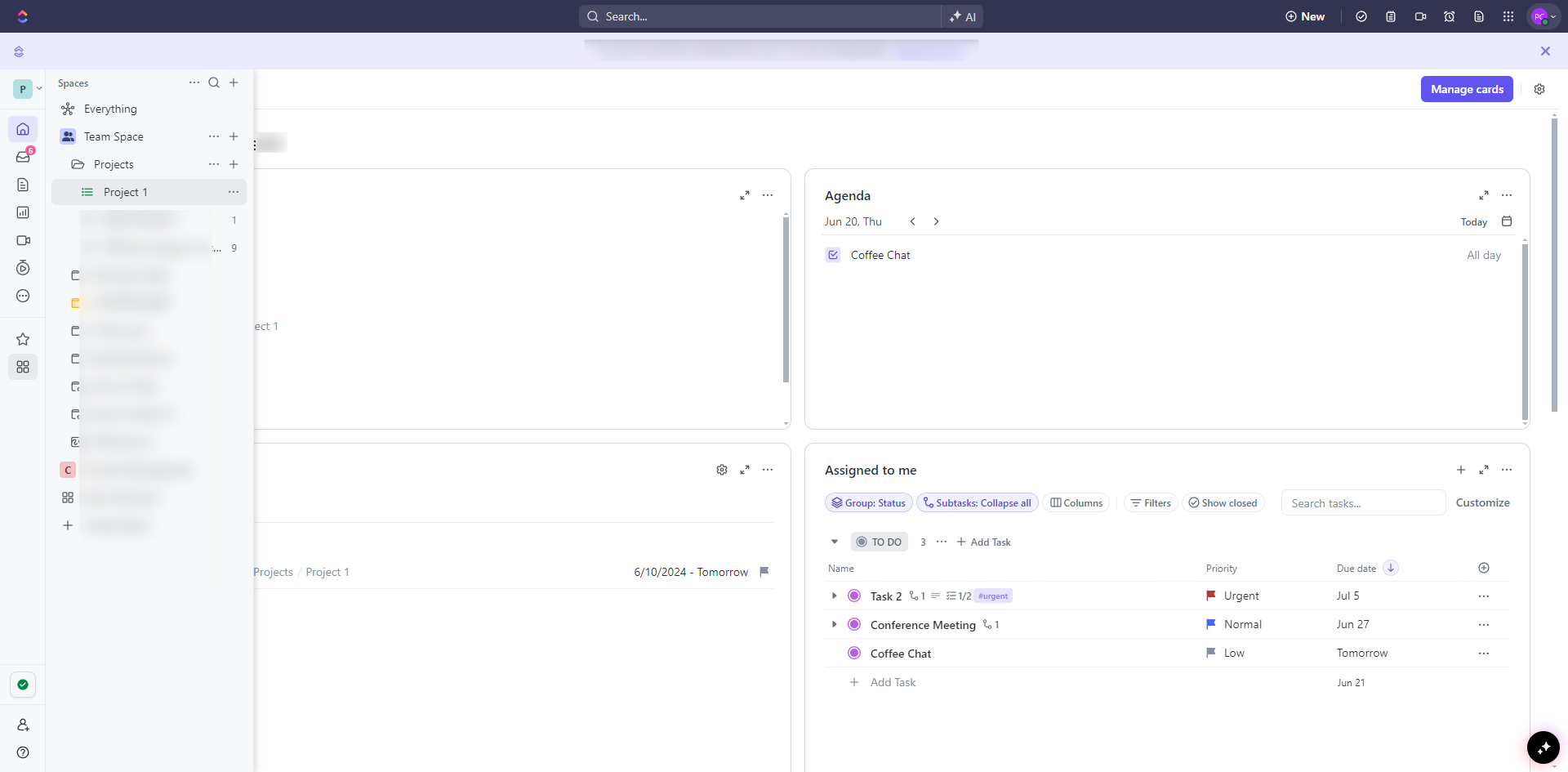
In the Sidebar, hover over the 'Spaces' section and click the plus icon.
Select an avatar color and icon, or upload your own.
Name your Space and add a description.
Choose to make the Space public, private, or shared with specific people.
Click 'Continue' to proceed.
Choose the default view for your Space.
Configure the default task statuses for the Space. You can choose from templates like 'To Do, In Progress, Done' or customize your own.
ClickApps are additional features you can enable for the Space, such as Time Tracking, Custom Fields, and more.
Click 'Create Space' to finalize the setup.
By following these steps, you can easily create and customize a Space in ClickUp, helping you and your team stay organized and productive.
Quick answer: To set up a new workspace in ClickUp, hover over the Spaces section in the sidebar to click the plus icon, choose your avatar, name the Space, set privacy, select a default view and task statuses, configure ClickApps, and finalize by clicking Create Space.
About this ClickUp tutorial
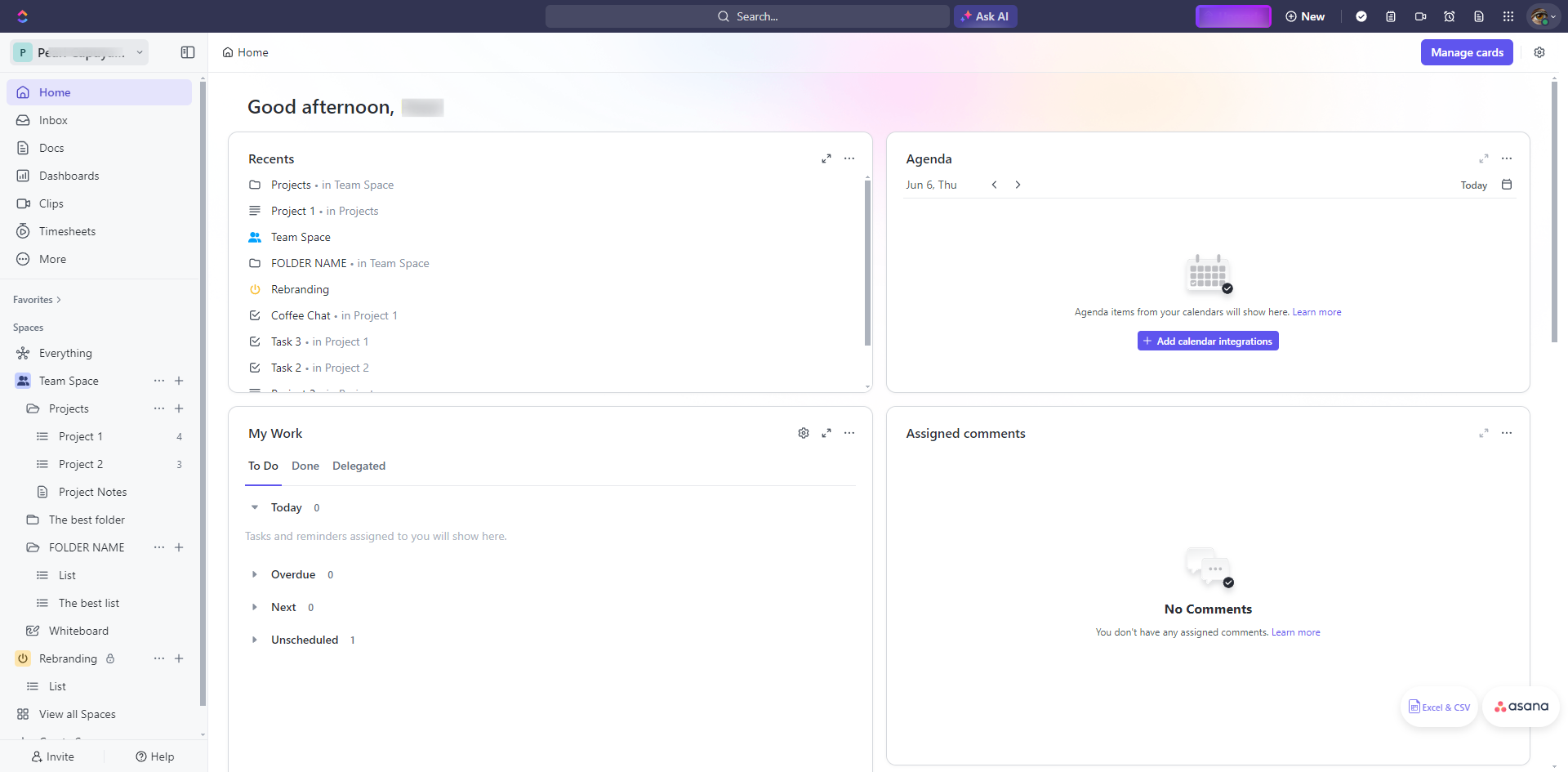
Organize your team and boost productivity by configuring custom spaces, views, statuses, and features in ClickUp. This guide shows how to create a Space in Clickup in 10 steps, starting with "In the Sidebar, hover over the 'Spaces' section and click the plus icon" and finishing with "By following these steps, you can easily create and customize a Space in ClickUp, helpi...". The interactive demo above is a click-through copy of the real ClickUp interface, so you can rehearse each step before doing it in your own account.
Frequently asked questions
How many steps does it take to create a Space in Clickup?
10 steps. Each one is listed in order above, and the demo highlights exactly where to click.
Can I try it without changing my own account?
Yes. Clicking through the demo doesn't touch your ClickUp data or settings. Once you know the flow, repeat it in your own workspace.
This tutorial is filed under ClickUp. Related guides: How to Create a Sprint in ClickUp, How to Create a Workspace in Clickup and How to Create Epic in ClickUp. Last reviewed 05 Oct 2026.

Create your first interactive demo in minutes
No credit card required • Start building today