How to Create a Project in ClickUp
- George Apostolov

How to Create a Project in ClickUp: step-by-step guide
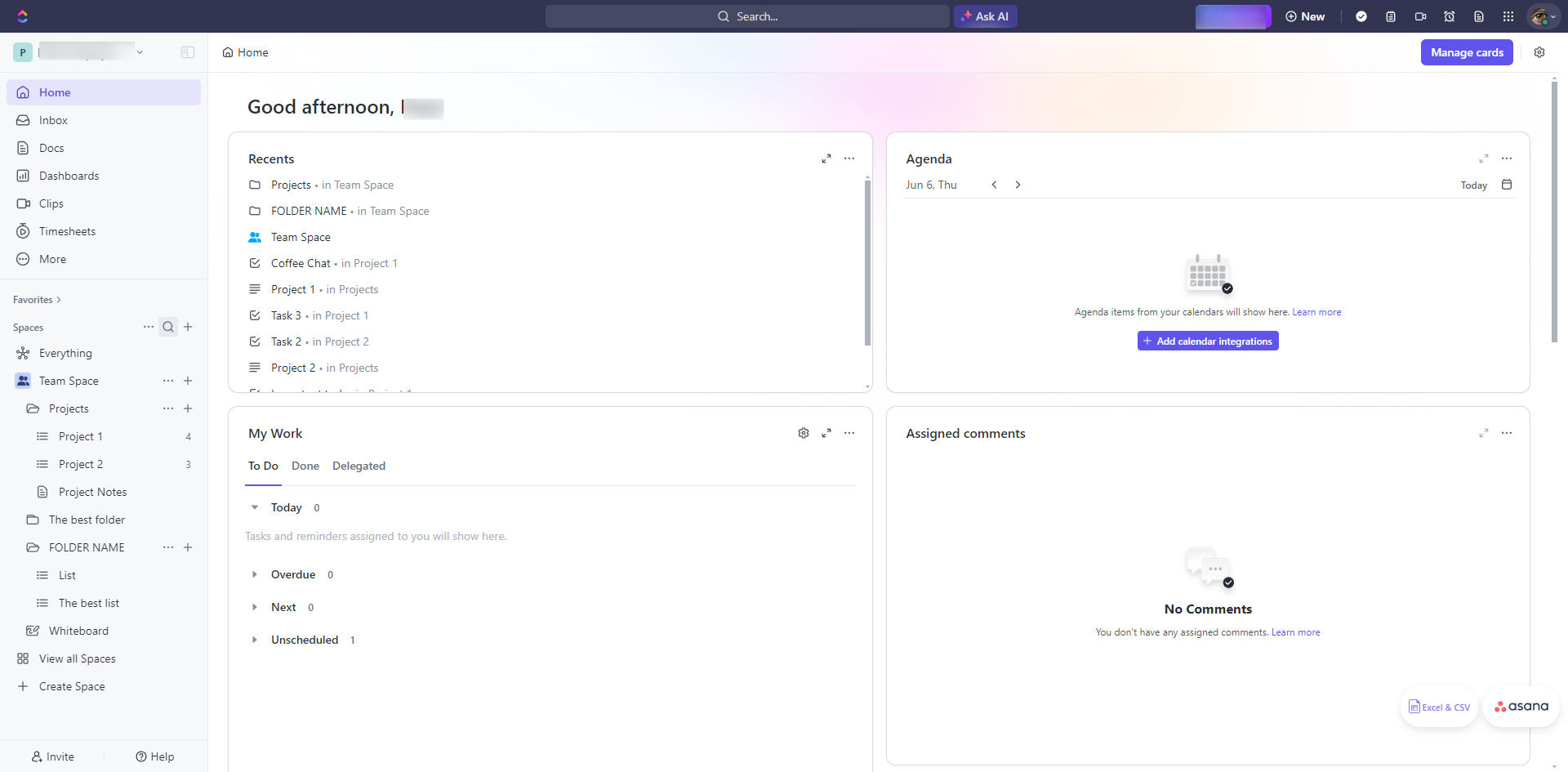
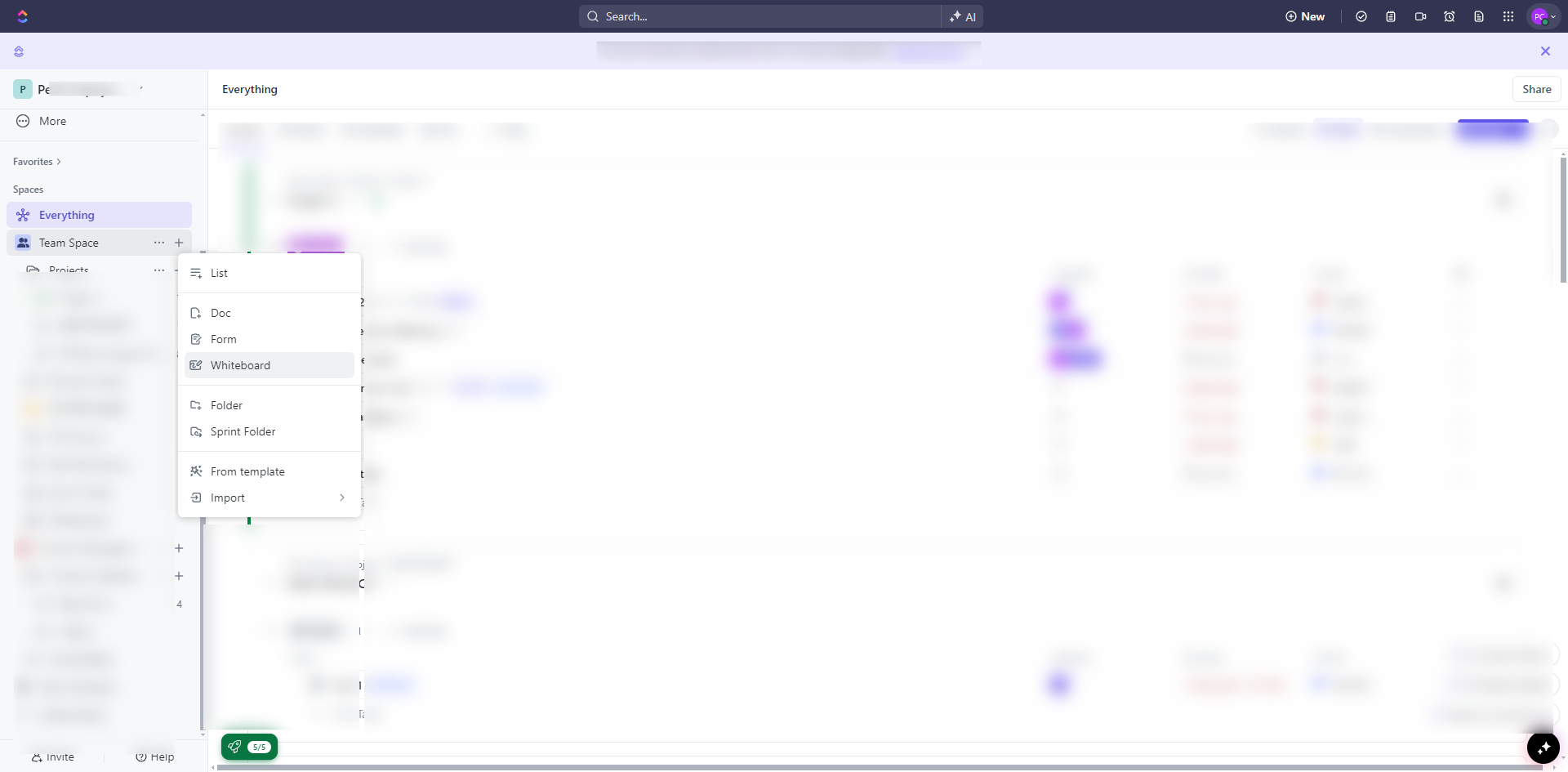
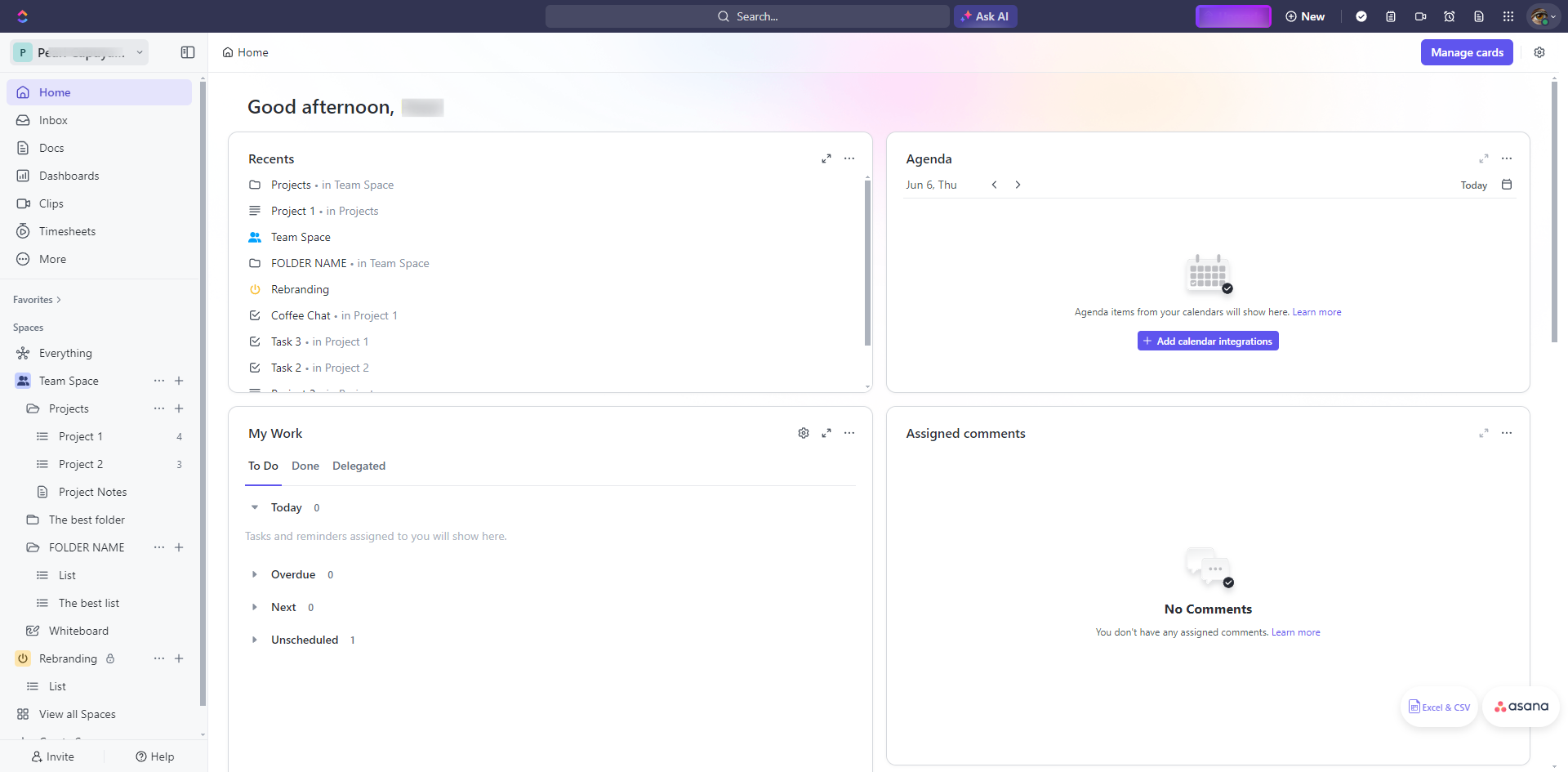
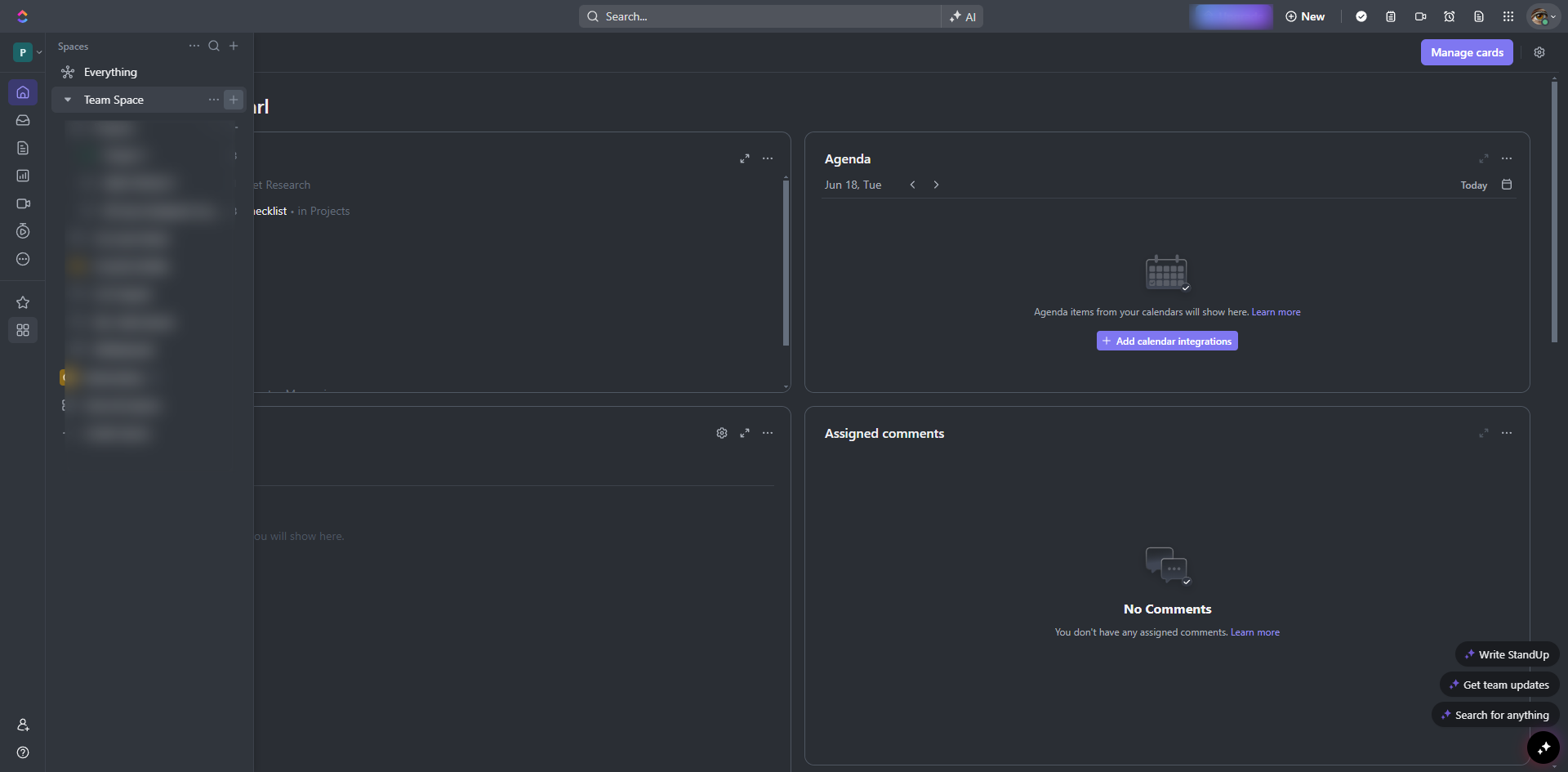
Go to the Space where you want to create the project and click the ellipsis icon.
Select the '+Create new' button.
Select 'Folder'.
Name the Folder.
Click 'Create Folder'.
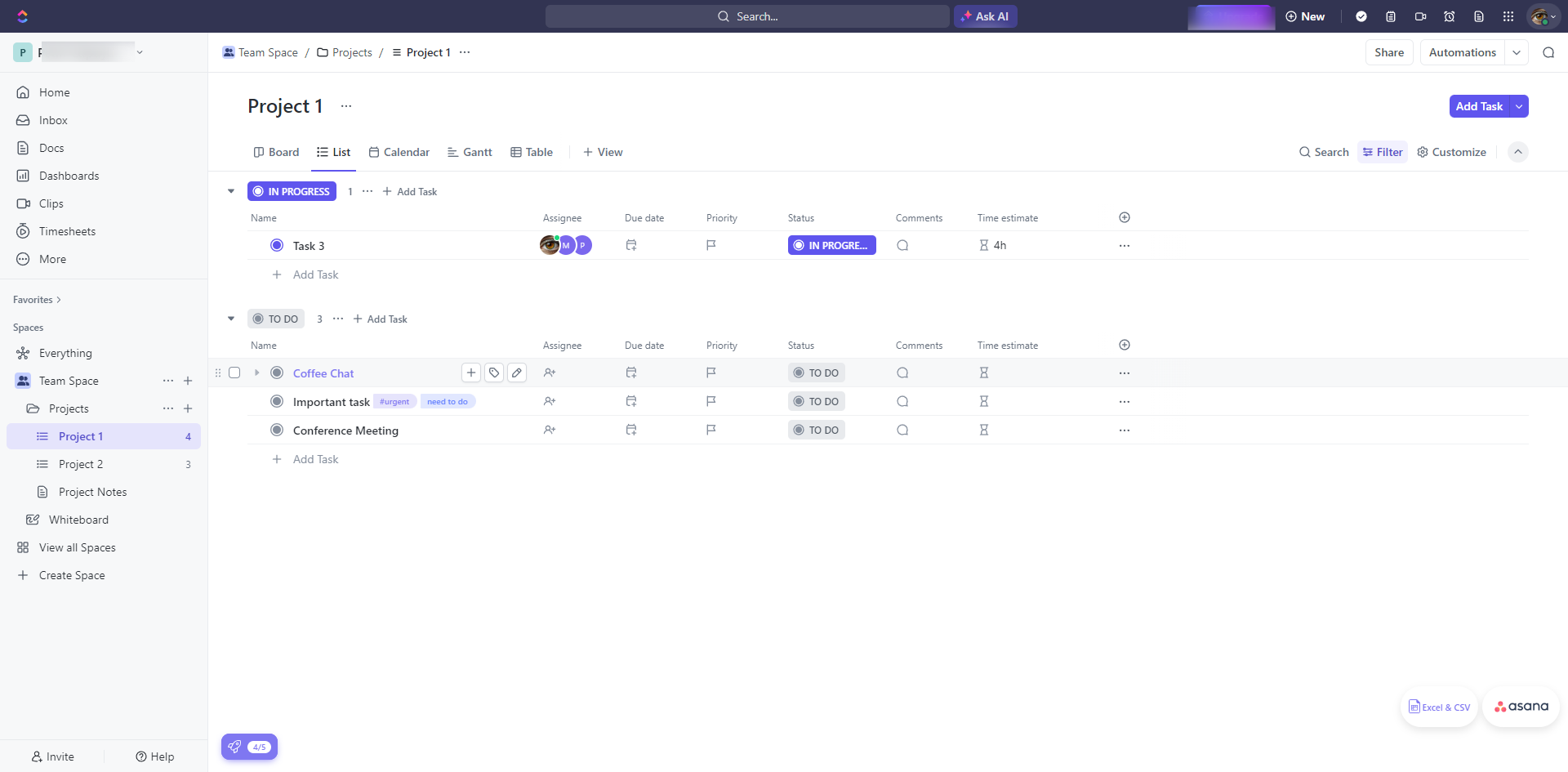
Click the '+ Add Task' button to create a new task and enter the task name
Add details to the task such as descriptions, due dates, assignees, subtasks, attachments, and custom fields.
Add custom fields such as priority, status, due dates, and more to tailor the information you track by clicking the add icon.
Click the '+View' to add views and track your project using different views.
Click the 'Automations' button in the upper right corner to set up automation rules that streamline repetitive tasks and processes.
Click the 'Share' button to invite team members to collaborate on the project.
Click 'Invite' to share your list to anyone.
By following these steps, you can create and manage a project in ClickUp, ensuring that all aspects of your project are organized, tracked, and executed smoothly.
Quick answer: To set up a new project in ClickUp, navigate to your desired Space, create and name a Folder, add tasks with details and custom fields, incorporate different views, configure automations, and invite team members to collaborate.
About this ClickUp tutorial
Organize, track, and execute your work efficiently by creating and managing projects with folders, tasks, views, and automations in ClickUp. This guide shows how to create a Project in ClickUp in 13 steps, starting with "Go to the Space where you want to create the project and click the ellipsis icon" and finishing with "By following these steps, you can create and manage a project in ClickUp, ensuring that...". The interactive demo above is a click-through copy of the real ClickUp interface, so you can rehearse each step before doing it in your own account.
Frequently asked questions
How many steps does it take to create a Project in ClickUp?
13 steps. Each one is listed in order above, and the demo highlights exactly where to click.
Can I try it without changing my own account?
Yes. Clicking through the demo doesn't touch your ClickUp data or settings. Once you know the flow, repeat it in your own workspace.
This tutorial is filed under ClickUp. Related guides: How to Create a Recurring Task in Clickup, How to Create a Space in Clickup and How to Create a Sprint in ClickUp. Last reviewed 05 Oct 2026.

Create your first interactive demo in minutes
No credit card required • Start building today