How to Create a Landing Page in Constant Contact
- George Apostolov
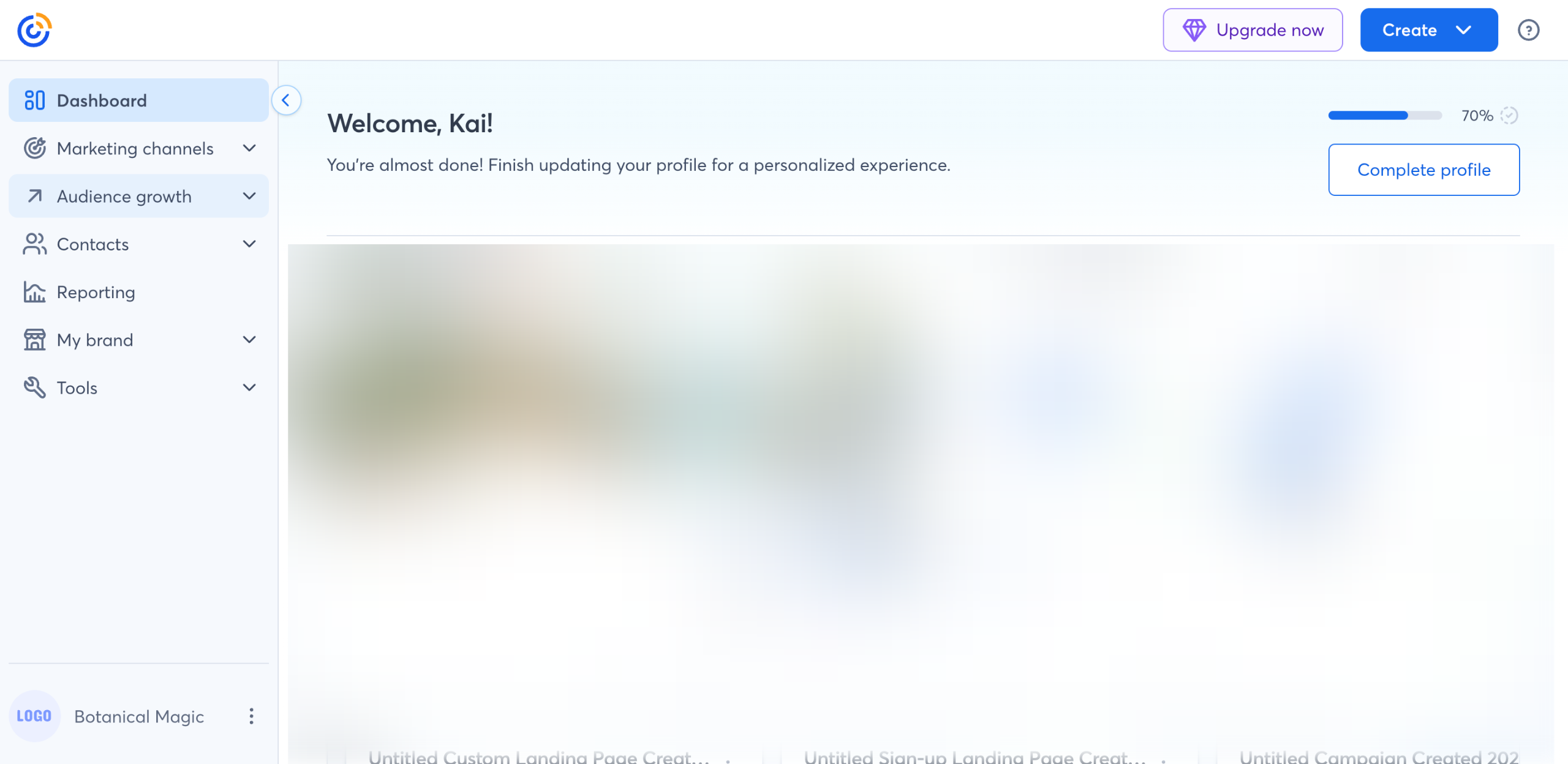
How to Create a Landing Page in Constant Contact: step-by-step guide
Head over to the left-side panel and click 'Audience Growth'.
Choose 'Landing Pages' from the list of options.
After that, click 'Create a Landing Page' at the top-right corner.
Pick the type of landing page you want to generate.
If you want to add blocks, simply go to the left-side panel and drag the block to the main workspace. Drop it to your desired position.
You may customize the style and content of the block based on your preference. To do that, tap the block you want to edit.
Subsequently, head over to the floating menu bar and use the given options to make your desired changes.
You may also edit the general appearance of the entire section. To do that, head over to the Section menu at the top-right corner and click 'Move Section' or 'Edit Section' to implement your desired changes.
Once done, click the 'Thank You' tab to proceed further.
Repeat the same series of steps to customize the Thank You page according to your liking.
After that, click 'Continue'.
Head over to the left-side panel, then click the 'List' menu. Select one from the available choices. At the same time, review the list of included fields. If you want to add more, just select one from the options under Standard Fields and drag it to your landing page.
Once done, click 'Continue'.
Configure the Page Settings based on your preference. Simply click the 'Meta Data', 'Customize URL', and 'Advanced' tab. From there, use the available options to implement your desired changes.
Once done, tap 'Continue'.
Click 'Activate' afterwards.
After completing these steps, your Constant Contact landing page will be created and enabled.
Quick answer: To create a landing page in Constant Contact, navigate to Audience Growth and Landing Pages, click Create a Landing Page, and pick a type. Drag and customize blocks, edit the Thank You page, select a list, and configure page settings. Finally, click Continue and Activate to publish the page.
About this tutorial
Build and publish a custom landing page in the app by selecting a type, editing content blocks, configuring settings, and activating it. This guide shows how to create a Landing Page in Constant Contact in 17 steps, starting with "Head over to the left-side panel and click 'Audience Growth'" and finishing with "After completing these steps, your Constant Contact landing page will be created and en...". The interactive demo above is a click-through copy of the real product interface, so you can rehearse each step before doing it in your own account.
Frequently asked questions
How many steps does it take to create a Landing Page in Constant Contact?
17 steps. Each one is listed in order above, and the demo highlights exactly where to click.
Can I try it without changing my own account?
Yes. Clicking through the demo doesn't touch your data or settings. Once you know the flow, repeat it in your own workspace.

Create your first interactive demo in minutes
No credit card required • Start building today