How to Create a Lead Magnet in Leadpages
- George Apostolov
How to Create a Lead Magnet in Leadpages: step-by-step guide
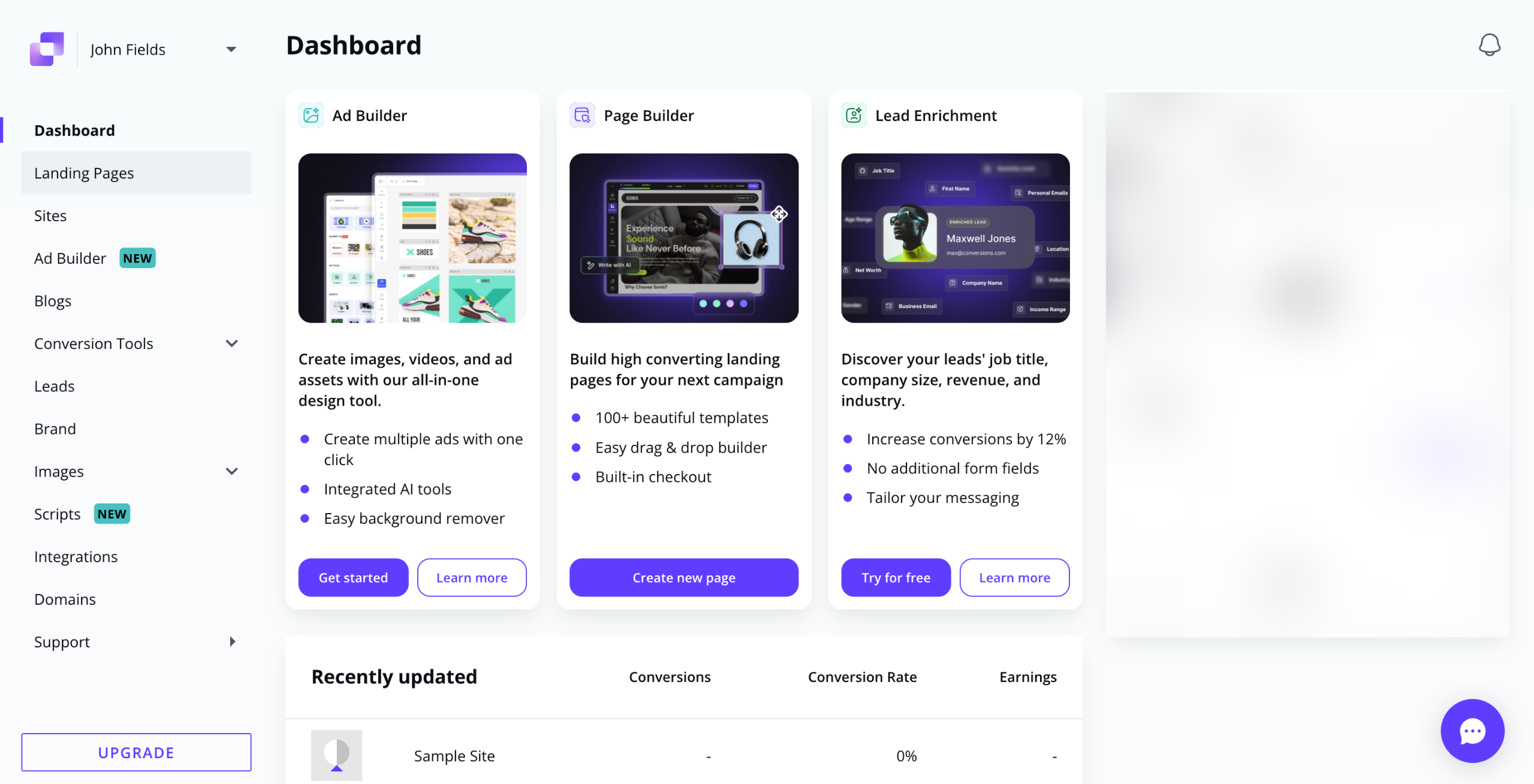
Head over to the left-side panel and click 'Landing Pages'.
After that, click 'Create New Landing Page' in the top-right corner.
Tap the search bar, then type "lead magnet".
Subsequently, hover your mouse cursor over the lead magnet template you wish to use and tap its corresponding 'Start Building'.
Enter your preferred page name into the provided input field and click 'Continue'.
Following that, customize the content and style of the default page elements. To get started, select them one by one.
Access the floating bar afterwards, then use the available options to make your desired changes.
If you wish to add more elements, go to the left-side panel and select one from the choices. Drag the asset onto the main workspace and customize it according to your liking.
Finally, tap 'Publish' in the top-right corner to apply your input and save the newly created lead magnet.
Quick answer: To create a lead magnet in Leadpages, navigate to Landing Pages, click Create New Landing Page, and search for lead magnet. Choose a template, enter a page name, and customize the default elements or add new ones. Finally, click Publish to save your new lead magnet.
About this tutorial
Design and publish a high-converting lead magnet inside the app by following this step-by-step page creation and customization guide. This guide shows how to create a Lead Magnet in Leadpages in 9 steps, starting with "Head over to the left-side panel and click 'Landing Pages'" and finishing with "Finally, tap 'Publish' in the top-right corner to apply your input and save the newly c...". The interactive demo above is a click-through copy of the real product interface, so you can rehearse each step before doing it in your own account.
Frequently asked questions
How many steps does it take to create a Lead Magnet in Leadpages?
9 steps. Each one is listed in order above, and the demo highlights exactly where to click.
Can I try it without changing my own account?
Yes. Clicking through the demo doesn't touch your data or settings. Once you know the flow, repeat it in your own workspace.

Create your first interactive demo in minutes
No credit card required • Start building today