How to Create a Sales Battlecard Generator GPT
- George Apostolov
This guide is an interactive LiveDemo. Create interactive demos of your own product: Interactive demo software · Interactive customer onboarding guides · Start free
How to Create a Sales Battlecard Generator GPT: step-by-step guide
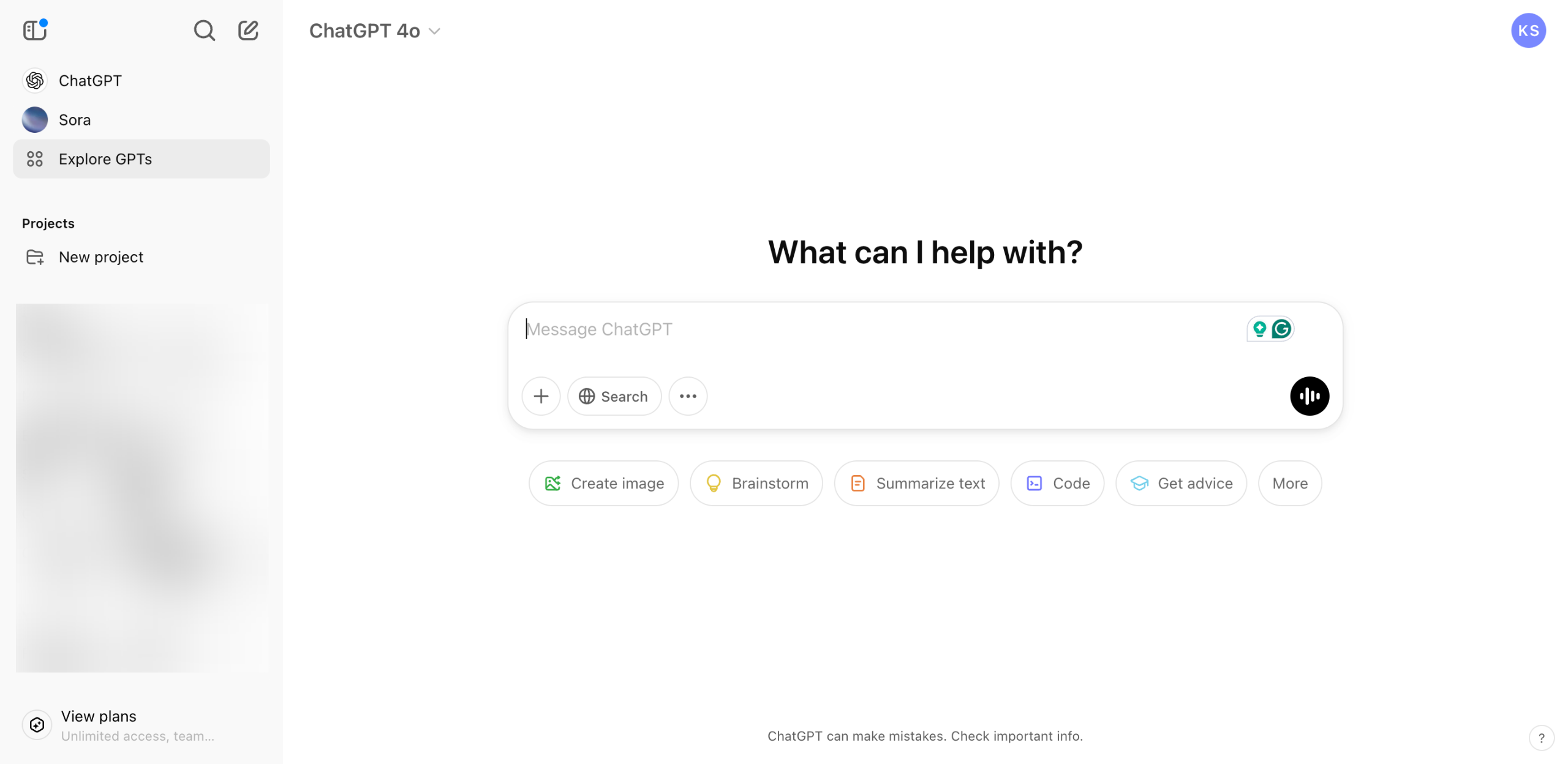
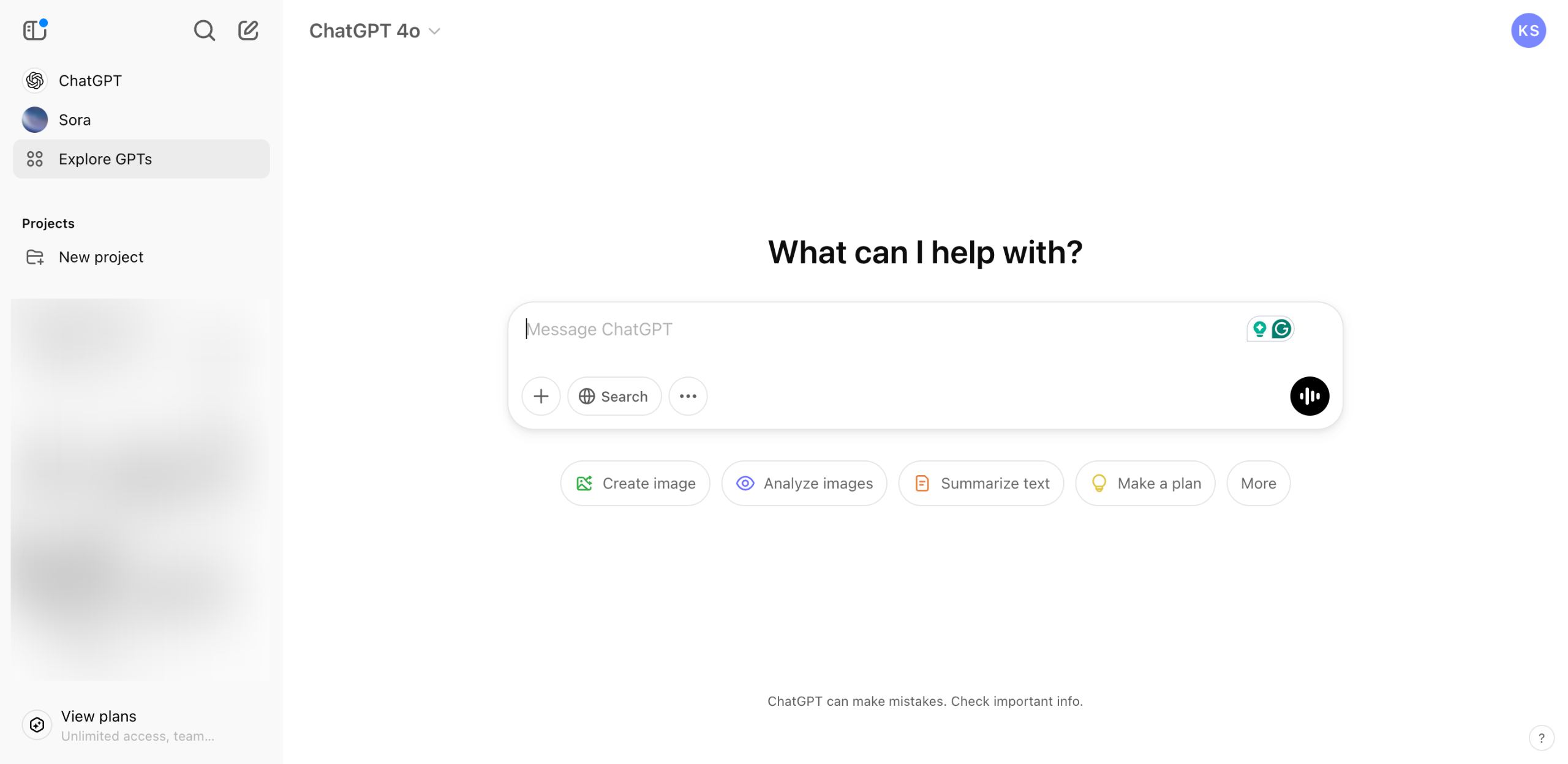
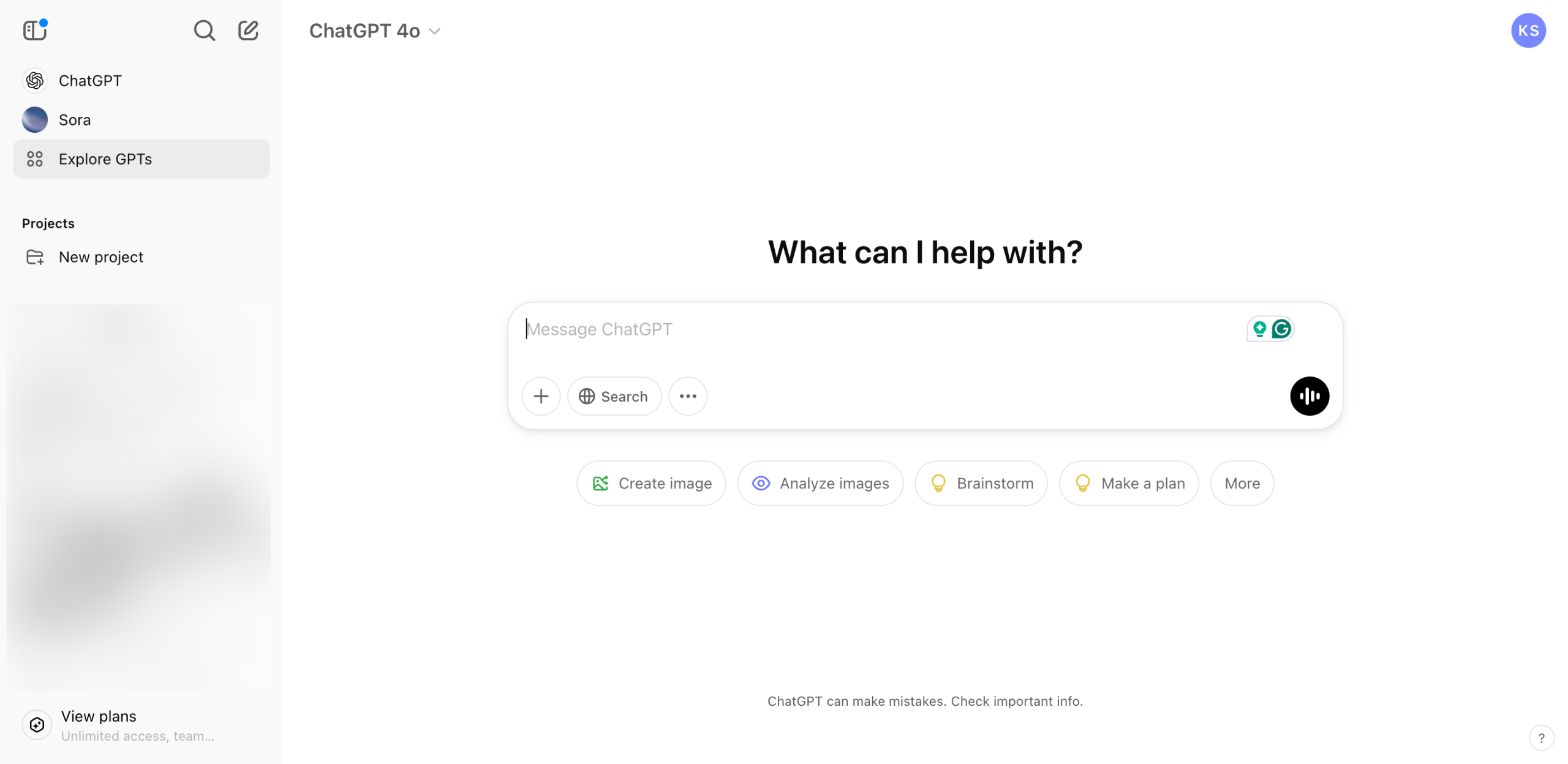
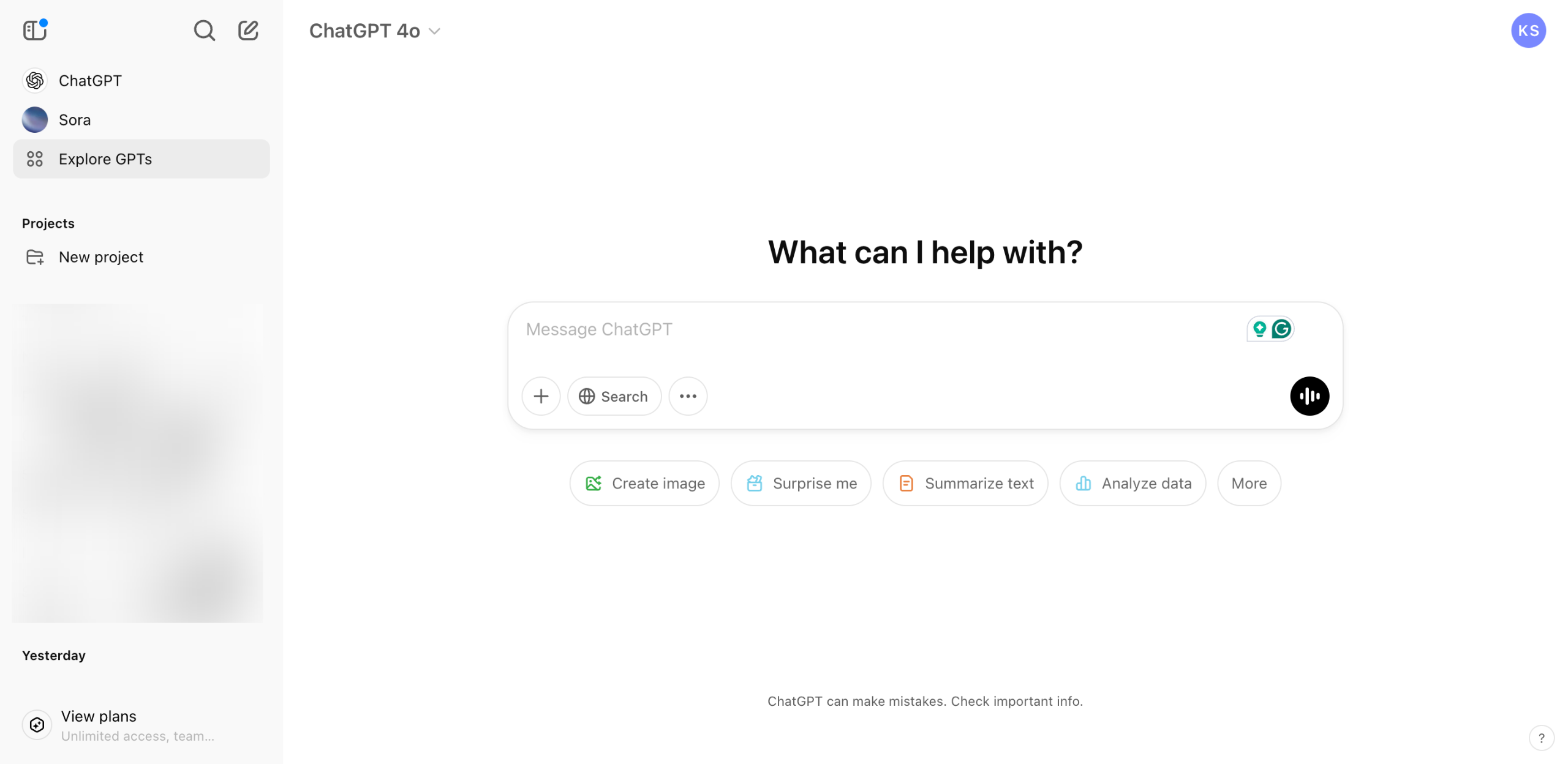
On ChatGPT's main interface, head over to the left-side panel and click 'Explore GPTs'.
Tap 'Create' at the top-right corner to get started.
Following that, switch the tab from Create to 'Configure'.
Set a distinctive display photo that represents your sales battlecard generator GPT. Simply click the 'Add' icon and select the specific image file you wish to use.
Subsequently, assign a unique GPT 'Name' and 'Description'. Enter the details into their respective input fields.
Tap the 'Instructions' entry field, then write a comprehensive description covering the basic profile, behavior, function, and capability of the sales battlecard generator GPT you wish to create.
Add a few text prompt examples related to sales battlecard generation. Type them one by one into the 'Conversation Starters' input field.
If you want to provide an additional source of information from external references, click the 'Upload Files' button under Knowledge and import the documents that contain the data you want to use.
Go over the Capabilities section, then tick the checkbox beside the GPT functions you wish to enable. Likewise, you may configure several Actions for seamless integration of your custom GPT with third-party tools.
Once done, navigate to the Preview Area and test out your sales battlecard generator GPT for the first time. Type a text prompt into the provided input box and then click 'Submit'.
Review the initial performance of your custom GPT. If you're satisfied with the quality of its sales battlecard, click 'Create' at the top-right corner.
Specify your preferred access configuration, then click 'Save' to continue.
After completing these steps, your sales battlecard generator GPT will be created and published.
Quick answer: To create a sales battlecard generator GPT on ChatGPT, navigate to Explore GPTs, switch to Configure, add your display photo, name, description, instructions, conversation starters, knowledge files, capabilities, and actions. Finally, test the GPT in the preview area, review its performance, and save your preferred access configuration to publish it.
About this tutorial
Build a sales battlecard generator by configuring profile details, instructions, files, and capabilities directly within the app. This guide shows how to create a Sales Battlecard Generator GPT in 13 steps, starting with "On ChatGPT's main interface, head over to the left-side panel and click 'Explore GPTs'" and finishing with "After completing these steps, your sales battlecard generator GPT will be created and p...". The interactive demo above is a click-through copy of the real product interface, so you can rehearse each step before doing it in your own account.
Frequently asked questions
How many steps does it take to create a Sales Battlecard Generator GPT?
13 steps. Each one is listed in order above, and the demo highlights exactly where to click.
Can I try it without changing my own account?
Yes. Clicking through the demo doesn't touch your data or settings. Once you know the flow, repeat it in your own workspace.

Create your first interactive demo in minutes
No credit card required • Start building today