How to Create a Website on Framer
- George Apostolov
How to Create a Website on Framer: step-by-step guide
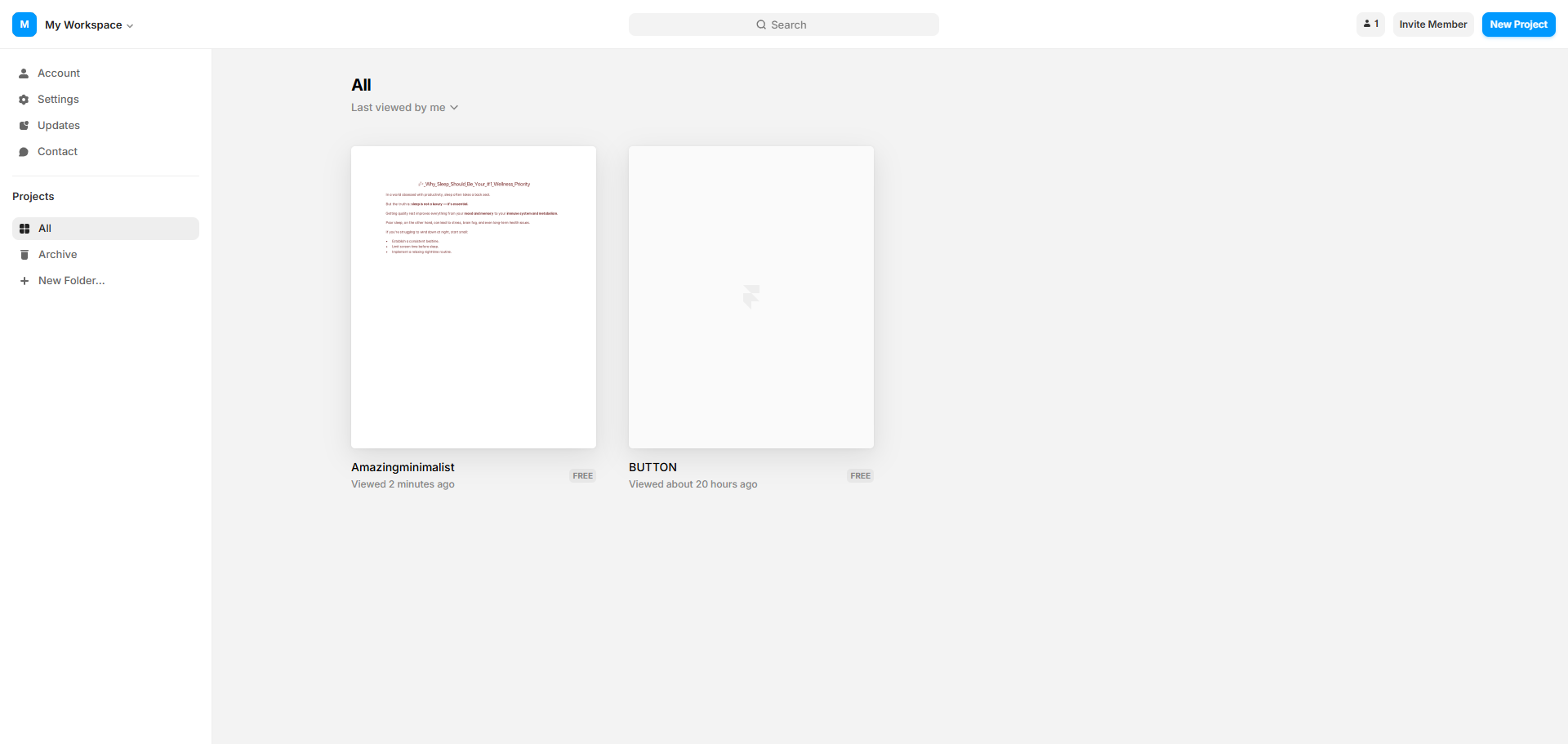
Start fresh with a 'New Project' to bring your vision to life.
Create engaging content with the 'Text' element.
Name your project to organize your design work.
Apply your design changes to see them in action.
Customize your color palette with the hex code selector.
Access 'Layout' options for structural design control.
Add visual impact with an Image element to your design.
Upload your own imagery to personalize your site.
Fine-tune your image with the 'Crop' tool for perfect framing.
Click 'Crop' to perfect your image presentation with cropping tools.
Add interactivity with a clickable call-to-action.
Customize your layout for optimal visual flow.
Organize elements with 'Stack' for automatic alignment.
Set consistent spacing with the TRBL (top-right-bottom-left) controls.
Position your elements for perfect alignment.
Use 'Link To' to link buttons or navigate items to other pages.
Set responsive 'Breakpoints' for different screen sizes.
Switch to 'Tablet' view to ensure responsive design.
Create compelling content with the 'Text' element.
Style your 'Body' text for consistent typography.
Choose 'Inter' typeface for clean, modern typography.
Finalize your content with precision editing tools.
Click 'Publish' in the top-right corner to publish your website.
Quick answer: To create a website on Framer, start with a new project and add text, images, and layout elements. Customize colors, structure layouts with stacks and TRBL controls, and add interactivity using links. Finally, adjust responsive breakpoints, style typography, and click publish in the top-right corner.
About this Framer tutorial
Build and publish your website in Framer by adding content, styling layouts, customizing colors, and setting responsive breakpoints. This guide shows how to create a Website on Framer in 23 steps, starting with "Start fresh with a 'New Project' to bring your vision to life" and finishing with "Click 'Publish' in the top-right corner to publish your website". The interactive demo above is a click-through copy of the real Framer interface, so you can rehearse each step before doing it in your own account.
Frequently asked questions
How many steps does it take to create a Website on Framer?
23 steps. Each one is listed in order above, and the demo highlights exactly where to click.
Can I try it without changing my own account?
Yes. Clicking through the demo doesn't touch your Framer data or settings. Once you know the flow, repeat it in your own workspace.
This tutorial is filed under Framer. Related guides: How to Crop Image in Framer, How to Delete Projects in Framer and How to Draw a Line in Framer. Last reviewed 05 Oct 2026.

Create your first interactive demo in minutes
No credit card required • Start building today