How to Create an Email Footer in SendGrid
- George Apostolov
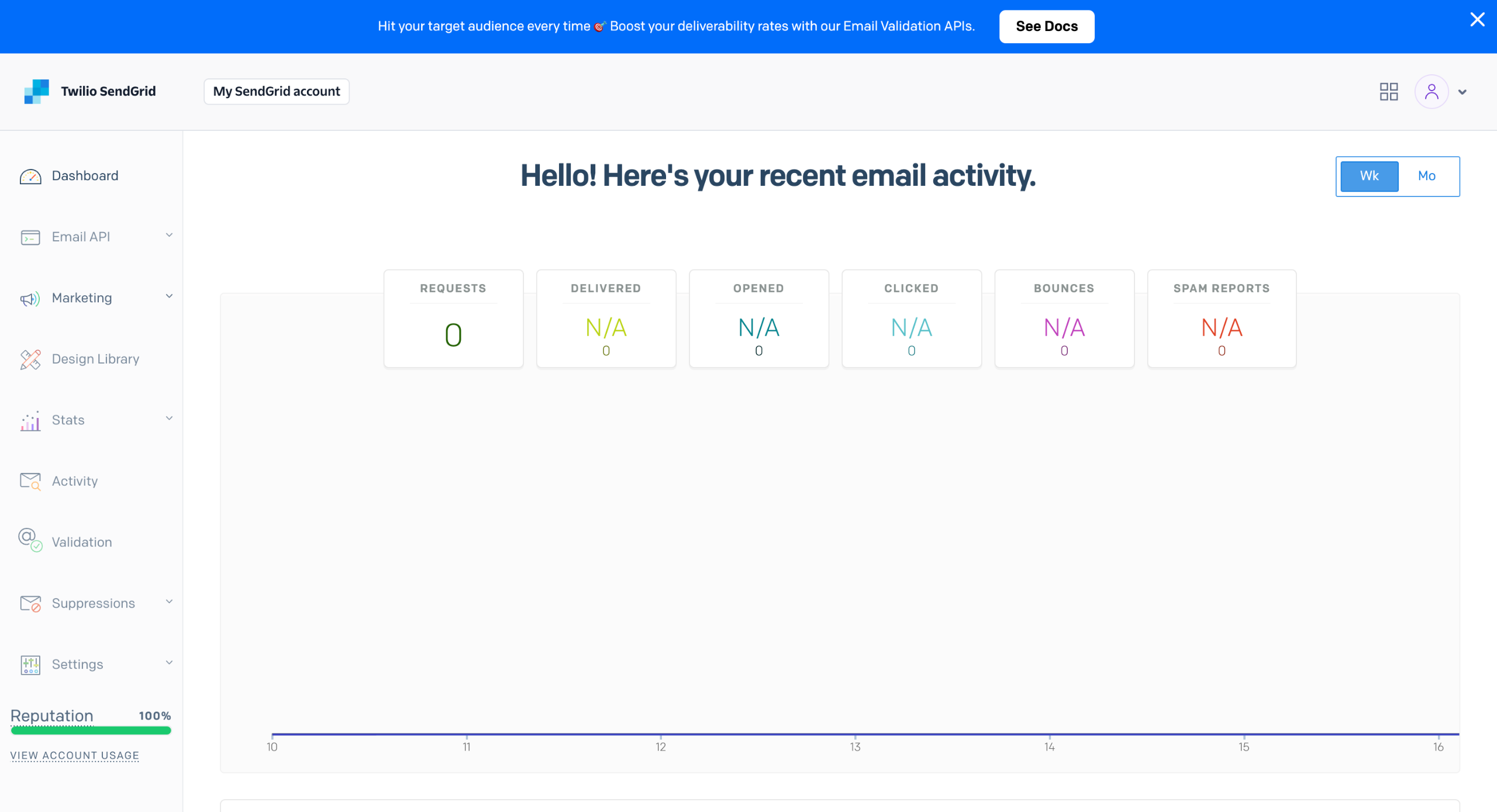
How to Create an Email Footer in SendGrid: step-by-step guide
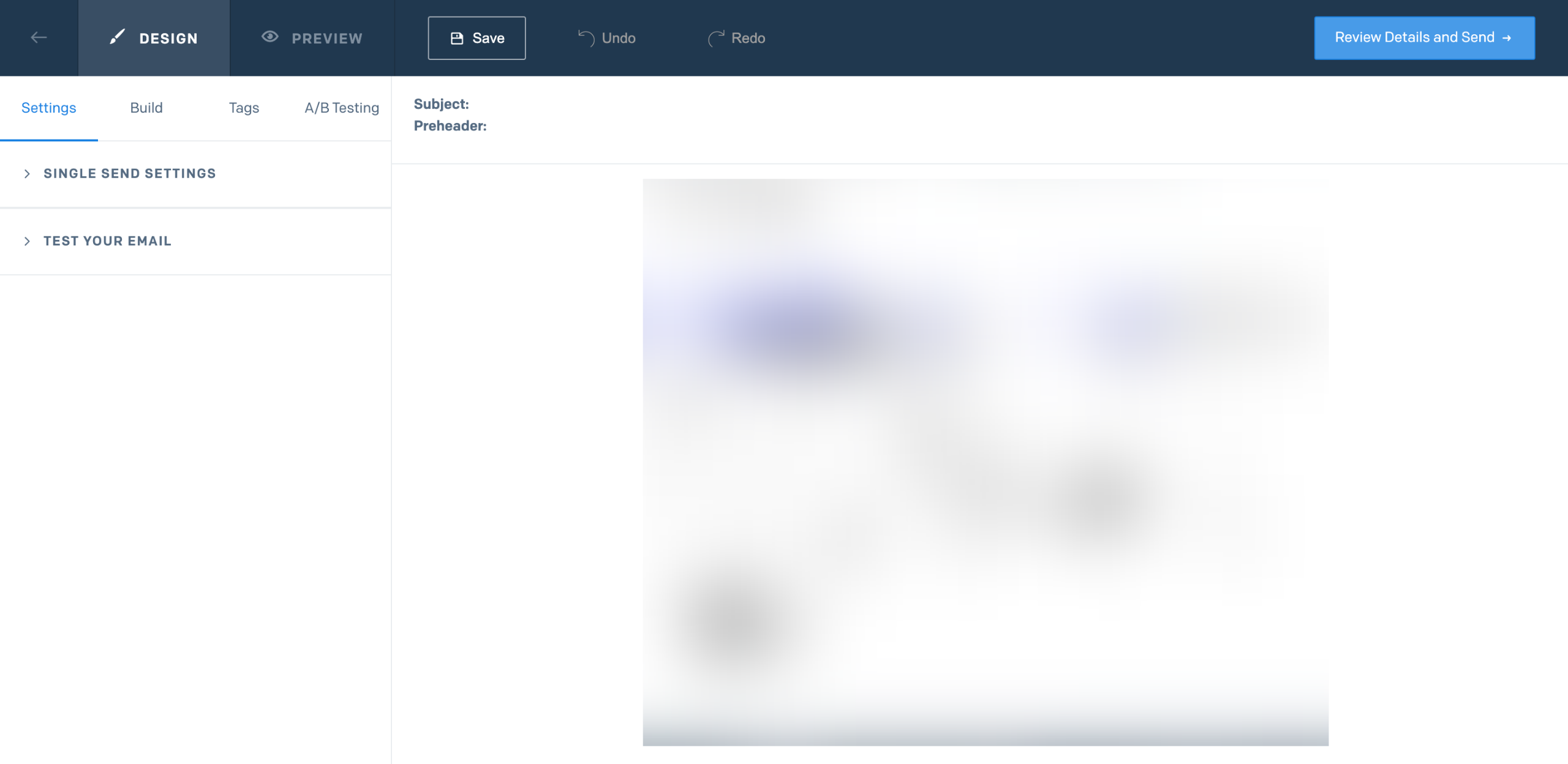
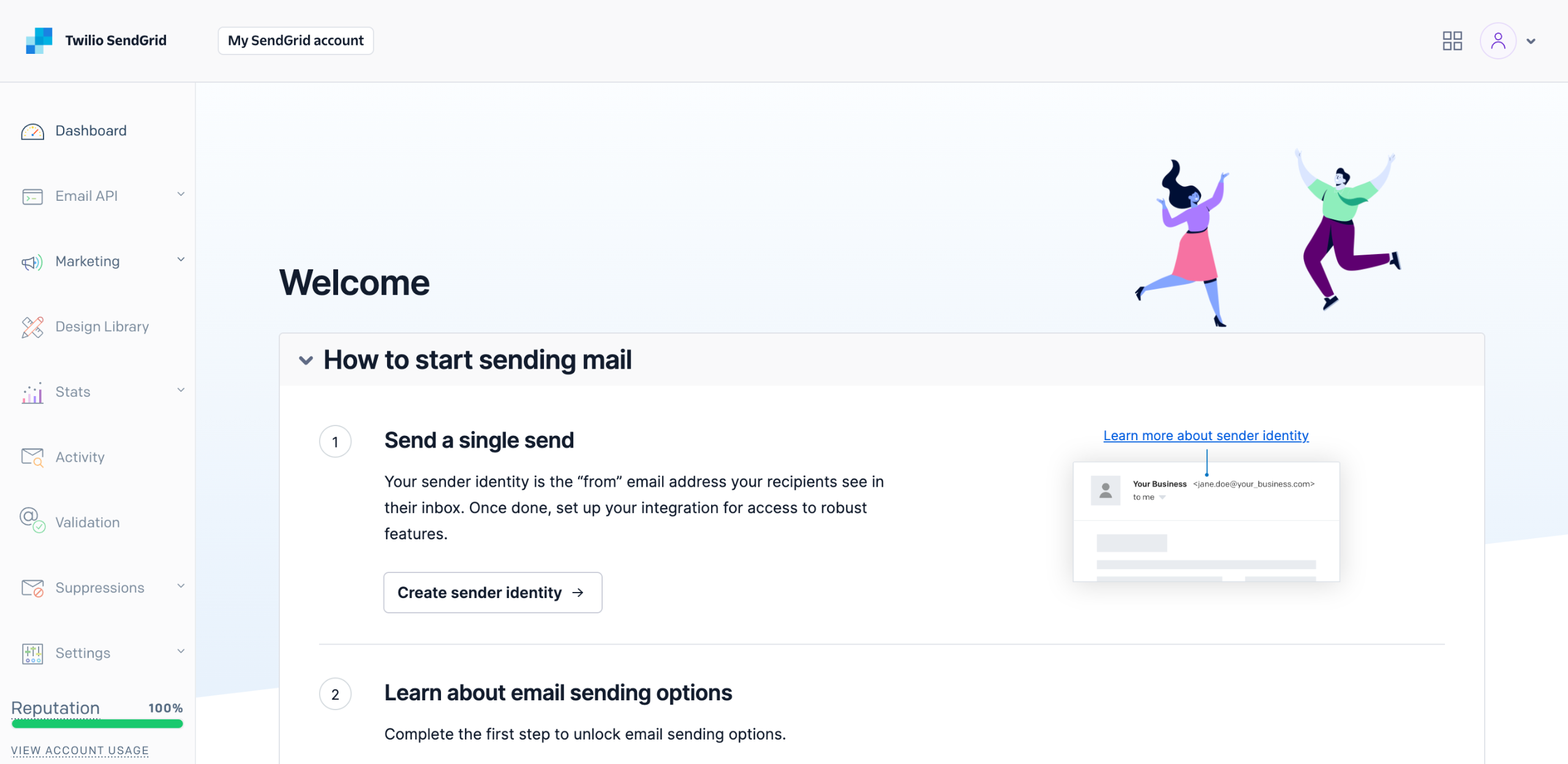
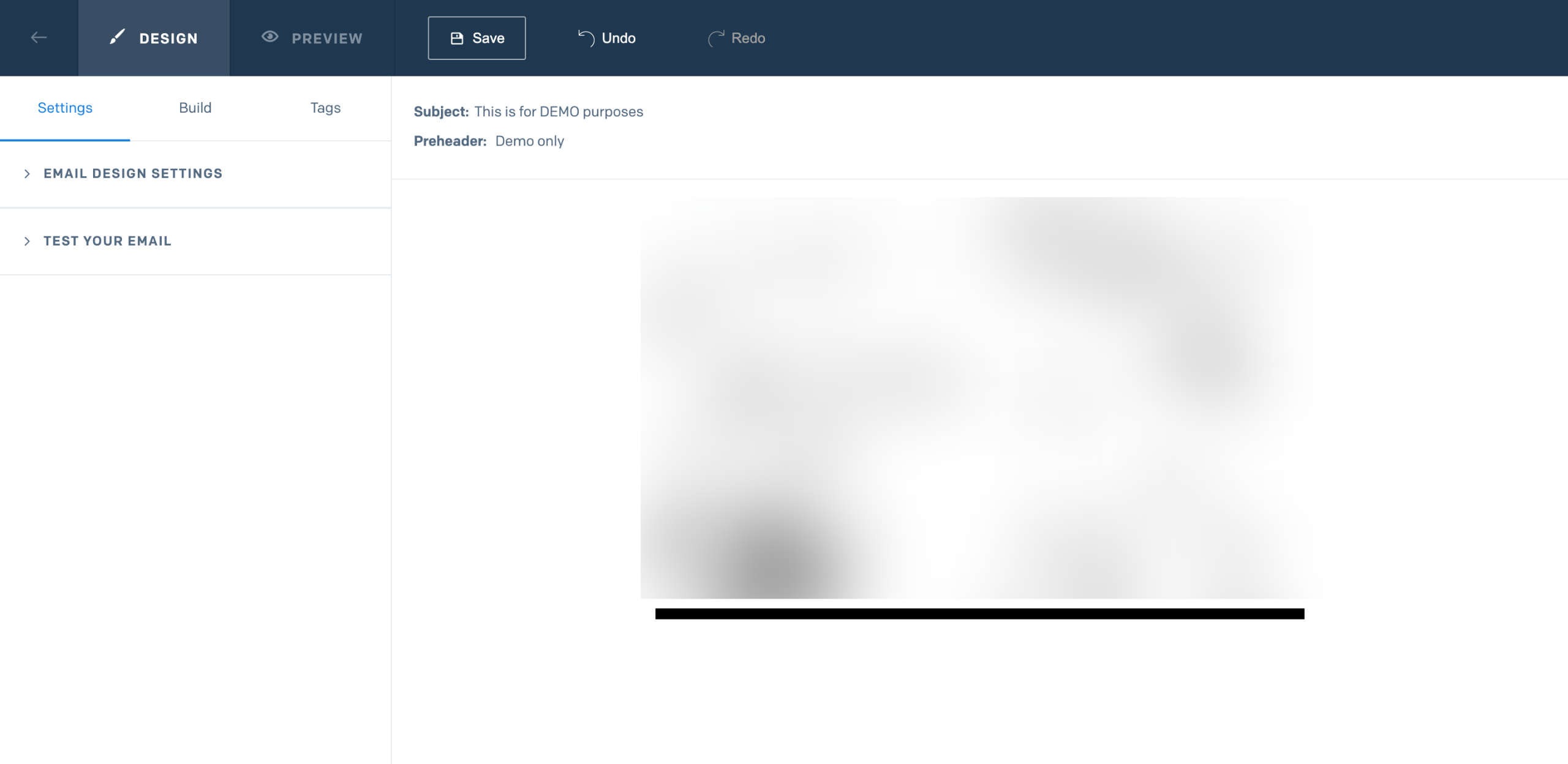
Inside SendGrid's Design Editor, head over to the left-side panel and click the 'Build' tab.
After that, find 'Social' and then drag the module to the main workspace. Place the module below the body of the email.
Configure the social module style settings based on your preferred design. After that, don't forget to provide the links to your active social media handles. Enter them into their respective input fields.
Once done, click the 'Close' button to continue.
Find the 'Unsubscribe' module, then drag it to the main workspace right below the Social.
Subsequently, configure the Unsubscribe Module Styles settings according to your liking. For instance, you may change the background color, font profile, and other related preferences.
Check the footer very well. and make final adjustments. If you wish to add more elements like website URL or telephone number using a text module, simply repeat the same series of steps.
Finally, click 'Save' to apply the changes.
Quick answer: To create an email footer in SendGrid's Design Editor, click the Build tab, drag the Social and Unsubscribe modules into the workspace below the email body, configure their styles and links, make any final adjustments, and click Save to apply the changes.
About this SendGrid tutorial
Design professional email footers in SendGrid by adding social and unsubscribe modules, configuring styles, and saving your changes. This guide shows how to create an Email Footer in SendGrid in 8 steps, starting with "Inside SendGrid's Design Editor, head over to the left-side panel and click the 'Build'..." and finishing with "Finally, click 'Save' to apply the changes". The interactive demo above is a click-through copy of the real SendGrid interface, so you can rehearse each step before doing it in your own account.
Frequently asked questions
How many steps does it take to create an Email Footer in SendGrid?
8 steps. Each one is listed in order above, and the demo highlights exactly where to click.
Can I try it without changing my own account?
Yes. Clicking through the demo doesn't touch your SendGrid data or settings. Once you know the flow, repeat it in your own workspace.
This tutorial is filed under SendGrid. Related guides: How to Create an Email Header in SendGrid, How to Create an Email Sign-up Link in SendGrid and How to Create Basic Contact Lists in SendGrid. Last reviewed 05 Oct 2026.

Create your first interactive demo in minutes
No credit card required • Start building today