How to Create Custom Dialog Boxes MS Access
- George Apostolov
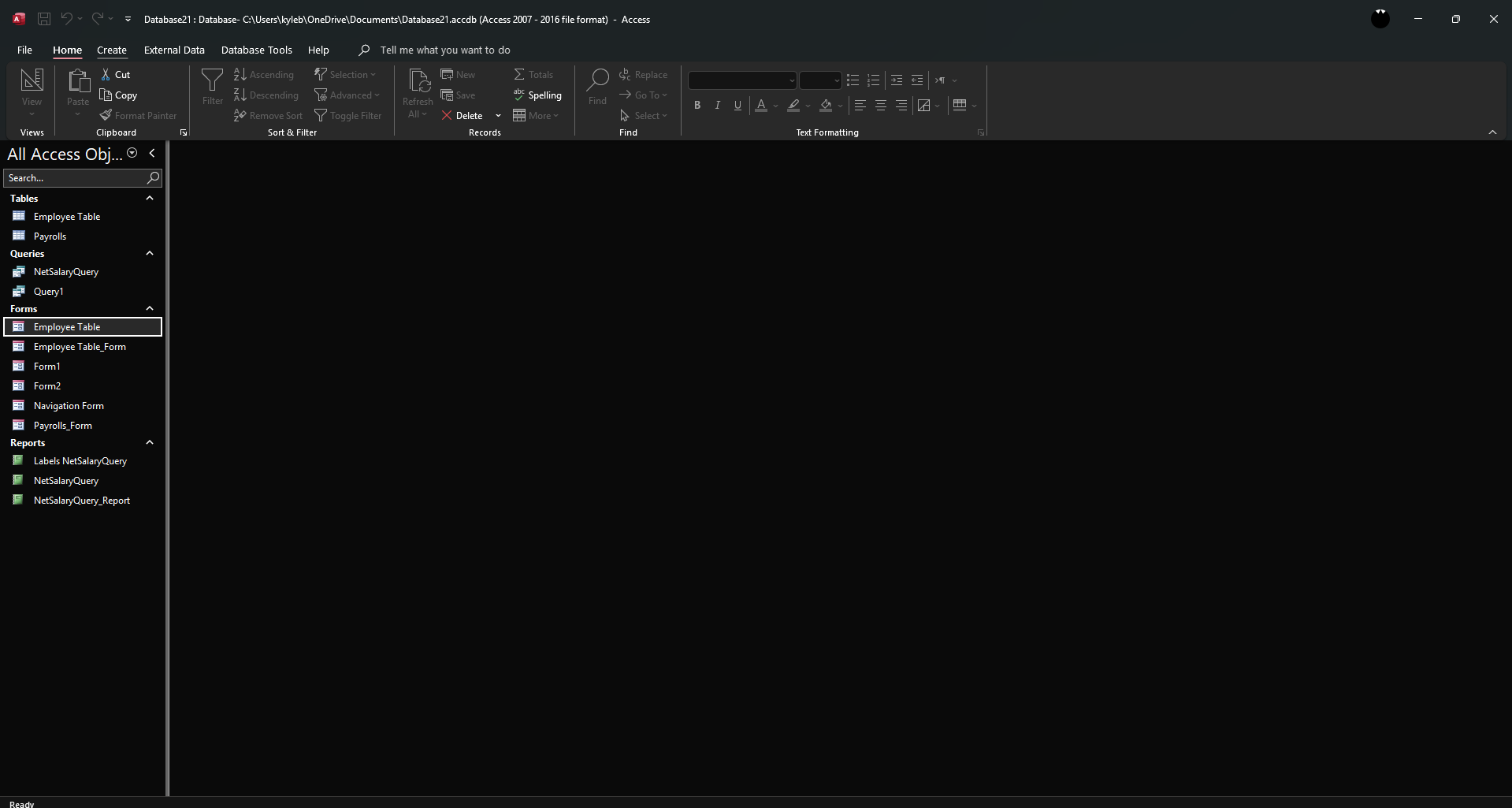
How to Create Custom Dialog Boxes MS Access: step-by-step guide
Go to the 'Create' tab.
Click 'Form Design'.
Add controls based on your needs. Arrange them neatly to fit a dialog box style.
Click the 'Property Sheet' button.
Open the form's 'Property Sheet', go to the 'Pop Up' menu and set it as '
Yes'to make the form appear as a pop-up.Go to the 'Modal' menu and set it as '
Yes'to prevent the user from interacting with other windows until the dialog box is closed.Set the 'Record Selectors' as '
No'to hide the record selector bar.Set the 'Navigation Buttons' to '
No'to hide navigation buttons.Set the 'Close Button' as '
YesorNo' depending on whether you want the user to close it manually.Save the form by clicking the save icon.
Quick answer: To create custom dialog boxes in Microsoft Access, go to the Create tab, click Form Design, and add controls. Open the Property Sheet, set Pop Up and Modal to Yes, configure Record Selectors, Navigation Buttons, and Close Button preferences, and then save the form.
About this tutorial
Design custom dialog boxes in the app by adjusting property settings for pop-up behavior, modal state, and button visibility. This guide shows how to create Custom Dialog Boxes MS Access in 10 steps, starting with "Go to the 'Create' tab" and finishing with "Save the form by clicking the save icon". The interactive demo above is a click-through copy of the real product interface, so you can rehearse each step before doing it in your own account.
Frequently asked questions
How many steps does it take to create Custom Dialog Boxes MS Access?
10 steps. Each one is listed in order above, and the demo highlights exactly where to click.
Can I try it without changing my own account?
Yes. Clicking through the demo doesn't touch your data or settings. Once you know the flow, repeat it in your own workspace.

Create your first interactive demo in minutes
No credit card required • Start building today