How to Create Newsletter in Klaviyo
- George Apostolov
How to Create Newsletter in Klaviyo: step-by-step guide
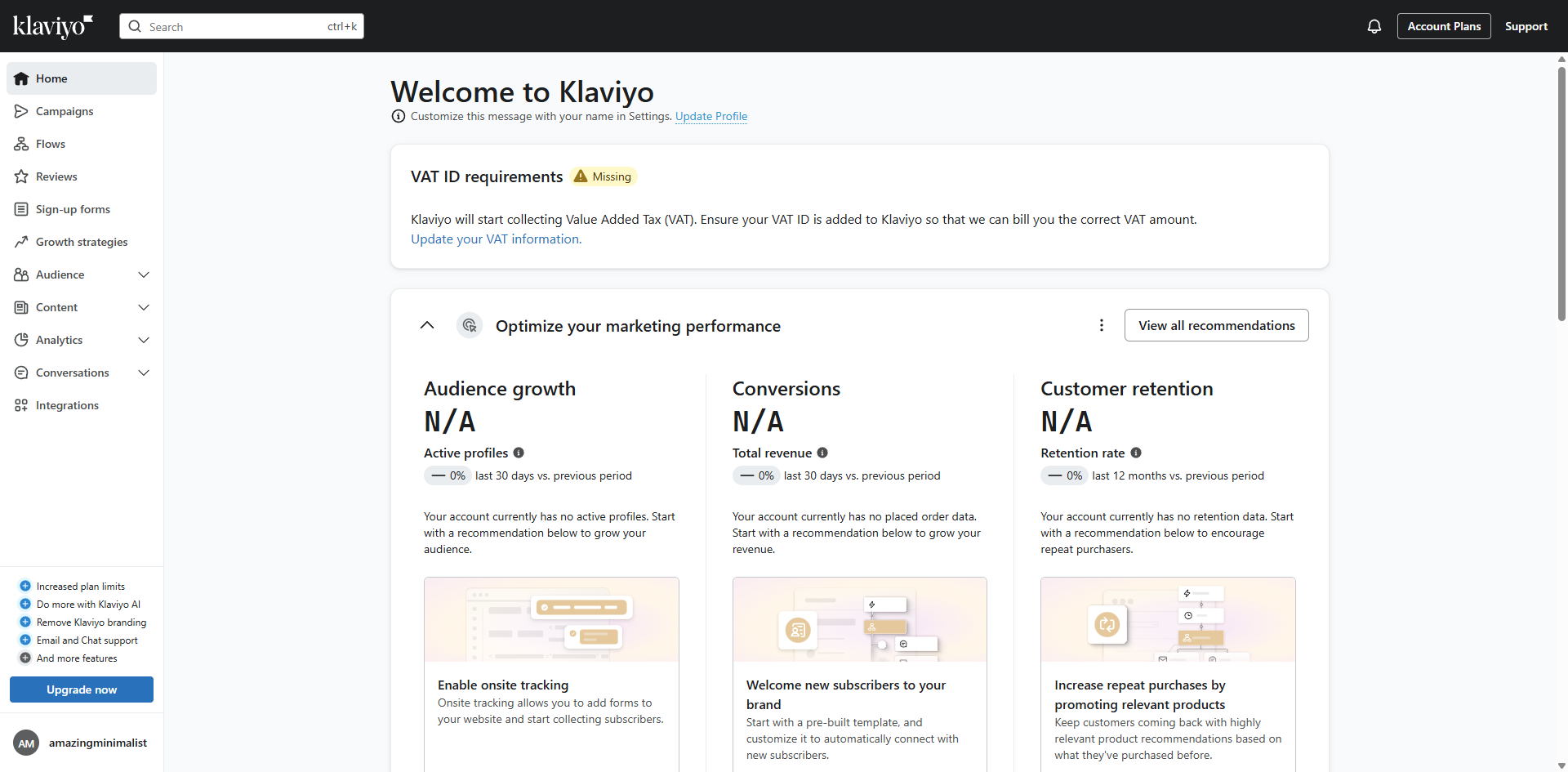
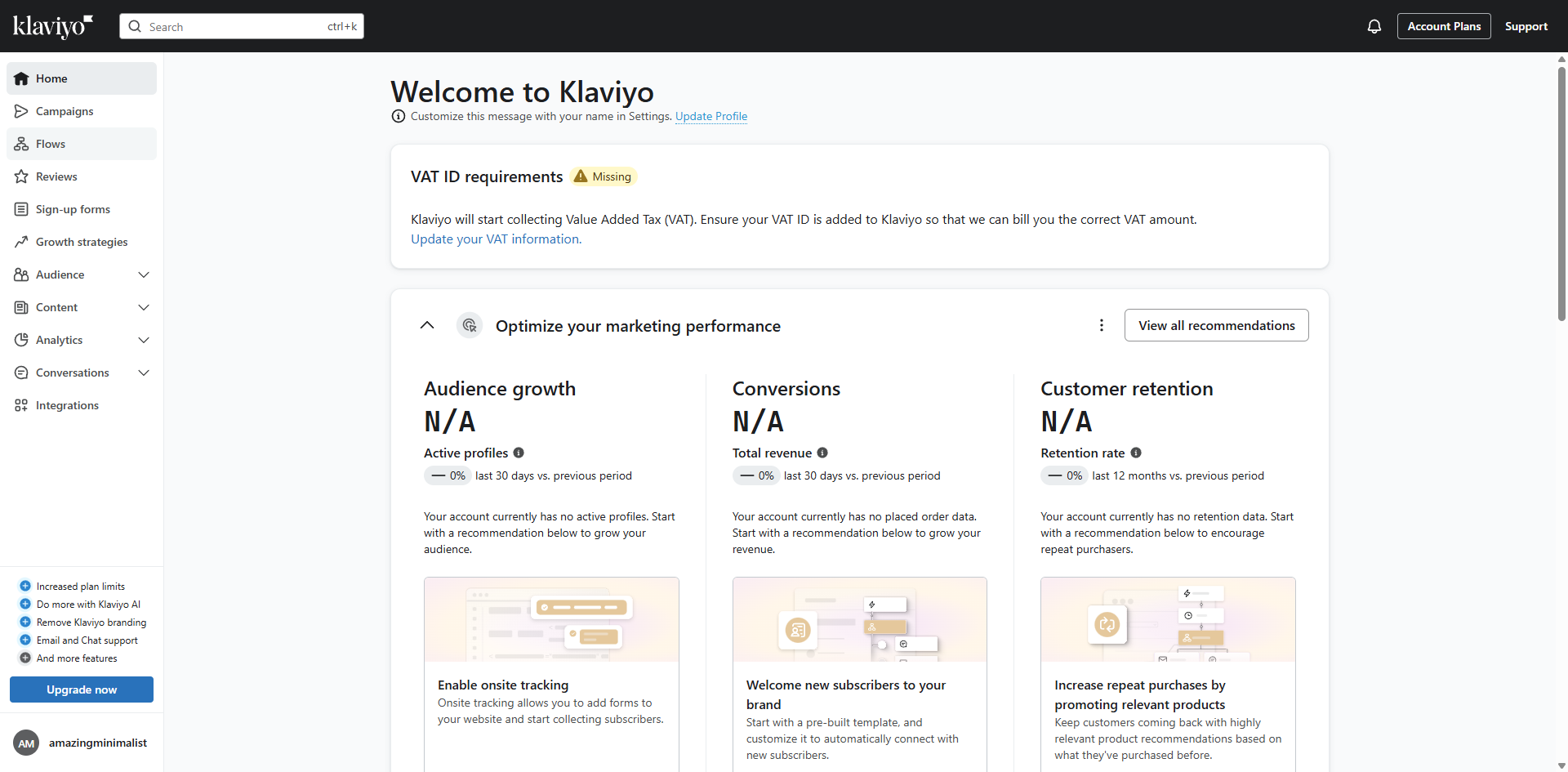
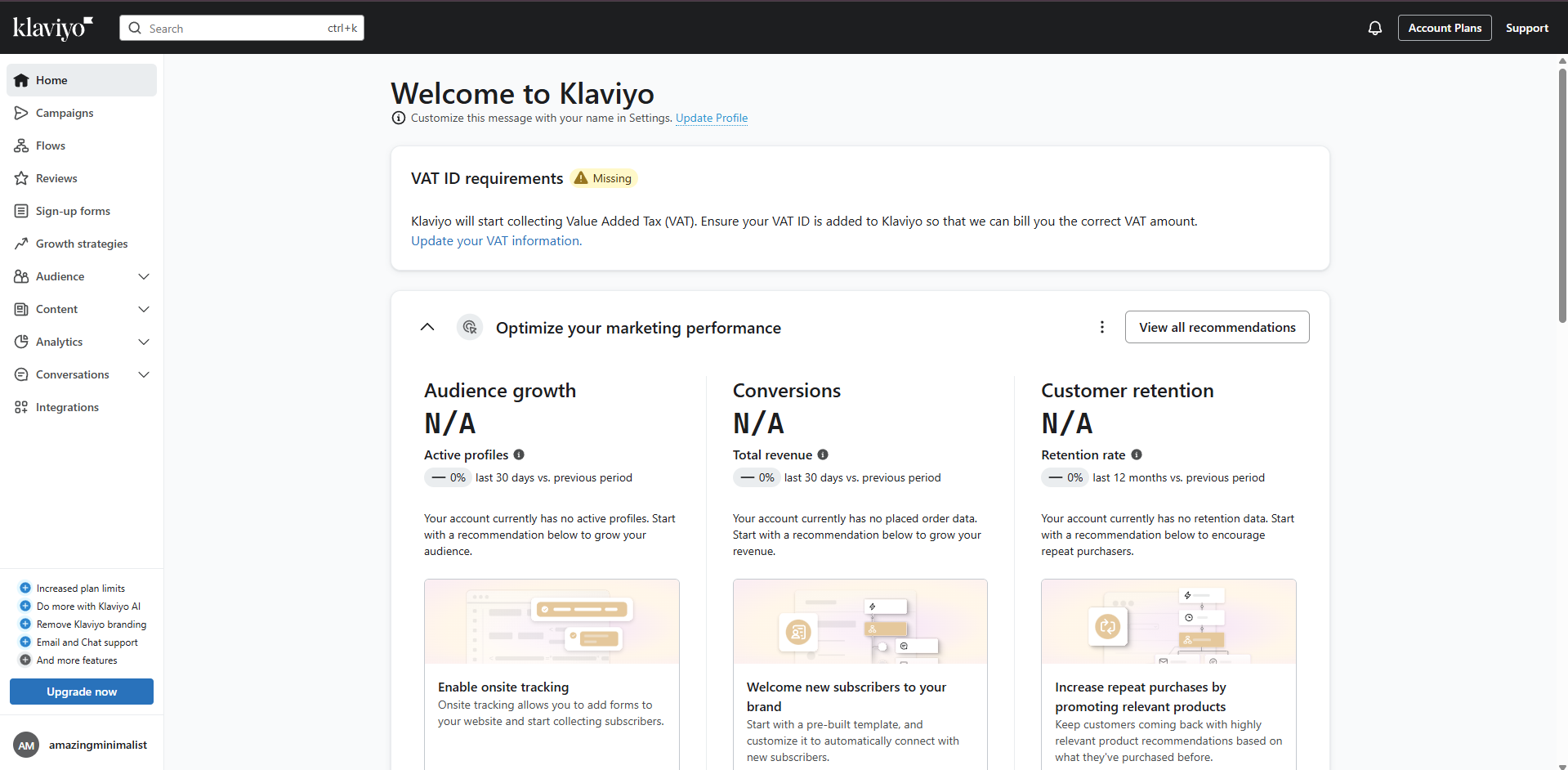
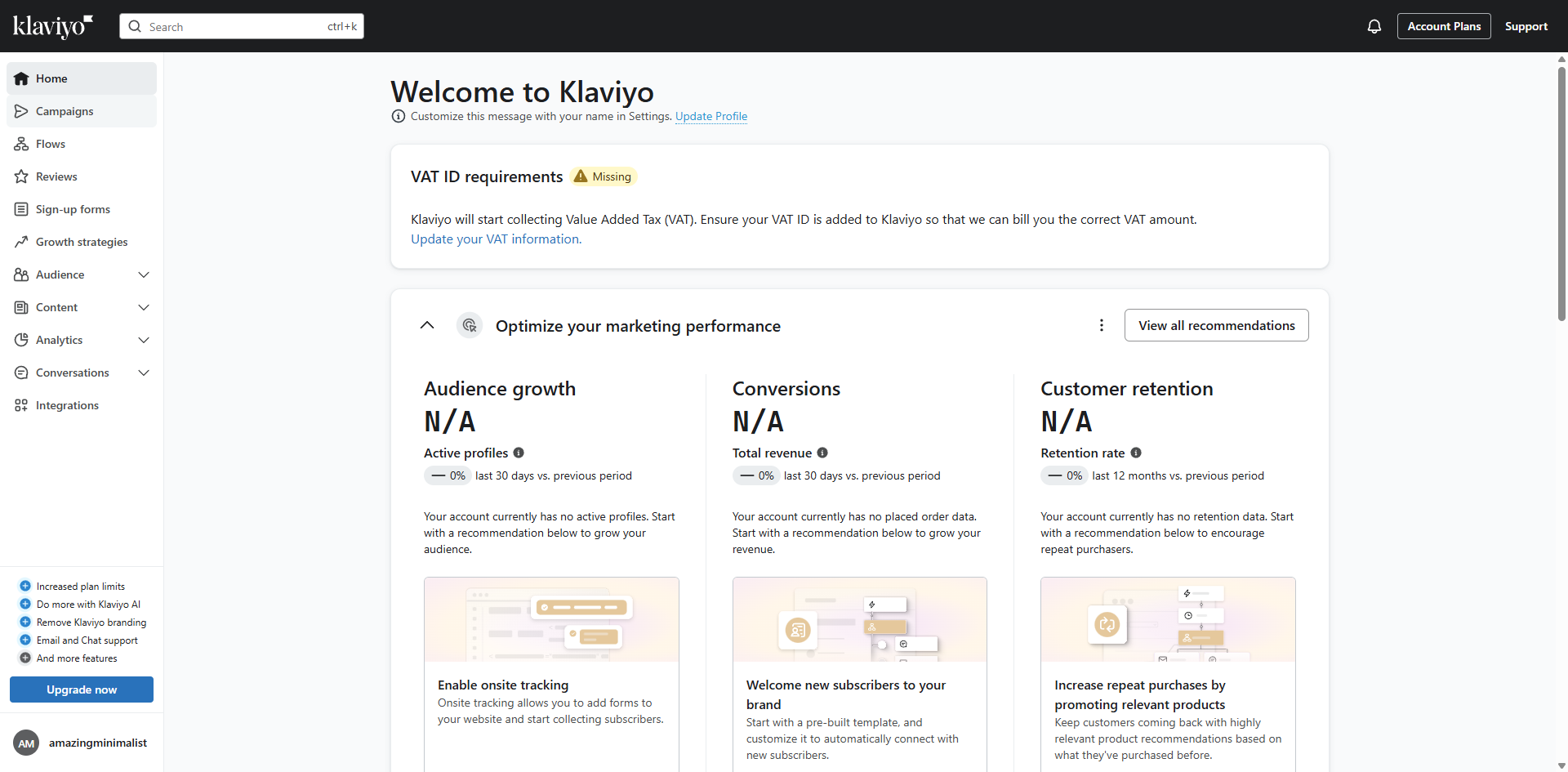
Navigate to the 'Campaigns' section to manage your email marketing initiatives.
Click 'Create campaign' to start building your new marketing campaign.
Input a name that helps your team identify this campaign.
Select 'Email' as your campaign channel to reach customers' inboxes.
Assign appropriate category tags to segment your campaigns.
Move forward with your campaign setup.
Choose your recipient list to determine who receives this campaign.
Proceed to the next step in your campaign creation process.
Add a text block to communicate your message effectively.
Customize this text block with your campaign's main message.
Enhance visual appeal with a background color that matches your brand.
Select a background color that complements your sleep product theme.
Customize button text to create urgency and drive clicks.
Enhance your campaign with visuals that showcase your sleep products.
Choose this engaging GIF to demonstrate relaxation benefits.
Confirm your image selection to incorporate it into the email.
Enhance your campaign with more engaging campaign contents.
Click 'Preview & test' to review how your email will appear to recipients before sending.
Customize your email message and proceed to campaign delivery options.
Choose when to deliver your sleep product campaign.
Launch your campaign immediately to reach customers now.
Click 'Send now' to confirm your decision to launch the sleep product campaign.
Quick answer: To create a newsletter in Klaviyo, navigate to Campaigns, create a campaign, name it, select Email, and assign tags. Choose recipients, add and customize text, background colors, buttons, GIFs, and other content. Finally, preview and test, customize delivery options, and click Send now to launch immediately.
About this Klaviyo tutorial
Design and launch your sleep product newsletters quickly with this step-by-step Klaviyo campaign creation guide. This guide shows how to create Newsletter in Klaviyo in 22 steps, starting with "Navigate to the 'Campaigns' section to manage your email marketing initiatives" and finishing with "Click 'Send now' to confirm your decision to launch the sleep product campaign". The interactive demo above is a click-through copy of the real Klaviyo interface, so you can rehearse each step before doing it in your own account.
Frequently asked questions
How many steps does it take to create Newsletter in Klaviyo?
22 steps. Each one is listed in order above, and the demo highlights exactly where to click.
Can I try it without changing my own account?
Yes. Clicking through the demo doesn't touch your Klaviyo data or settings. Once you know the flow, repeat it in your own workspace.
This tutorial is filed under Klaviyo. Related guides: How to Delete Klaviyo Account, How to Edit a Trigger in Klaviyo and How to Edit Universal Content in Klaviyo. Last reviewed 05 Oct 2026.

Create your first interactive demo in minutes
No credit card required • Start building today