How to Crop Images in Hootsuite
- George Apostolov
This guide is an interactive LiveDemo. Create interactive demos of your own product: Interactive demo software · Interactive customer onboarding guides · Start free
How to Crop Images in Hootsuite: step-by-step guide
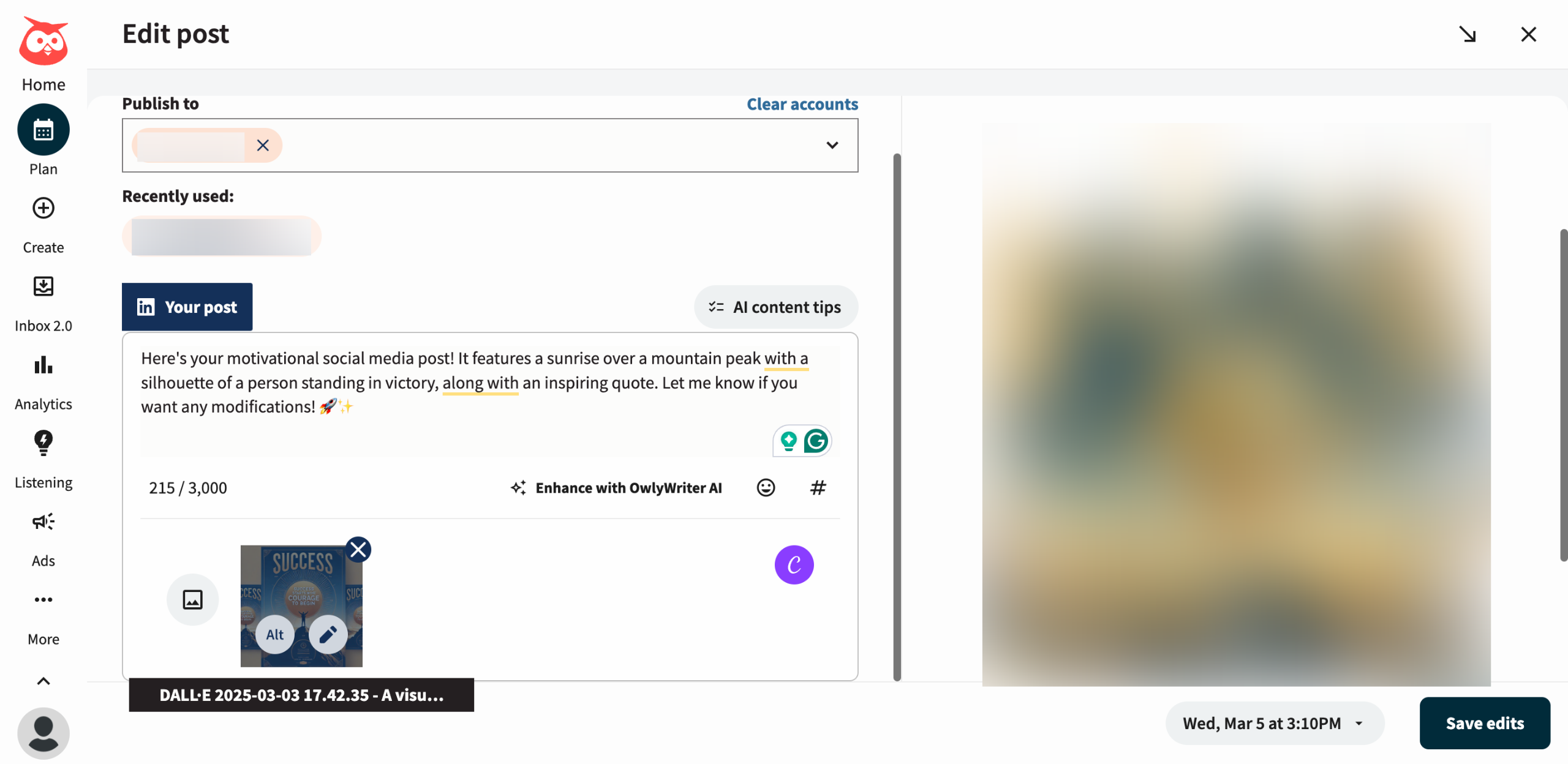
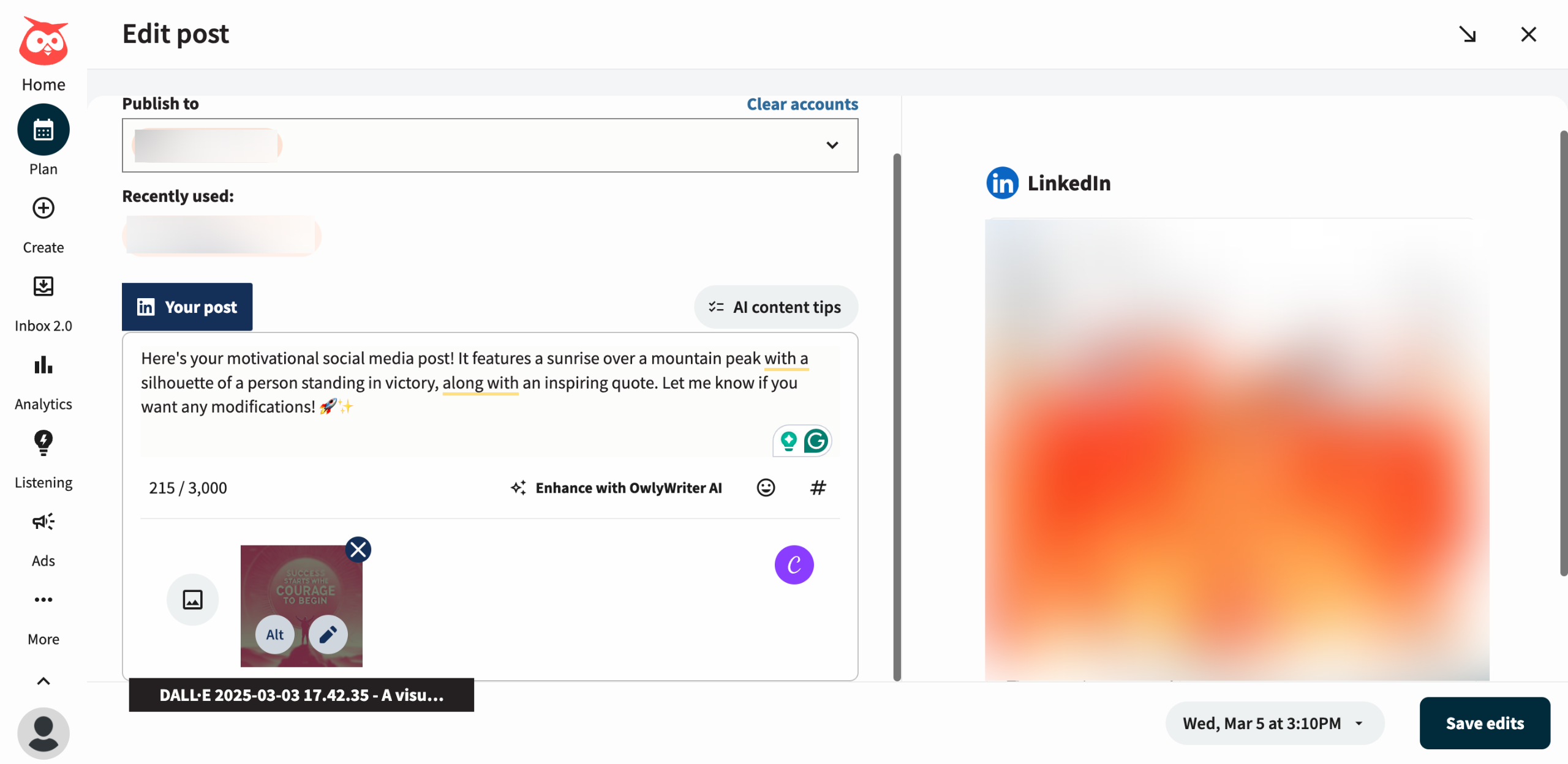
Inside Hootsuite's Composer panel, hover your mouse cursor over the image you wish to crop and then tap the 'Pencil' icon.
Under the Transform tab, find the 'Crop Size' section and then input the new image size you wish to apply. Likewise, you may also select your preferred image size preset from the choices listed down below.
For manual size adjustment, navigate to the preview area and then grab the resizing handle at the corner of the image. Drag it properly to crop your image.
Once done, tap 'Save' to apply the changes.
After completing these steps, the image in your Hootsuite post will be cropped accordingly.
Quick answer: To crop images in Hootsuite, open the Composer panel, hover over the image, and click the Pencil icon. Next, use the Transform tab to enter a new size, select a preset, or manually drag the resizing handle in the preview area. Finally, click Save to apply the changes to your post.
About this Hootsuite tutorial
Resize and adjust your visuals directly within the Hootsuite Composer using the image crop tool, presets, or manual handles, then save. This guide shows how to crop Images in Hootsuite in 5 steps, starting with "Inside Hootsuite's Composer panel, hover your mouse cursor over the image you wish to c..." and finishing with "After completing these steps, the image in your Hootsuite post will be cropped accordingly". The interactive demo above is a click-through copy of the real Hootsuite interface, so you can rehearse each step before doing it in your own account.
Frequently asked questions
How many steps does it take to crop Images in Hootsuite?
5 steps. Each one is listed in order above, and the demo highlights exactly where to click.
Can I try it without changing my own account?
Yes. Clicking through the demo doesn't touch your Hootsuite data or settings. Once you know the flow, repeat it in your own workspace.
This tutorial is filed under Hootsuite. Related guides: How to Customize the Dashboard Layout in Hootsuite, How to Delete Scheduled Posts in Hootsuite and How to Download Hootsuite's Android Mobile App From the Desktop. Last reviewed 05 Oct 2026.

Create your first interactive demo in minutes
No credit card required • Start building today