How to Draw a Line in Microsoft Excel
- George Apostolov
This guide is an interactive LiveDemo. Create interactive demos of your own product: Interactive demo software · Interactive customer onboarding guides · Start free
How to Draw a Line in Microsoft Excel: step-by-step guide
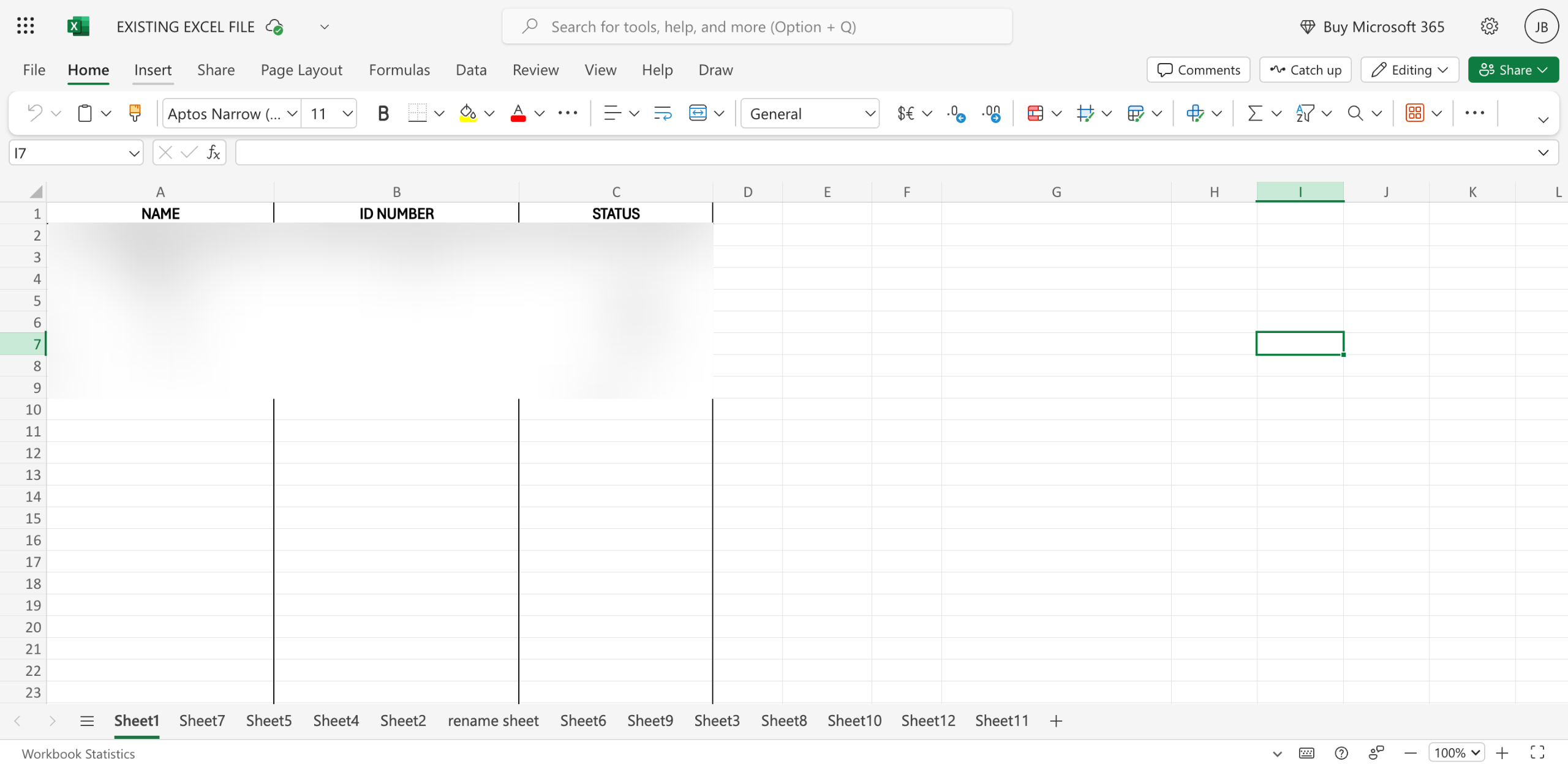
Inside your Microsoft Excel worksheet, go to the top menu bar and then click 'Insert'.
Select the 'Shapes' menu from the available options.
Following that, choose 'Line' under the Lines section.
A line will be drawn instantly. To customize its general design, access the floating menu and use the provided options to make your desired changes. From there, you may change the Line Style or add Fill and Outline colors.
On the one hand, grab the handles at both ends of the line to resize it based on your preferences.
After completing these steps, a line will be added to your Microsoft Excel document.
Quick answer: To draw a line in Microsoft Excel, click Insert in the top menu bar, select Shapes, and choose Line under the Lines section. Customize the line using the floating menu to change the Line Style or add Fill and Outline colors, and grab the handles to resize it.
About this Microsoft tutorial
Add and customize lines in Microsoft Excel by using the Insert Shapes menu, adjusting styles, and resizing the shape. This guide shows how to draw a Line in Microsoft Excel in 6 steps, starting with "Inside your Microsoft Excel worksheet, go to the top menu bar and then click 'Insert'" and finishing with "After completing these steps, a line will be added to your Microsoft Excel document". The interactive demo above is a click-through copy of the real Microsoft interface, so you can rehearse each step before doing it in your own account.
Frequently asked questions
How many steps does it take to draw a Line in Microsoft Excel?
6 steps. Each one is listed in order above, and the demo highlights exactly where to click.
Can I try it without changing my own account?
Yes. Clicking through the demo doesn't touch your Microsoft data or settings. Once you know the flow, repeat it in your own workspace.
This tutorial is filed under Microsoft and Excel. Related guides: How to Duplicate a Microsoft Excel Sheet, How to Duplicate a Plan in Microsoft Planner and How to Edit the Drop-Down List Source in Microsoft Excel. Last reviewed 05 Oct 2026.

Create your first interactive demo in minutes
No credit card required • Start building today