How to Edit Joomla Website Content
- George Apostolov
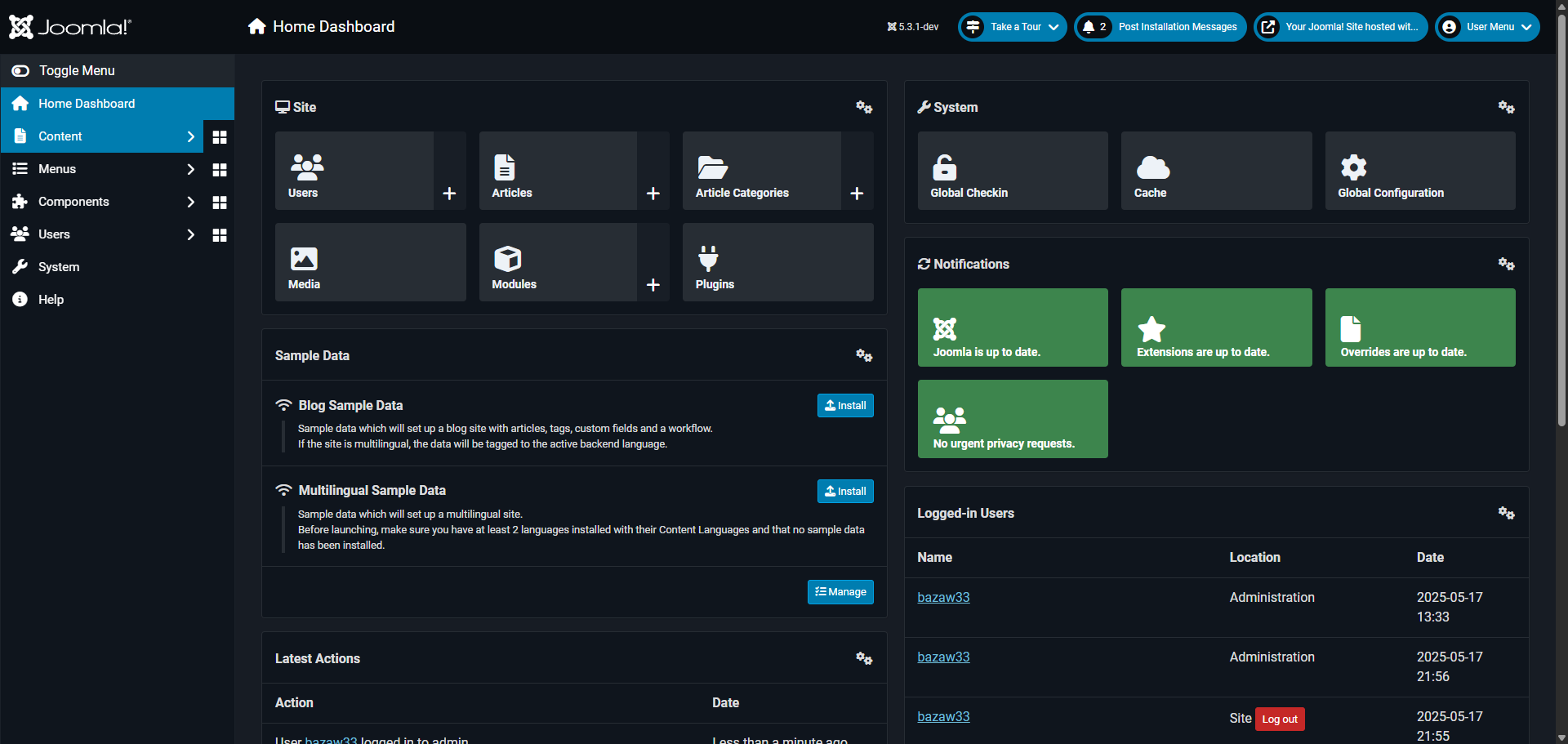
How to Edit Joomla Website Content: step-by-step guide
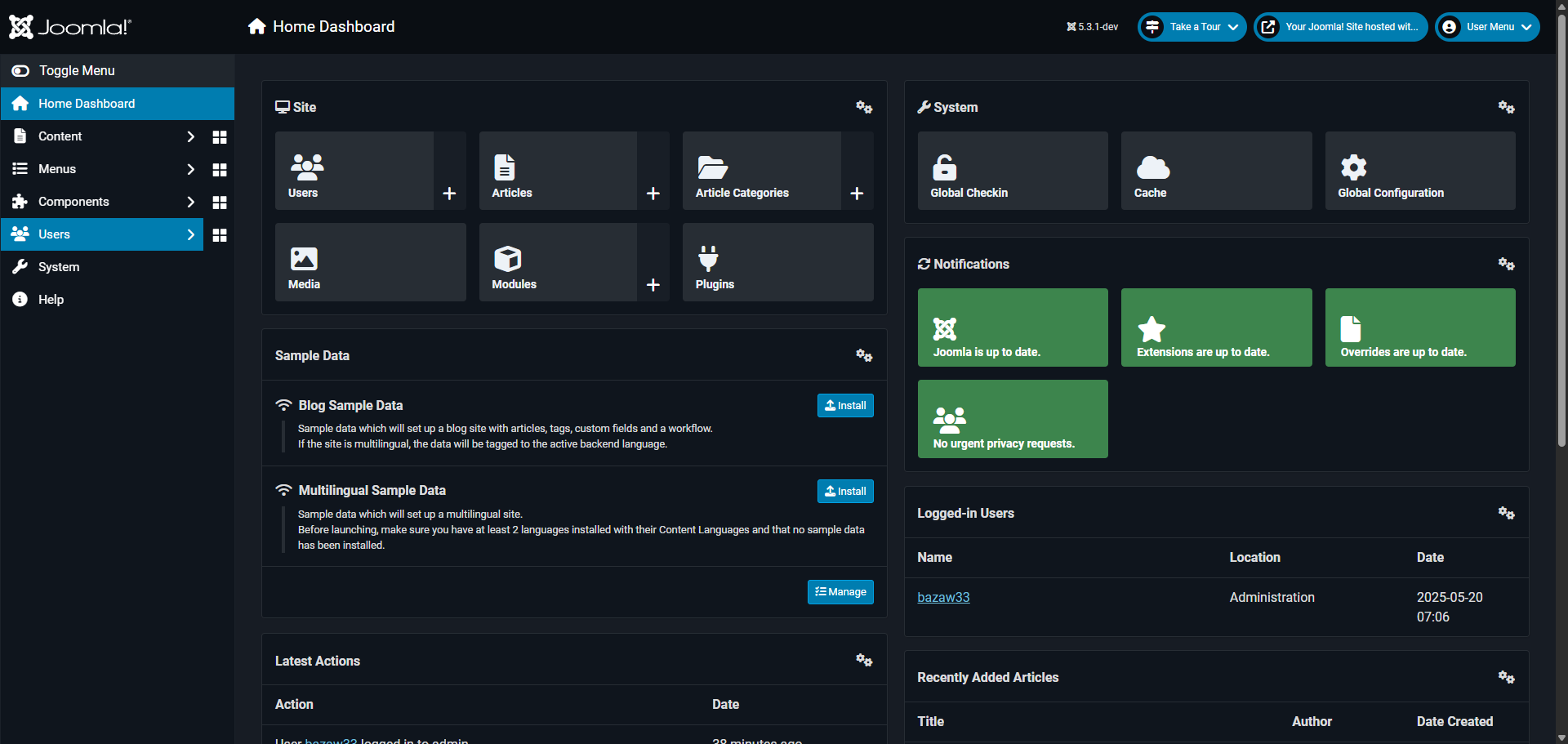
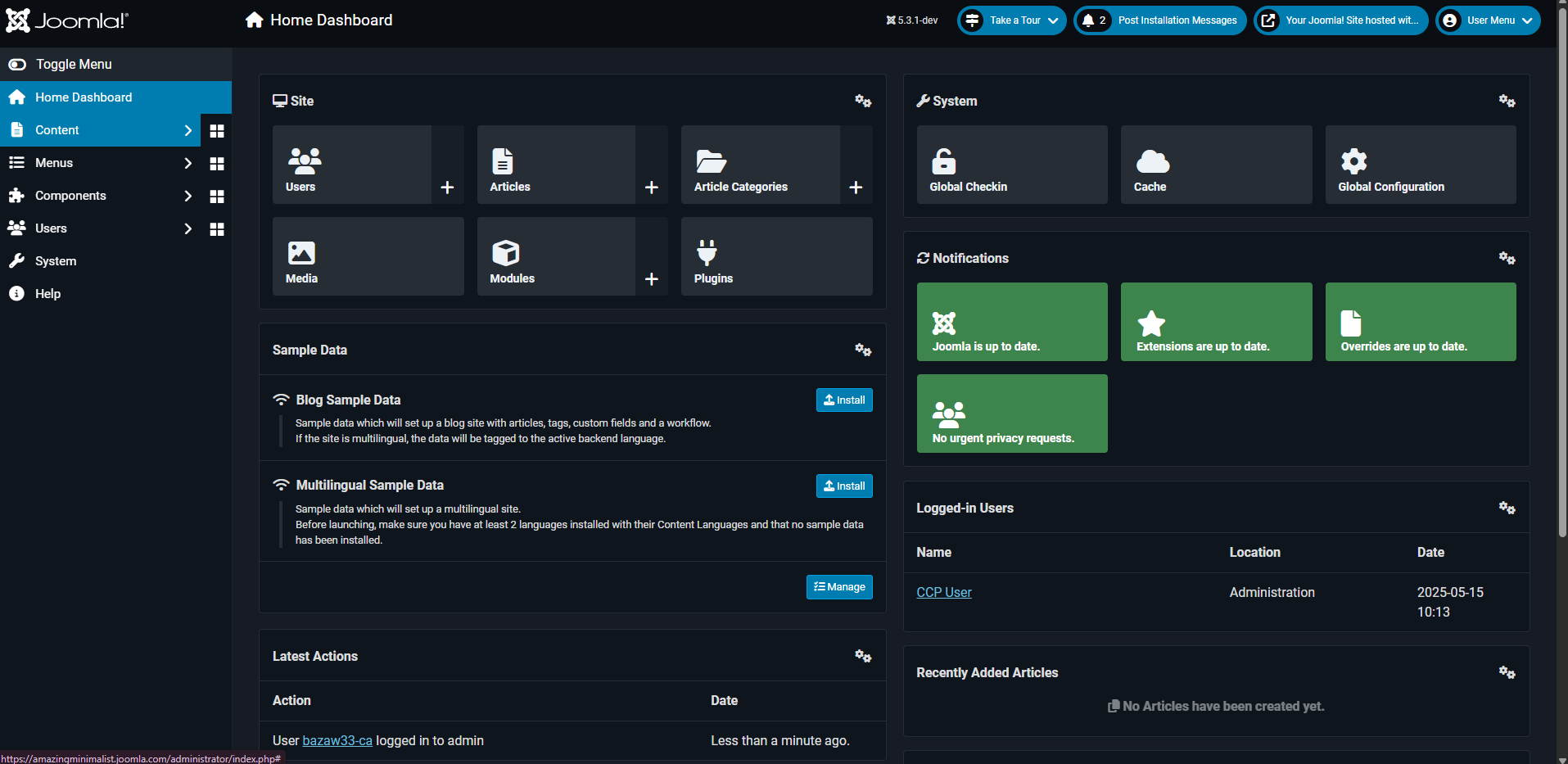
Start by exploring the 'Content' management area, where you'll find all your website articles organized and ready for editing.
Click on 'Articles' to access these core building blocks of your Joomla website content.
Find and click on the title of the article you want to modify, that's your gateway to making changes.
Use the editor to update text, add images, or adjust formatting.
Don't forget to click 'Save & Close' when you're happy with your changes.
Next, let's jump over to 'Menus' to manage how visitors navigate through your content.
Click on 'Main Menu' to modify your primary navigation links that guide visitors around your site.
Locate and select the menu item that needs attention from the list.
Edit the menu item's name, link destination, or adjust who can see it.
Lock in those menu changes by clicking 'Save & Close', they'll be immediately visible on your website.
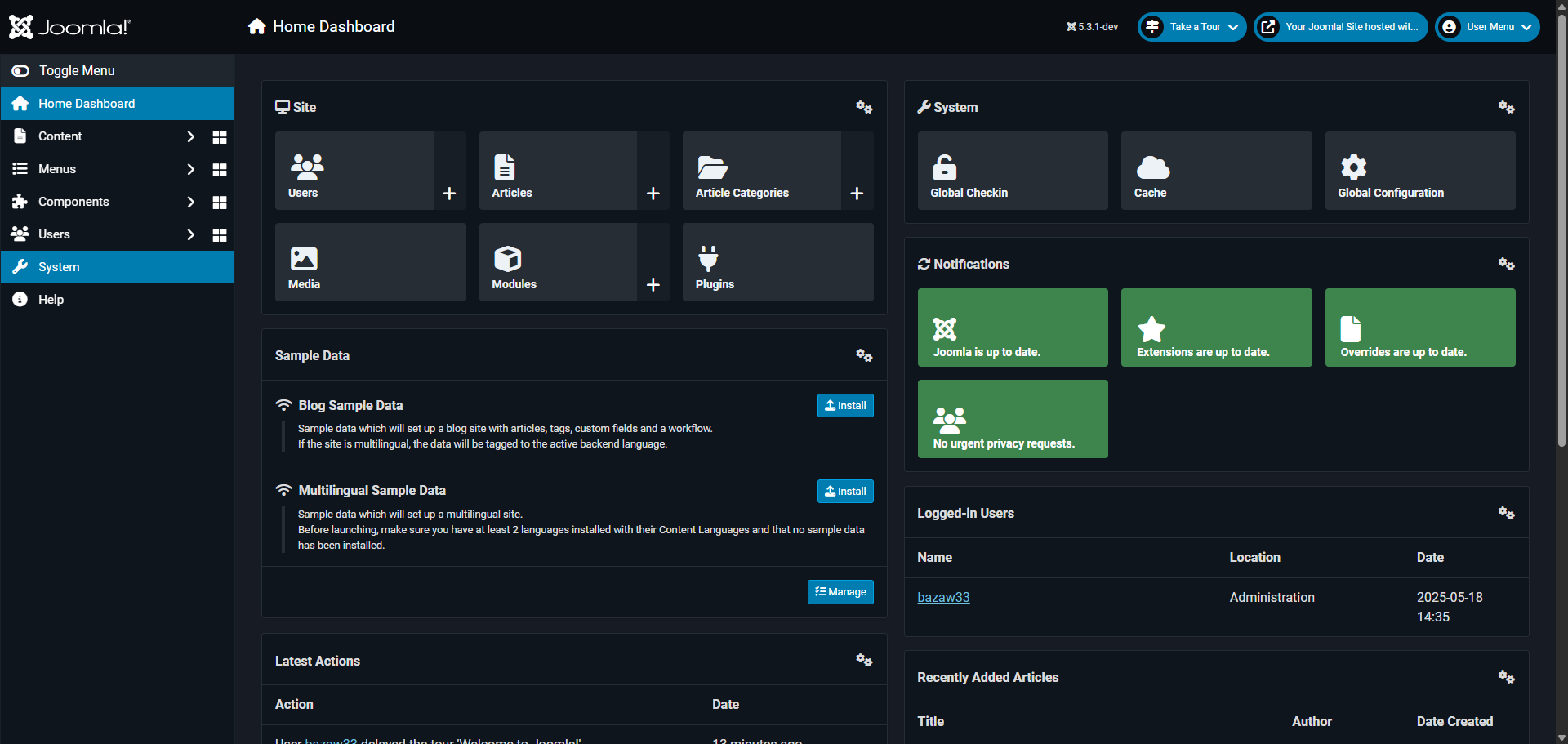
For more technical tweaks, head over to 'System' settings.
Access 'Maintenance' tools to keep your Joomla site running at its best.
Select 'Clear Cache' to sweep away temporary files that might be slowing down your website.
Choose which specific cache types need clearing – be selective or go for a clean sweep.
Finish up by clicking 'Delete All' to complete the cache clearing process, your recent changes will now appear instantly on your site.
Quick answer: To edit content in Joomla, explore the Content management area and Articles, select an article, update it using the editor, and click Save & Close. Then, manage navigation via Menus and Main Menu, edit the item, and save. Finally, use System settings and Maintenance to clear the cache and delete all.
About this Joomla tutorial
Modify articles, update navigation menus, and clear cache to manage your Joomla website effectively. This guide shows how to edit Joomla Website Content in 15 steps, starting with "Start by exploring the 'Content' management area, where you'll find all your website ar..." and finishing with "Finish up by clicking 'Delete All' to complete the cache clearing process, your recent...". The interactive demo above is a click-through copy of the real Joomla interface, so you can rehearse each step before doing it in your own account.
Frequently asked questions
How many steps does it take to edit Joomla Website Content?
15 steps. Each one is listed in order above, and the demo highlights exactly where to click.
Can I try it without changing my own account?
Yes. Clicking through the demo doesn't touch your Joomla data or settings. Once you know the flow, repeat it in your own workspace.
This tutorial is filed under Joomla. Related guides: How to Edit the Contact Form in Joomla, How to Embed Video in Joomla and How to Find Jlogs Joomla. Last reviewed 05 Oct 2026.

Create your first interactive demo in minutes
No credit card required • Start building today