How to Flip Text in Canva
- George Apostolov
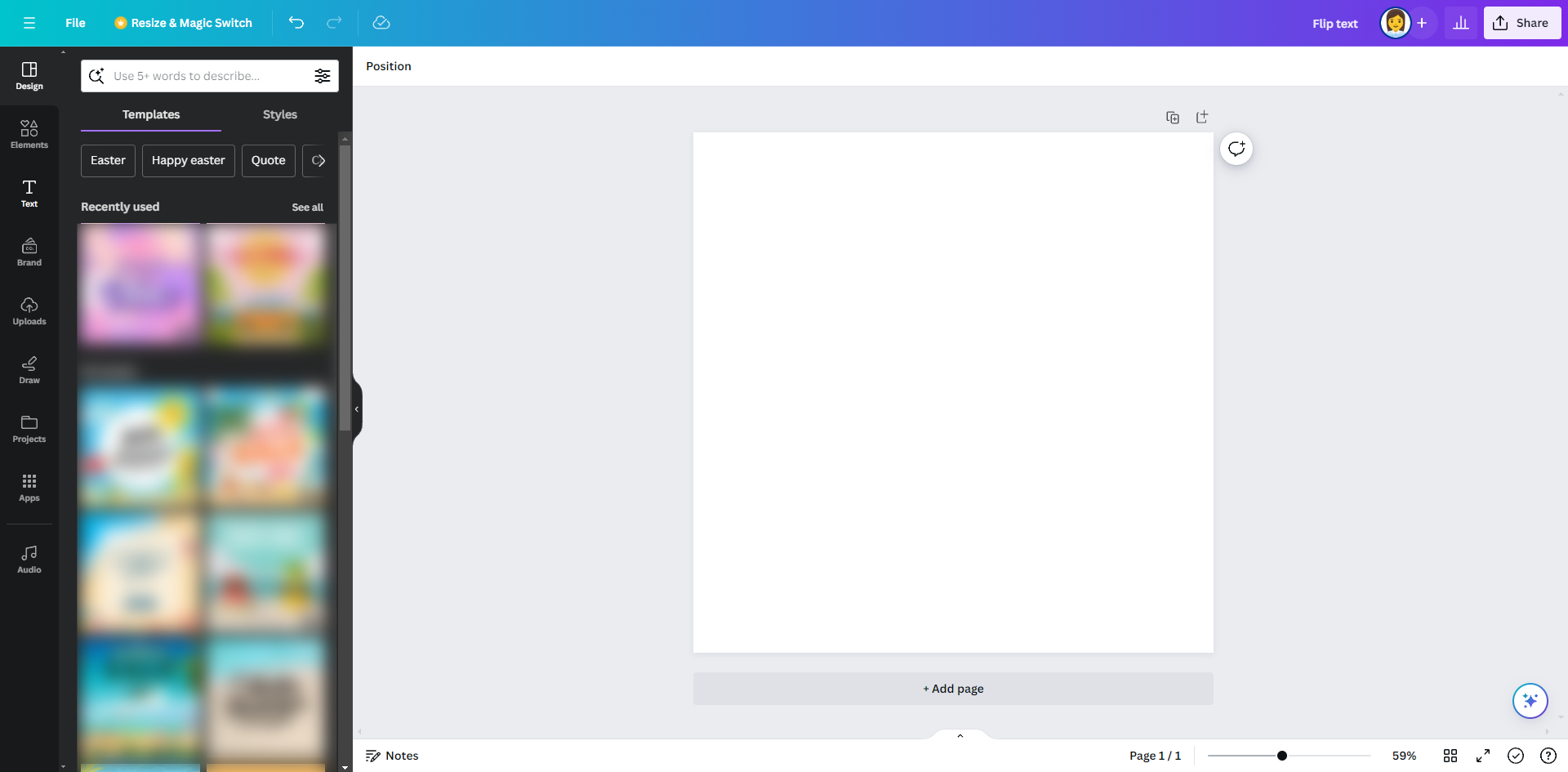
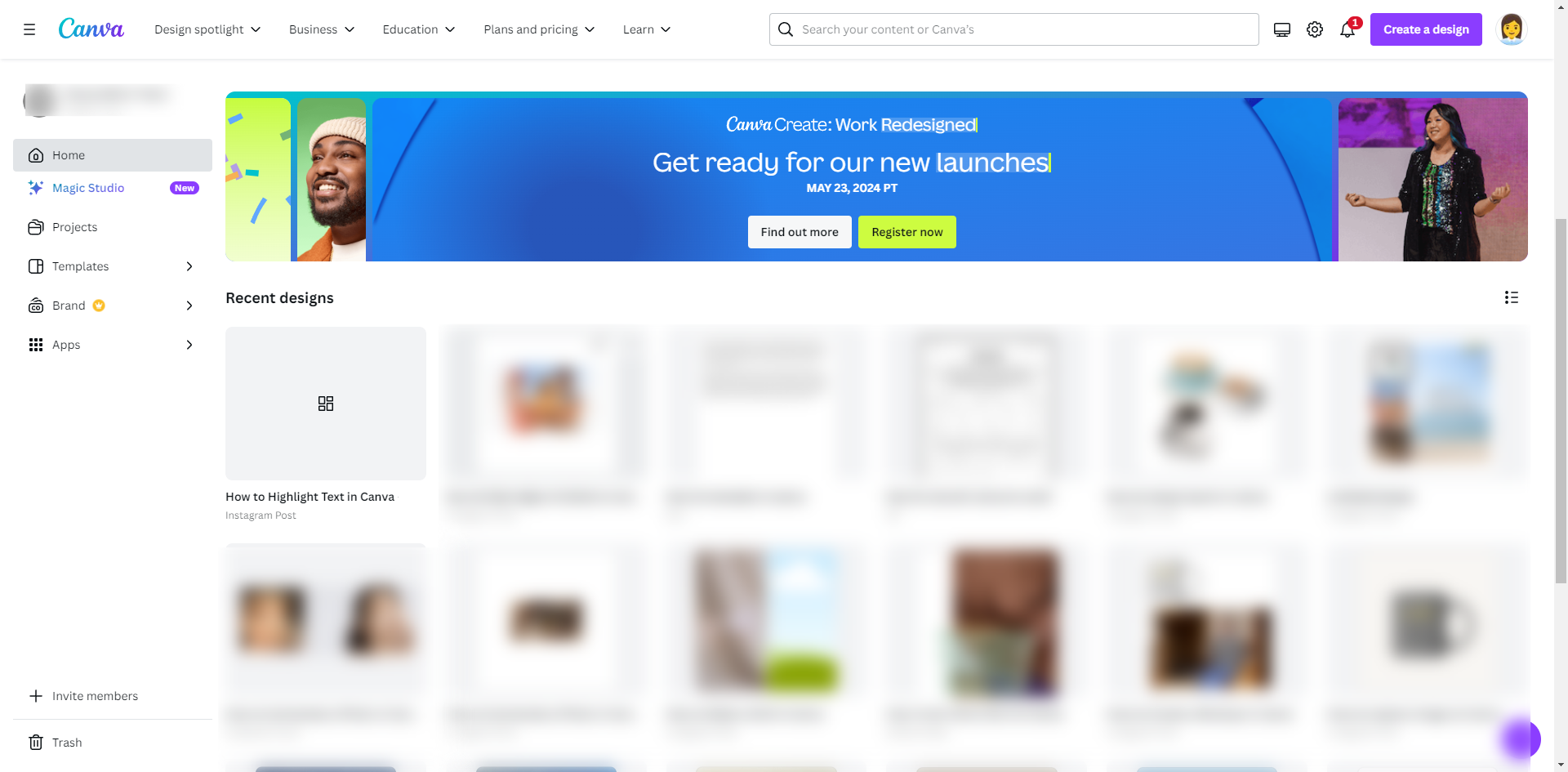
How to Flip Text in Canva: step-by-step guide
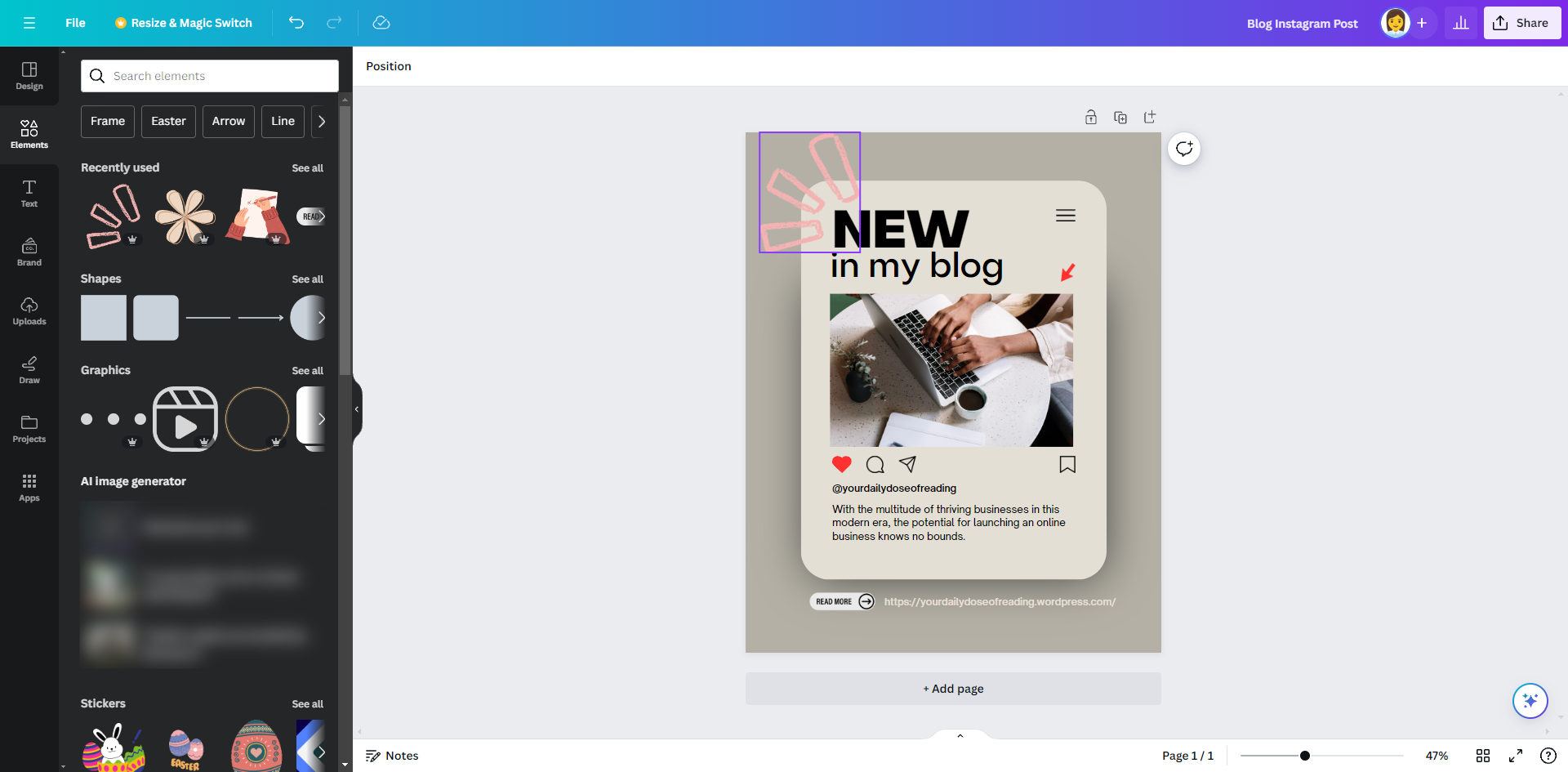
On the edit toolbar, choose 'Text'.
Choose 'Add a heading' to use in adding the text you want to flip.
Click 'Share' to save the image.
Click 'Download'.
On the file type, choose 'PNG'.
Make sure to check the option as 'Transparent background'.
And also the option as 'Save download settings'.
Click 'Download'.
On the edit toolbar, click 'Uploads'.
Choose 'Upload files'.
Click the downloaded image.
Move the flipped text to the desired position so it aligns correctly with the original text.
On the toolbar above the editor, click on 'Flip'.
Click on 'Flip horizontal' to flip it sideways, or 'Flip vertical' to flip it upside down.
By following these steps, you can effectively create flipped text in Canva, even though there isn't a dedicated feature for it.
Quick answer: To flip text in Canva, add a heading via the edit toolbar, download the text as a PNG with a transparent background, upload the image back into Canva, and use the flip tool to adjust it horizontally or vertically.
About this Canva tutorial
Create flipped text in Canva by downloading your text as a transparent PNG, uploading it, and applying the horizontal or vertical flip tool. This guide shows how to flip Text in Canva in 15 steps, starting with "On the edit toolbar, choose 'Text'" and finishing with "By following these steps, you can effectively create flipped text in Canva, even though...". The interactive demo above is a click-through copy of the real Canva interface, so you can rehearse each step before doing it in your own account.
Frequently asked questions
How many steps does it take to flip Text in Canva?
15 steps. Each one is listed in order above, and the demo highlights exactly where to click.
Can I try it without changing my own account?
Yes. Clicking through the demo doesn't touch your Canva data or settings. Once you know the flow, repeat it in your own workspace.
This tutorial is filed under Canva. Related guides: How to Generate AI Headshots in Canva, How to Generate an AI Logo in Canva and How To Group on Canva. Last reviewed 05 Oct 2026.

Create your first interactive demo in minutes
No credit card required • Start building today