How to Implement Search Functionality in Bubble.io
- George Apostolov
How to Implement Search Functionality in Bubble.io: step-by-step guide
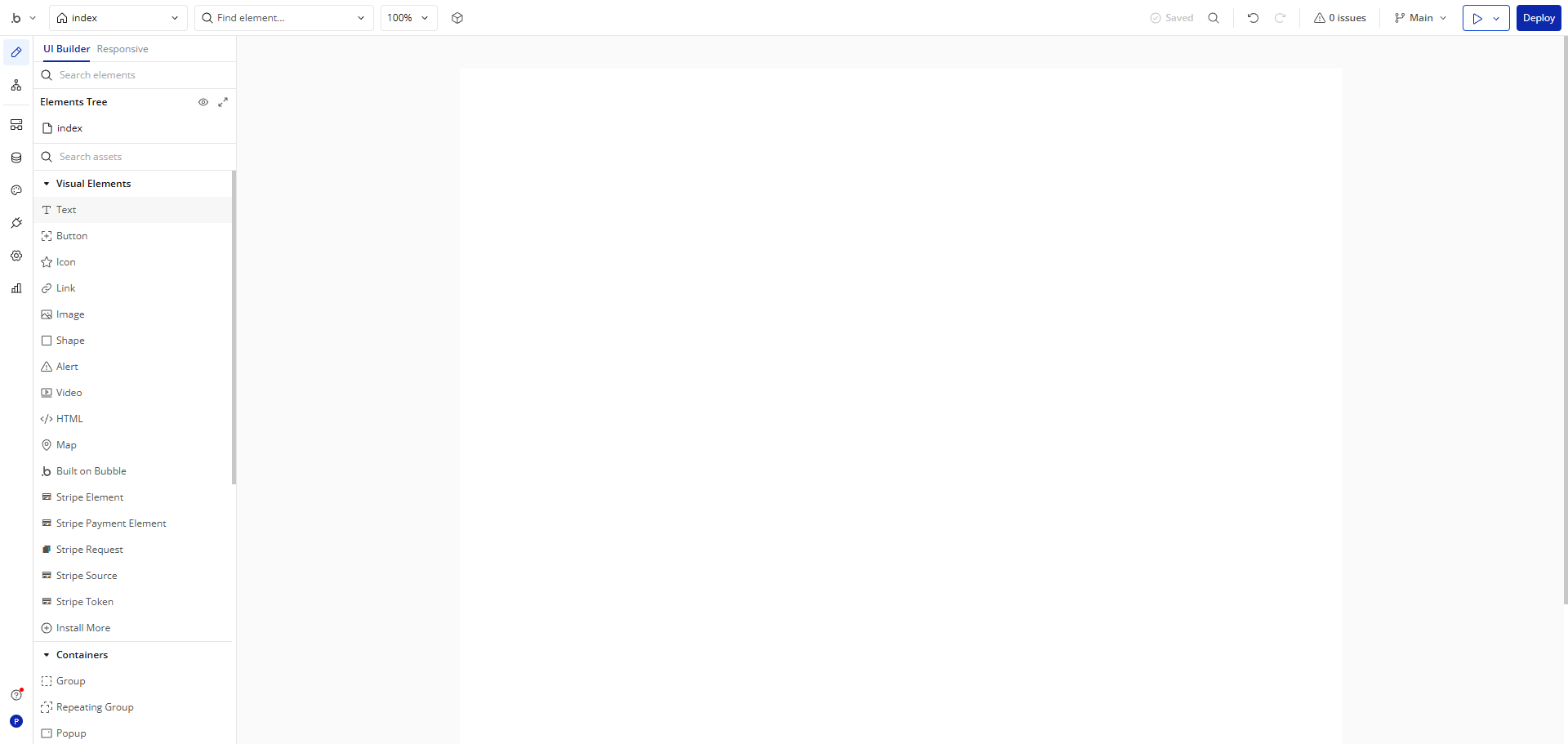
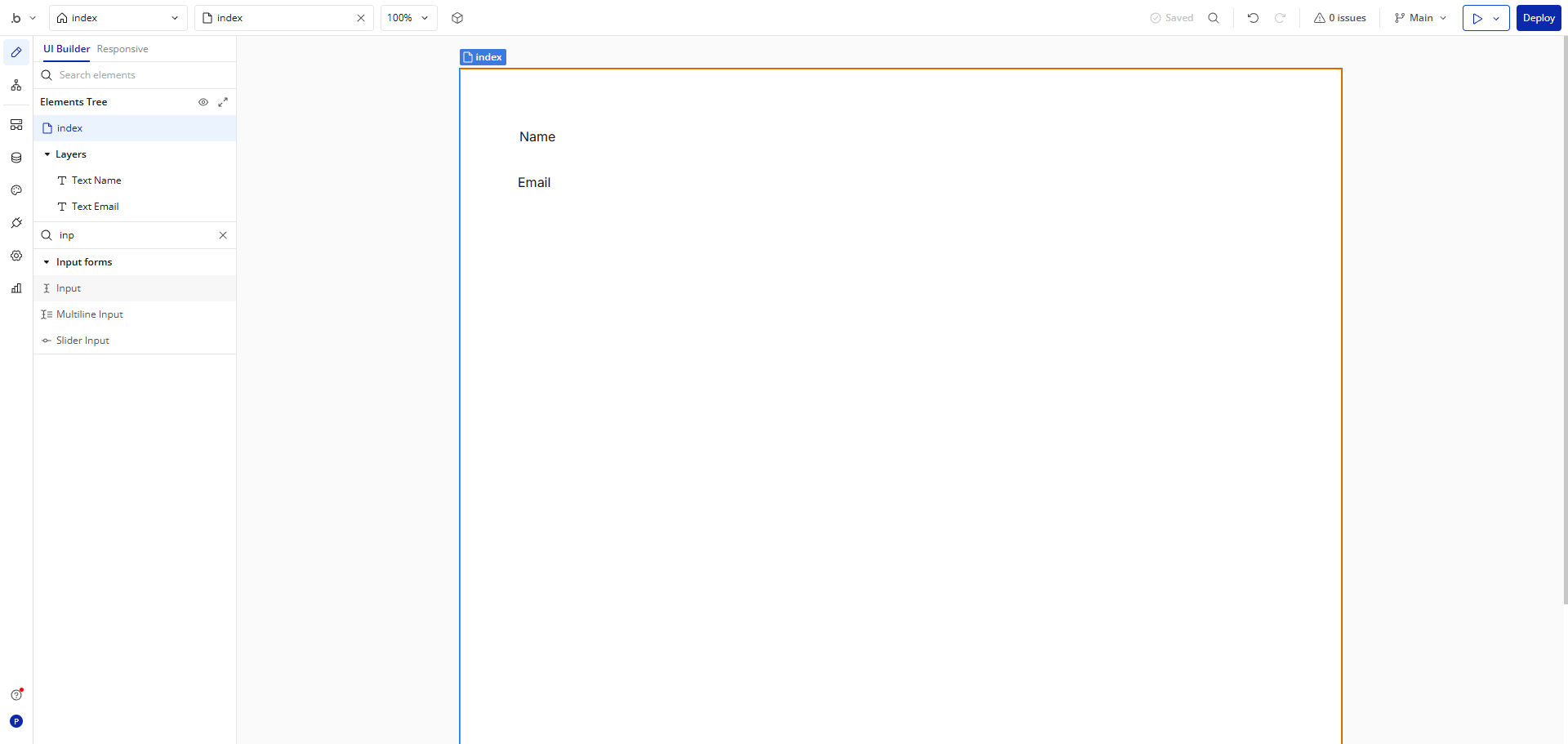
Drag an 'Input' onto your page.
Select this field to customize how users will enter information in your app.
Add a placeholder to guide users on what information to enter here.
Rename the field as 'Search Input'.
Use the search functionality to quickly find elements for your application.
Add a 'Repeating Group' to dynamically display multiple items from your database.
Define what type of content will populate your repeating group from your database.
Display product data in your app with this pre-built integration.
Set up actions that will trigger when users interact with your interface.
Insert dynamic 'Text' elements to display product information and pricing.
Finalize your product display layout and click 'Deploy'.
Quick answer: To implement search functionality in Bubble, drag an Input onto your page, customize it, add a placeholder, and rename it to Search Input. Next, add a Repeating Group, define its content type, set up interaction actions, insert dynamic Text elements for product info and pricing, and click Deploy.
About this Bubble tutorial
Build a product search and display layout in Bubble by adding input fields, repeating groups, and dynamic text elements before deploying. This guide shows how to implement Search Functionality in Bubble.io in 11 steps, starting with "Drag an 'Input' onto your page" and finishing with "Finalize your product display layout and click 'Deploy'". The interactive demo above is a click-through copy of the real Bubble interface, so you can rehearse each step before doing it in your own account.
Frequently asked questions
How many steps does it take to implement Search Functionality in Bubble.io?
11 steps. Each one is listed in order above, and the demo highlights exactly where to click.
Can I try it without changing my own account?
Yes. Clicking through the demo doesn't touch your Bubble data or settings. Once you know the flow, repeat it in your own workspace.
This tutorial is filed under Bubble. Related guides: How to Link Bubble to Google Sheets via Zapier, How to Remove the Scroll Bar in Bubble.io and How to Set File Uploads in Bubble.io. Last reviewed 05 Oct 2026.

Create your first interactive demo in minutes
No credit card required • Start building today