How To Install Mixpanel
- George Apostolov
How To Install Mixpanel: step-by-step guide
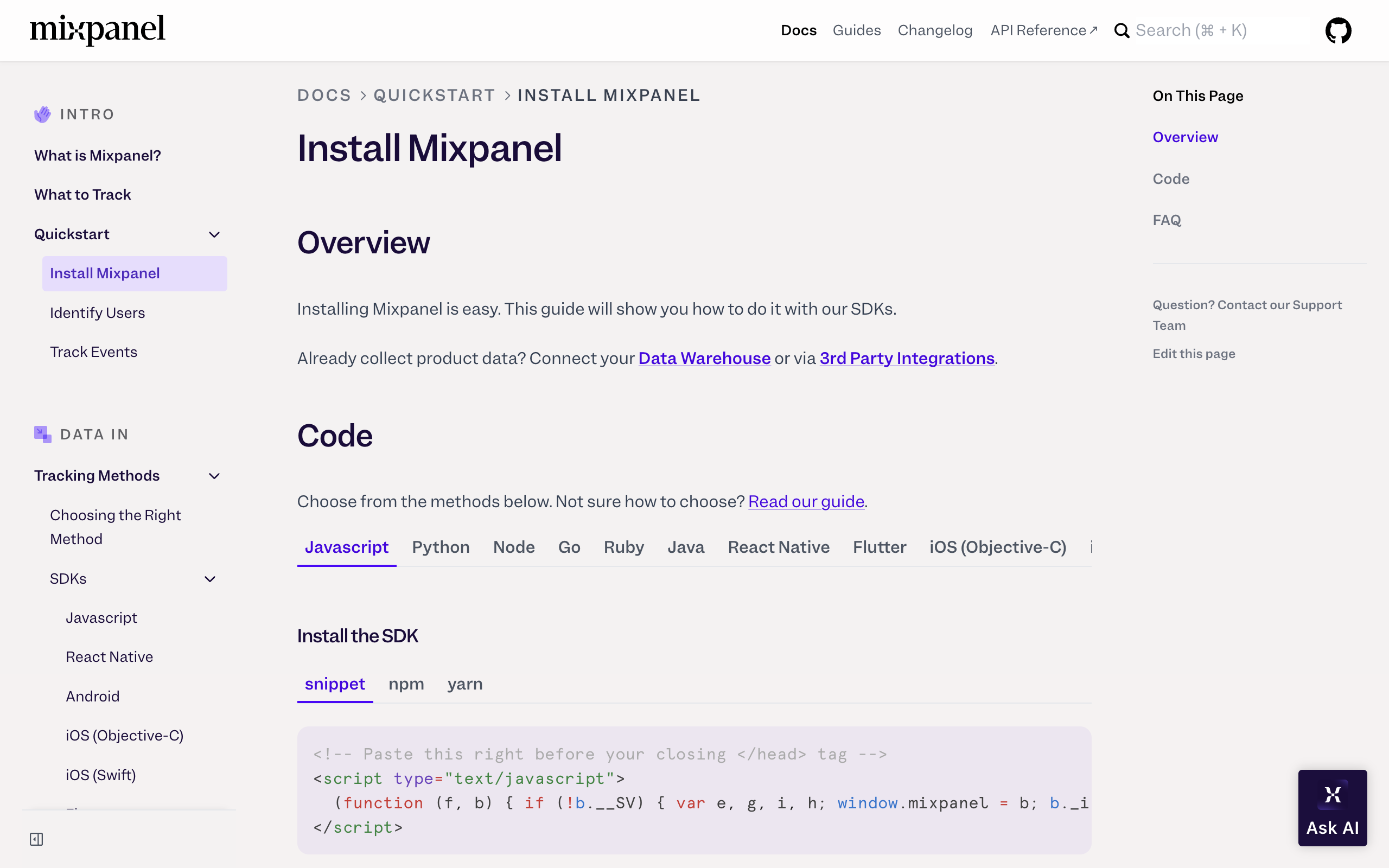
Mixpanel can be installed in a variety of ways based on which underlying technology your project currently uses. It is recommended to visit the mixpanel docs for an in-depth guide for each method. For the purpose of this demo we will be demonstrating the simplest of them all, a vanilla Javascript installation.
Visit the mixpanel docs and locate the Quickstart section. Under Code, select Javascript to view snippets.
Copy the code snippet from the code space or using the small copy button.
Paste this snippet on your webpage before the head tag closes (before </head>).
Now, head inside mixpanel to retrieve your Project Token. This is found under your Project Settings Overview under Access Keys.
Within the same head tag, we will be initializing mixpanel and enabling page views tracking. To do so, add the following line of code inside a script tag: mixpanel.init('PROJECT_TOKEN', track_pageview: true); Save these changes in your editor.
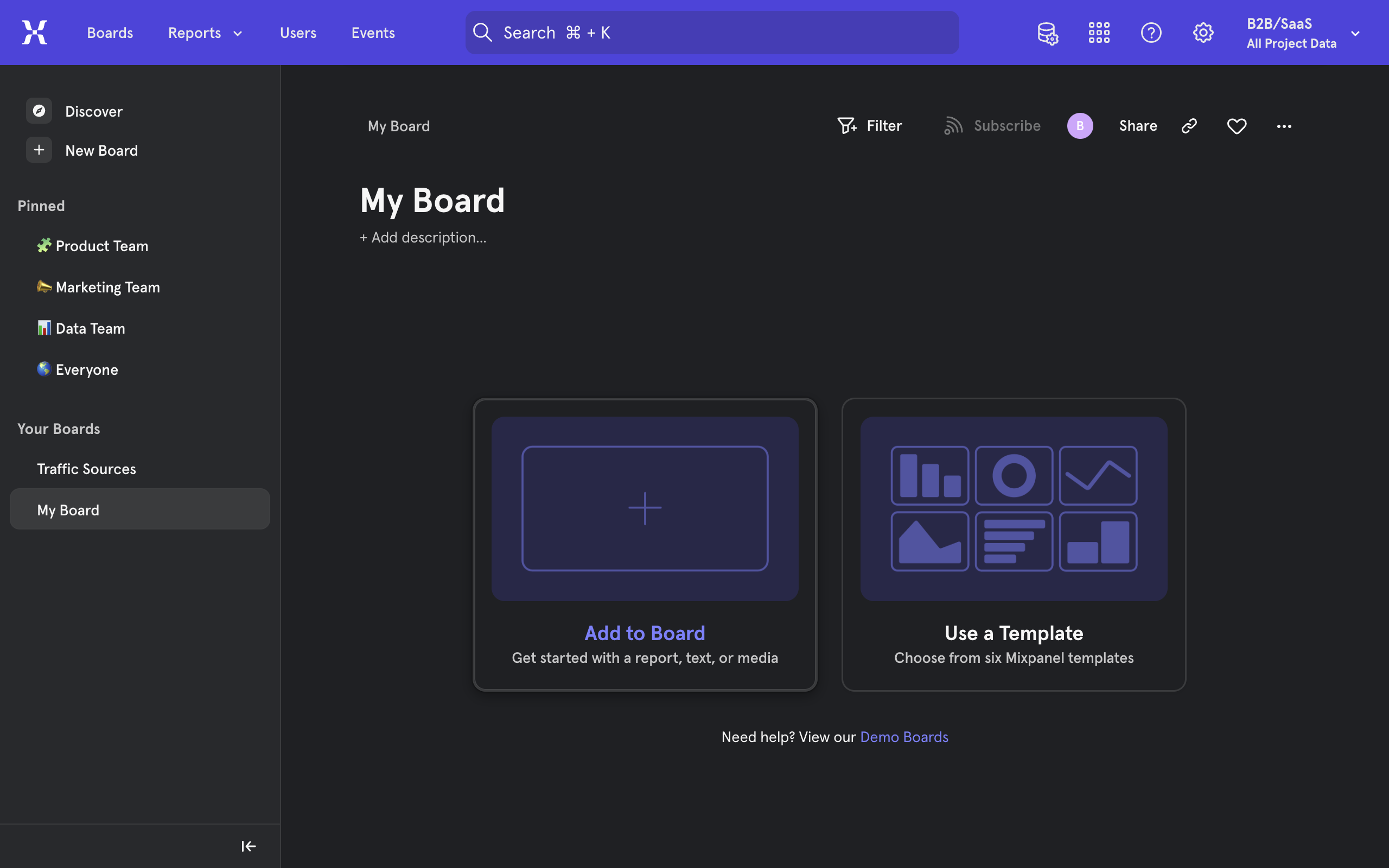
Mixpanel is now installed on your project and is being tracked. Visit the mixpanel dashboard to view statistics.
Quick answer: To install Mixpanel, select the JavaScript snippet from the Mixpanel documentation, paste it before the closing head tag on your webpage, and initialize it with your Project Token retrieved from your project settings to enable page view tracking.
About this Mixpanel tutorial
Set up Mixpanel tracking on your webpage by adding the JavaScript snippet and project token to your site headers. This guide shows how to install Mixpanel in 7 steps, starting with "Mixpanel can be installed in a variety of ways based on which underlying technology you..." and finishing with "Mixpanel is now installed on your project and is being tracked. Visit the mixpanel dash...". The interactive demo above is a click-through copy of the real Mixpanel interface, so you can rehearse each step before doing it in your own account.
Frequently asked questions
How many steps does it take to install Mixpanel?
7 steps. Each one is listed in order above, and the demo highlights exactly where to click.
Can I try it without changing my own account?
Yes. Clicking through the demo doesn't touch your Mixpanel data or settings. Once you know the flow, repeat it in your own workspace.
This tutorial is filed under Mixpanel. Related guides: Mixpanel hubspot integration, How to Integrate Intercom with Mixpanel and How to Integrate Slack with MixPanel. Last reviewed 05 Oct 2026.

Create your first interactive demo in minutes
No credit card required • Start building today