How to Make Planner Pages in Microsoft Word
- George Apostolov
How to Make Planner Pages in Microsoft Word: step-by-step guide
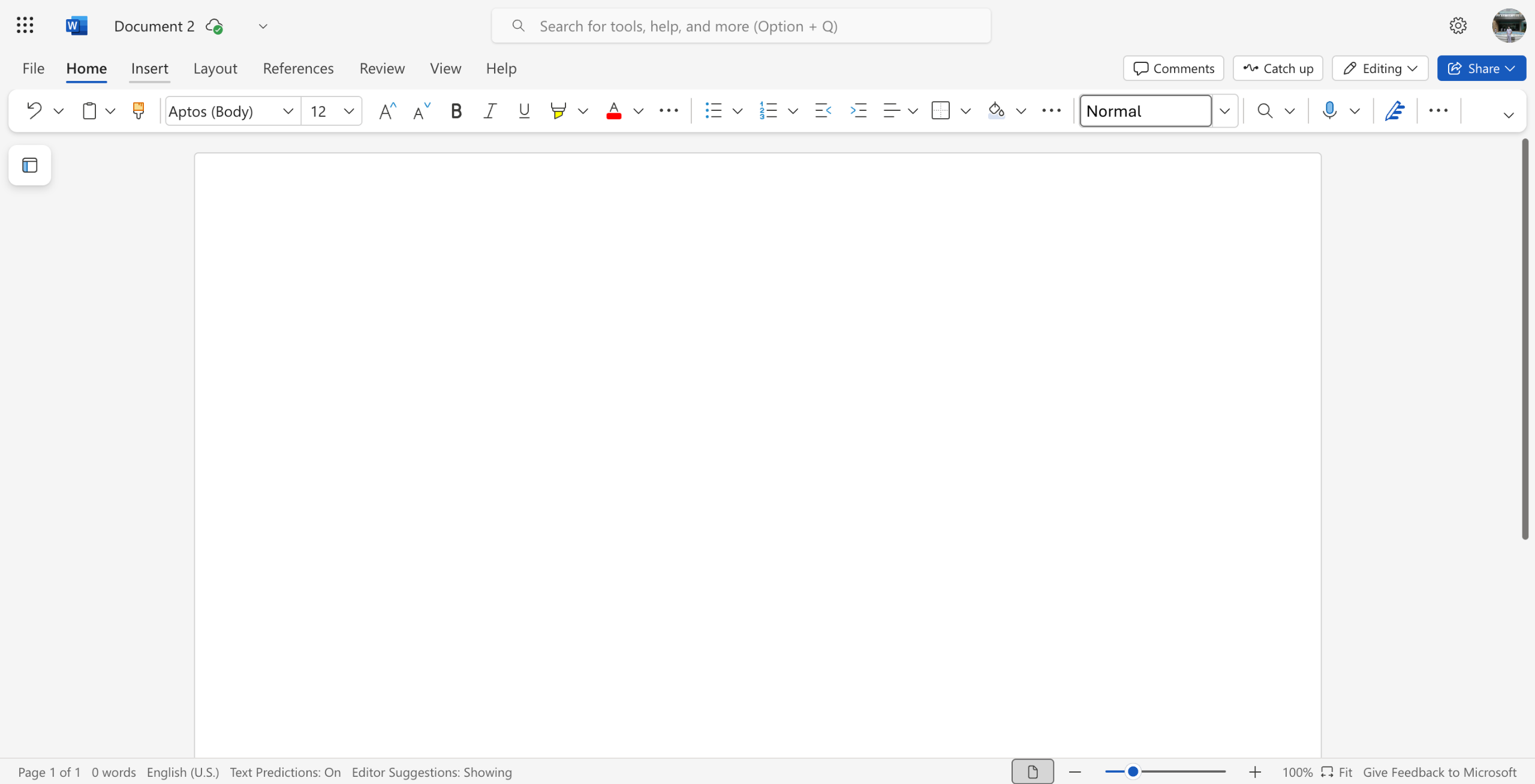
Inside Microsoft Word's main workspace, head over to the top menu bar and click 'Insert'.
Choose the 'Table' menu from the available options.
Subsequently, click 'Choose Row and Column'.
Specify your preferred number of columns and rows, then tap 'OK'.
Following that, tap the column headers one by one and type their respective labels. In this regard, use the bucket names.
Do the same thing for the rows. Use the task details as labels.
After that, select and highlight the column headers labeled as buckets.
Subsequently, go to the top menu bar and use the available options to customize their formats according to your liking.
Repeat the same series of steps for the rows that contain the task detail labels.
Finally, your Planner pages will be created in your Microsoft Word document. You can now add the actual tasks to the table and copy them to your plans afterwards.
Quick answer: To make planner pages in Microsoft Word, insert a table by choosing rows and columns, label the column and row headers with bucket names and task details, customize their formats, and add your tasks to complete the planner.
About this Microsoft tutorial
Create custom planner pages in Microsoft Word by inserting a table, labeling rows and columns, and formatting headers to organize tasks. This guide shows how to make Planner Pages in Microsoft Word in 10 steps, starting with "Inside Microsoft Word's main workspace, head over to the top menu bar and click 'Insert'" and finishing with "Finally, your Planner pages will be created in your Microsoft Word document. You can no...". The interactive demo above is a click-through copy of the real Microsoft interface, so you can rehearse each step before doing it in your own account.
Frequently asked questions
How many steps does it take to make Planner Pages in Microsoft Word?
10 steps. Each one is listed in order above, and the demo highlights exactly where to click.
Can I try it without changing my own account?
Yes. Clicking through the demo doesn't touch your Microsoft data or settings. Once you know the flow, repeat it in your own workspace.
This tutorial is filed under Microsoft. Related guides: How to make someone a presenter in teams?, How to Match Two Columns Microsoft Excel and How to Merge Cells in Microsoft Excel. Last reviewed 05 Oct 2026.

Create your first interactive demo in minutes
No credit card required • Start building today