How to Manage Content Ideas with Buffer's Drafts Feature
- George Apostolov
How to Manage Content Ideas with Buffer's Drafts Feature: step-by-step guide
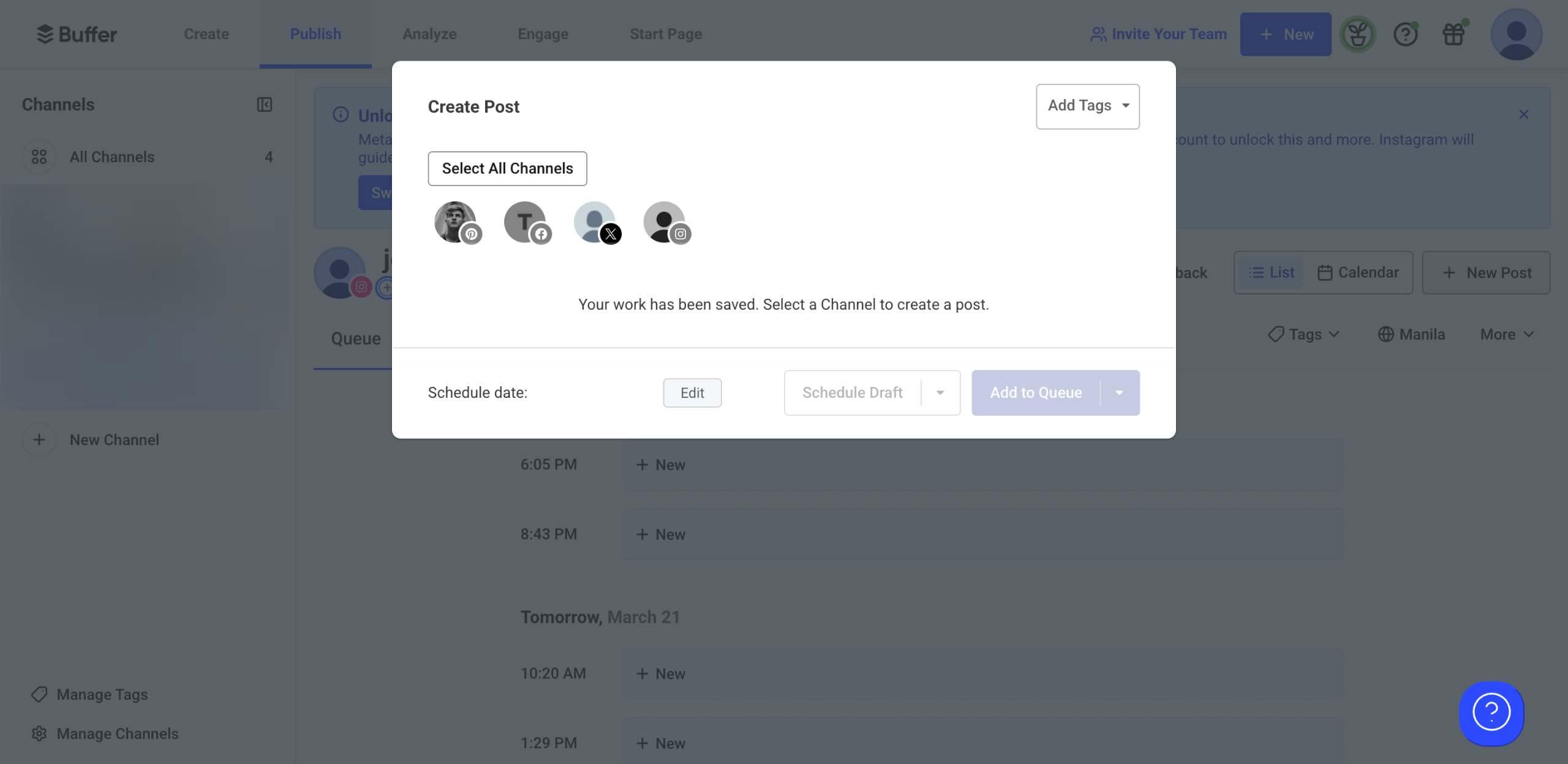
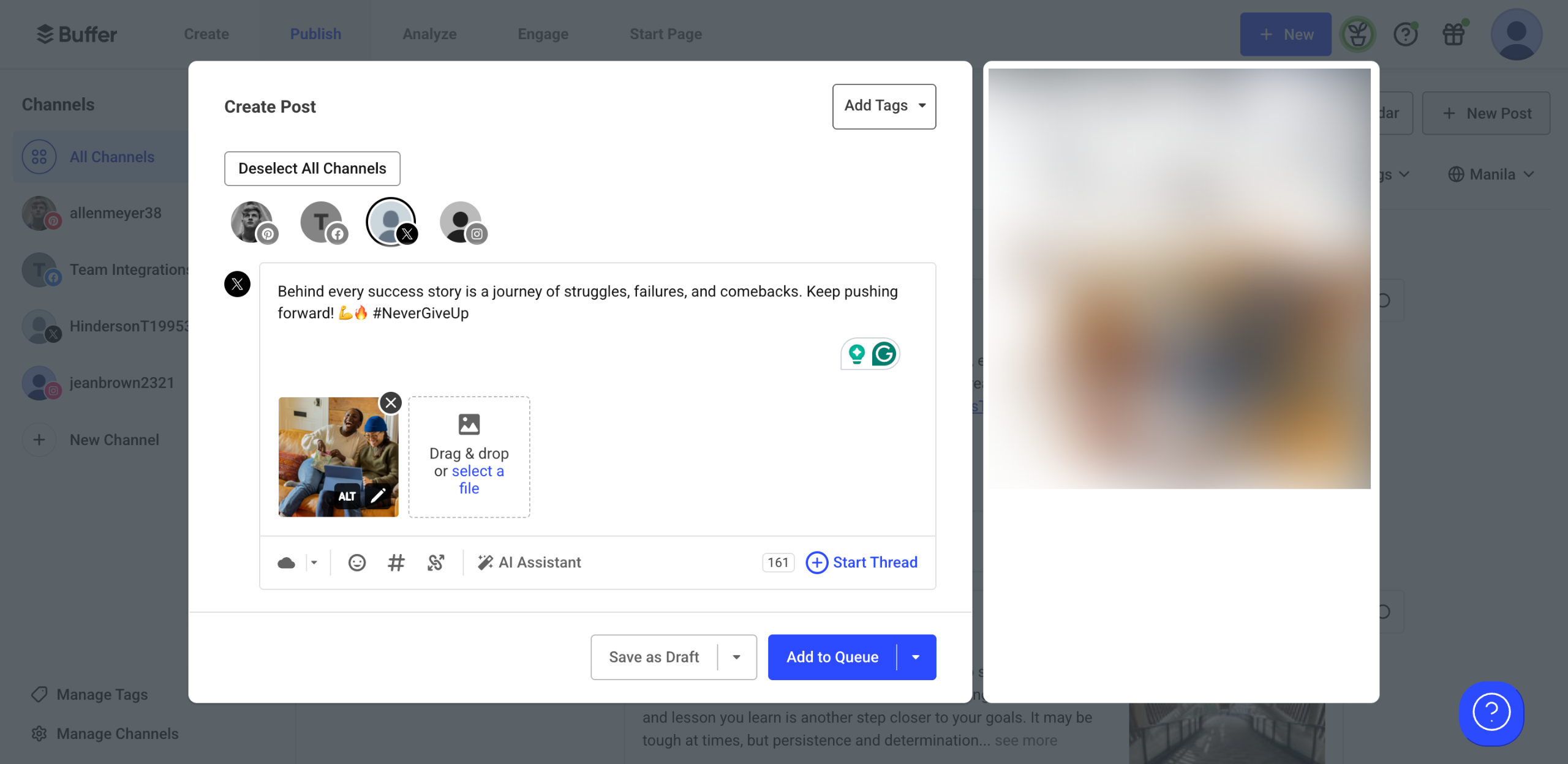
Inside Buffer's Create Post panel, finalize the draft of your social media post and then click the 'Add Tags' menu to categorize it accordingly.
Tick the checkbox beside the tag that best describes your drafted post.
After that, tap 'Save As Draft' to proceed.
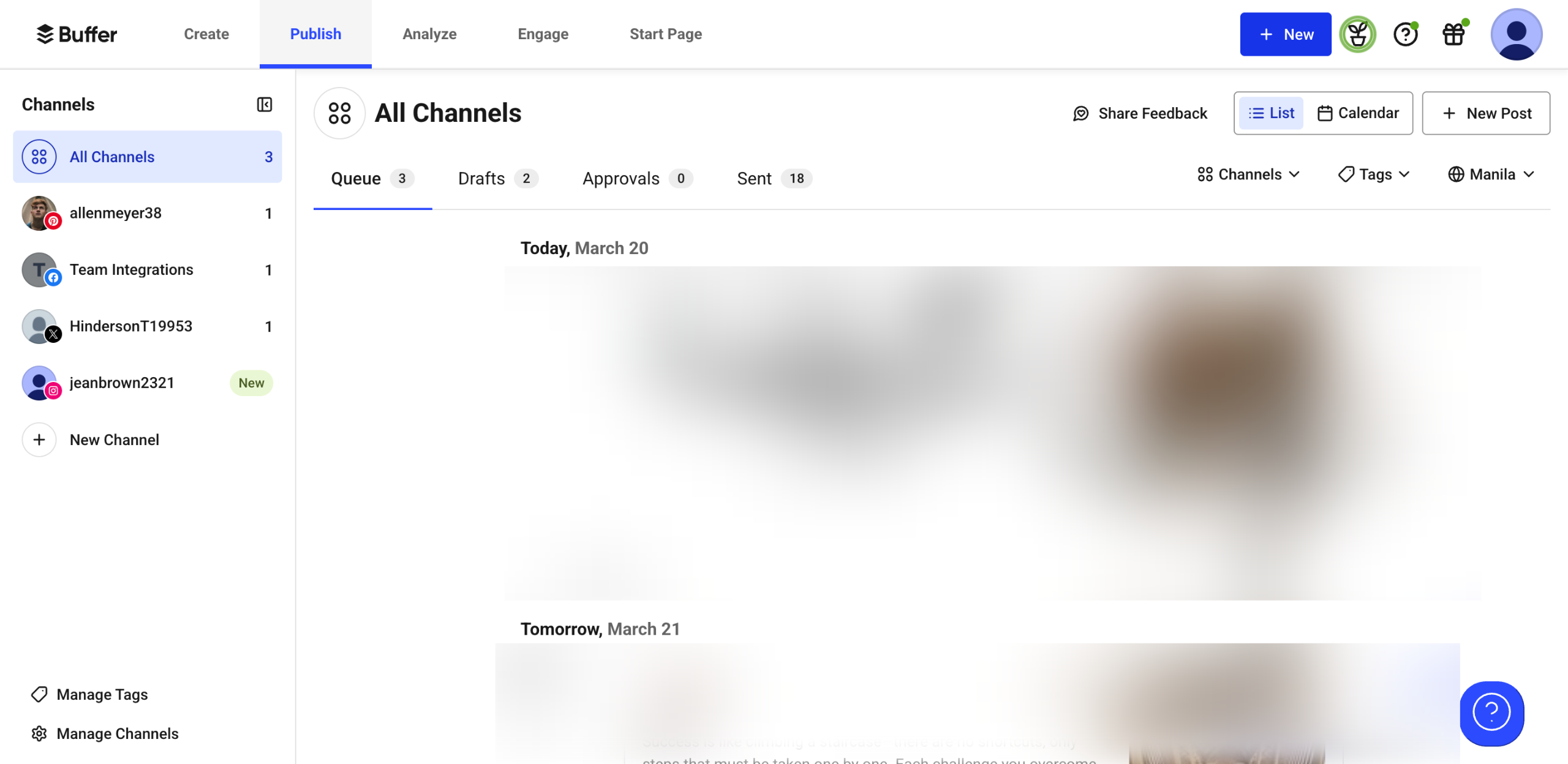
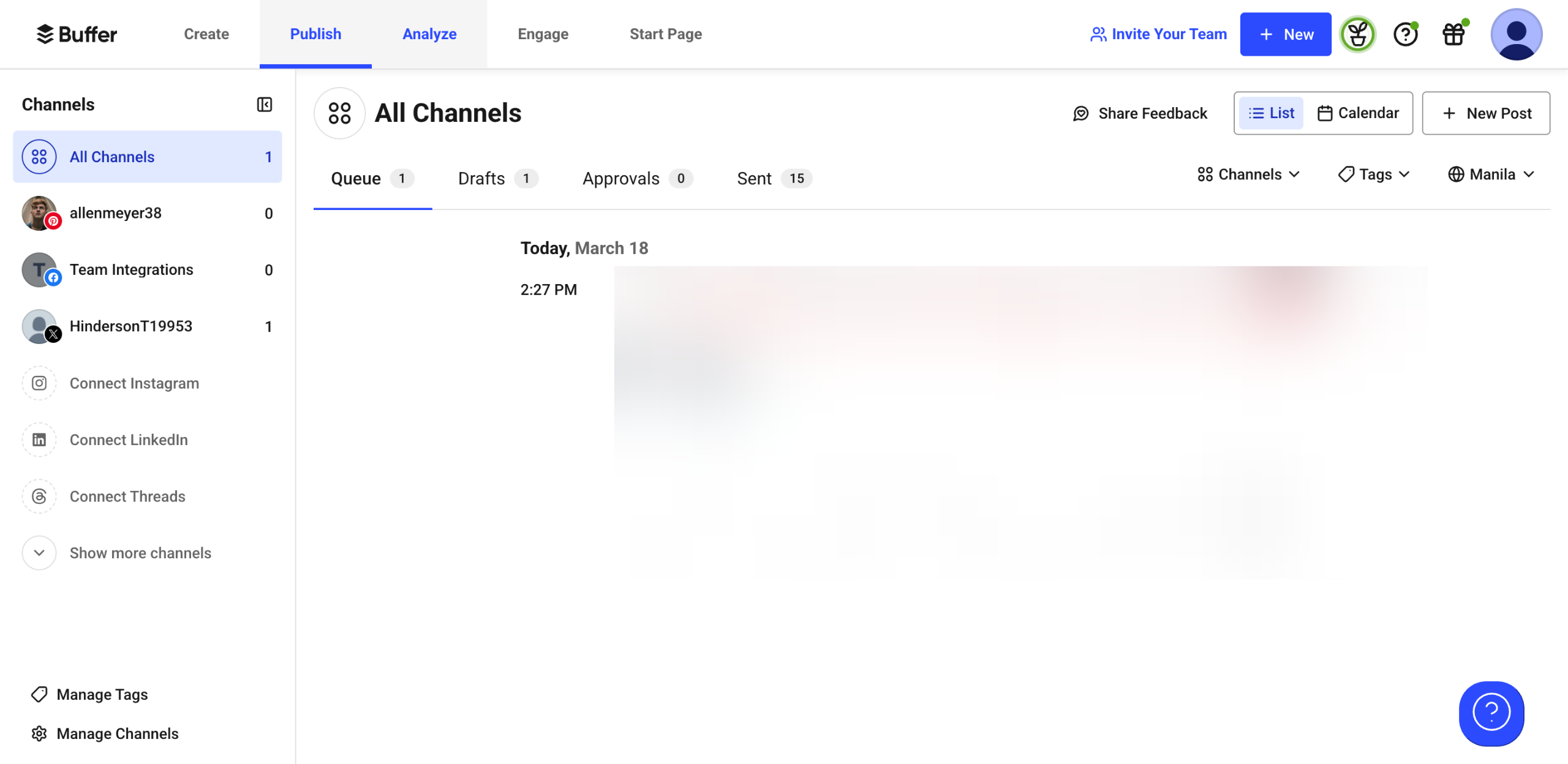
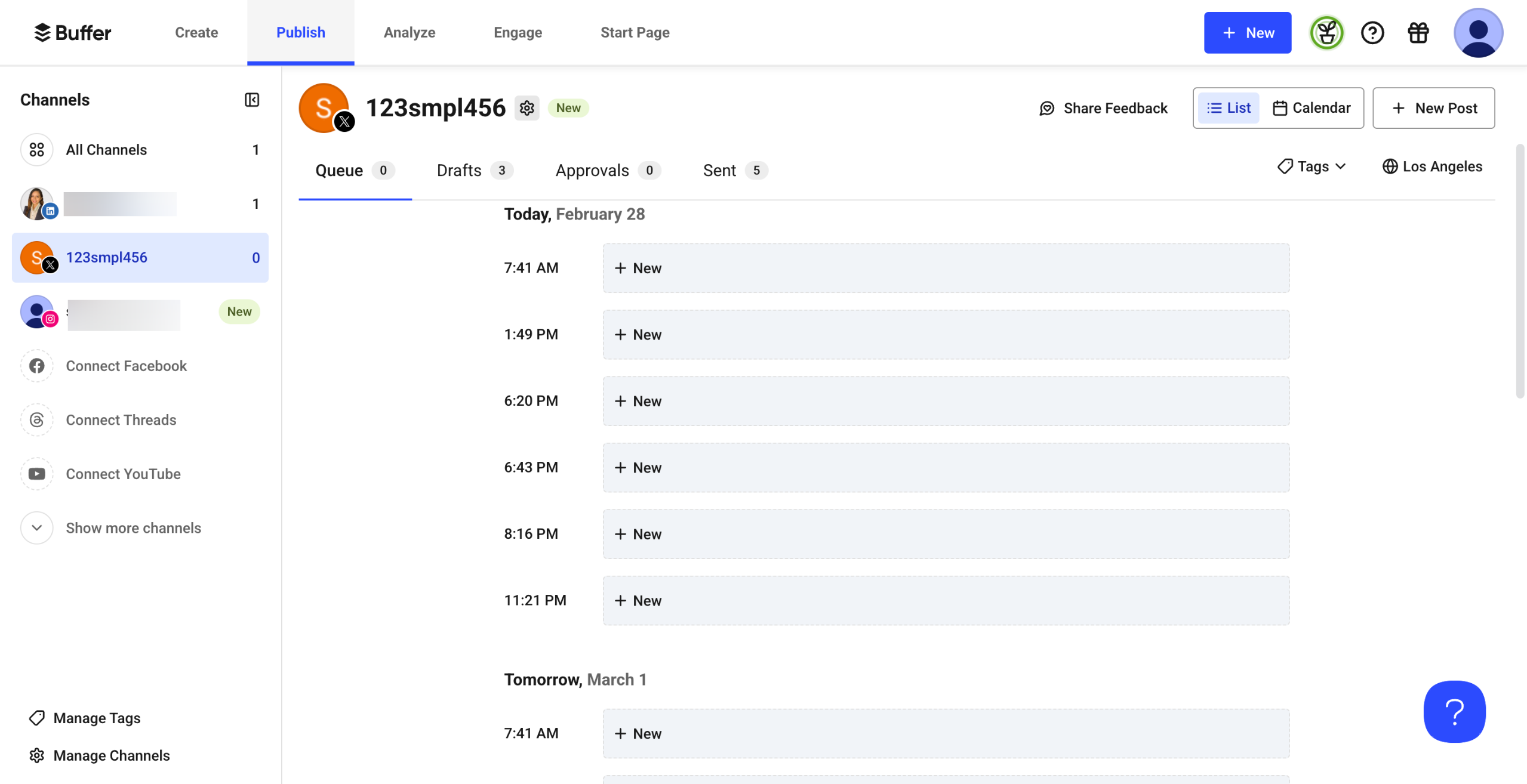
You can easily manage all your content ideas in one place. To proceed, select 'Drafts' from the choices available under the Publish tab.
Subsequently, tap the 'Tags' menu and select the specific category that stores the drafted post you wish to review or edit.
The drafted posts under the selected tag will be displayed. From here on, you can now easily manage your content ideas
If you want to line up the drafted post for publication, tap 'Add to Queue'.
Meanwhile, click the 'Pencil' icon instead if you wish to edit it further before posting.
Lastly, tap the 'More Actions' button to access other available options. For instance, you may opt to Publish the draft right away, duplicate it, or delete it.
Going forward, just repeat the same series of steps to efficiently manage your content ideas using Buffer's drafts features.
Quick answer: To manage content ideas in Buffer, finalize your post draft, add tags, and save it. Access your saved content under the Publish tab's Drafts section, filter by tags, and choose to queue, edit, publish right away, duplicate, or delete your drafts.
About this Buffer tutorial
Organize and manage your social media content ideas easily using Buffer drafts, tags, queue options, and editing tools. This guide shows how to manage Content Ideas with Buffer's Drafts Feature in 10 steps, starting with "Inside Buffer's Create Post panel, finalize the draft of your social media post and the..." and finishing with "Going forward, just repeat the same series of steps to efficiently manage your content...". The interactive demo above is a click-through copy of the real Buffer interface, so you can rehearse each step before doing it in your own account.
Frequently asked questions
How many steps does it take to manage Content Ideas with Buffer's Drafts Feature?
10 steps. Each one is listed in order above, and the demo highlights exactly where to click.
Can I try it without changing my own account?
Yes. Clicking through the demo doesn't touch your Buffer data or settings. Once you know the flow, repeat it in your own workspace.
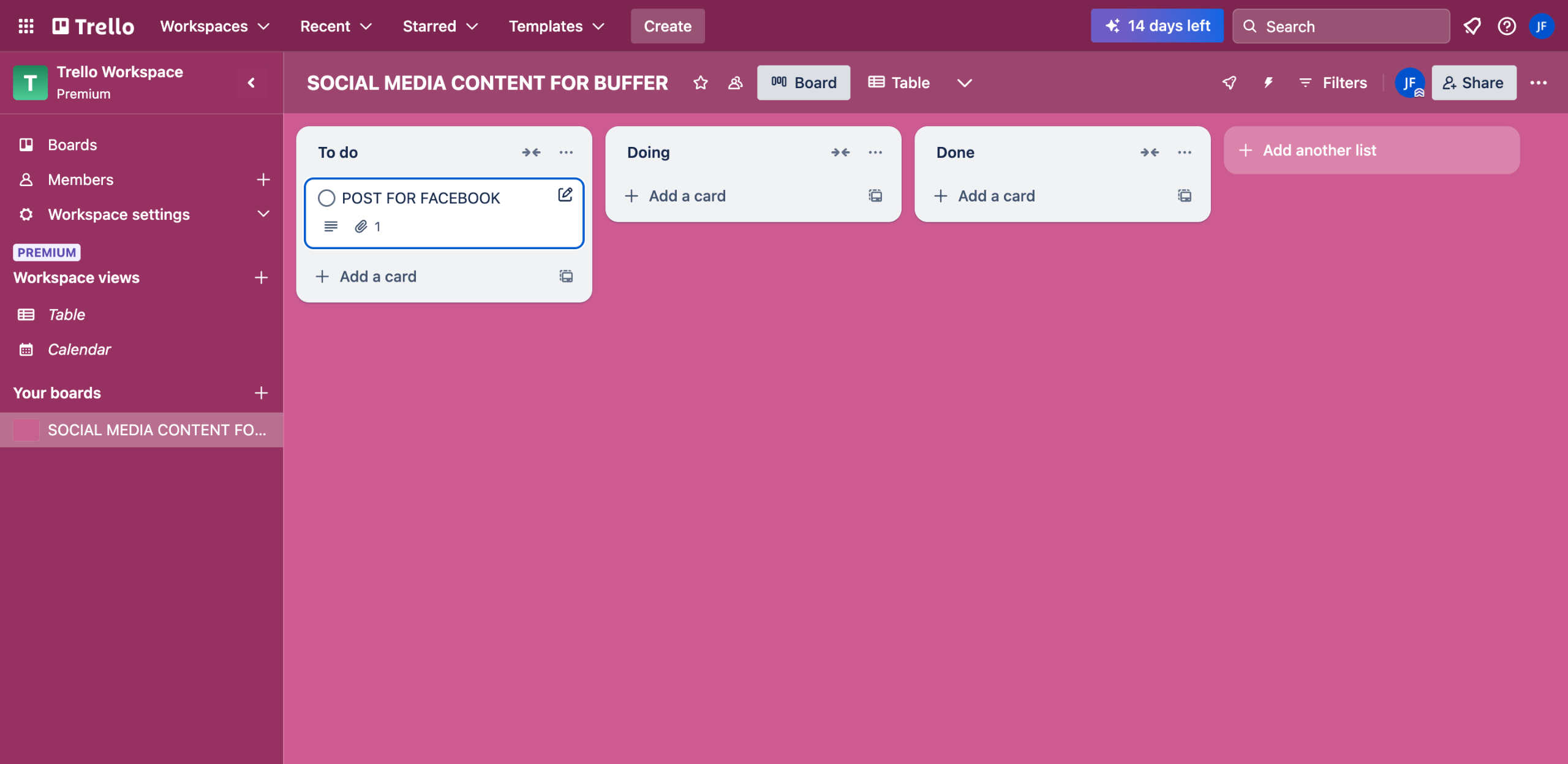
This tutorial is filed under Buffer. Related guides: How to Manually Implement Approval Workflows with Buffer's Free Plan, How to Manually Schedule Content From Trello to Buffer and How to Measure Reach Versus Engagement in Buffer. Last reviewed 05 Oct 2026.

Create your first interactive demo in minutes
No credit card required • Start building today