How to Manually Schedule Content From Trello to Buffer
How to Manually Schedule Content From Trello to Buffer: step-by-step guide
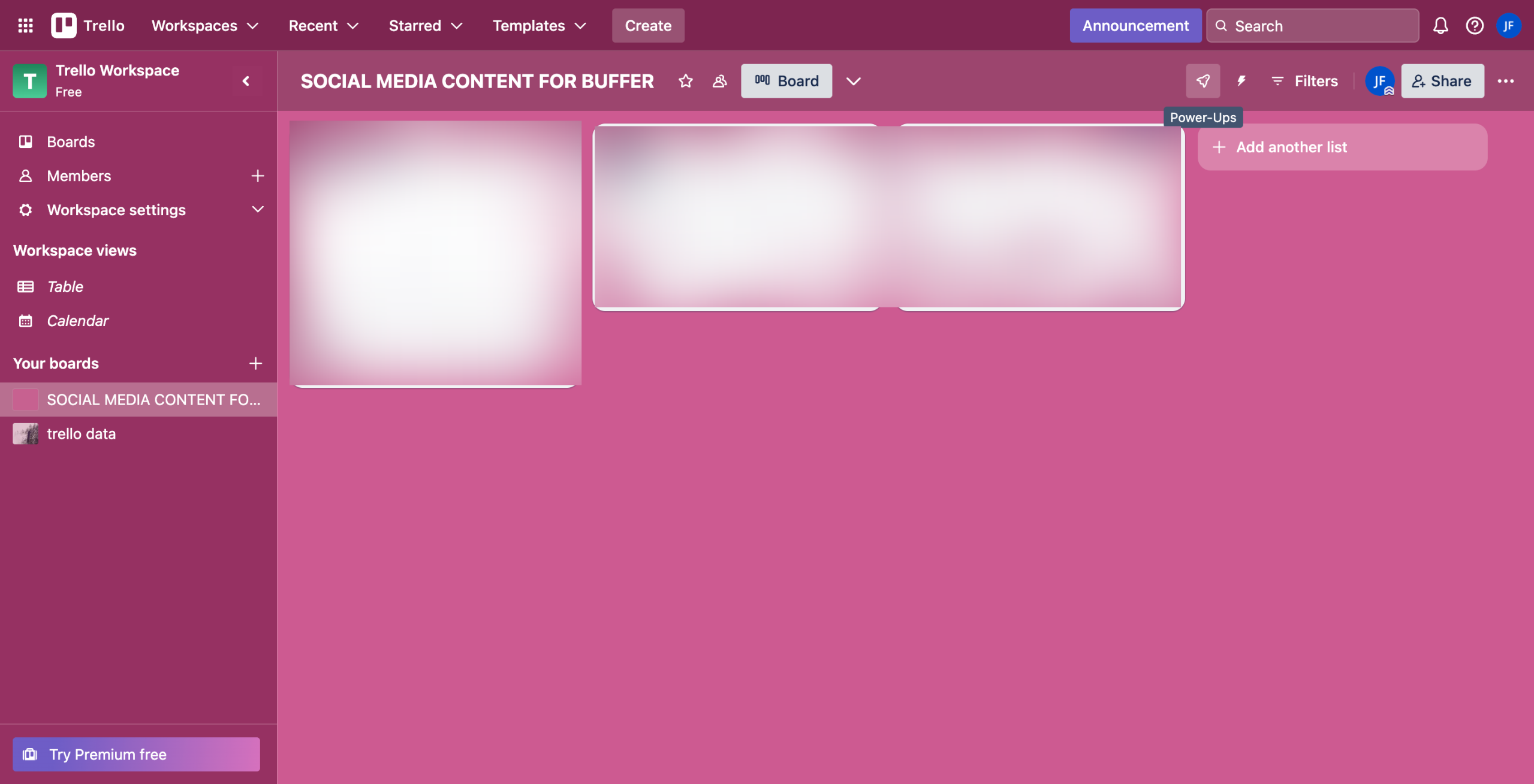
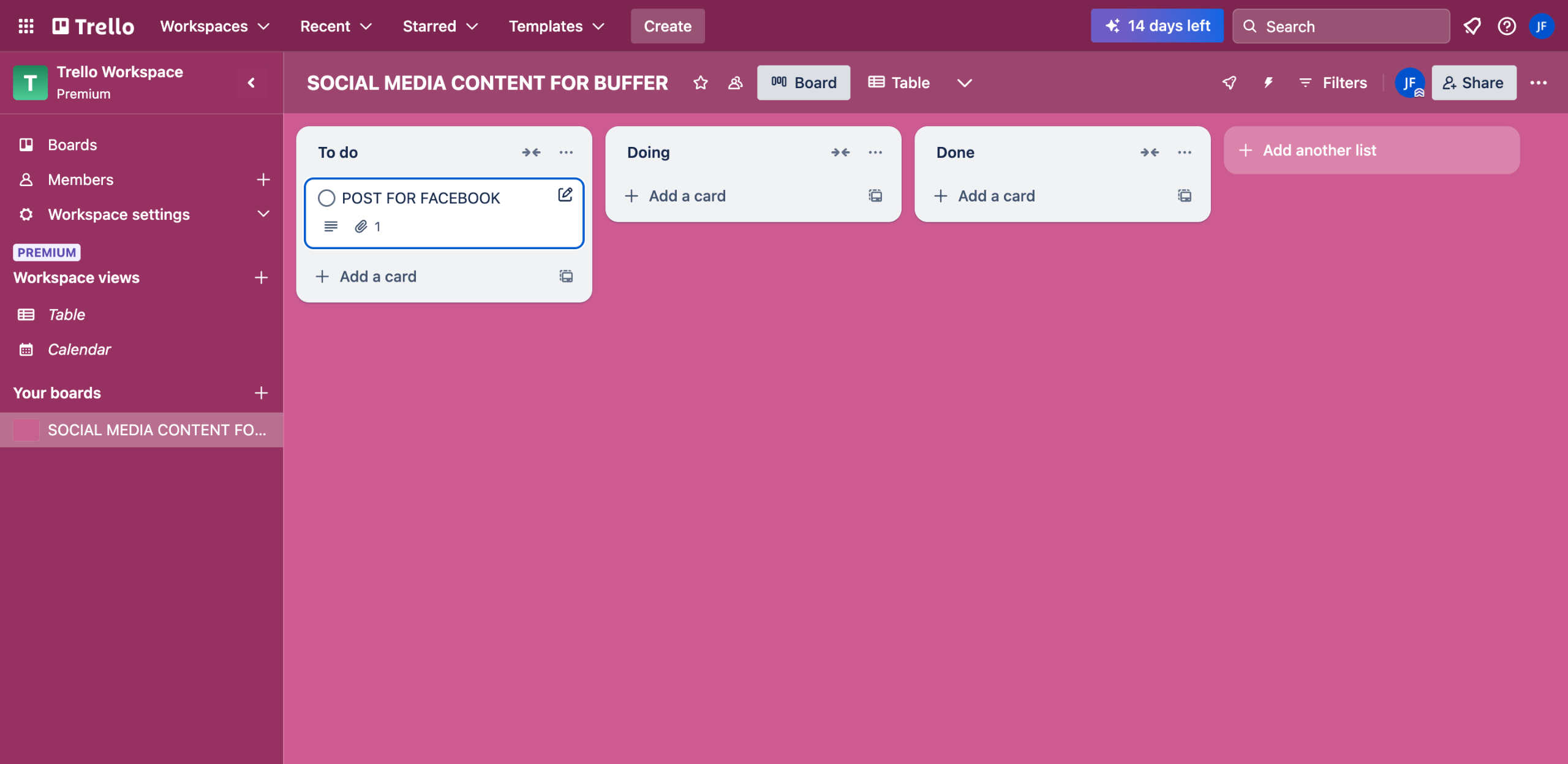
Inside your Trello board, find and select the card that contains the social media content you want to schedule.
Following that, highlight and copy the provided caption for the post. It's likely written under the Description section.
Find the media attachment afterwards, then click the 'More Options' button next to it.
Choose 'Download' from the list of options.
After that, head back to Buffer's Create Post panel and click the text box. Paste the caption and adjust its formatting based on your preference.
Subsequently, tap the 'Upload' tab right below it and select the recently downloaded attachment from Trello.
Once done, review the post and then click the drop-down arrow next to the 'Add to Queue' button.
Select 'Schedule Post' from the given choices.
Next, pick your preferred posting date.
Specify your preferred posting time as well. Click the drop-down menus one by one and set them accordingly.
Once done, click 'Schedule' to proceed.
After completing these steps, the social media content from your Trello card will be scheduled on Buffer.
Quick answer: To schedule content from Trello to Buffer, copy the caption and download the media attachment from your Trello card. Next, paste the caption and upload the media in Buffer's Create Post panel. Finally, select Schedule Post, set your preferred date and time, and click Schedule.
About this Trello tutorial
Easily publish social media posts by manually moving content from your Trello boards into Buffer for precise scheduling. This guide shows how to manually Schedule Content From Trello to Buffer in 12 steps, starting with "Inside your Trello board, find and select the card that contains the social media conte..." and finishing with "After completing these steps, the social media content from your Trello card will be sc...". The interactive demo above is a click-through copy of the real Trello interface, so you can rehearse each step before doing it in your own account.
Frequently asked questions
How many steps does it take to manually Schedule Content From Trello to Buffer?
12 steps. Each one is listed in order above, and the demo highlights exactly where to click.
Can I try it without changing my own account?
Yes. Clicking through the demo doesn't touch your Trello data or settings. Once you know the flow, repeat it in your own workspace.
This tutorial is filed under Trello and Buffer. Related guides: How to Add the Pipedrive Power-Up to Trello, How to Migrate From Trello to Microsoft Planner and Integrate Google Forms with Trello to create new cards. Last reviewed 05 Oct 2026.

Create your first interactive demo in minutes
No credit card required • Start building today