How To Save Changes In Webflow
- George Apostolov
How To Save Changes In Webflow: step-by-step guide
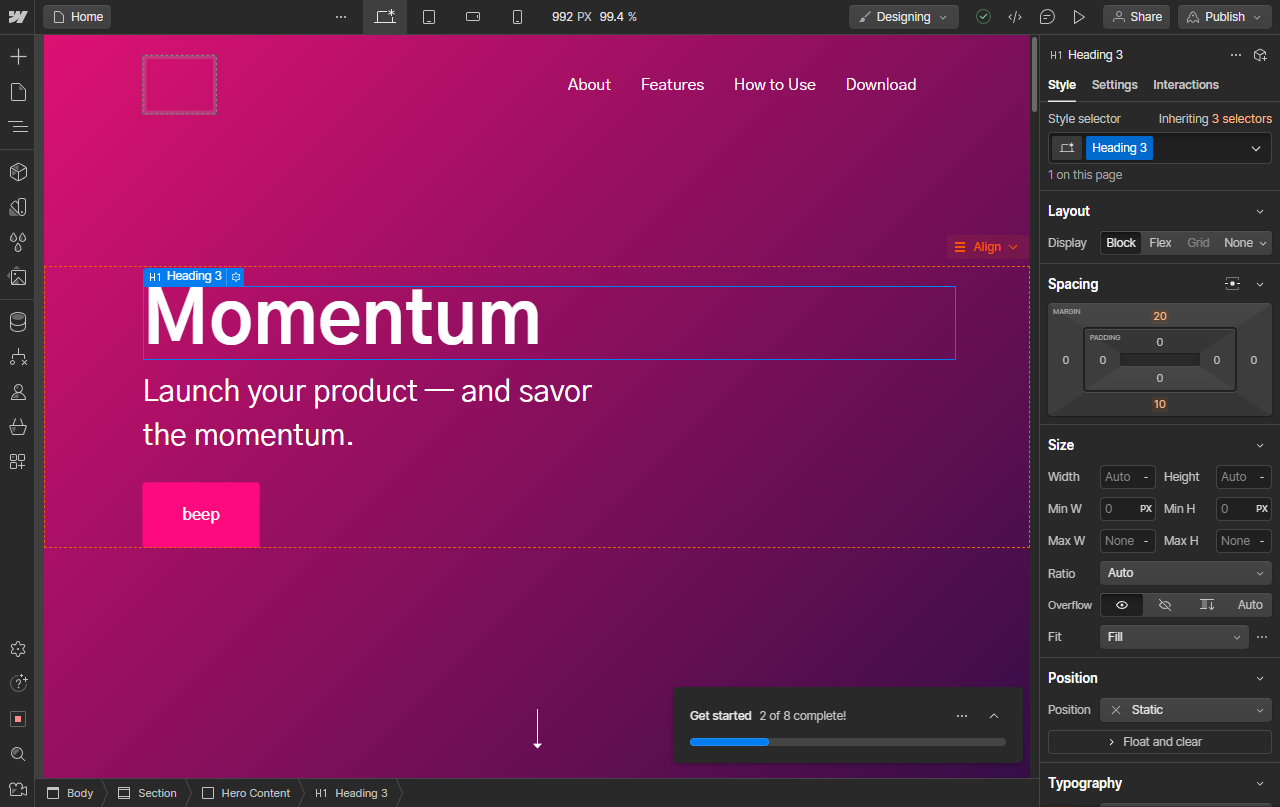
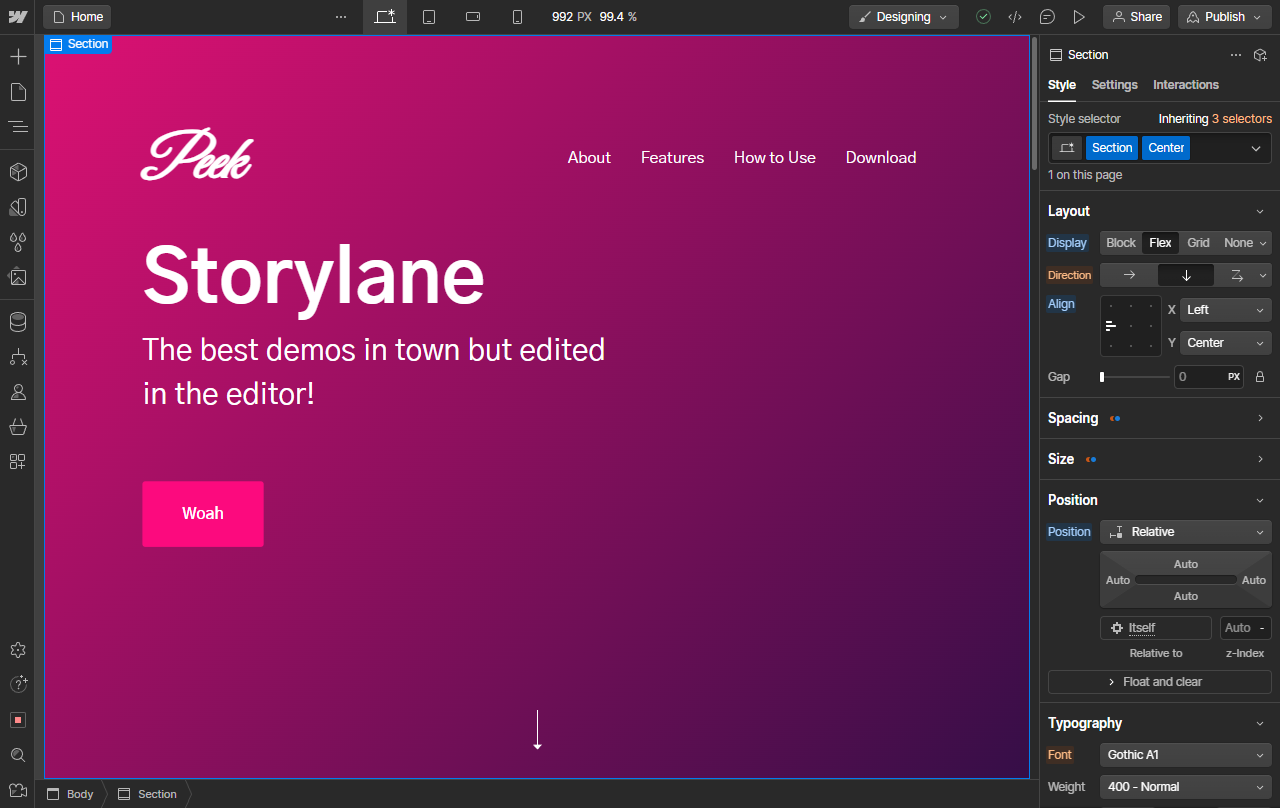
It is important to note that most changes you make in Webflow are automatically saved, such as changing the text on this heading to most other actions.
Some panels and windows specifically for settings will have a Save button to save your changes, such as this page settings page.
You can also view if your current state is saved and up-to-date from this tick mark icon on the top right.
But to explicitly save your progress and state in Webflow, you can use the shortcut Ctrl + Shift + S to create a manual backup of the current state.
This will prompt a Save backup window where you can name it to easily roll back to this save.
Enter the name for the save point and click on Save.
To use the save point you just created, go to the Settings tab on the bottom left.
Locate the Backups option and click.
Hover on your backup to view a three dotted icon for options.
Pick your choice and that's it!
Quick answer: To save changes in Webflow, rely on automatic saving for most edits, use panel Save buttons for specific settings, check the top-right tick mark for status, or press Ctrl + Shift + S to manually name and create a backup. Manage and restore your saved points later through the bottom-left Settings tab under Backups.
About this Webflow tutorial
Master saving and manual backups in Webflow. Learn how to check save status, create named backups with shortcuts, and restore previous states easily. This guide shows how to save Changes In Webflow in 10 steps, starting with "It is important to note that most changes you make in Webflow are automatically saved,..." and finishing with "Pick your choice and that's it!". The interactive demo above is a click-through copy of the real Webflow interface, so you can rehearse each step before doing it in your own account.
Frequently asked questions
How many steps does it take to save Changes In Webflow?
10 steps. Each one is listed in order above, and the demo highlights exactly where to click.
Can I try it without changing my own account?
Yes. Clicking through the demo doesn't touch your Webflow data or settings. Once you know the flow, repeat it in your own workspace.
This tutorial is filed under Webflow. Related guides: How to share webflow project, How to Sync Webflow CMS with Notion databases using Zapier and How To Transfer A Webflow Project. Last reviewed 05 Oct 2026.

Create your first interactive demo in minutes
No credit card required • Start building today