How to Send an Email Using Constant Contact
- George Apostolov
This guide is an interactive LiveDemo. Create interactive demos of your own product: Interactive demo software · Interactive customer onboarding guides · Start free
How to Send an Email Using Constant Contact: step-by-step guide
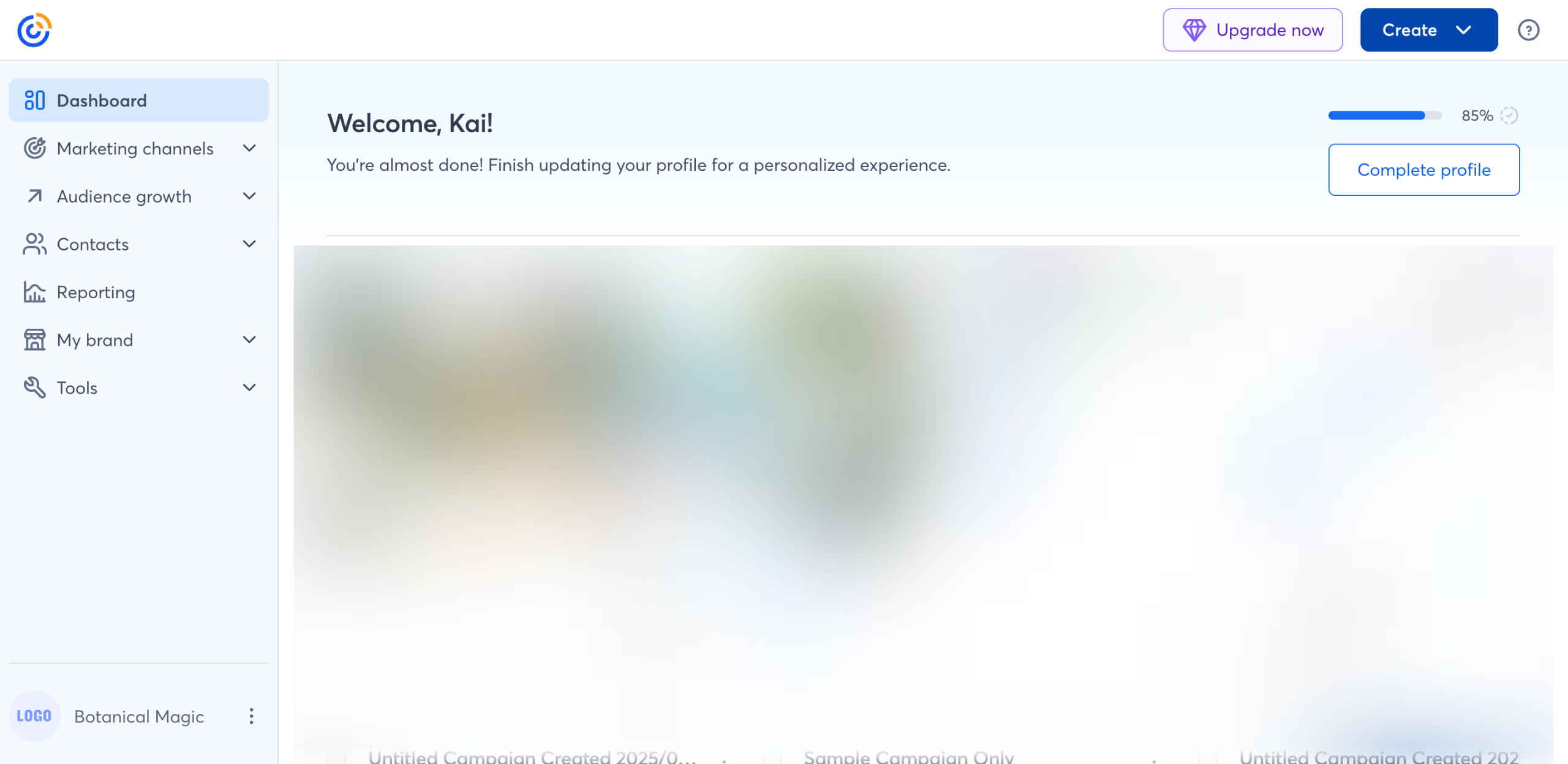
Go to the top-right corner and click 'Create'.
Select 'Send an Email' from the list of options.
After that, hover your mouse cursor over the email template you wish to use and then click its corresponding 'Select' button.
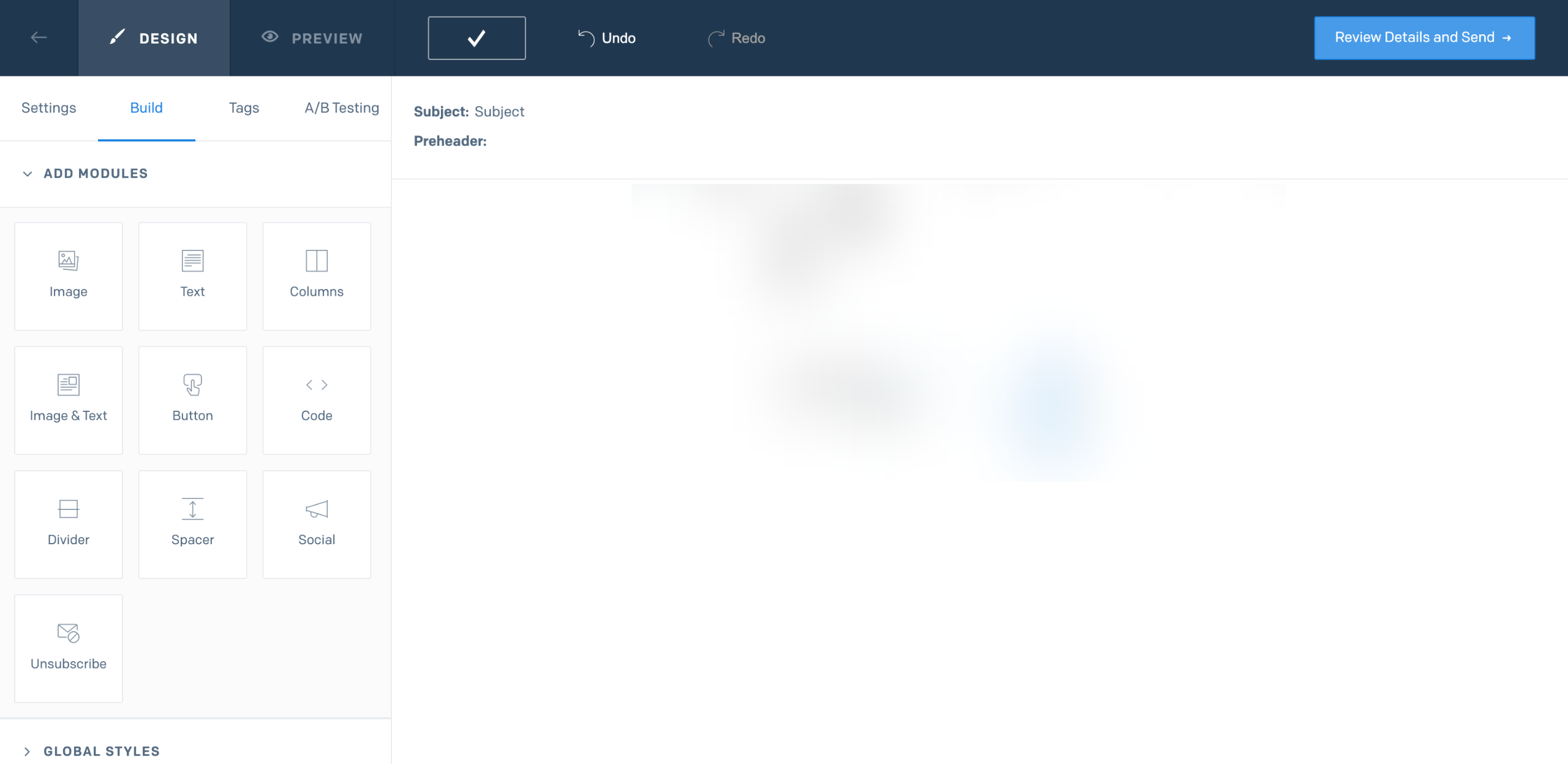
To get started, head over to the left-side panel and choose the block you wish to use. Grab and drag it to the main workspace for further customization.
Tap the newly added block, then edit its default content. In this case, you can delete the original text and replace it with a new composition.
Following that, go to the floating menu bar right above the workspace and use the available options to customize the general format of the selected block.
Repeat the same series of steps if you wish to add more elements to your email.
Once done, click 'Continue'.
Subsequently, click 'Send Now' to proceed. Alternatively, you may also select 'Schedule For Later' or 'Send a Test Email' if you want to delay it for a while.
Scroll down to the Select Recipients section afterwards. Tick the checkbox beside the list that contains the intended recipients.
Once done, click 'Send Now' at the top-right corner.
Tap 'Send Now' one more time to confirm your request.
After completing these steps, your Constant Contact email will be sent based on your input.
Quick answer: To send an email using Constant Contact, click Create and select Send an Email. Choose a template, drag blocks to the workspace to customize content and formatting, click Continue, choose recipients, and click Send Now to confirm and send your message.
About this tutorial
Send emails efficiently with the app by selecting a template, customizing blocks, choosing recipients, and confirming delivery. This guide shows how to send an Email Using Constant Contact in 13 steps, starting with "Go to the top-right corner and click 'Create'" and finishing with "After completing these steps, your Constant Contact email will be sent based on your input". The interactive demo above is a click-through copy of the real product interface, so you can rehearse each step before doing it in your own account.
Frequently asked questions
How many steps does it take to send an Email Using Constant Contact?
13 steps. Each one is listed in order above, and the demo highlights exactly where to click.
Can I try it without changing my own account?
Yes. Clicking through the demo doesn't touch your data or settings. Once you know the flow, repeat it in your own workspace.

Create your first interactive demo in minutes
No credit card required • Start building today