How to Set Up a Survey on SurveyMonkey
- George Apostolov
How to Set Up a Survey on SurveyMonkey: step-by-step guide
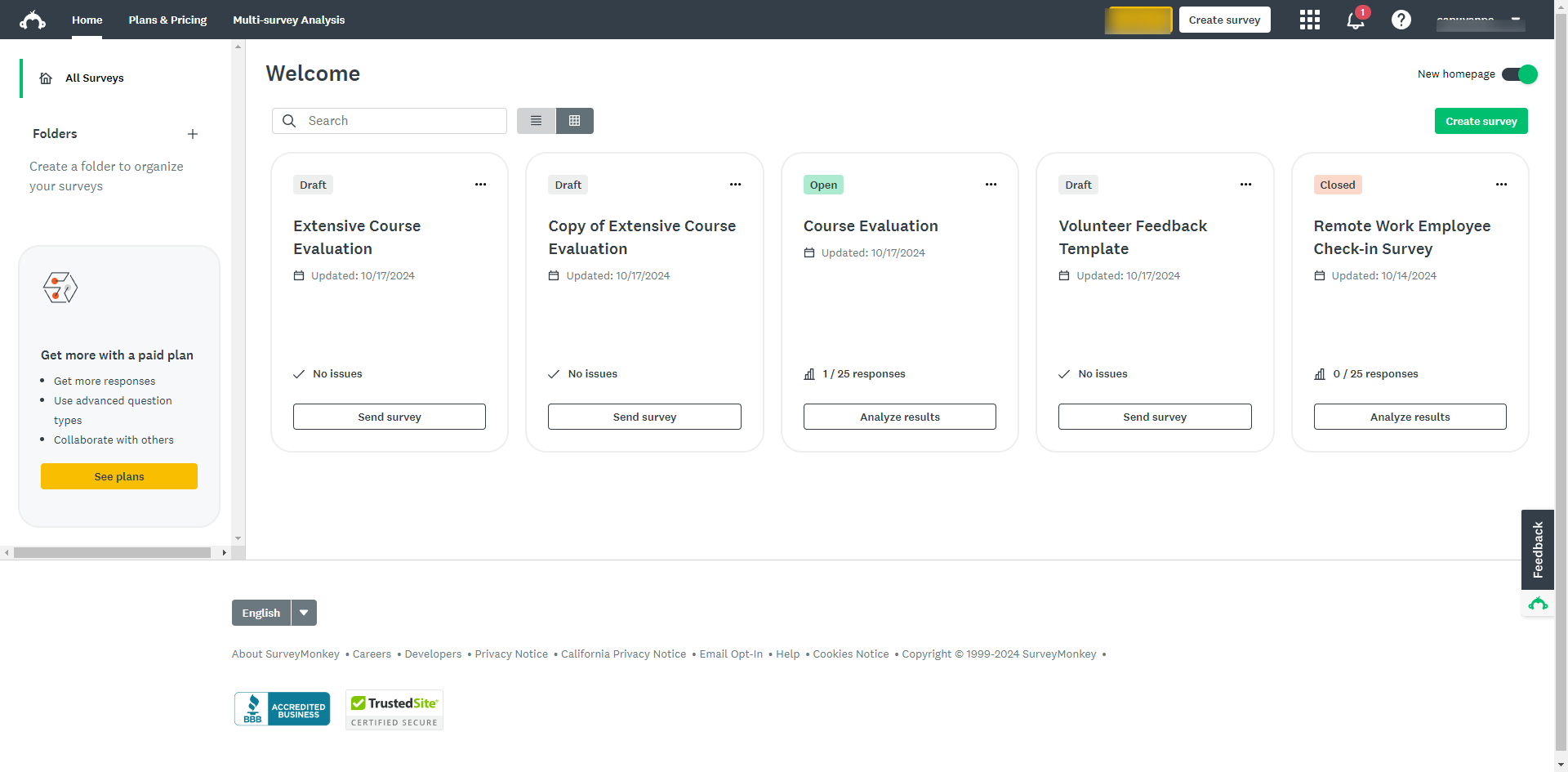
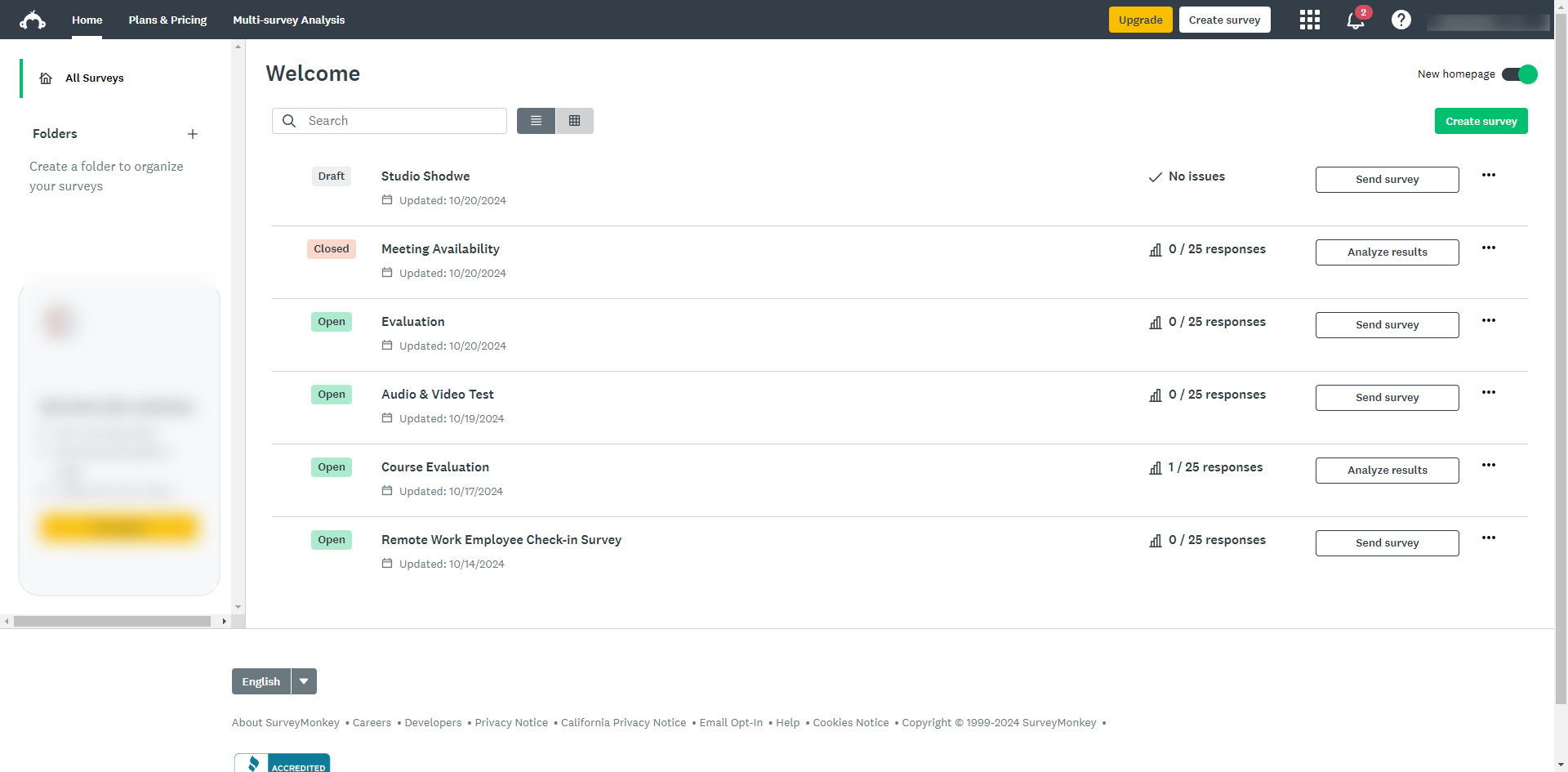
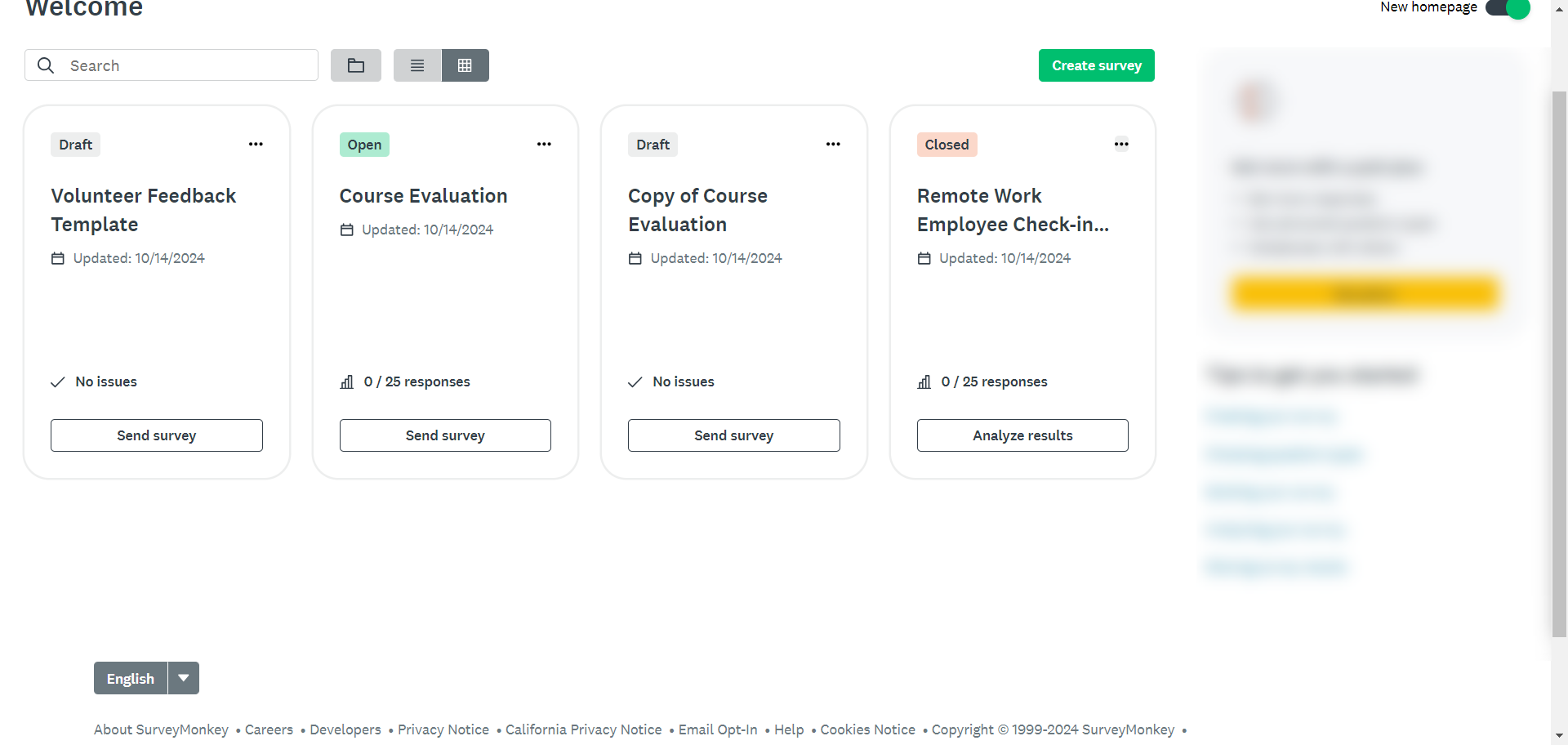
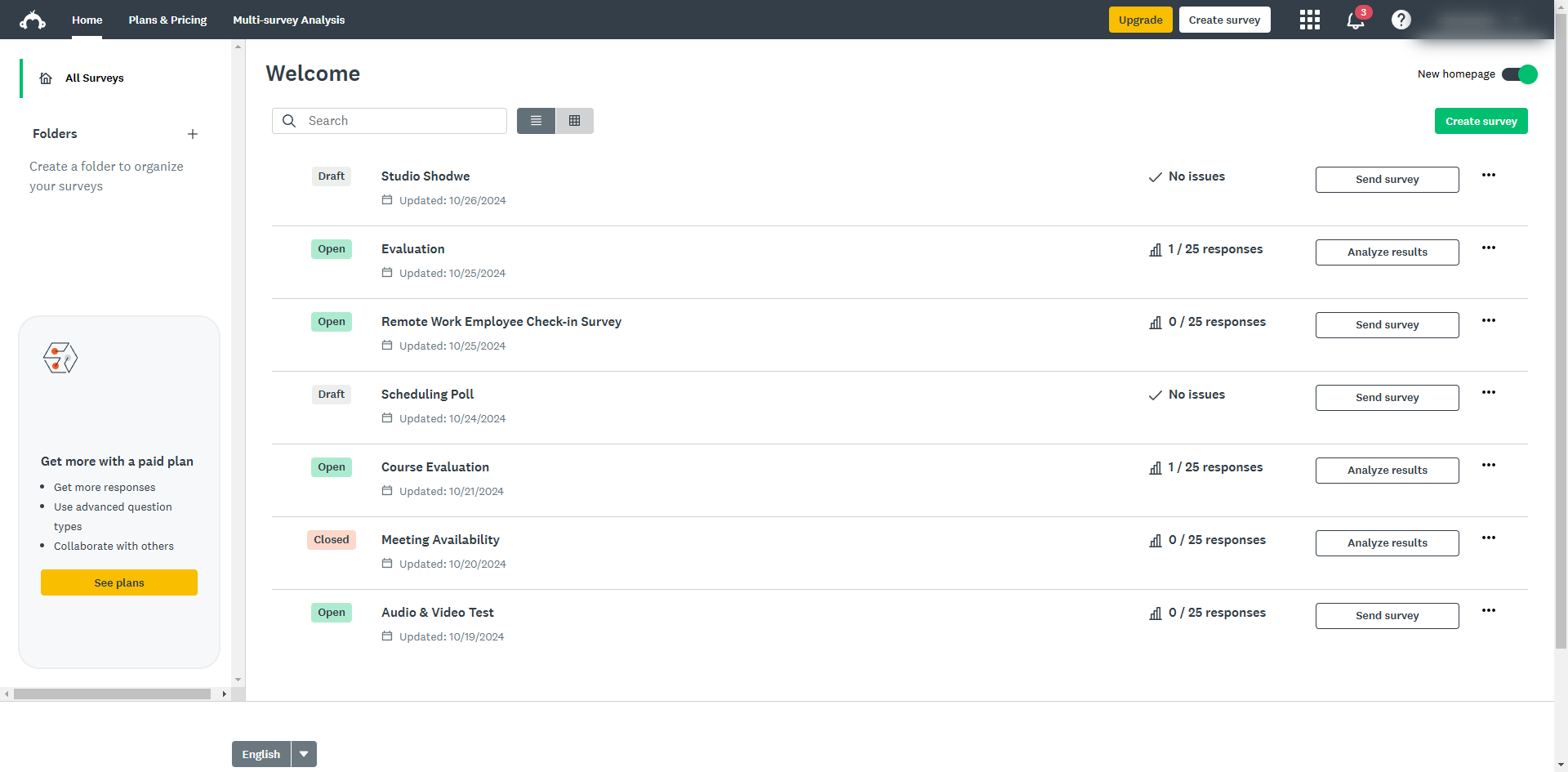
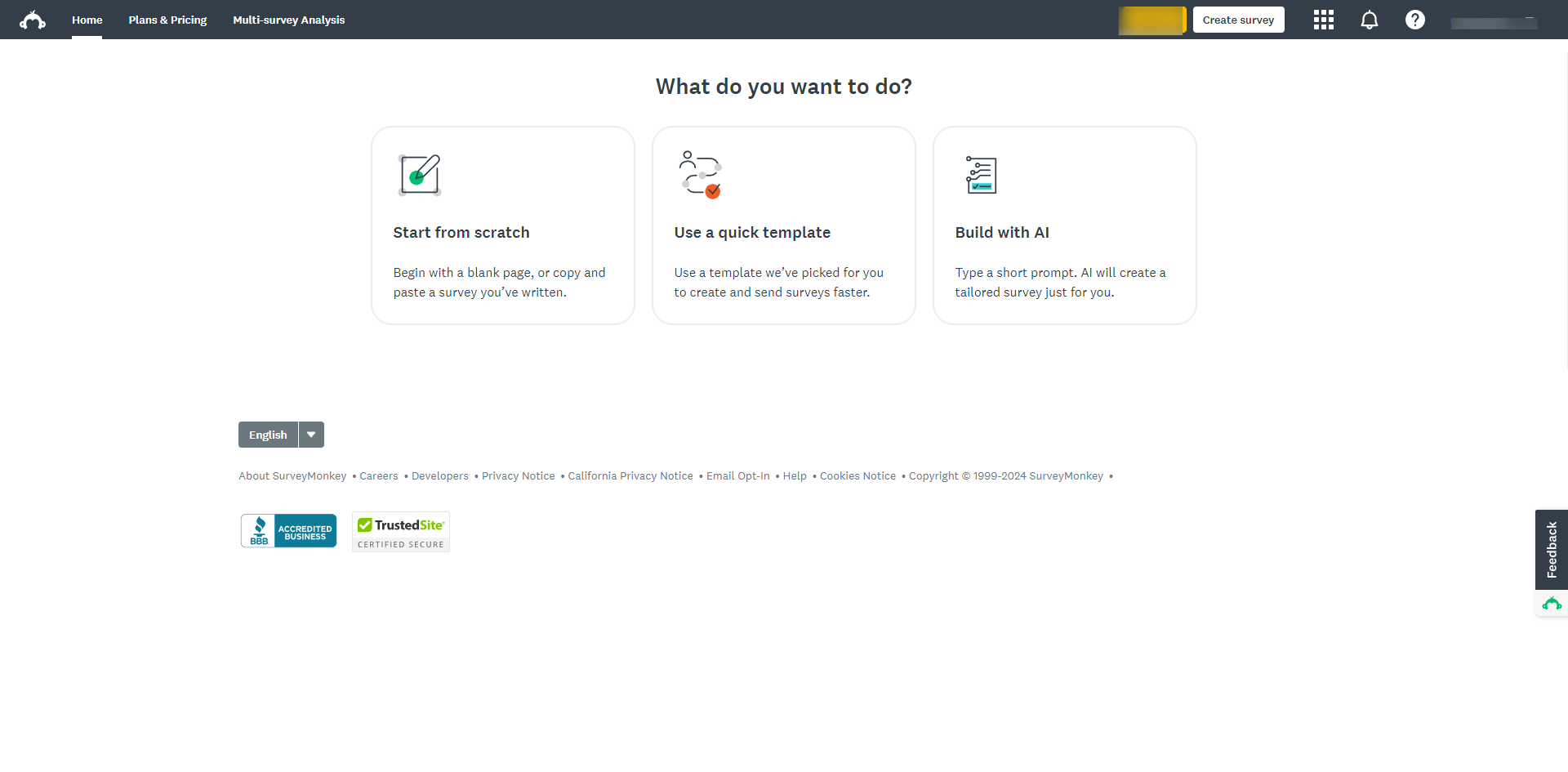
Once logged in, click on 'Create Survey' usually found on the top right corner of the dashboard.
Choose a survey creation option.
Once you have selected your starting point, select a prompt from the choices.
Click the airplane icon to send and proceed.
Your survey will be automatically generated and click 'Continue' or 'Create from scratch' to make changes.
Give your survey a clear, descriptive title to help you and respondents understand its purpose.
After choosing an option, you’ll be taken to the survey builder. Go to the 'Build' option.
Click the 'Options' tab to customize survey settings.
Before publishing, click 'Preview' to see how your survey will look and function for respondents. This helps ensure everything is working as expected.
After designing the survey, click 'Next' to set up how you want to collect responses.
Once you're ready to send out your survey, choose a collector to get responses.
After designing your survey, click on the 'Collect Responses' tab. You have several methods to distribute your survey.
Once responses are collected, go to the 'Analyze Results' tab to view charts, summaries, and individual responses.
That’s it! You’re now ready to create and distribute your survey on SurveyMonkey.
Quick answer: To set up a survey on SurveyMonkey, click Create Survey, choose a starting point, and select a prompt. Click the airplane icon, click Continue or Create from scratch, and add a title. Go to Build, customize settings in Options, and click Preview. Click Next, choose a collector under Collect Responses, and view data in Analyze Results.
About this SurveyMonkey tutorial
Create, customize, and distribute surveys easily on SurveyMonkey by following step-by-step instructions from building to analyzing results. This guide shows how to set Up a Survey on SurveyMonkey in 14 steps, starting with "Once logged in, click on 'Create Survey' usually found on the top right corner of the d..." and finishing with "That’s it! You’re now ready to create and distribute your survey on SurveyMonkey". The interactive demo above is a click-through copy of the real SurveyMonkey interface, so you can rehearse each step before doing it in your own account.
Frequently asked questions
How many steps does it take to set Up a Survey on SurveyMonkey?
14 steps. Each one is listed in order above, and the demo highlights exactly where to click.
Can I try it without changing my own account?
Yes. Clicking through the demo doesn't touch your SurveyMonkey data or settings. Once you know the flow, repeat it in your own workspace.
This tutorial is filed under SurveyMonkey. Related guides: How to Share Survey Results in SurveyMonkey, How to Tell if SurveyMonkey is Anonymous and How to Transfer a Survey in SurveyMonkey. Last reviewed 05 Oct 2026.

Create your first interactive demo in minutes
No credit card required • Start building today