How to Use SurveyMonkey for RSVP
- George Apostolov
How to Use SurveyMonkey for RSVP: step-by-step guide
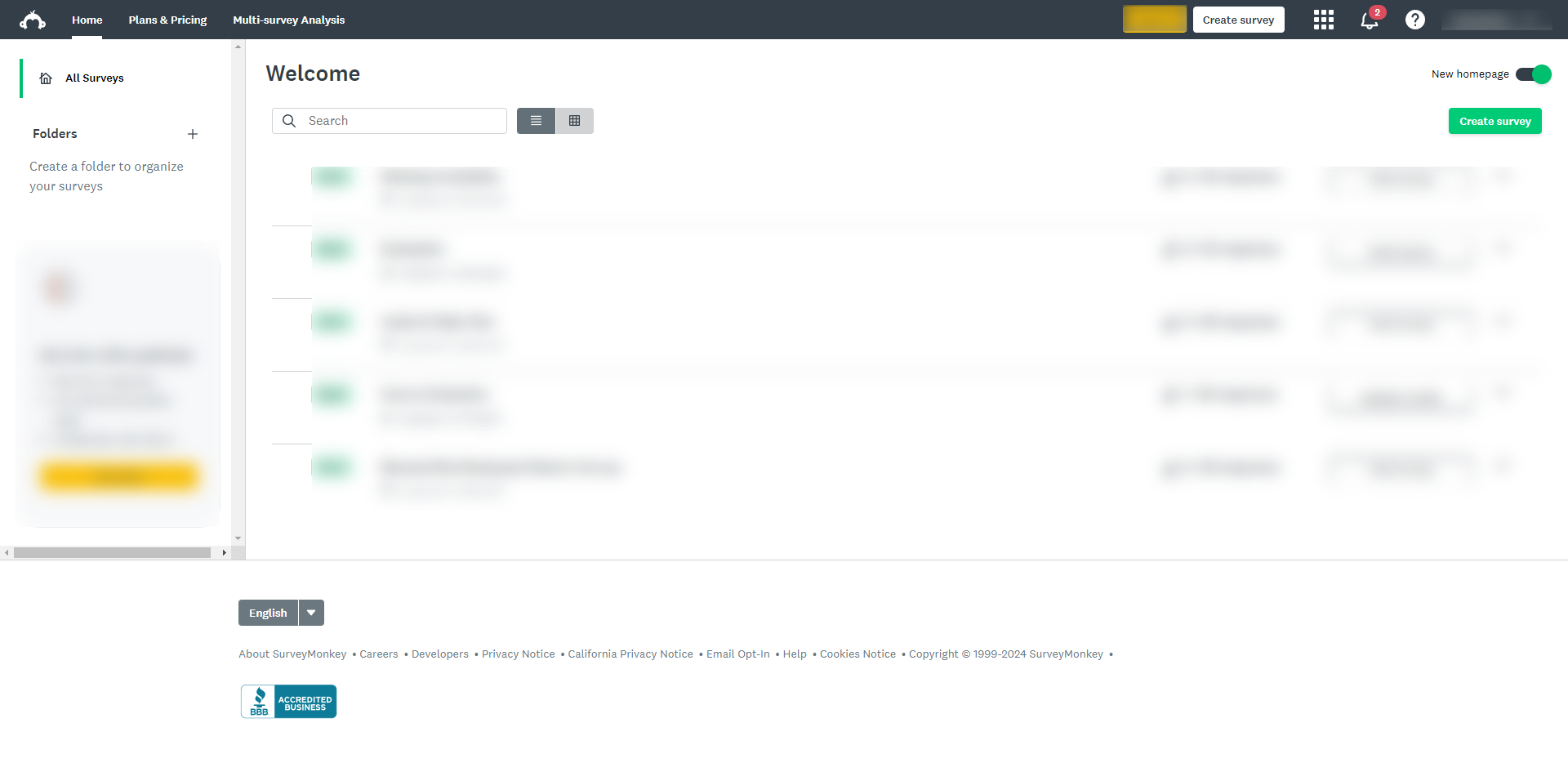
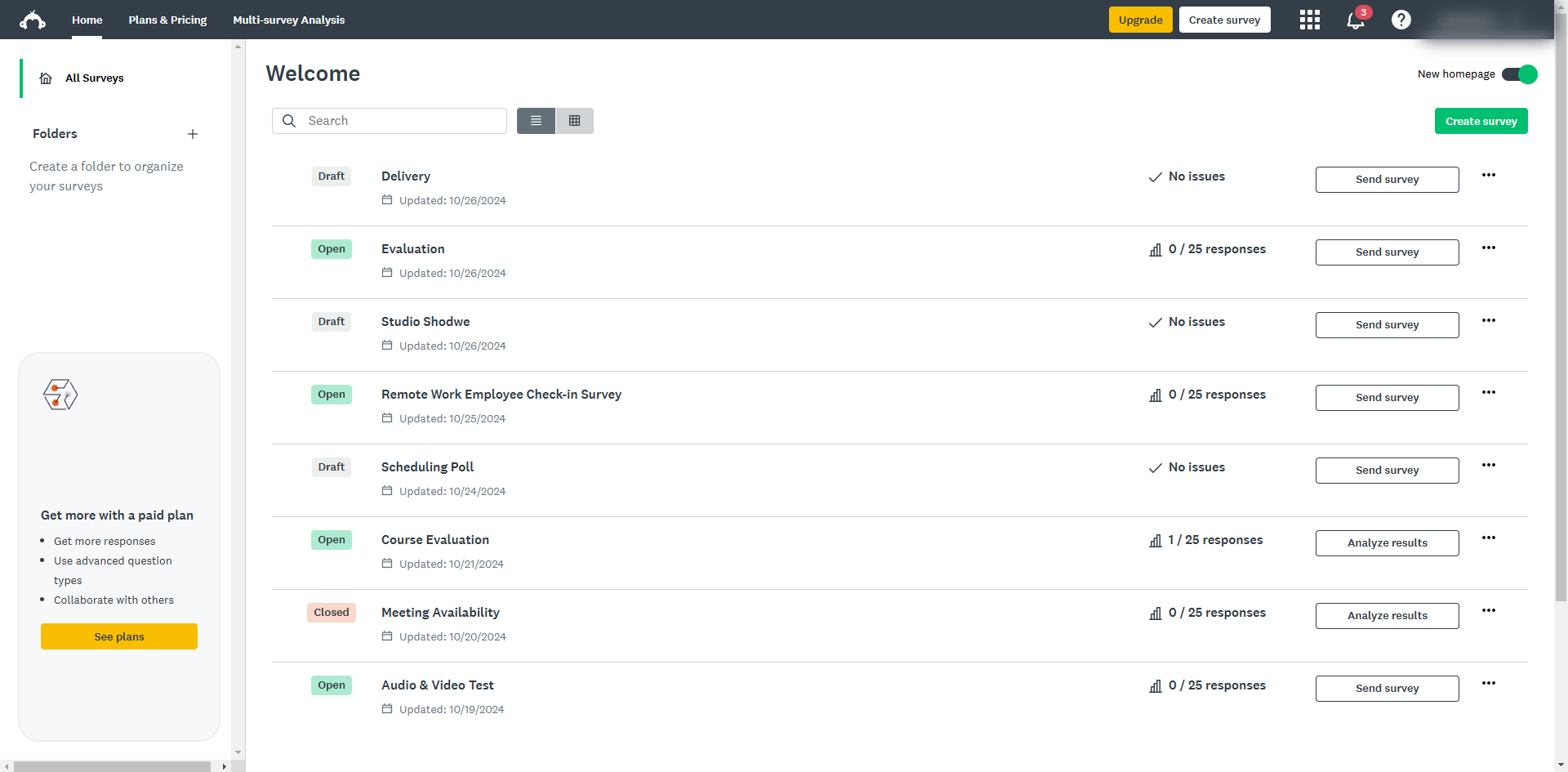
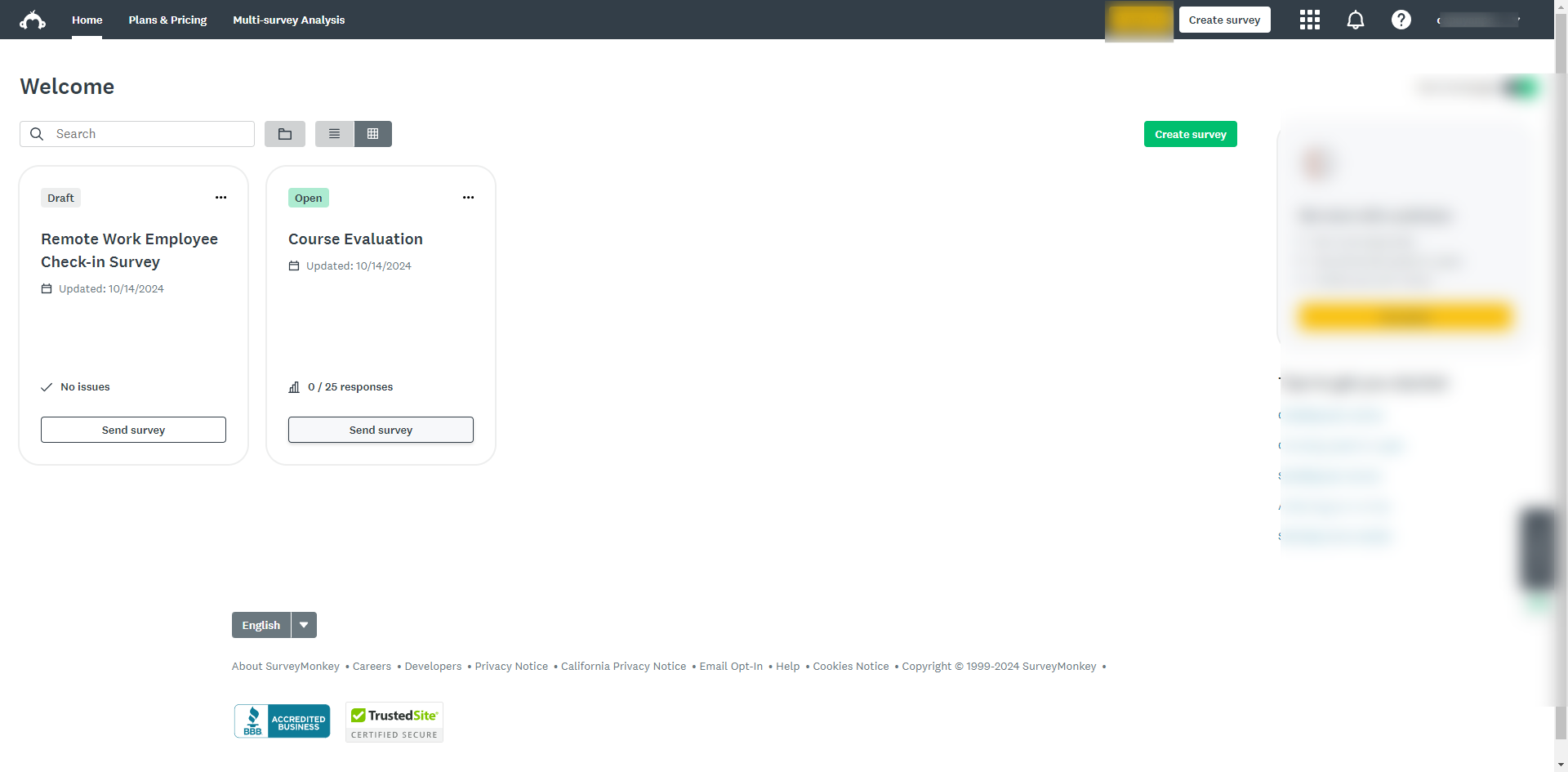
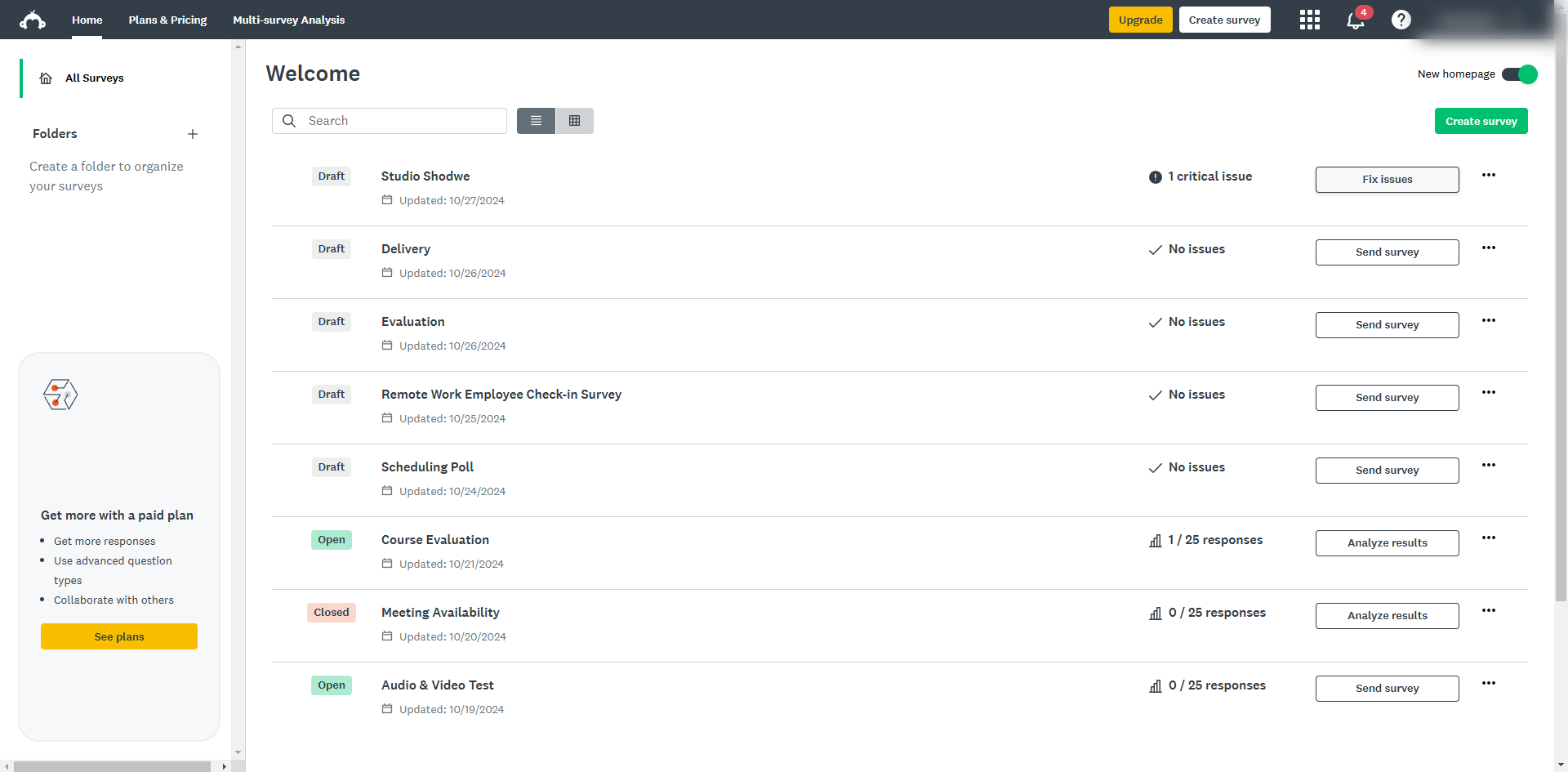
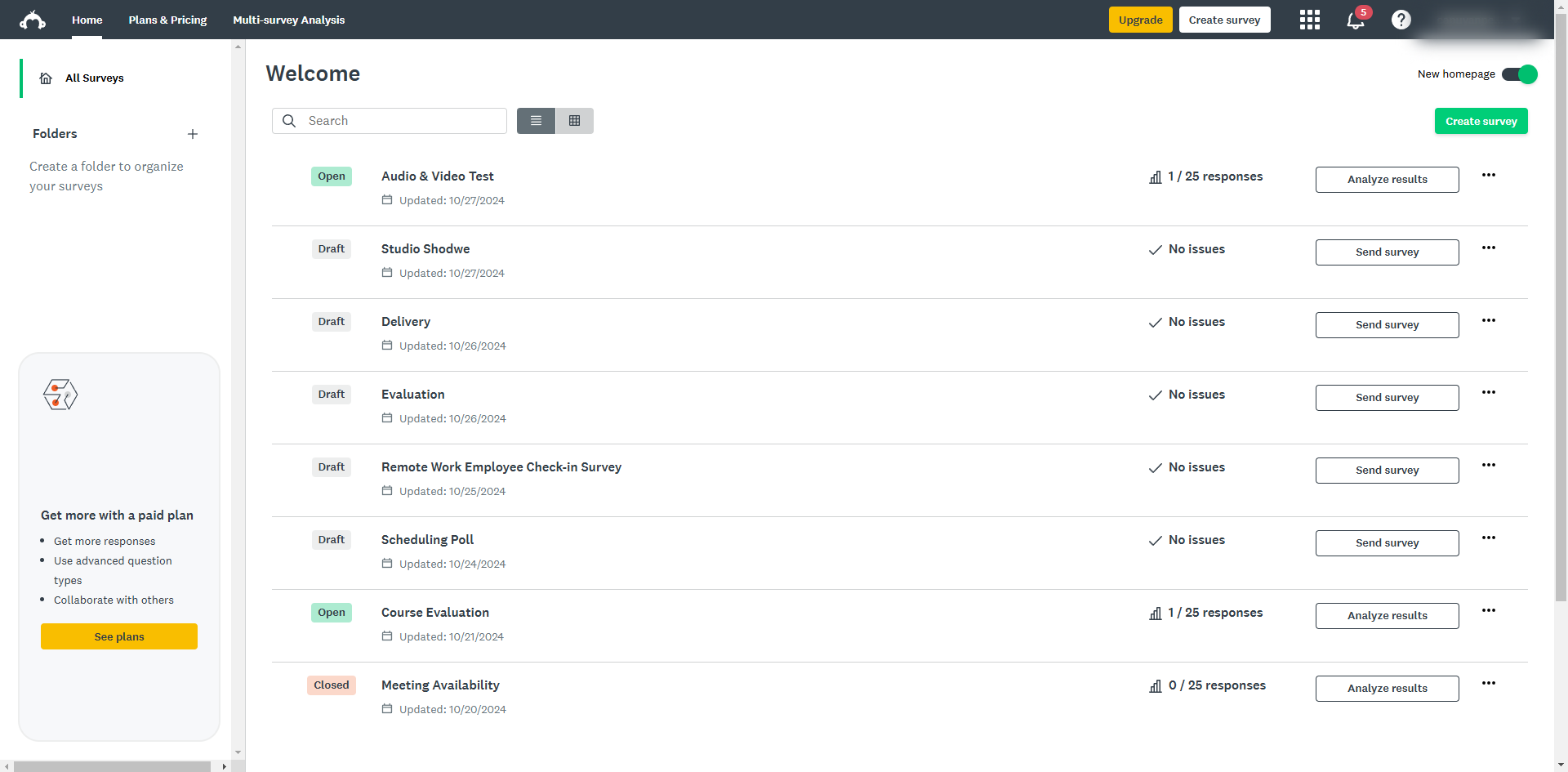
Log in to your SurveyMonkey account and click on 'Create Survey'.
Choose to 'Start from scratch'.
In the 'Design Survey' tab, click 'Edit' next to the survey title.
Name your survey and click 'Save'.
Click 'Build' from the right side menu.
Choose 'Text' and click 'Add'.
Add a simple introduction message.
Click on the '+ Next Question' button.
Use a 'Multiple Choice' question to ask whether the invitee will attend the event.
Click 'Save'.
Add a follow up question by clicking the '+Next Question' button.
Go to 'Build' and select the options email address, phone and address to add them to your RSVP survey.
Collect necessary contact details like phone numbers or emails.
Click 'Save' to apply the changes in your survey.
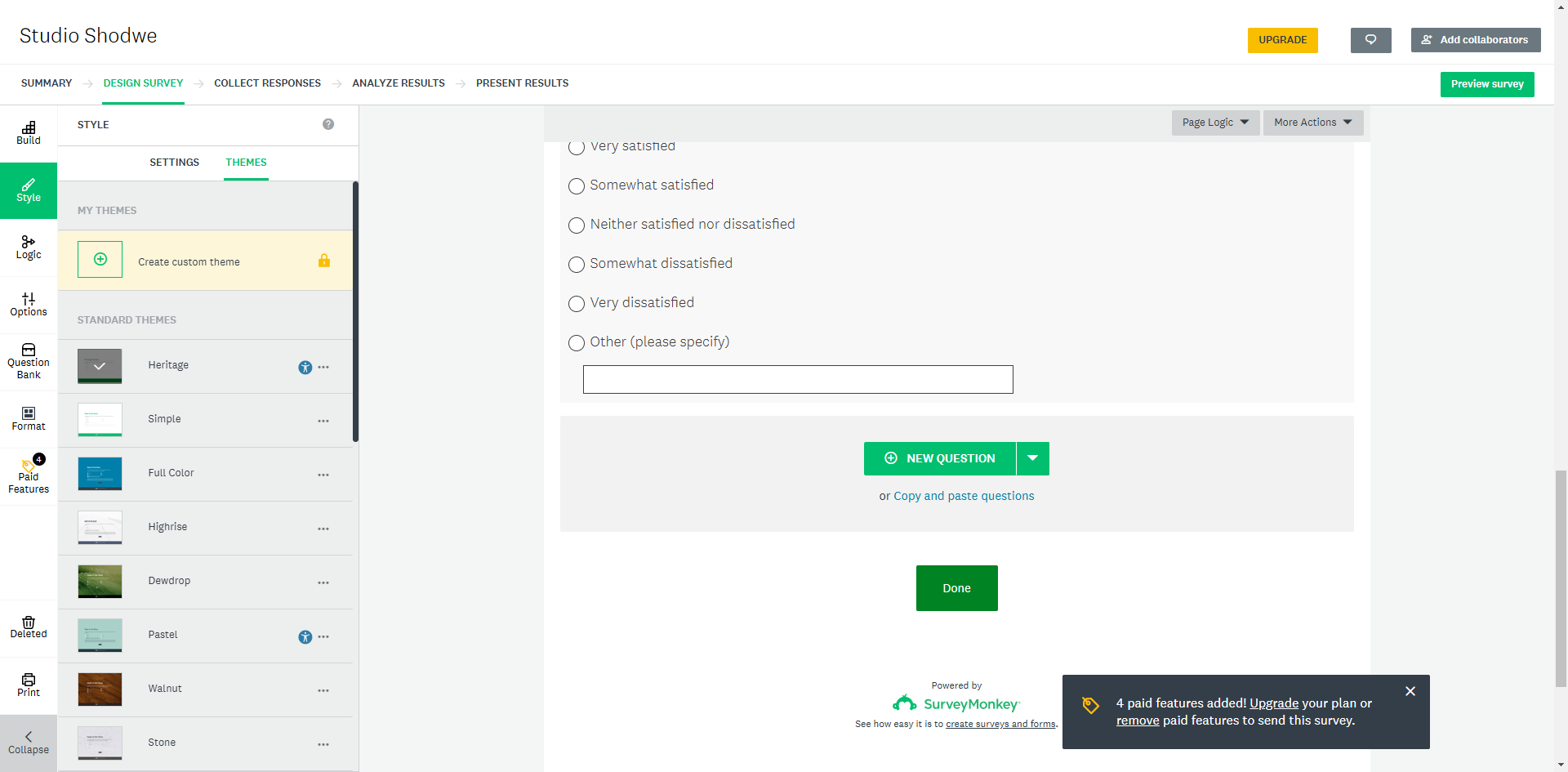
Choose a theme for the survey’s look with colors and images to match your event style by clicking the 'Style' menu from the right toolbar.
Click on your preferred theme and it will be automatically applied to your survey.
Before sending it out, click the 'Preview survey' option to test your survey and see how it looks and works from a respondent’s point of view.
Click 'Continue' to send your survey using the options from the 'Collect Responses' tab.
Quick answer: To create an RSVP using SurveyMonkey, log in and click 'Create Survey' to start from scratch. Edit the title, build an introduction message, add a multiple choice attendance question, and include contact details. Style your survey with a theme, preview it, and use the 'Collect Responses' tab to send it.
About this SurveyMonkey tutorial
Create an event RSVP in SurveyMonkey by building questions, collecting contact details, styling with themes, and previewing before sending. This guide shows how to use SurveyMonkey for RSVP in 18 steps, starting with "Log in to your SurveyMonkey account and click on 'Create Survey'" and finishing with "Click 'Continue' to send your survey using the options from the 'Collect Responses' tab". The interactive demo above is a click-through copy of the real SurveyMonkey interface, so you can rehearse each step before doing it in your own account.
Frequently asked questions
How many steps does it take to use SurveyMonkey for RSVP?
18 steps. Each one is listed in order above, and the demo highlights exactly where to click.
Can I try it without changing my own account?
Yes. Clicking through the demo doesn't touch your SurveyMonkey data or settings. Once you know the flow, repeat it in your own workspace.
This tutorial is filed under SurveyMonkey. Related guides: How to Use SurveyMonkey to Schedule a Meeting, How to Use SurveyMonkey Youtube and How Can I Customize a Closing Page in SurveyMonkey. Last reviewed 05 Oct 2026.

Create your first interactive demo in minutes
No credit card required • Start building today