Salesforce - Share a report
- George Apostolov
Salesforce - Share a report: step-by-step guide
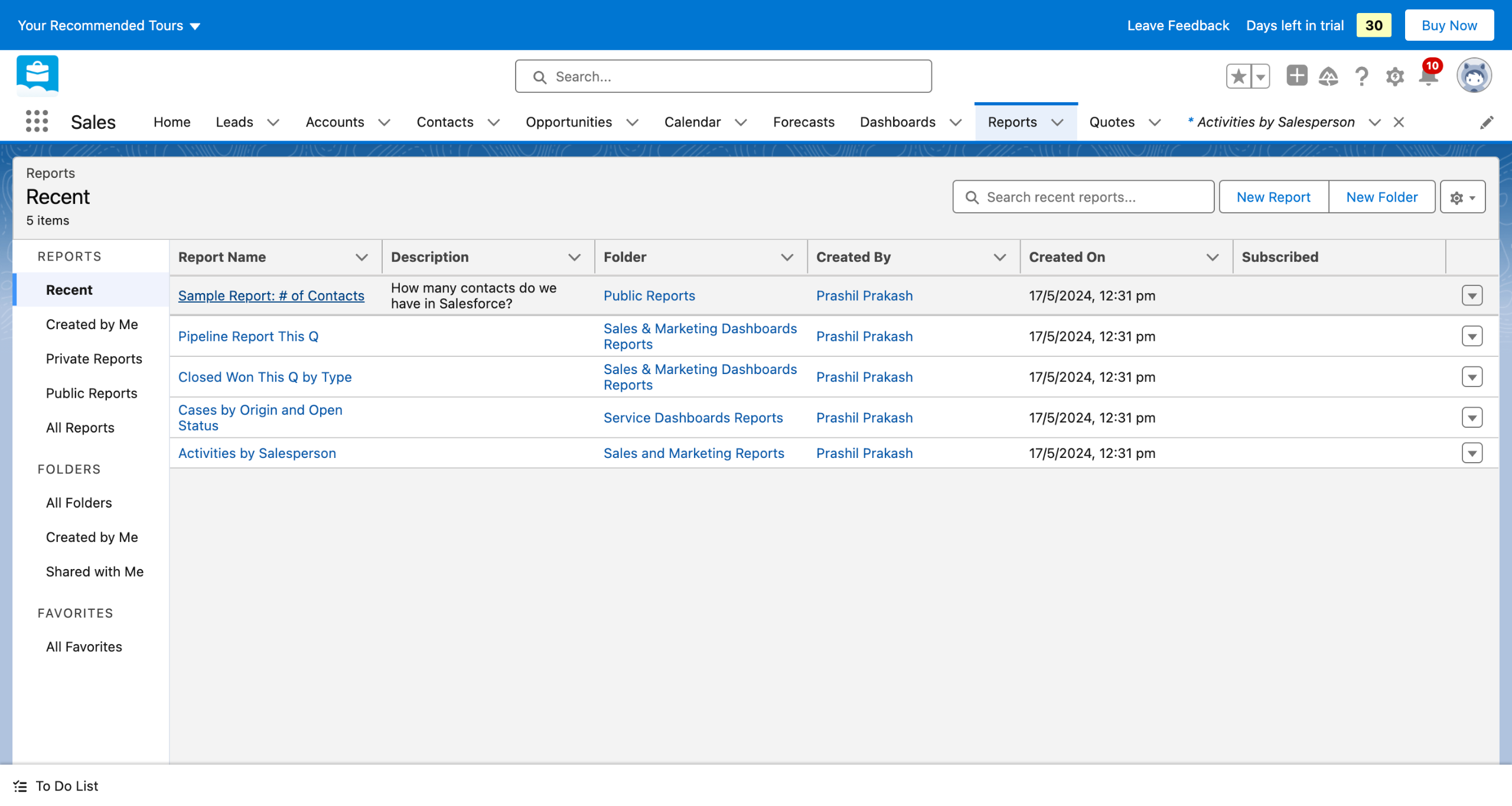
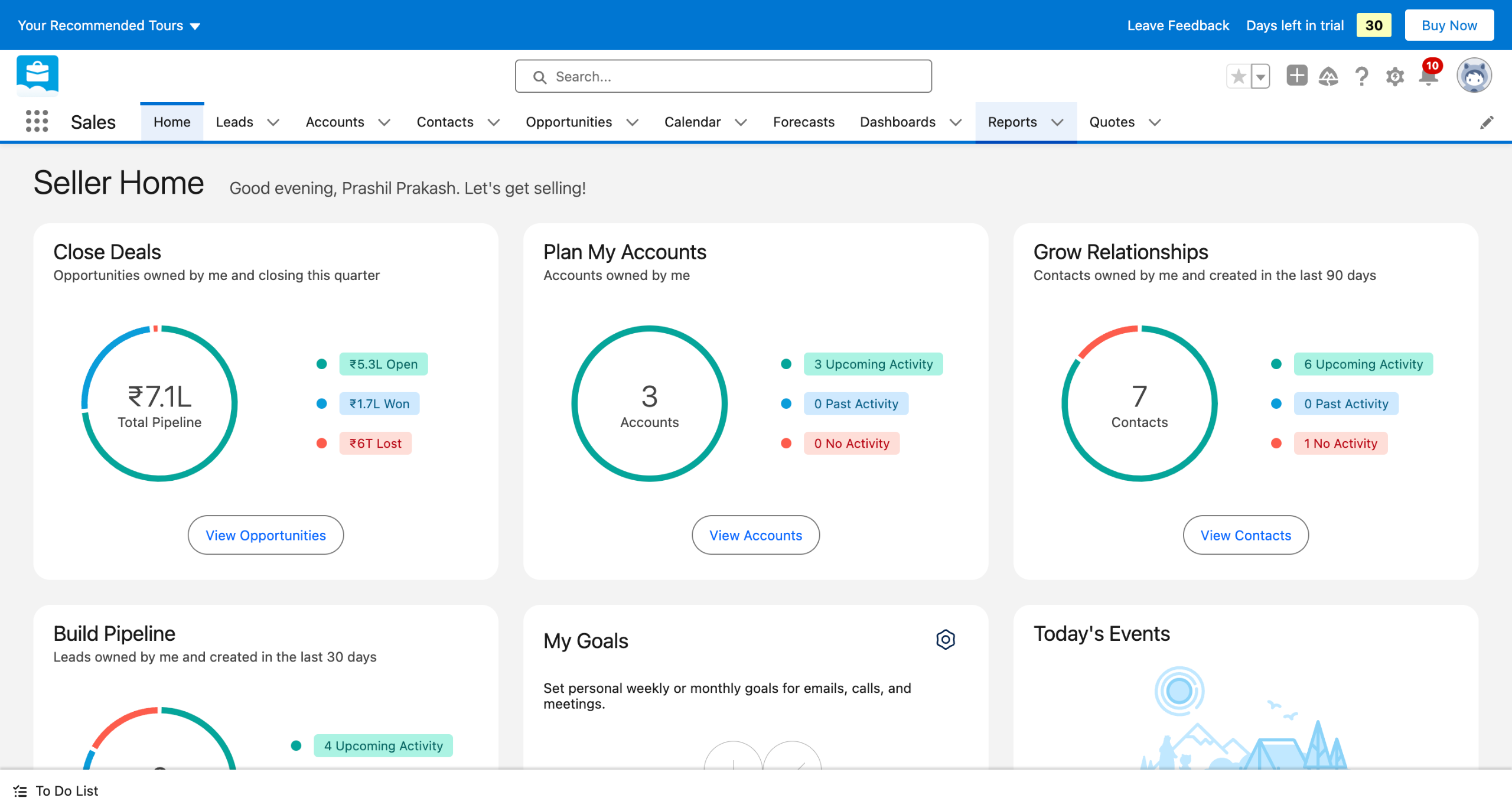
Navigate to Reports in the menu bar on the top.
Click on the down arrow button of the report you want to share. And select Move from the dropdown.
Reports cannot be shared directly; they need to be added to a folder since folders are shareable.
We can either select one of the existing folders and move the report to it.
Or create a New Folder specifically so you can move the report to it.
Hit Select Folder to finish moving the report.
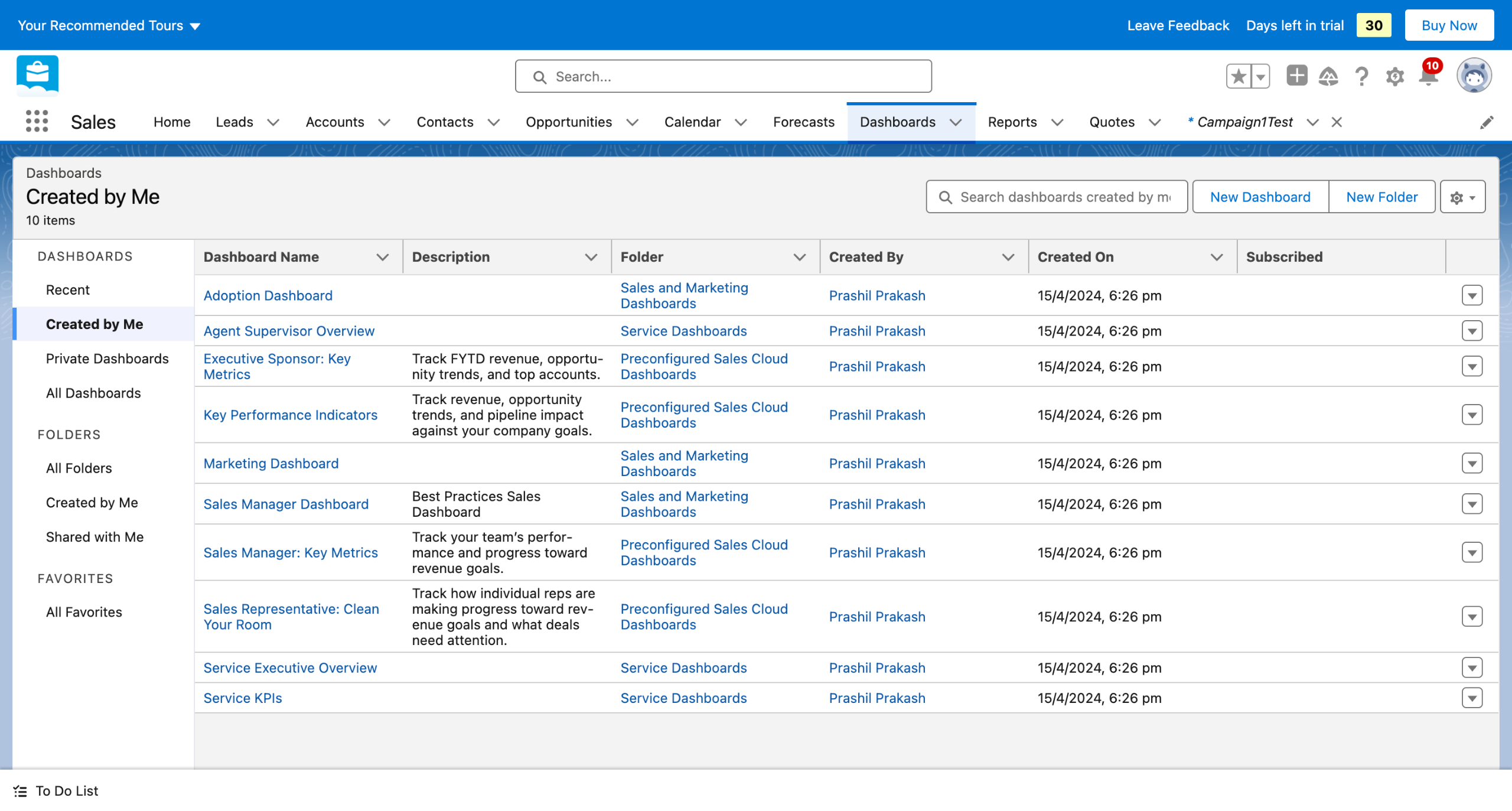
Now we navigate to All Folders on the left pane.
Select the folder to which you added your report and click on the down arrow to reveal a dropdown. You will find the Share option there.
You can choose the group with which you'd like to share the folder.
You can also decide the access level by choosing between View, Edit, or Manage access.
Finish by clicking on the Done button.
Quick answer: To share a report in Salesforce, move the report to a folder from the report menu, navigate to All Folders, select the folder's share option, choose the target group and access level, and click Done.
About this Salesforce tutorial
Share reports in Salesforce by moving them into accessible folders and configuring group access permissions. This guide covers salesforce - Share a report in 11 steps, starting with "Navigate to Reports in the menu bar on the top" and finishing with "Finish by clicking on the Done button". The interactive demo above is a click-through copy of the real Salesforce interface, so you can rehearse each step before doing it in your own account.
Frequently asked questions
How many steps does salesforce - Share a report take?
11 steps. Each one is listed in order above, and the demo highlights exactly where to click.
Can I try it without changing my own account?
Yes. Clicking through the demo doesn't touch your Salesforce data or settings. Once you know the flow, repeat it in your own workspace.
This tutorial is filed under Salesforce. Related guides: Salesforce - Share Dashboards, Salesforce - how to switch to lightning salesforce and Salesforce - Disable MFA. Last reviewed 05 Oct 2026.

Create your first interactive demo in minutes
No credit card required • Start building today