How to Track Project Progress in Linear
- George Apostolov
How to Track Project Progress in Linear: step-by-step guide
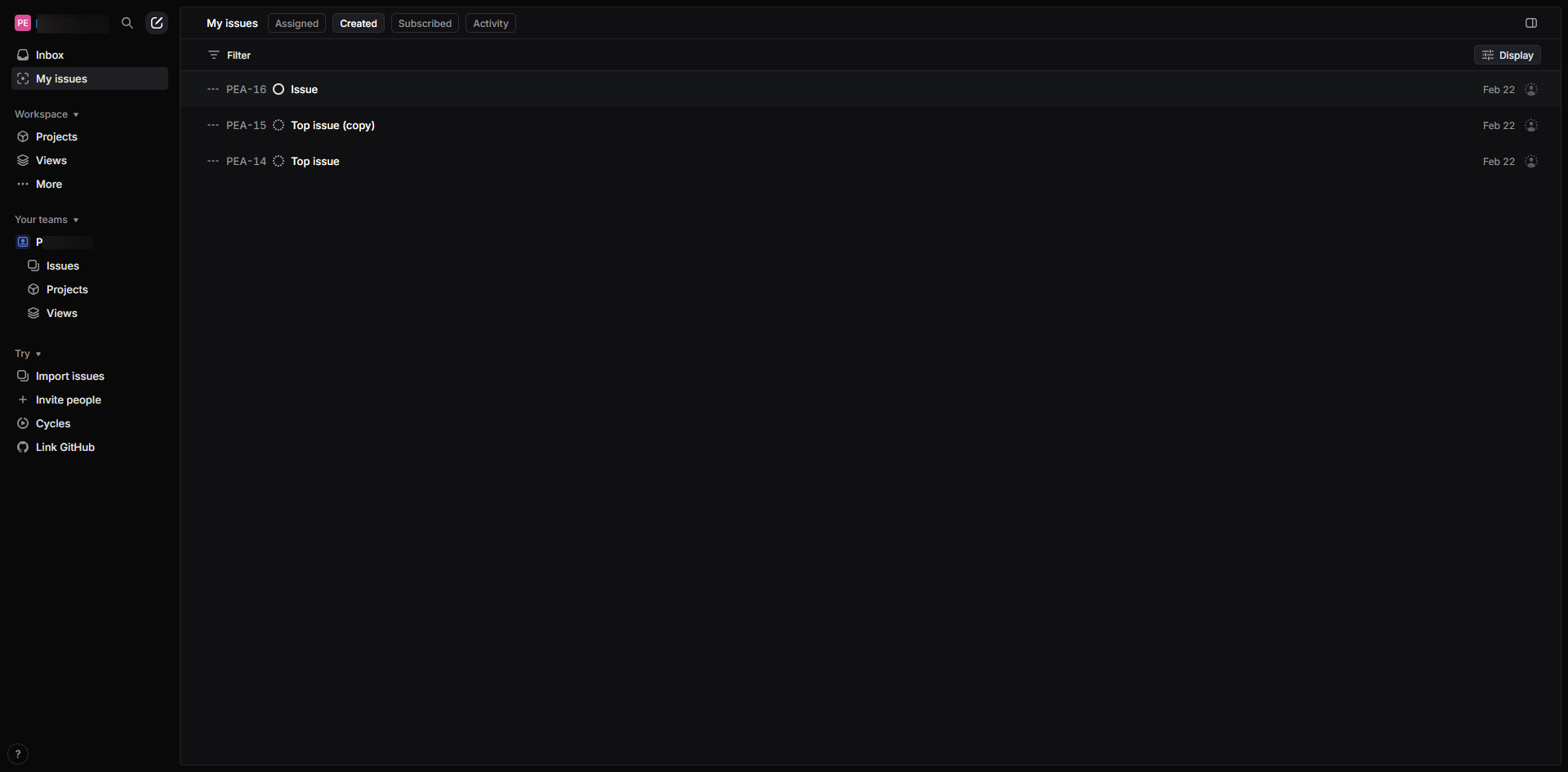
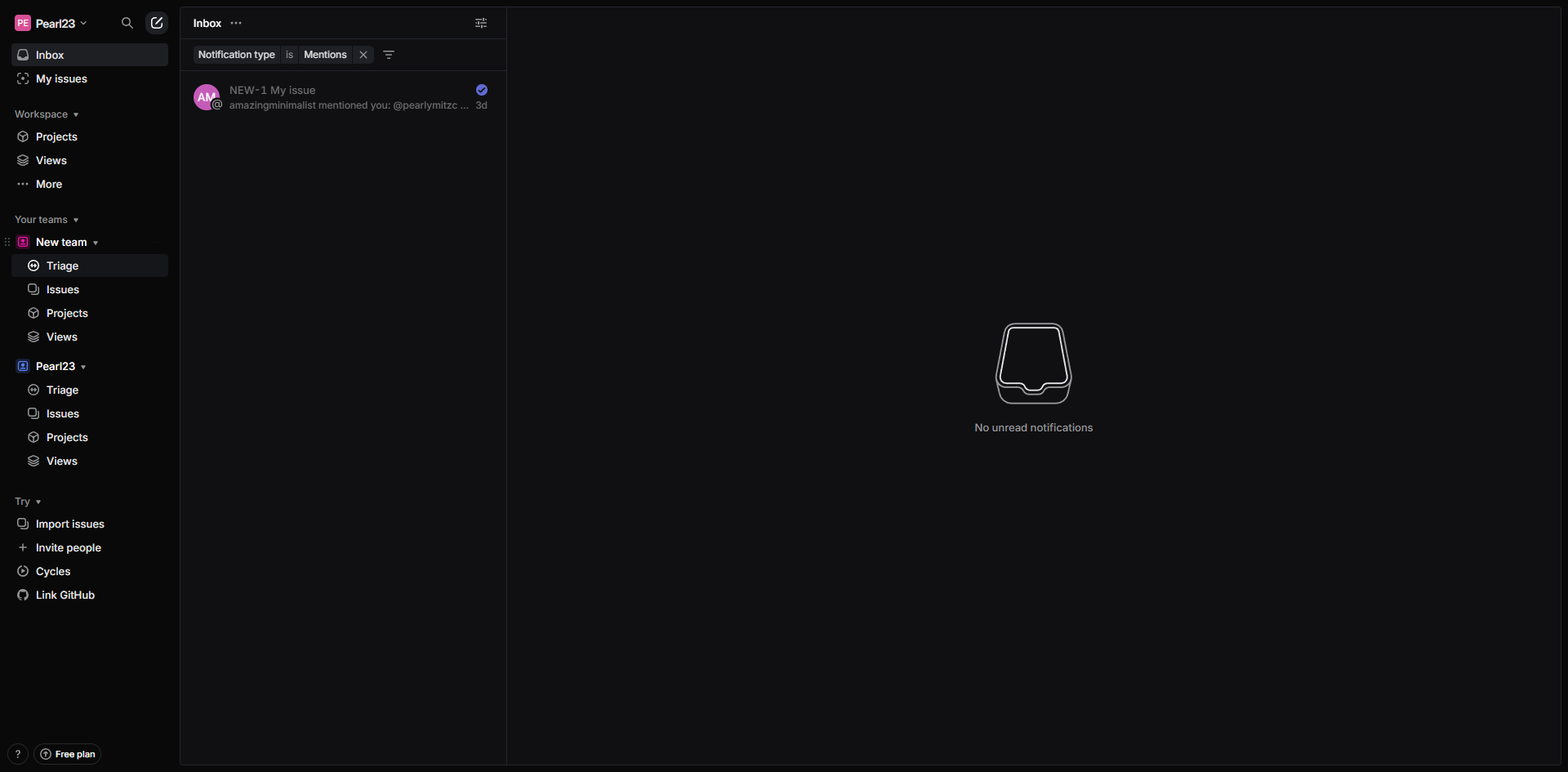
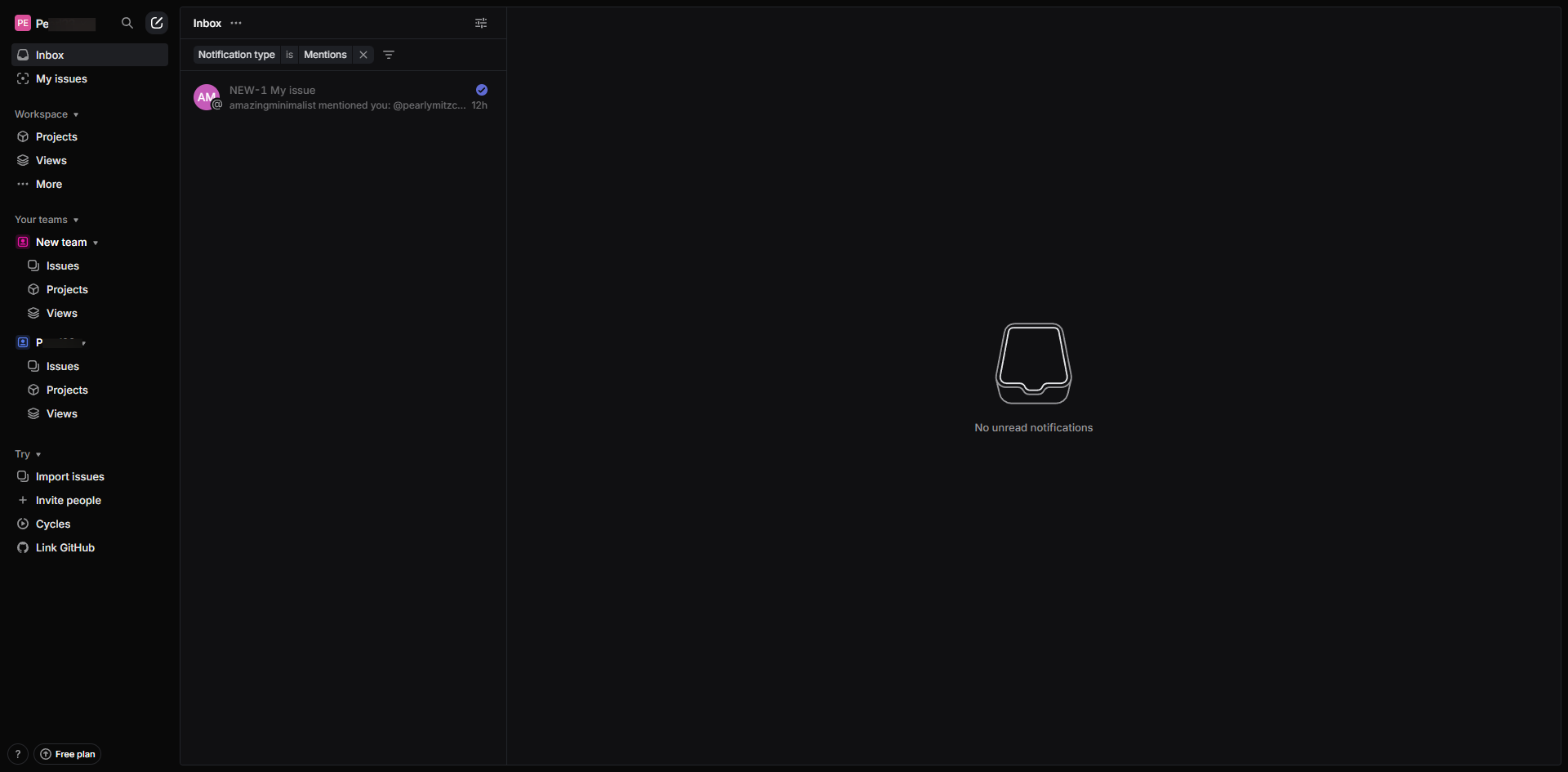
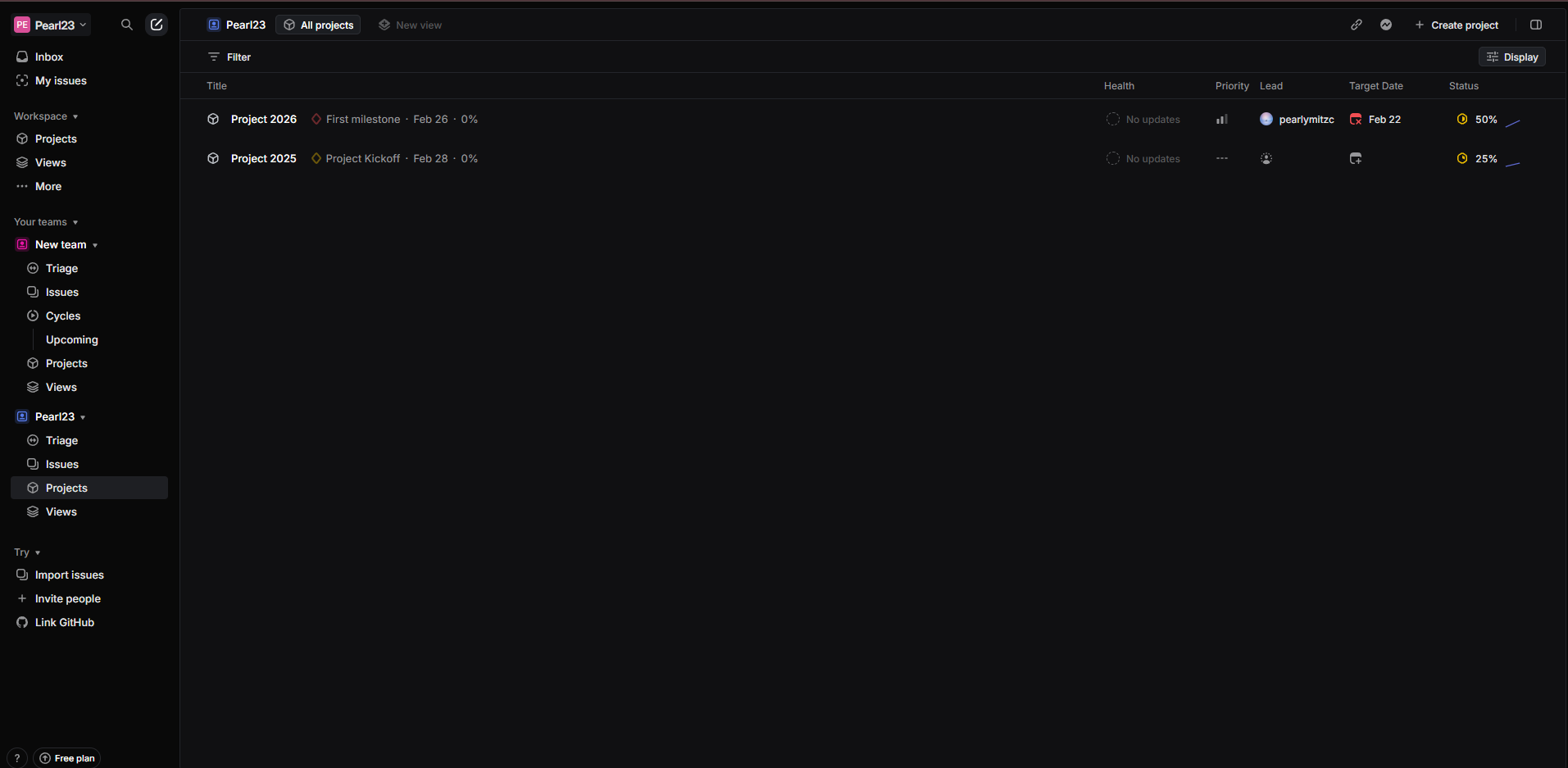
The Linear dashboard provides a high-level view of project progress, allowing you to see the status of various tasks and milestones across different projects.
Filter and categorize tasks using labels and custom views to focus on specific aspects of your project and track progress within those areas.
Regularly update the status of individual tasks within a project.
Set milestones within your project to mark significant achievements and monitor progress towards key deliverables.
Clearly assign tasks to team members to ensure accountability and track individual contributions.
Utilize the comment feature to provide feedback on tasks, discuss progress, and keep everyone informed.
Quick answer: To track project progress in Linear, view the dashboard for a high-level overview, filter tasks using labels and custom views, regularly update individual task statuses, set milestones for key deliverables, assign tasks to team members for accountability, and use the comment feature to discuss progress.
About this Linear tutorial
Monitor tasks, set milestones, and evaluate team contributions effectively within Linear to ensure successful project completion. This guide shows how to track Project Progress in Linear in 6 steps, starting with "The Linear dashboard provides a high-level view of project progress, allowing you to se..." and finishing with "Utilize the comment feature to provide feedback on tasks, discuss progress, and keep ev...". The interactive demo above is a click-through copy of the real Linear interface, so you can rehearse each step before doing it in your own account.
Frequently asked questions
How many steps does it take to track Project Progress in Linear?
6 steps. Each one is listed in order above, and the demo highlights exactly where to click.
Can I try it without changing my own account?
Yes. Clicking through the demo doesn't touch your Linear data or settings. Once you know the flow, repeat it in your own workspace.
This tutorial is filed under Linear. Related guides: How to Trigger Linear Notifications from Jenkins Builds via Zapier, How to Trigger Linear Status Changes from GitHub Pulls via Zapier and How to Use Emoji Reactions in Linear. Last reviewed 05 Oct 2026.

Create your first interactive demo in minutes
No credit card required • Start building today