How to Understand the Engagement Metrics in Buffer
- George Apostolov
How to Understand the Engagement Metrics in Buffer: step-by-step guide
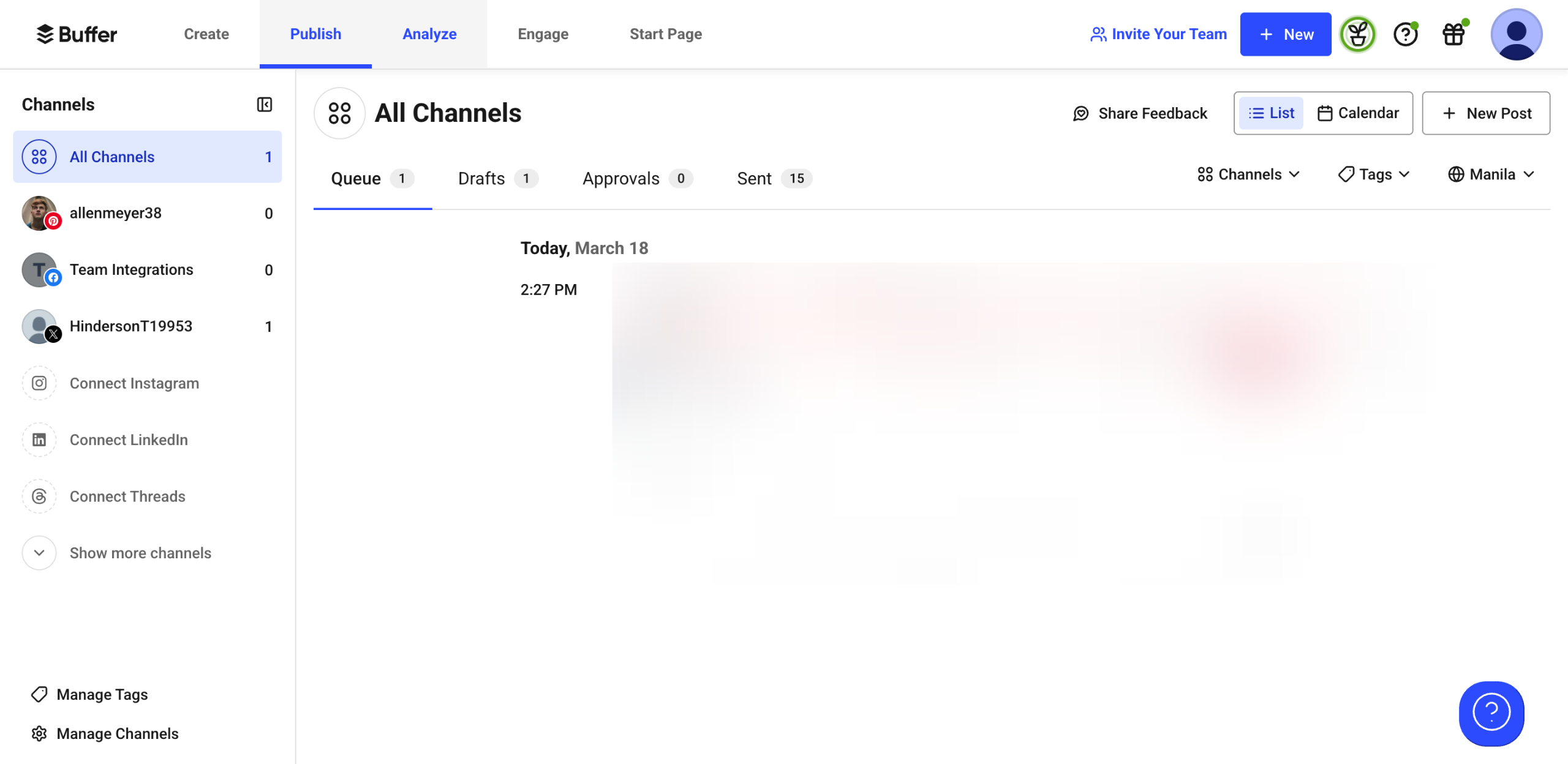
Go to the top menu bar, then click 'Analyze'.
After that, select the channel with the engagement rate you want to review.
Click the 'Answers' tab to proceed.
From this page, you can view various insights related to the engagement rate garnered by your posts. For instance, you may learn about the best day, type, and frequency to post.
Hover your mouse cursor over the bar in the graph to compare the engagement rate against the given metrics.
On the one hand, glide your cursor over the 'How is This Calculated' option to know how the data is generated.
Quick answer: To view engagement metrics in Buffer, navigate to Analyze in the top menu bar, select your desired channel, and click the Answers tab. From there, you can view insights on post engagement, hover over graph bars to compare metrics, and check how the data is calculated using the option provided.
About this Buffer tutorial
Analyze your social post performance in Buffer by reviewing engagement insights, comparing metrics on graphs, and checking calculation details. This guide shows how to understand the Engagement Metrics in Buffer in 6 steps, starting with "Go to the top menu bar, then click 'Analyze'" and finishing with "On the one hand, glide your cursor over the 'How is This Calculated' option to know how...". The interactive demo above is a click-through copy of the real Buffer interface, so you can rehearse each step before doing it in your own account.
Frequently asked questions
How many steps does it take to understand the Engagement Metrics in Buffer?
6 steps. Each one is listed in order above, and the demo highlights exactly where to click.
Can I try it without changing my own account?
Yes. Clicking through the demo doesn't touch your Buffer data or settings. Once you know the flow, repeat it in your own workspace.
This tutorial is filed under Buffer. Related guides: How to Upload Images From Dropbox to Buffer, How to Upload Images From Google Drive to Buffer and How to Use Buffer's Analytics Dashboard. Last reviewed 05 Oct 2026.

Create your first interactive demo in minutes
No credit card required • Start building today