How to Use Incognito Mode in Perplexity AI
- George Apostolov
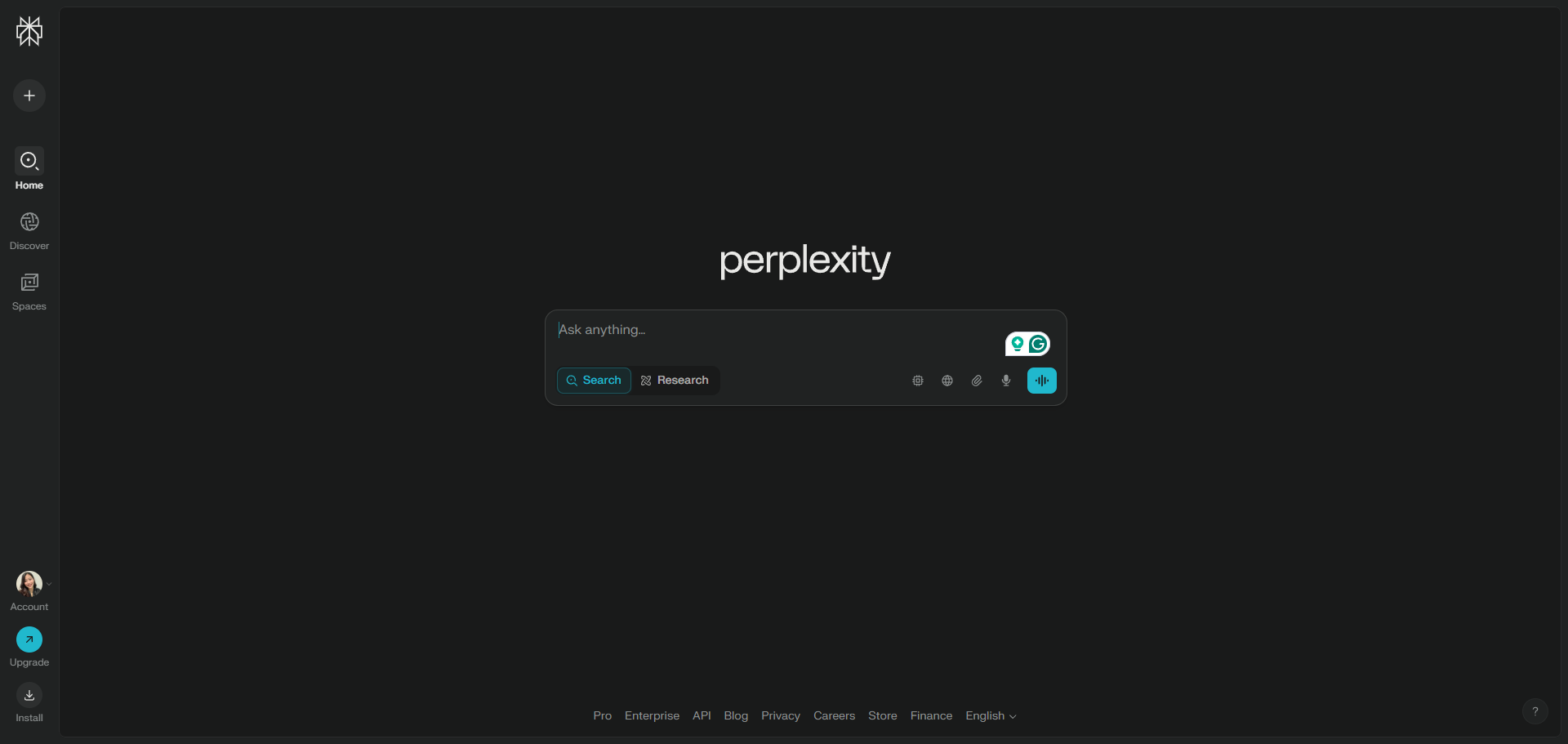
How to Use Incognito Mode in Perplexity AI: step-by-step guide
Click your profile icon or name located in the bottom left corner of the interface on desktop.
Select 'Incognito' from the dropdown menu that appears.
Enable Incognito mode for private, history-free research sessions.
Start a new thread, any conversation you begin while in incognito mode will not be saved to your library and will expire after 24 hours.
Click on the arrow icon to see results in Incognito mode.
When incognito mode is active, your search history and conversation threads remain private and are not stored long-term.
Quick answer: To use Incognito Mode in Perplexity AI, click your profile icon or name in the bottom left corner, select Incognito from the dropdown menu, and enable it. Start a new thread for private research, and click the arrow icon to view results while ensuring your conversations are not saved.
About this tutorial
Keep your search history private and delete threads after 24 hours by enabling the incognito feature inside the app. This guide shows how to use Incognito Mode in Perplexity AI in 6 steps, starting with "Click your profile icon or name located in the bottom left corner of the interface on d..." and finishing with "When incognito mode is active, your search history and conversation threads remain priv...". The interactive demo above is a click-through copy of the real product interface, so you can rehearse each step before doing it in your own account.
Frequently asked questions
How many steps does it take to use Incognito Mode in Perplexity AI?
6 steps. Each one is listed in order above, and the demo highlights exactly where to click.
Can I try it without changing my own account?
Yes. Clicking through the demo doesn't touch your data or settings. Once you know the flow, repeat it in your own workspace.

Create your first interactive demo in minutes
No credit card required • Start building today