How to Use Miro for Project Management
- George Apostolov
How to Use Miro for Project Management: step-by-step guide
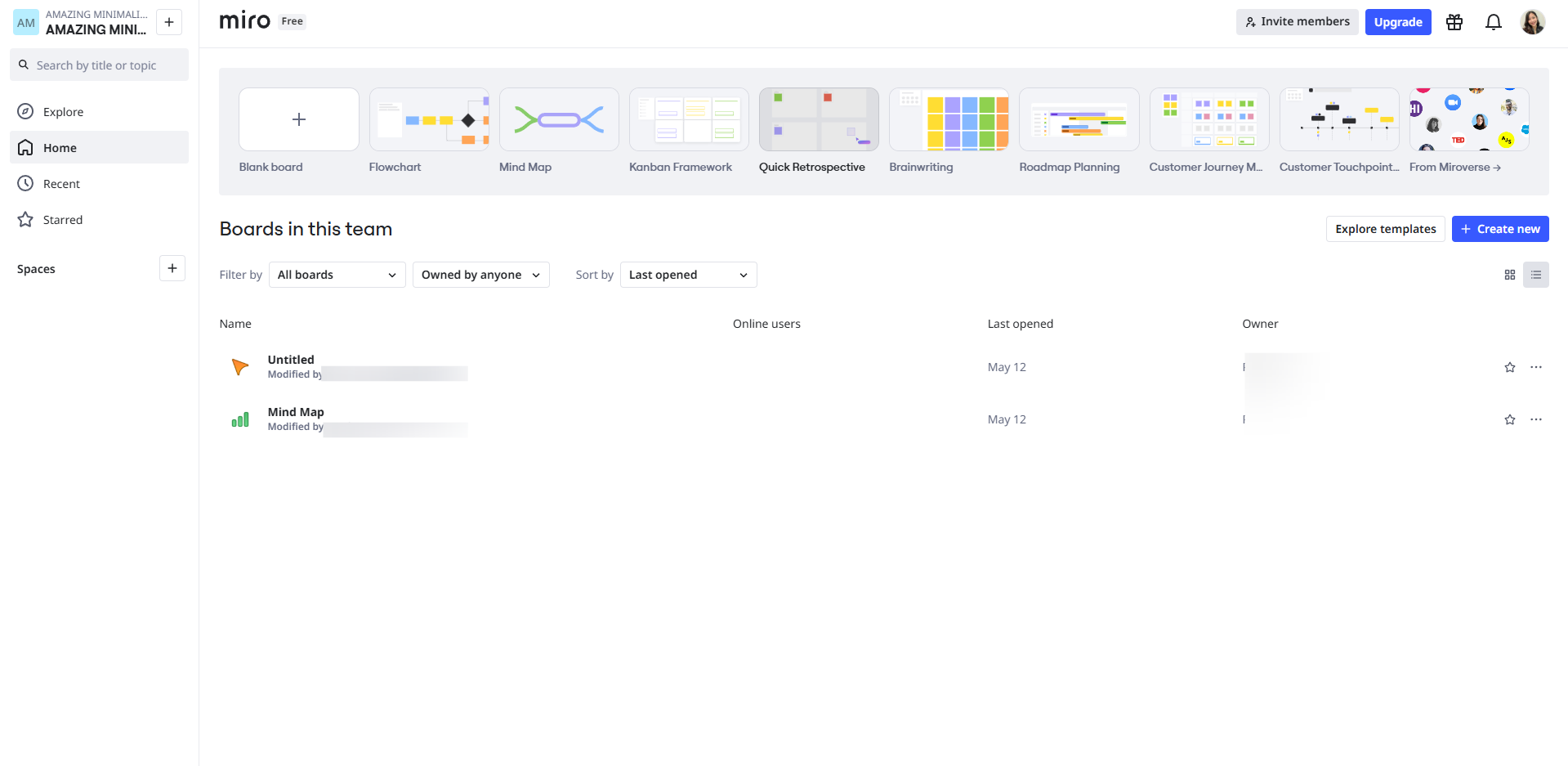
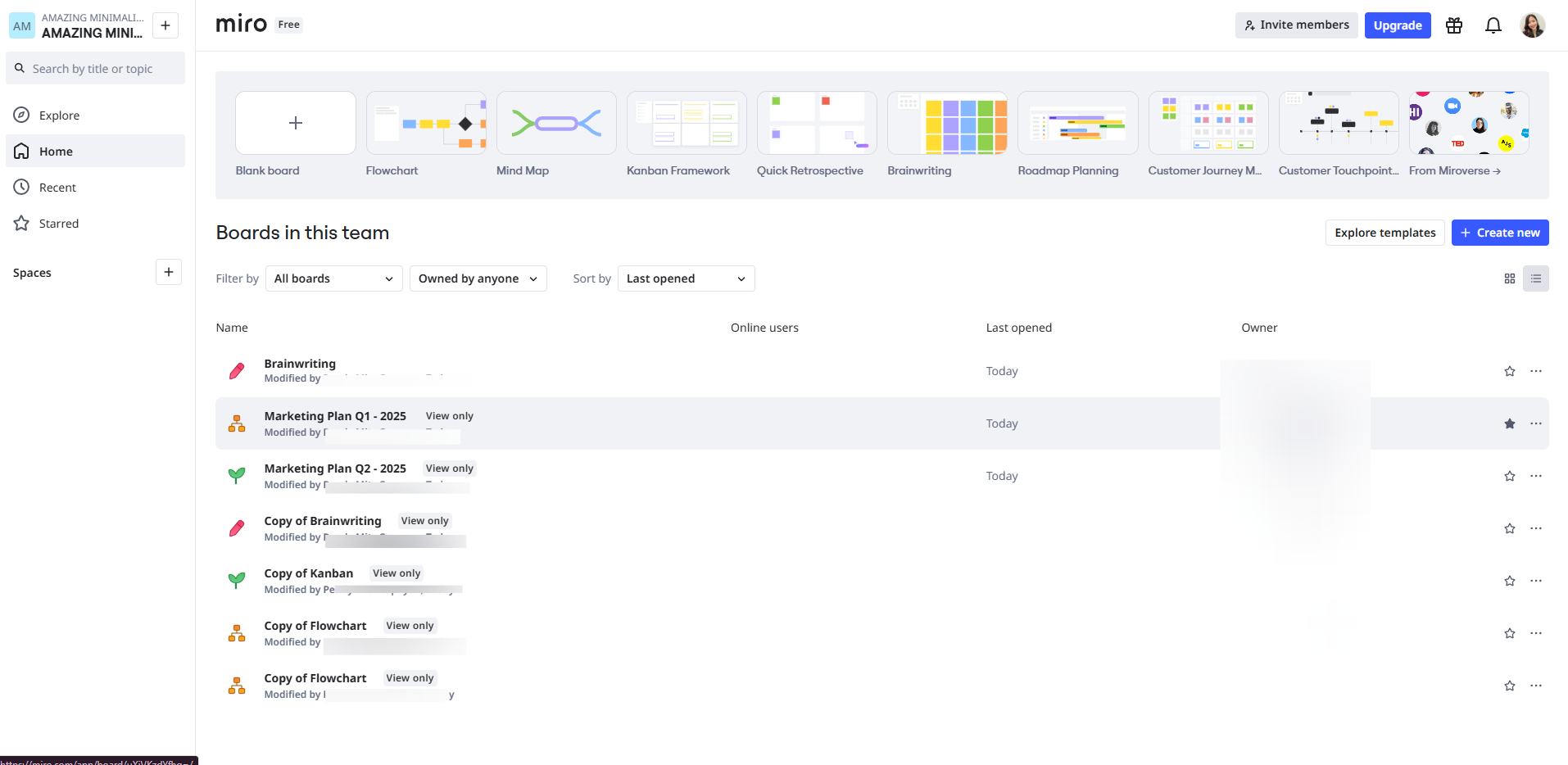
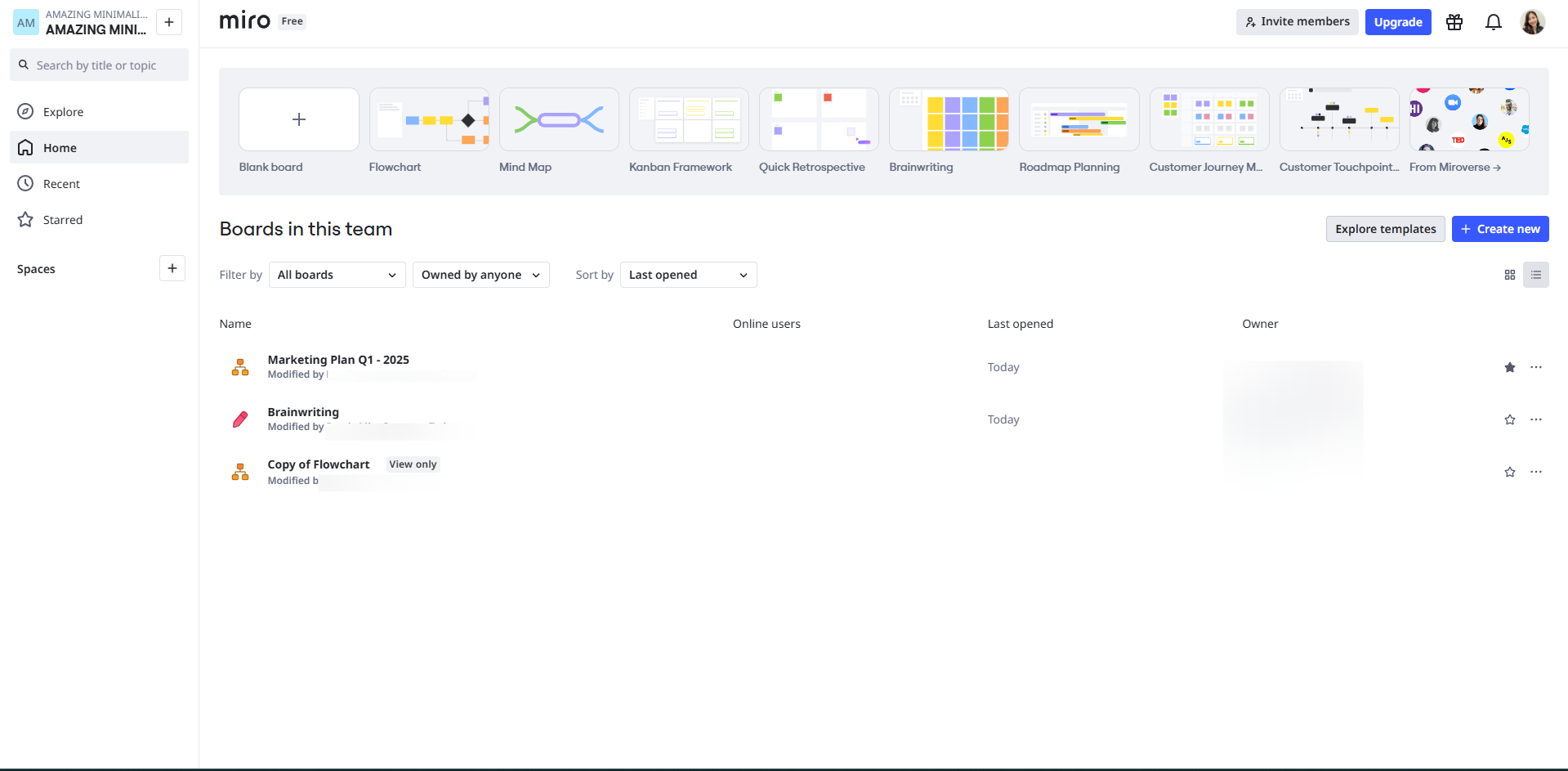
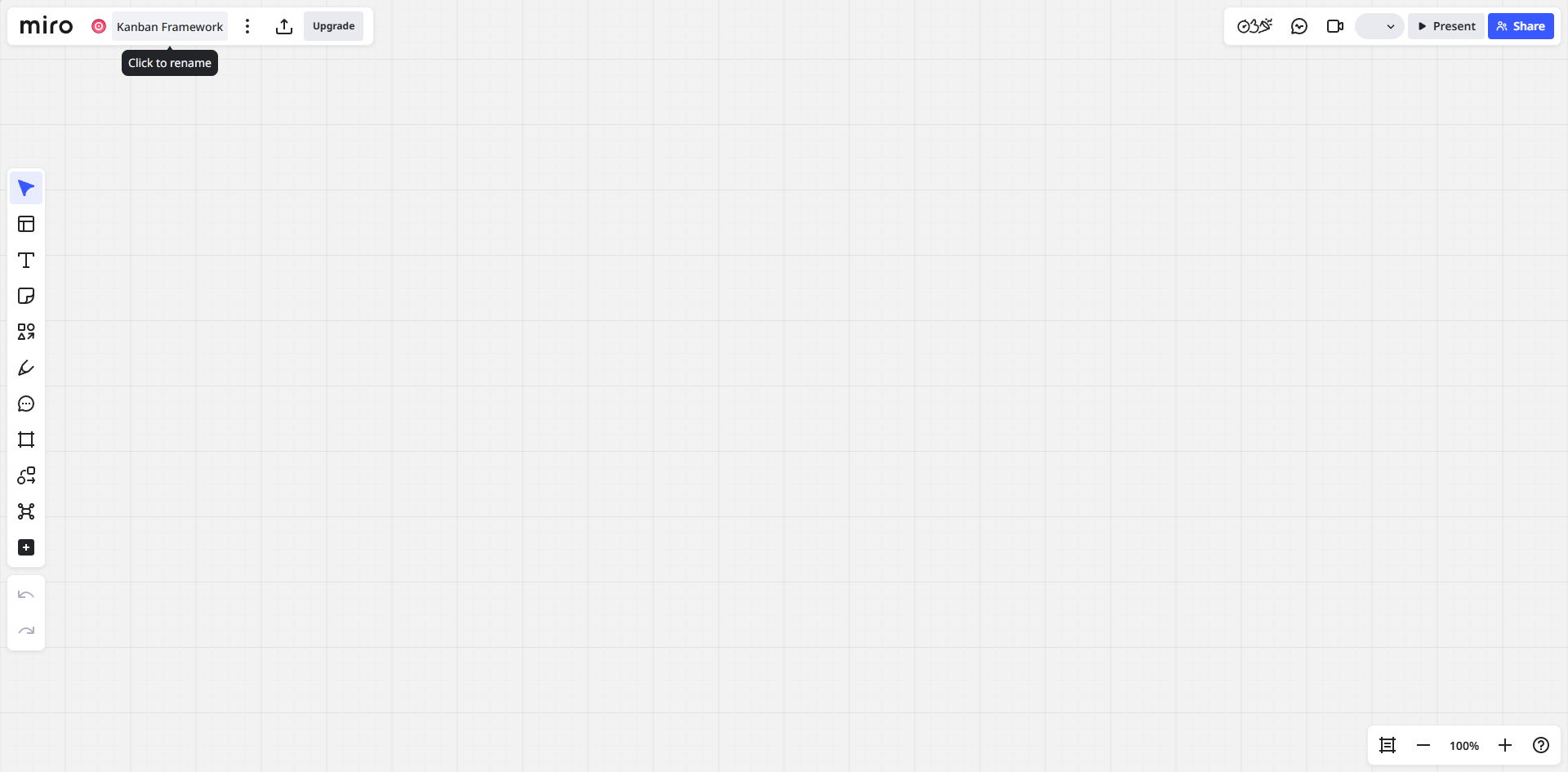
Provide a name for your board for Project Management.
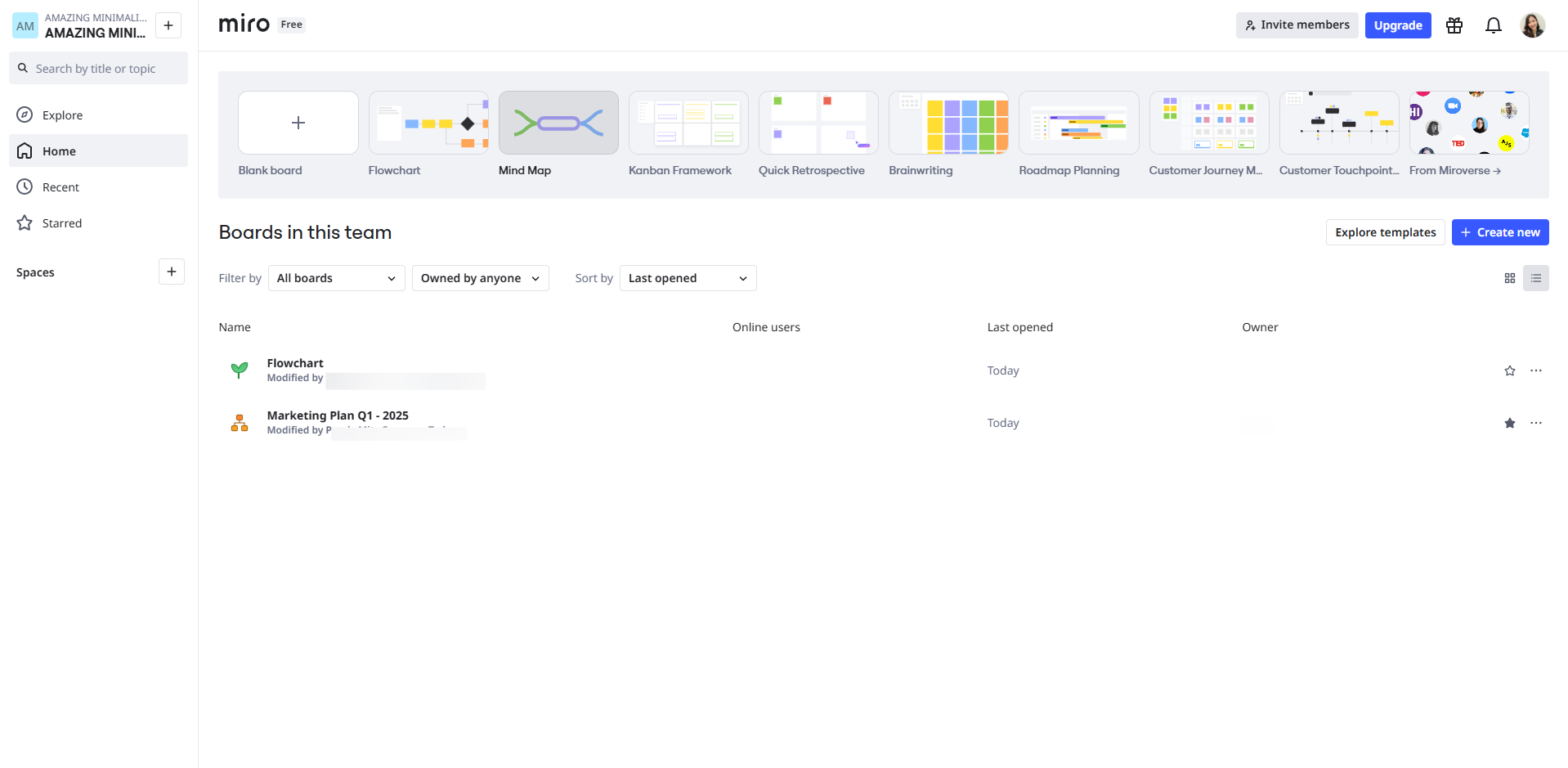
Access the templates by clicking the templates icon and browse Project Management templates for optimized workflow solutions.
Find the perfect template by using the search functionality.
Refine your template selection with advanced filtering options.
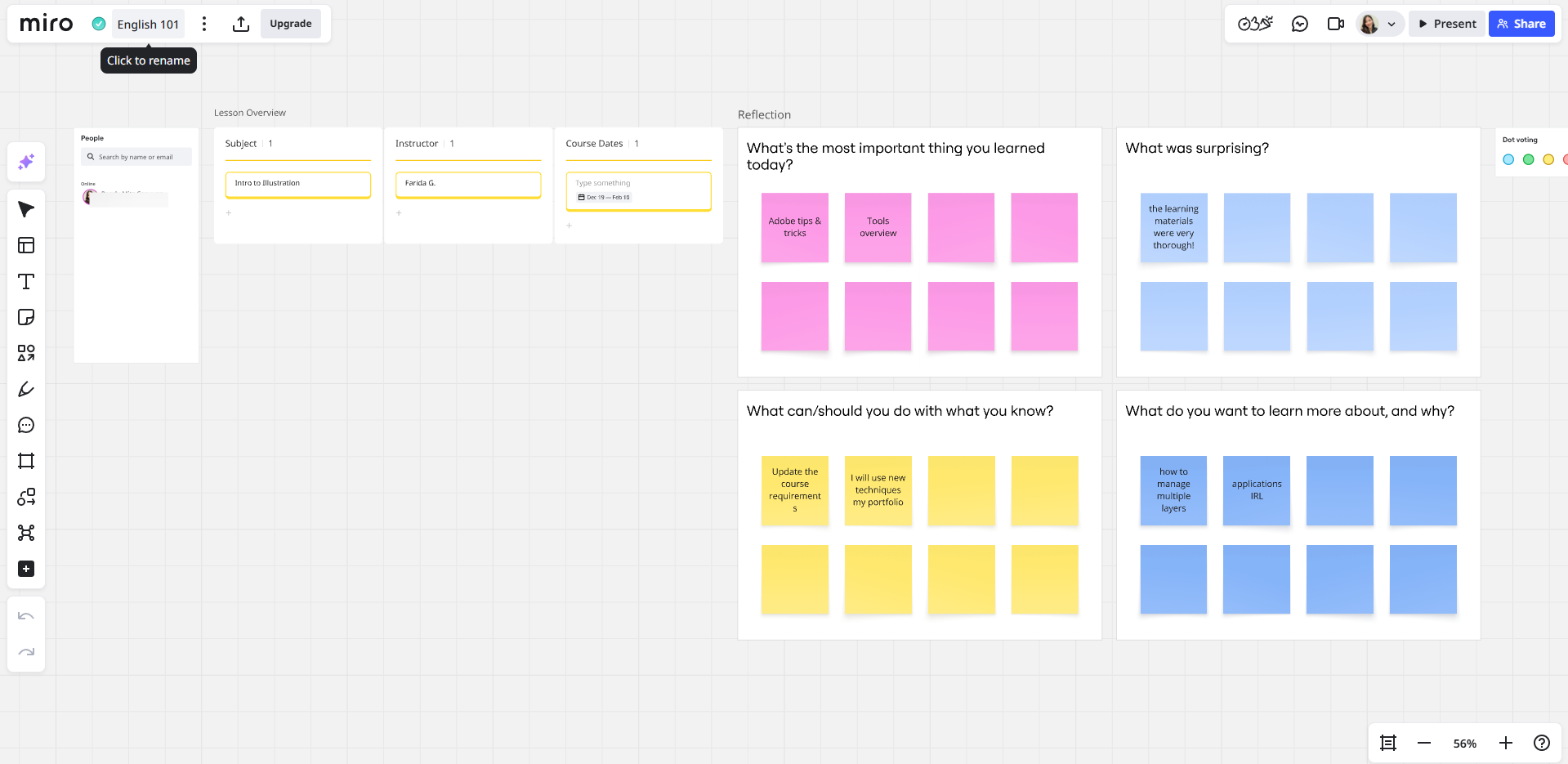
Use Miro’s sticky notes, shapes, and cards to divide the project into phases or milestones
Assign team members to collaborate on this board together.
Manage collaborator permissions and assign board ownership.
Customize your board with tags for better organization.
Add descriptive tags that reflect your project's focus areas.
Set your start and due dates.
Use comments to provide feedback and collaborate in real-time.
That's it! You have now added assignees, due dates, and tags to cards for tracking.
Finalize your board setup and launch your collaborative workspace by clicking the 'Share' button.
Quick answer: To manage projects in Miro, name your board, browse and filter Project Management templates, and use sticky notes, shapes, and cards for phases. Assign team members, manage permissions, add tags, set dates, use comments for feedback, and launch your collaborative workspace by clicking the Share button.
About this Miro tutorial
Organize workflows, assign tasks, and collaborate in real-time by setting up a project management board in Miro. This guide shows how to use Miro for Project Management in 13 steps, starting with "Provide a name for your board for Project Management" and finishing with "Finalize your board setup and launch your collaborative workspace by clicking the 'Shar...". The interactive demo above is a click-through copy of the real Miro interface, so you can rehearse each step before doing it in your own account.
Frequently asked questions
How many steps does it take to use Miro for Project Management?
13 steps. Each one is listed in order above, and the demo highlights exactly where to click.
Can I try it without changing my own account?
Yes. Clicking through the demo doesn't touch your Miro data or settings. Once you know the flow, repeat it in your own workspace.
This tutorial is filed under Miro. Related guides: How to Use Miro for Retrospective, How to Use Miro for Teaching and How to Use Miro in the Classroom. Last reviewed 05 Oct 2026.

Create your first interactive demo in minutes
No credit card required • Start building today