How to Use Miro for Teaching
- George Apostolov
How to Use Miro for Teaching: step-by-step guide
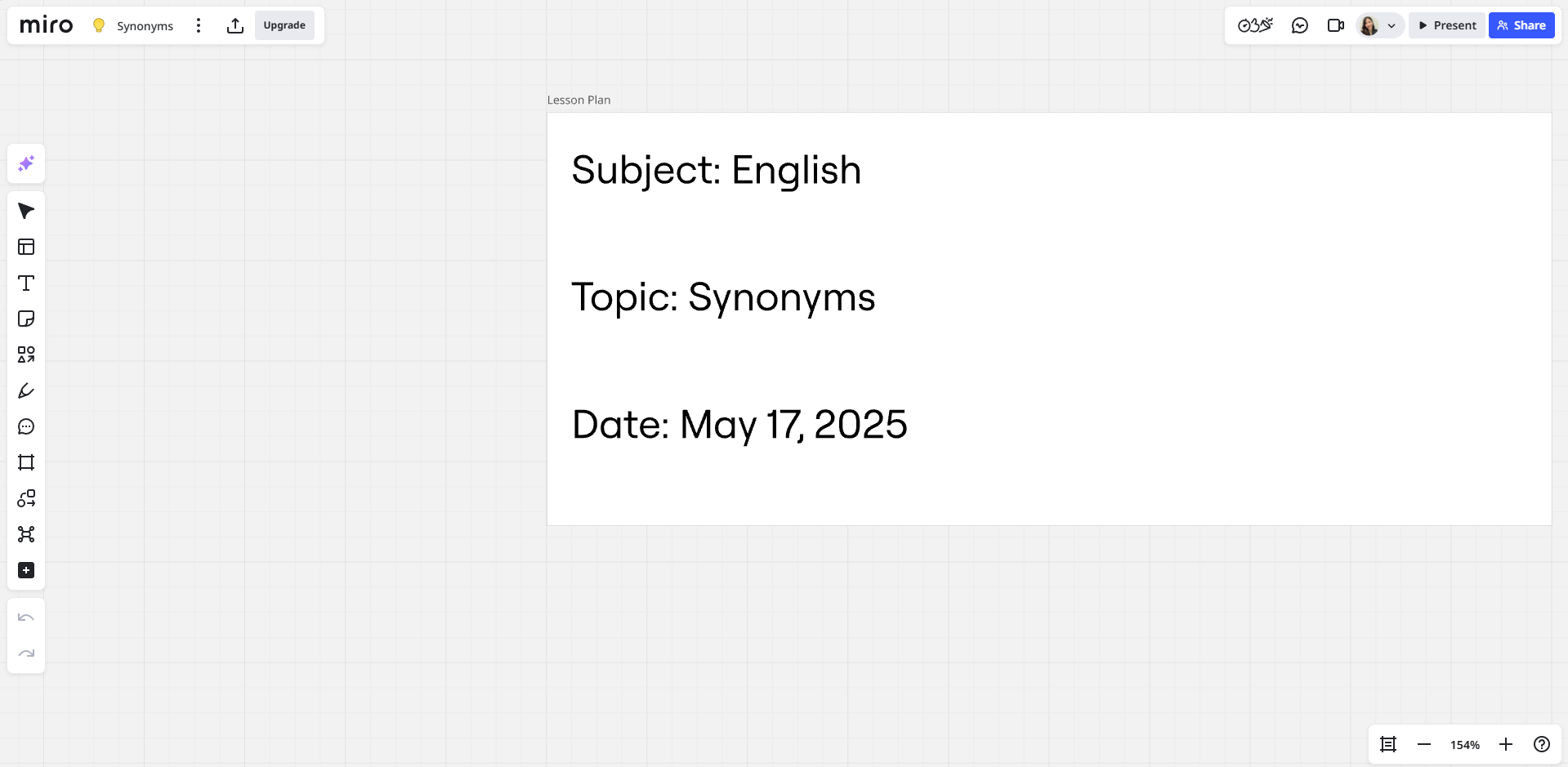
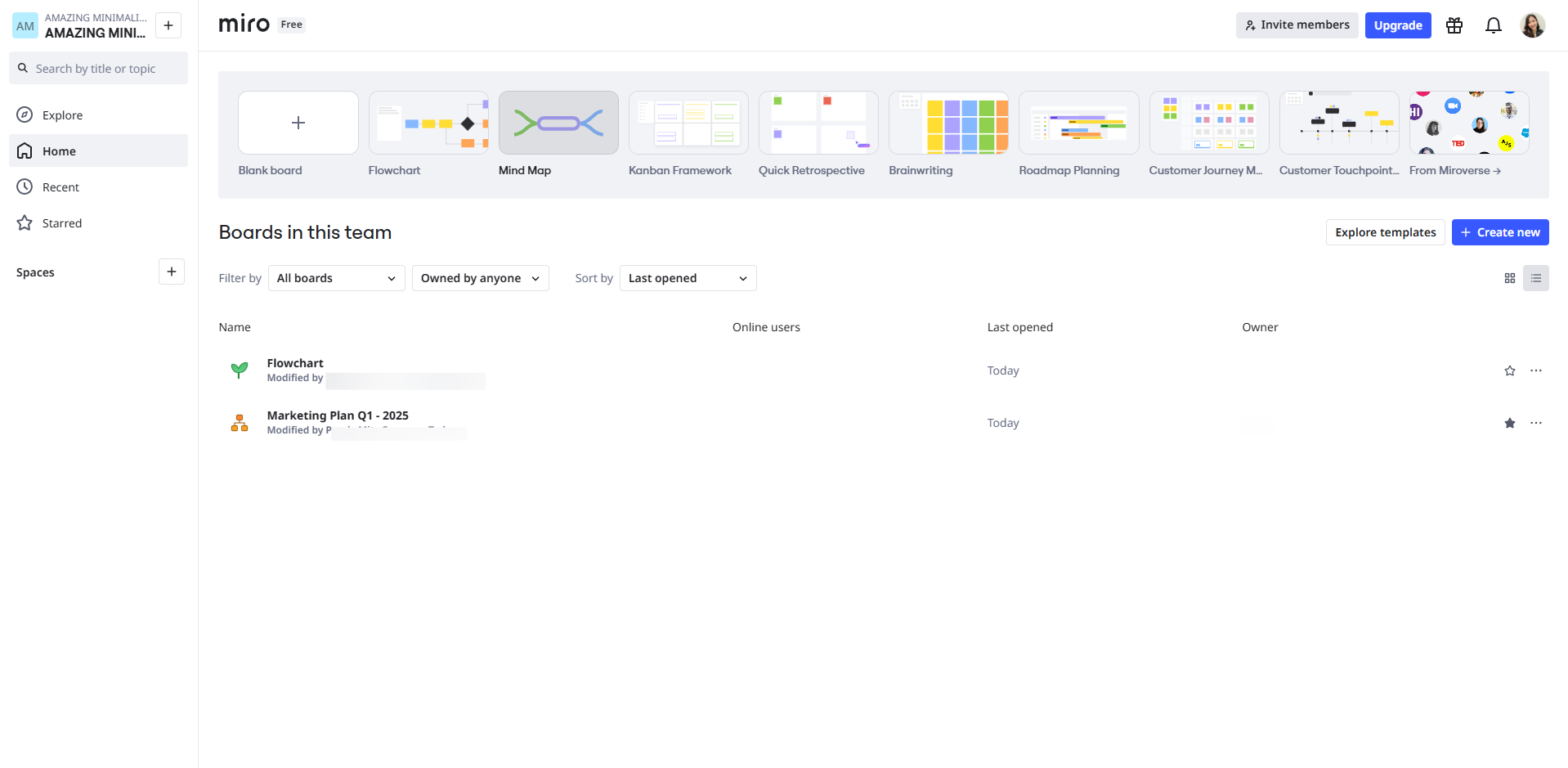
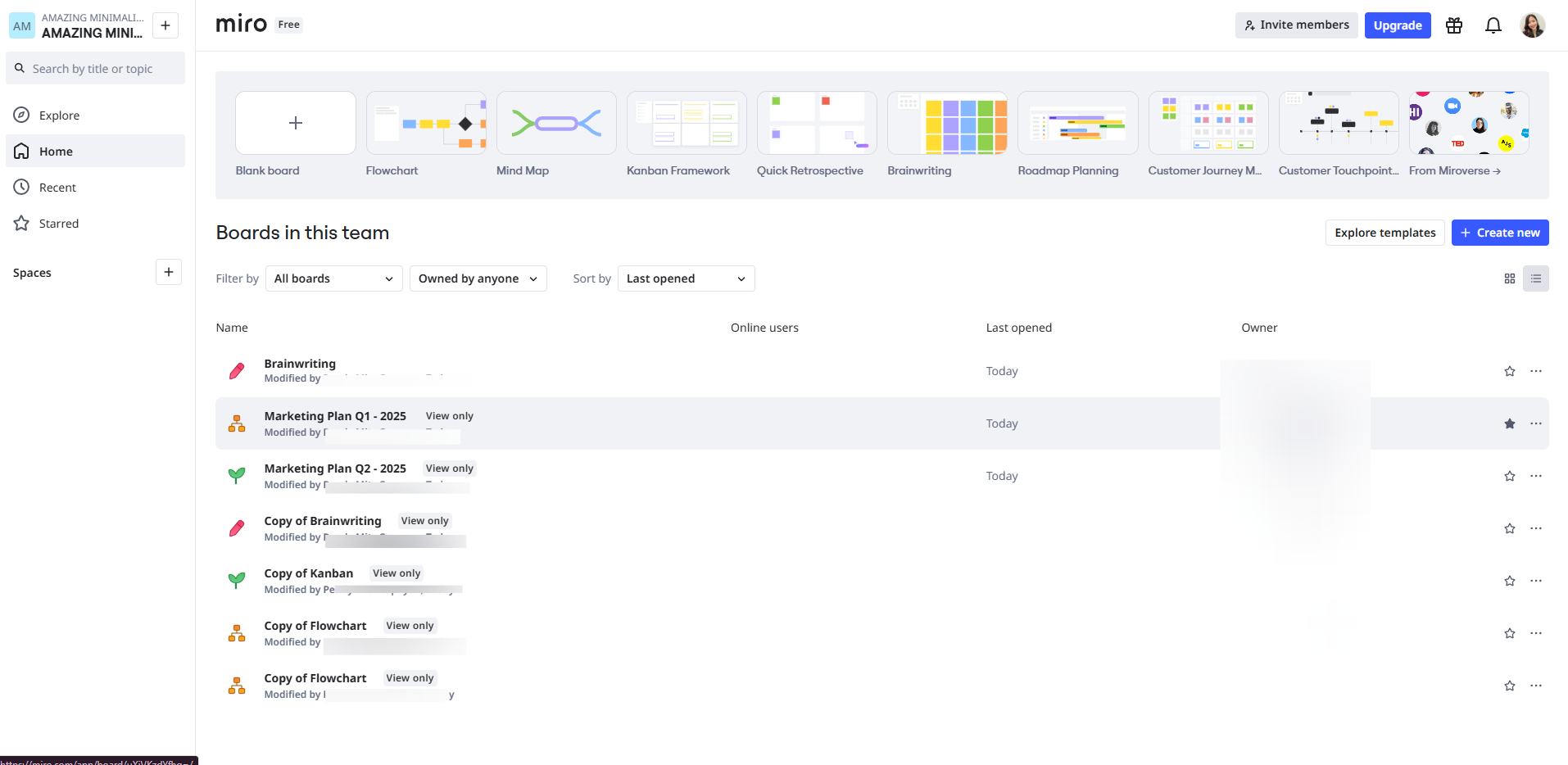
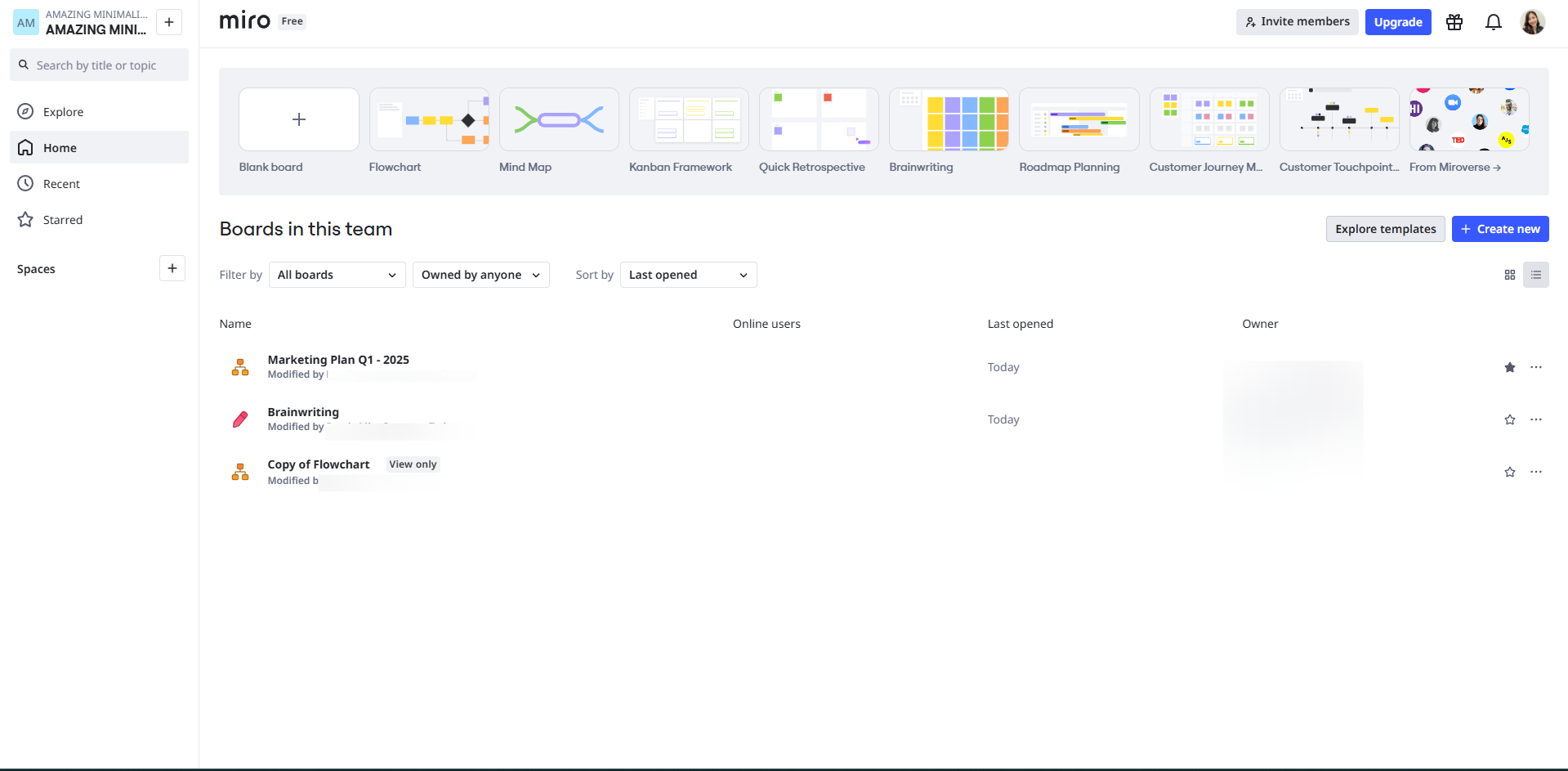
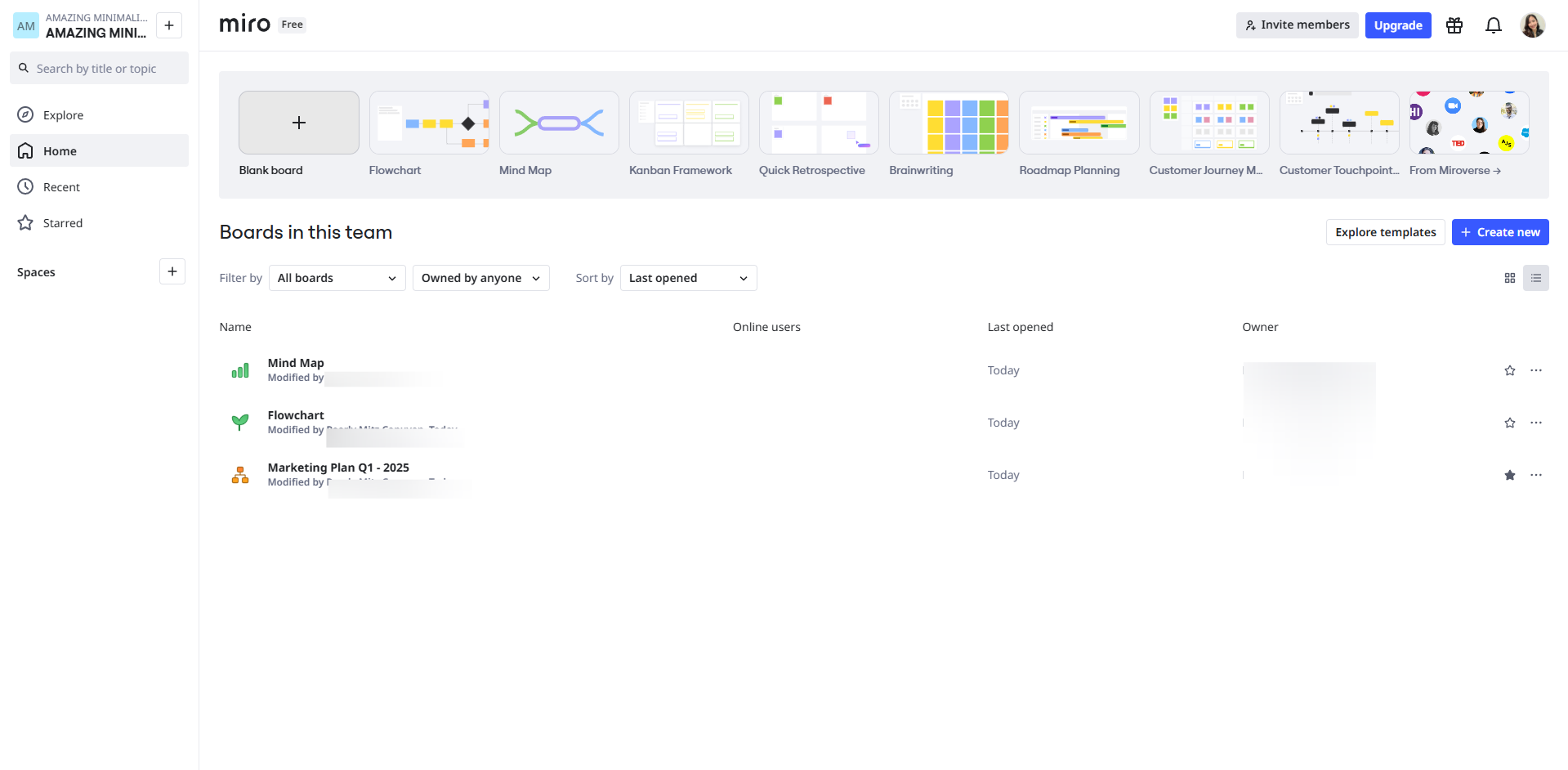
Start with a blank board or a template and name your Miro board.
Miro isn’t just a whiteboard, make your students co-creators.
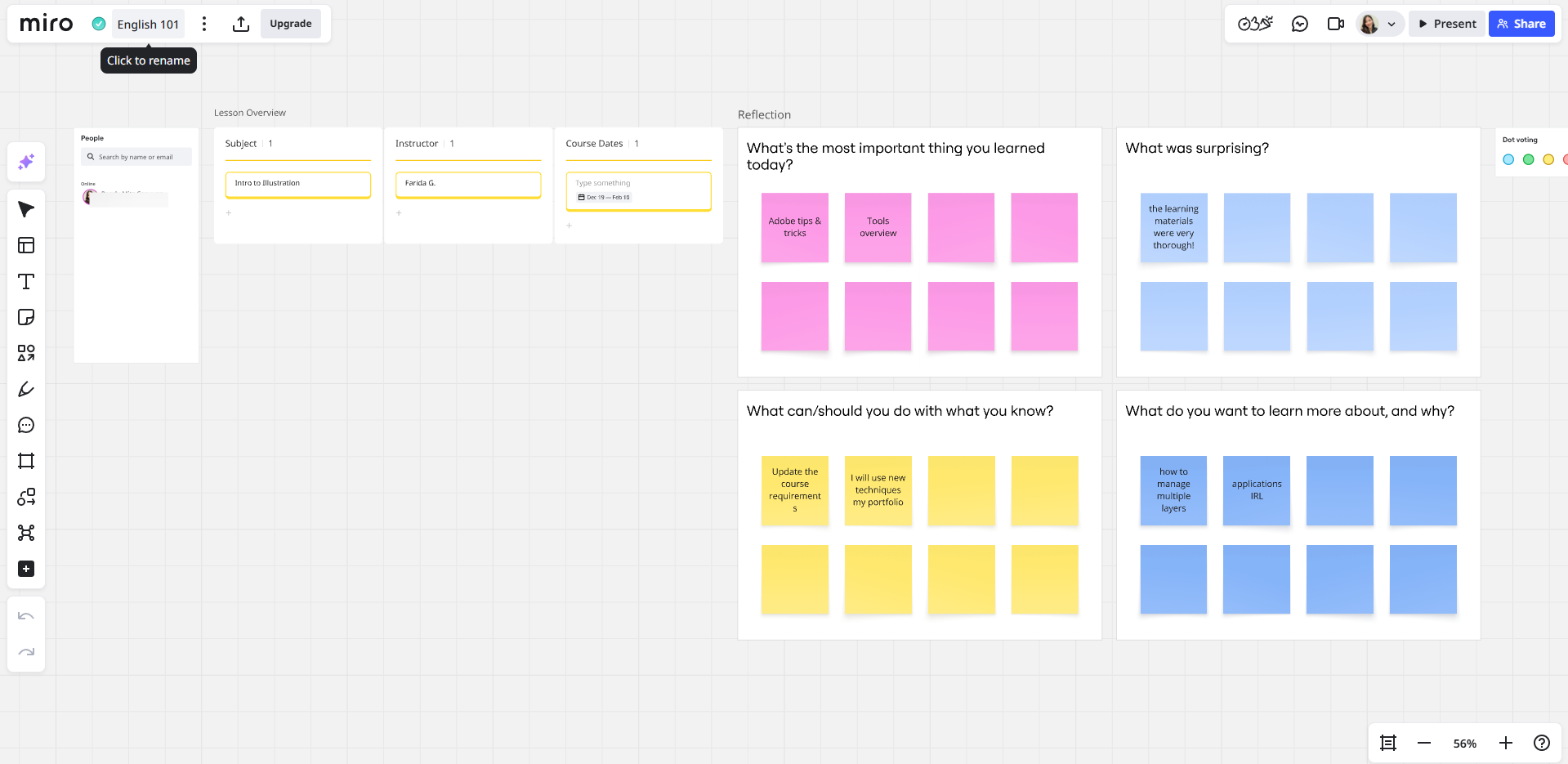
Add a Kanban board to make your lesson overview.
Use frames and sticky note for collecting responses and reflections from your students.
Customize your sticky notes by adding texts, colors and changing fonts using the toolbar.
Add titles to each of your frames to structure your lesson visually.
Add a voting section for poll opinions or quiz answers.
Add shapes and text to make your board interactive.
Add comments to give feedback or instructions.
Add another frame to let students illustrate ideas or annotate content.
Right-click and export your lesson by clicking 'Export as PDF'.
Click 'Present' to use presentation mode to guide students. You may also let them participate live by editing or commenting.
Quick answer: To teach with Miro, start with a blank board or template, make students co-creators, and add a Kanban board for a lesson overview. Use frames and customized sticky notes for responses, add frame titles, create a voting section, and add shapes, text, and comments. Finally, add another frame for student illustration, export the lesson as a PDF, and use presentation mode.
About this Miro tutorial
Create interactive lessons for students by organizing content, collecting responses, running polls, and presenting live on Miro. This guide shows how to use Miro for Teaching in 12 steps, starting with "Start with a blank board or a template and name your Miro board" and finishing with "Click 'Present' to use presentation mode to guide students. You may also let them parti...". The interactive demo above is a click-through copy of the real Miro interface, so you can rehearse each step before doing it in your own account.
Frequently asked questions
How many steps does it take to use Miro for Teaching?
12 steps. Each one is listed in order above, and the demo highlights exactly where to click.
Can I try it without changing my own account?
Yes. Clicking through the demo doesn't touch your Miro data or settings. Once you know the flow, repeat it in your own workspace.
This tutorial is filed under Miro. Related guides: How to Use Miro in the Classroom, How to Use Miro Mind Map and How to Use Miro Sticky Notes. Last reviewed 05 Oct 2026.

Create your first interactive demo in minutes
No credit card required • Start building today