How to Use Monday.com
- George Apostolov
How to Use Monday.com: step-by-step guide
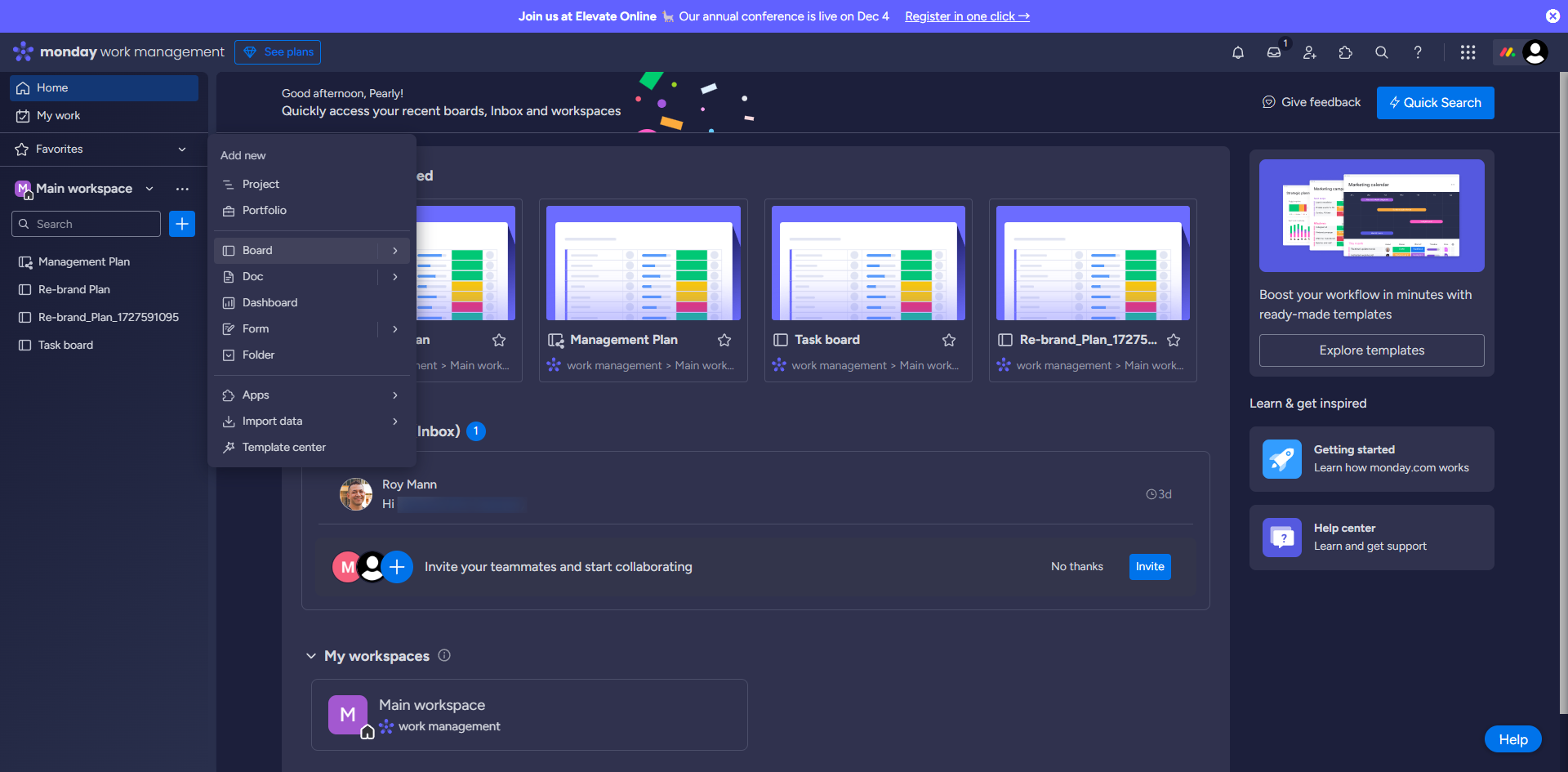
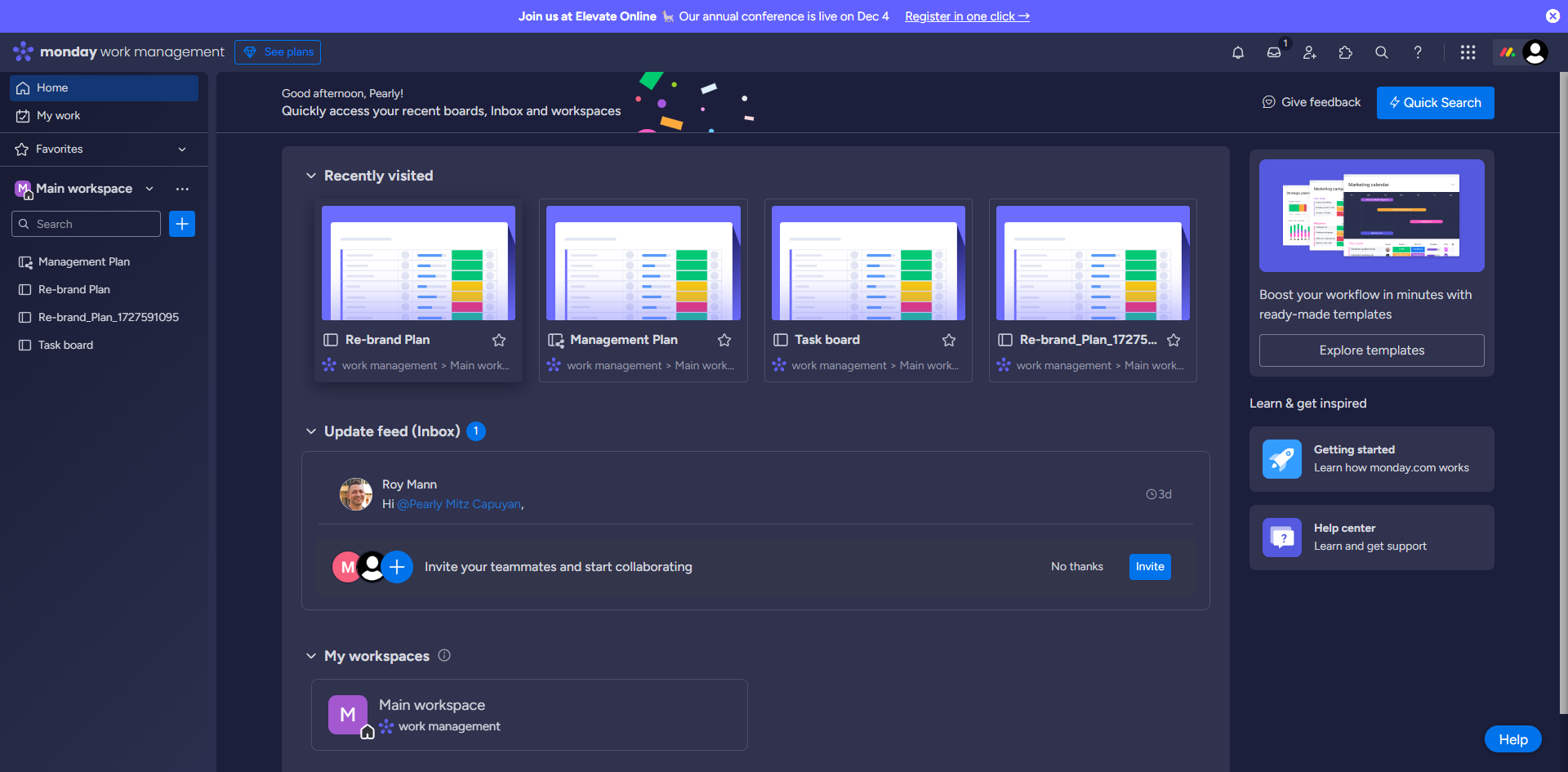
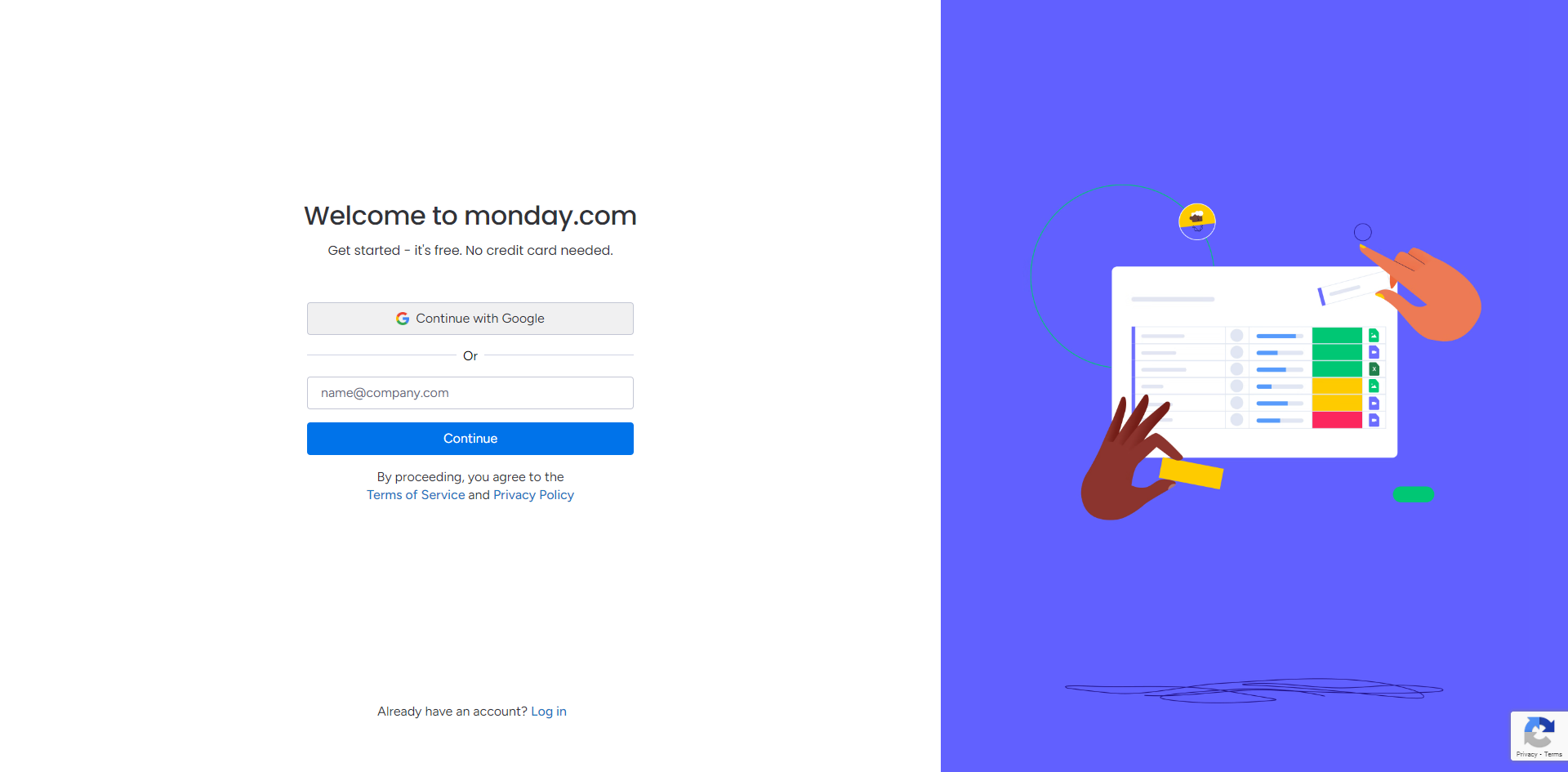
Go to Monday.com, sign up for an account and click 'Continue'.
Give your board a name and select 'Next'.
Add Columns by selecting the relevant columns for your board and click 'Next'.
Select your preferred view for your board and click 'Next'.
Add a name for each tasks or lists for your board and click 'Next'.
Group your task and list for a better update. Click 'Next'.
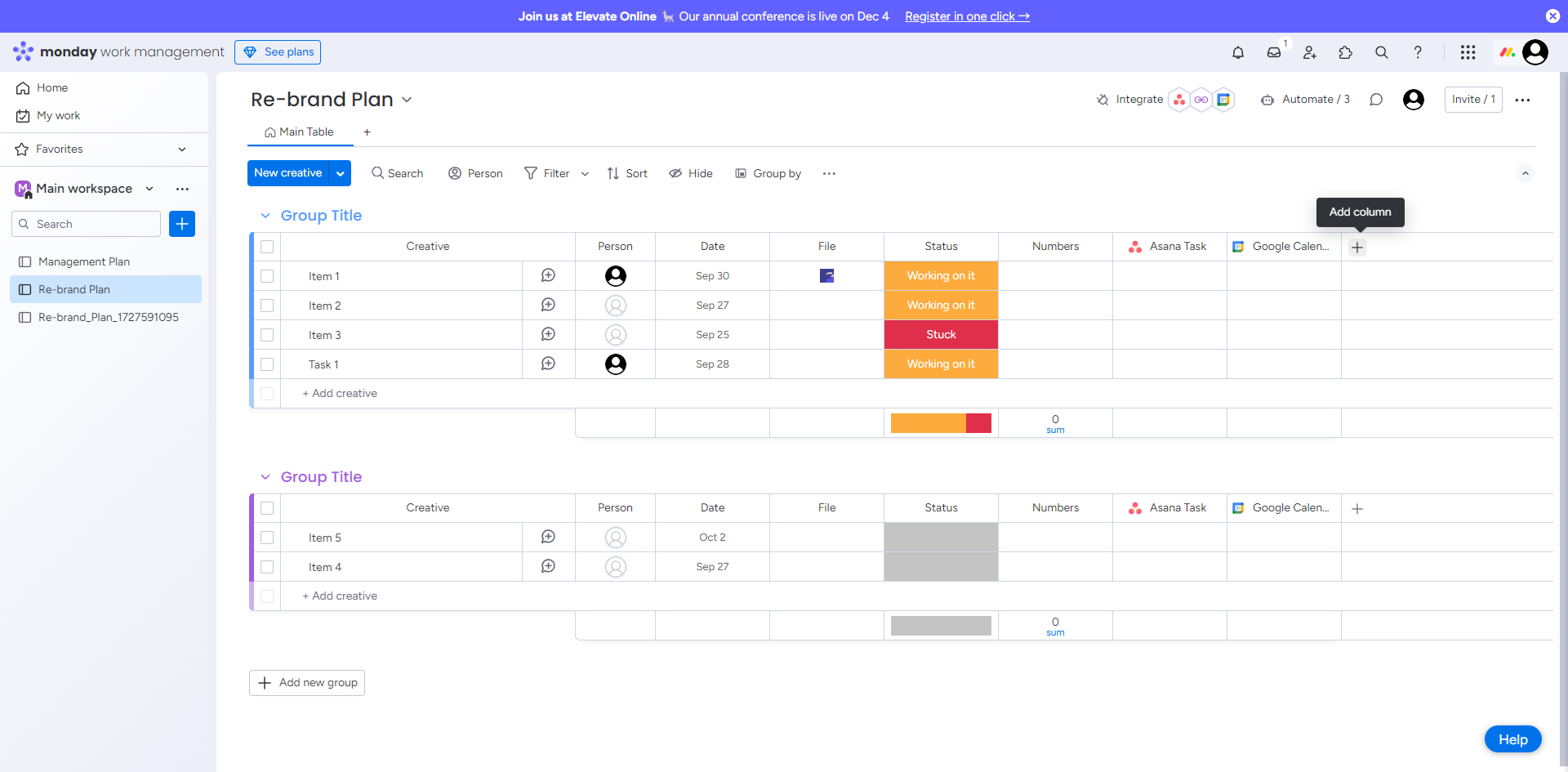
Create a status column for better visibility.
Assign a task owner for effective teamwork.
Make a copy of one of your items to plan and execute all your work faster.
Add subitems to break down bigger items.
Click the add icon to add more columns.
You can select and add different types of columns to represent information.
Click 'Integrate' and go to the Integrations Center to connect your favorite tools to Monday.com, enabling smoother workflows.
Click 'Automate' to select a template and set up automation.
Click the message icon above the board to collaborate with your team for updates.
Create a board discussion and select 'Update'.
Click 'Invite' to share your board.
Add updates and comments to each task, enabling communication directly on the board by clicking the message icon column.
To add a view, click the add icon.
Select your preferred view and start customizing your board.
You can add a 'Gantt' chart, useful for managing schedules and project timelines.
That's it! By following these steps, Monday.com work management platform helps teams plan, track, and manage their projects and tasks.
Quick answer: To use Monday.com, sign up and create a board by naming it, adding columns, selecting a view, and entering tasks. Group tasks, set statuses, assign owners, copy items, add subitems, and include more columns. Integrate tools, set automations, collaborate via messages, post discussions, invite others, and add views like Gantt charts.
About this Monday.com tutorial
Plan, track, and manage projects effectively by setting up boards, automating workflows, and collaborating with your team on Monday.com. This guide shows how to use Monday.com in 22 steps, starting with "Go to Monday.com , sign up for an account and click 'Continue'" and finishing with "That's it! By following these steps, Monday.com work management platform helps teams pl...". The interactive demo above is a click-through copy of the real Monday.com interface, so you can rehearse each step before doing it in your own account.
Frequently asked questions
How many steps does it take to use Monday.com?
22 steps. Each one is listed in order above, and the demo highlights exactly where to click.
Can I try it without changing my own account?
Yes. Clicking through the demo doesn't touch your Monday.com data or settings. Once you know the flow, repeat it in your own workspace.
This tutorial is filed under Monday.com. Related guides: How to Use Monday.com for Project Management, ManyChat Monday Integration and Miro Monday.com Integration. Last reviewed 05 Oct 2026.

Create your first interactive demo in minutes
No credit card required • Start building today