How to Use Miro Whiteboard
- George Apostolov
How to Use Miro Whiteboard: step-by-step guide
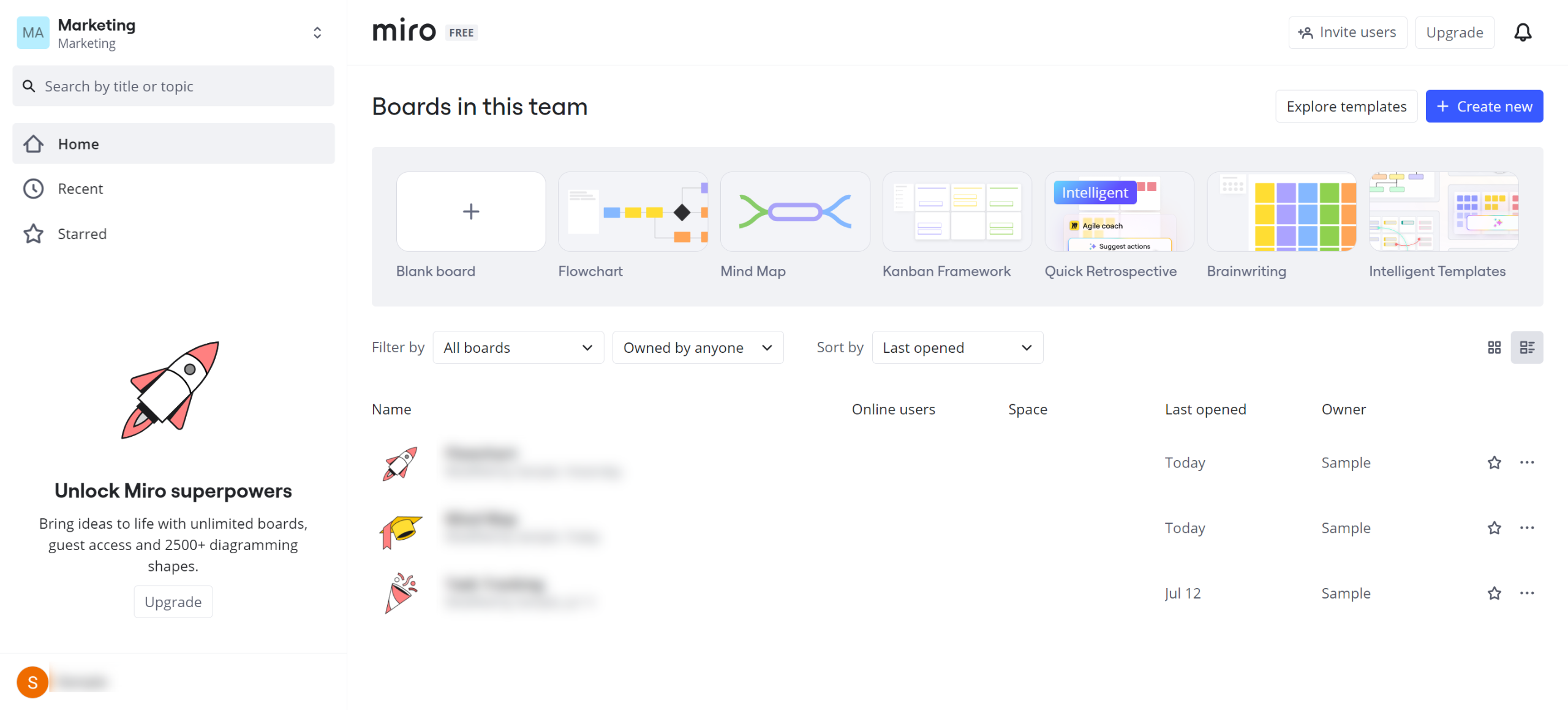
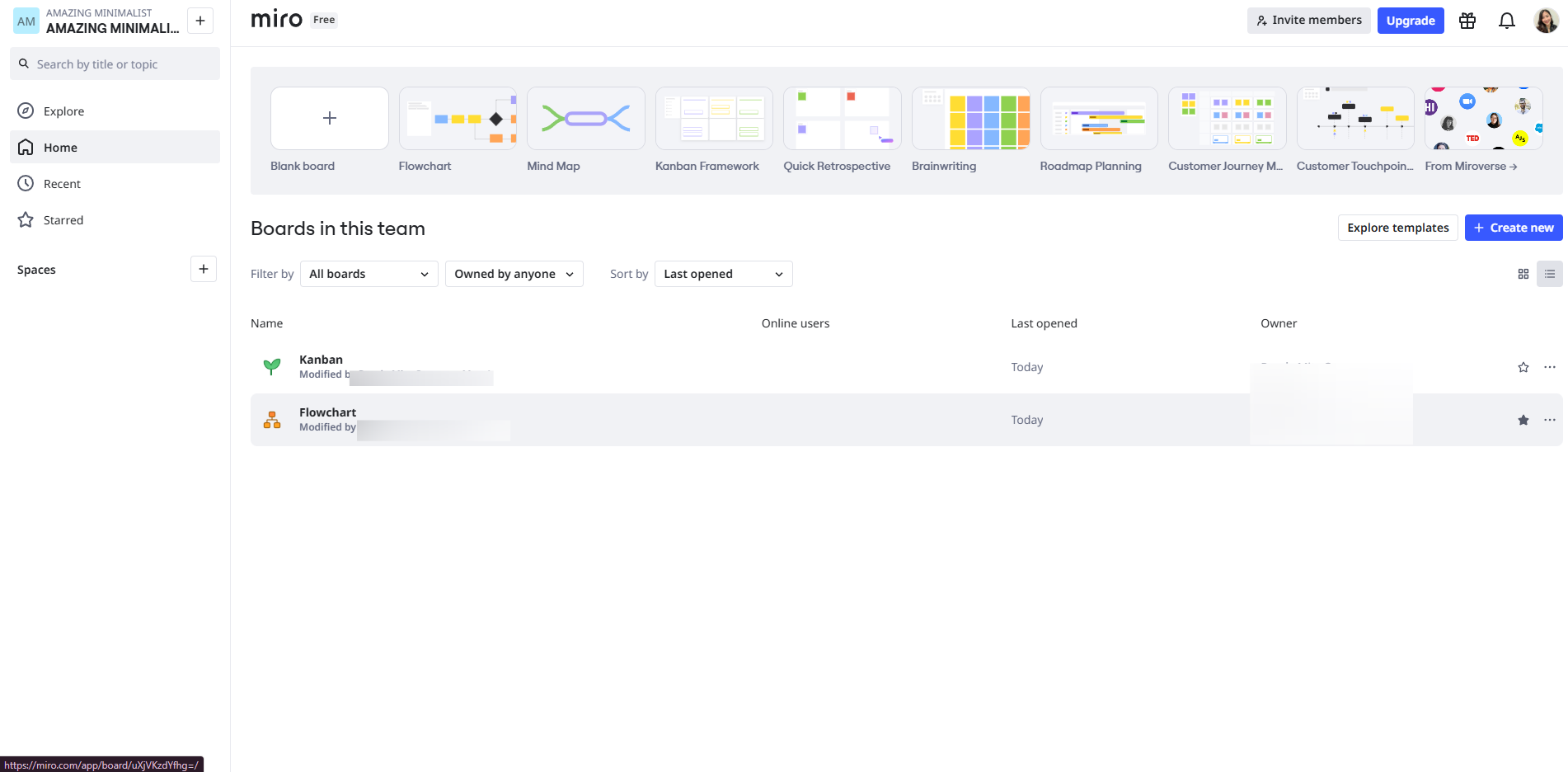
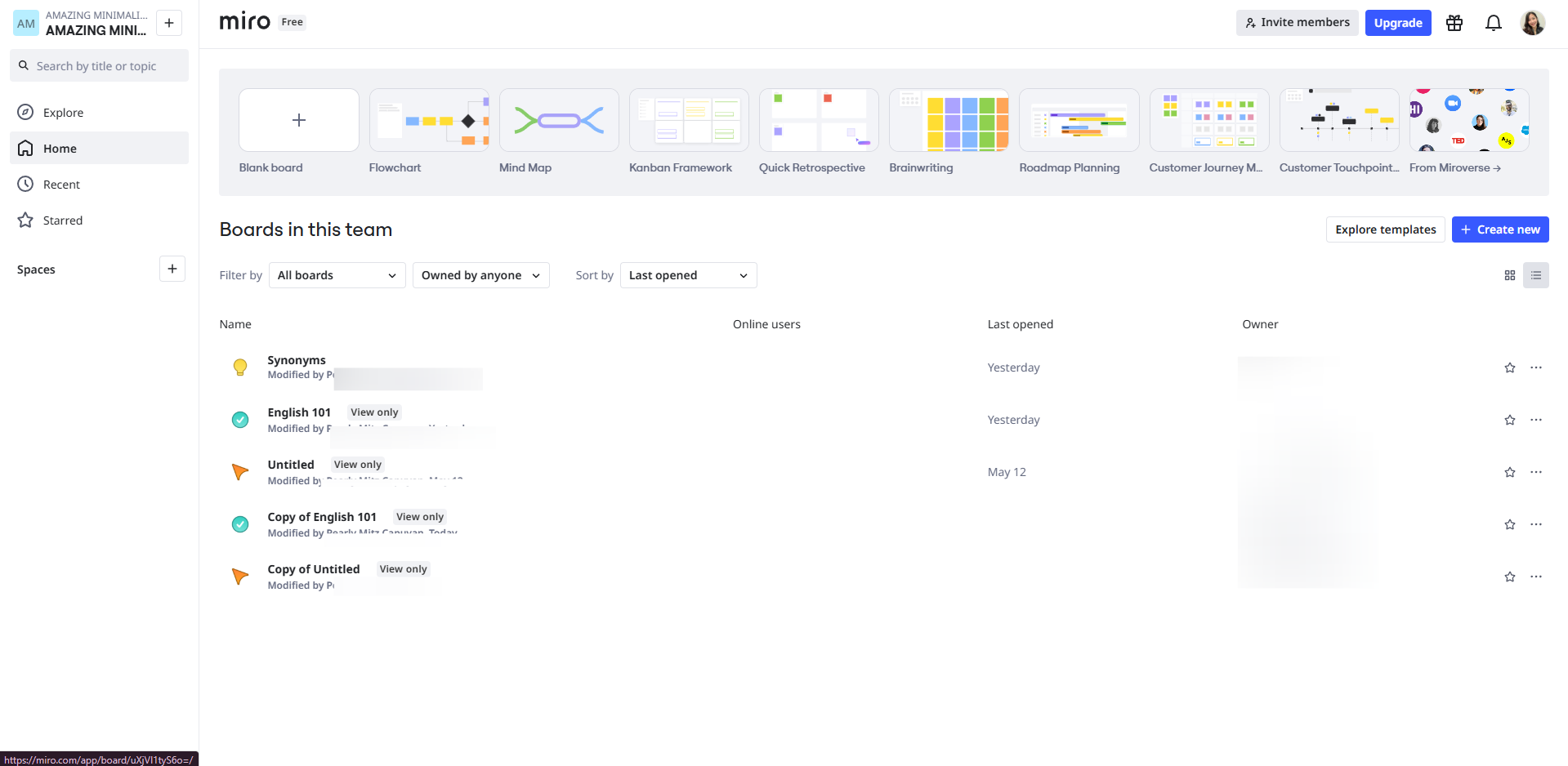
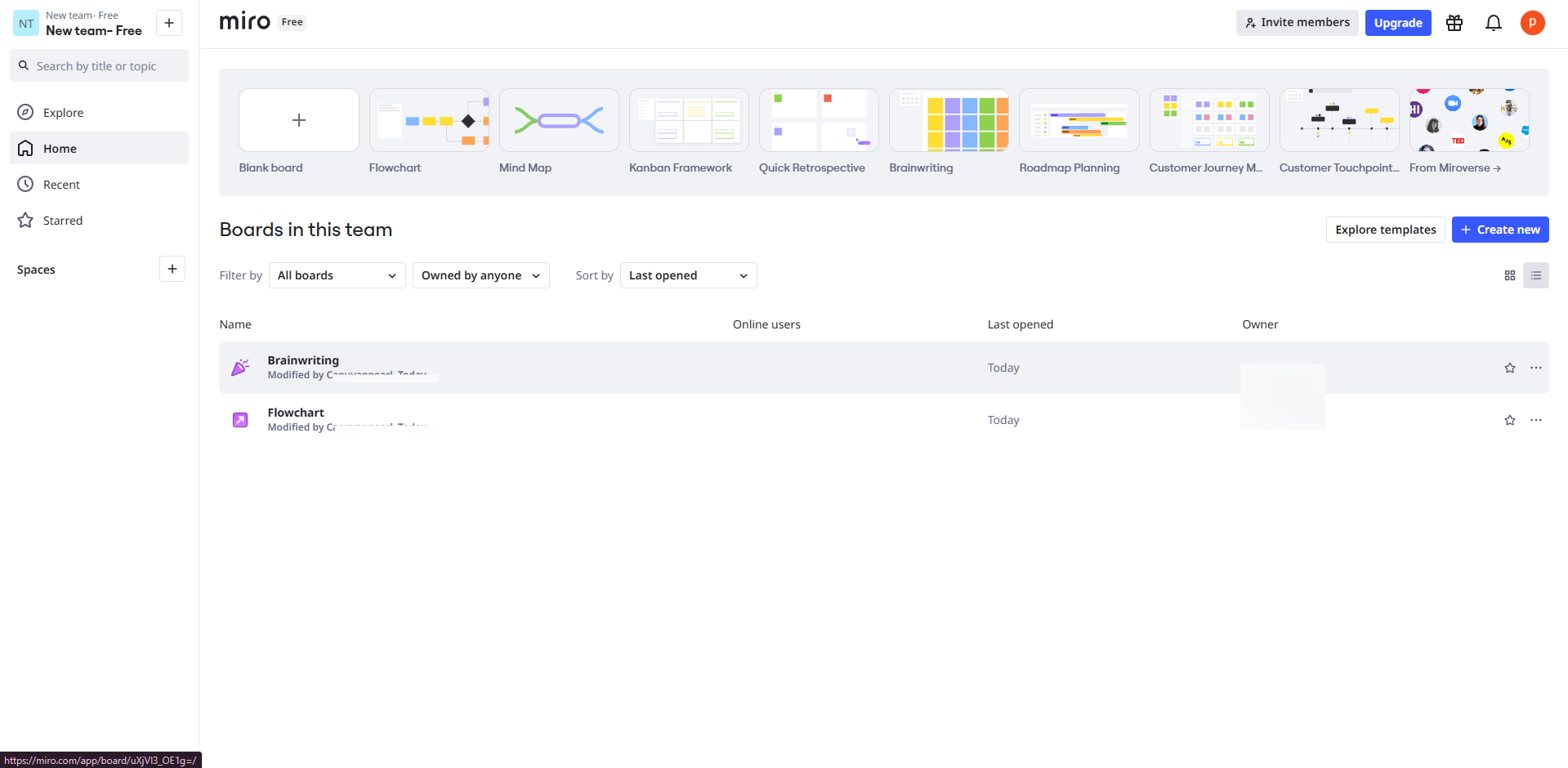
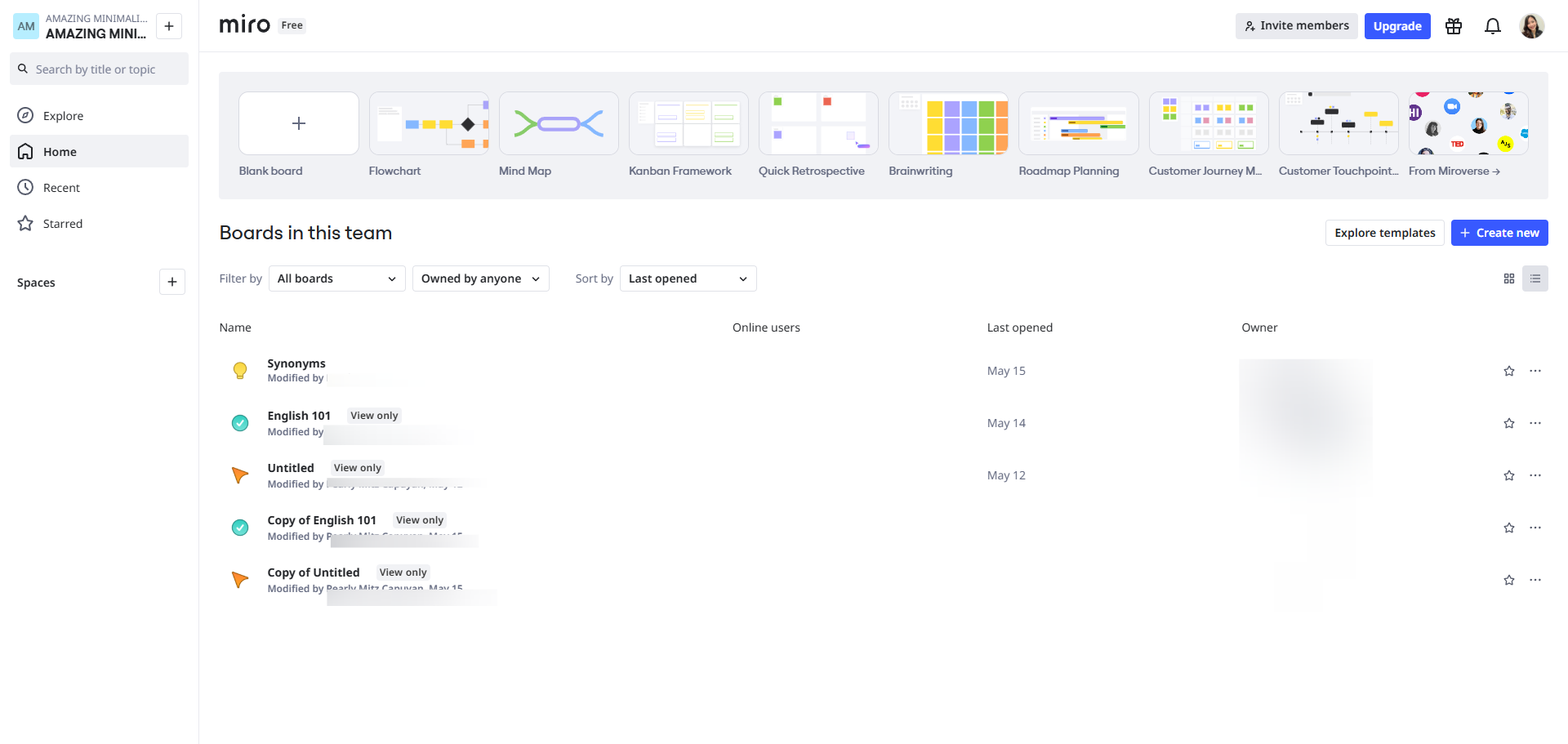
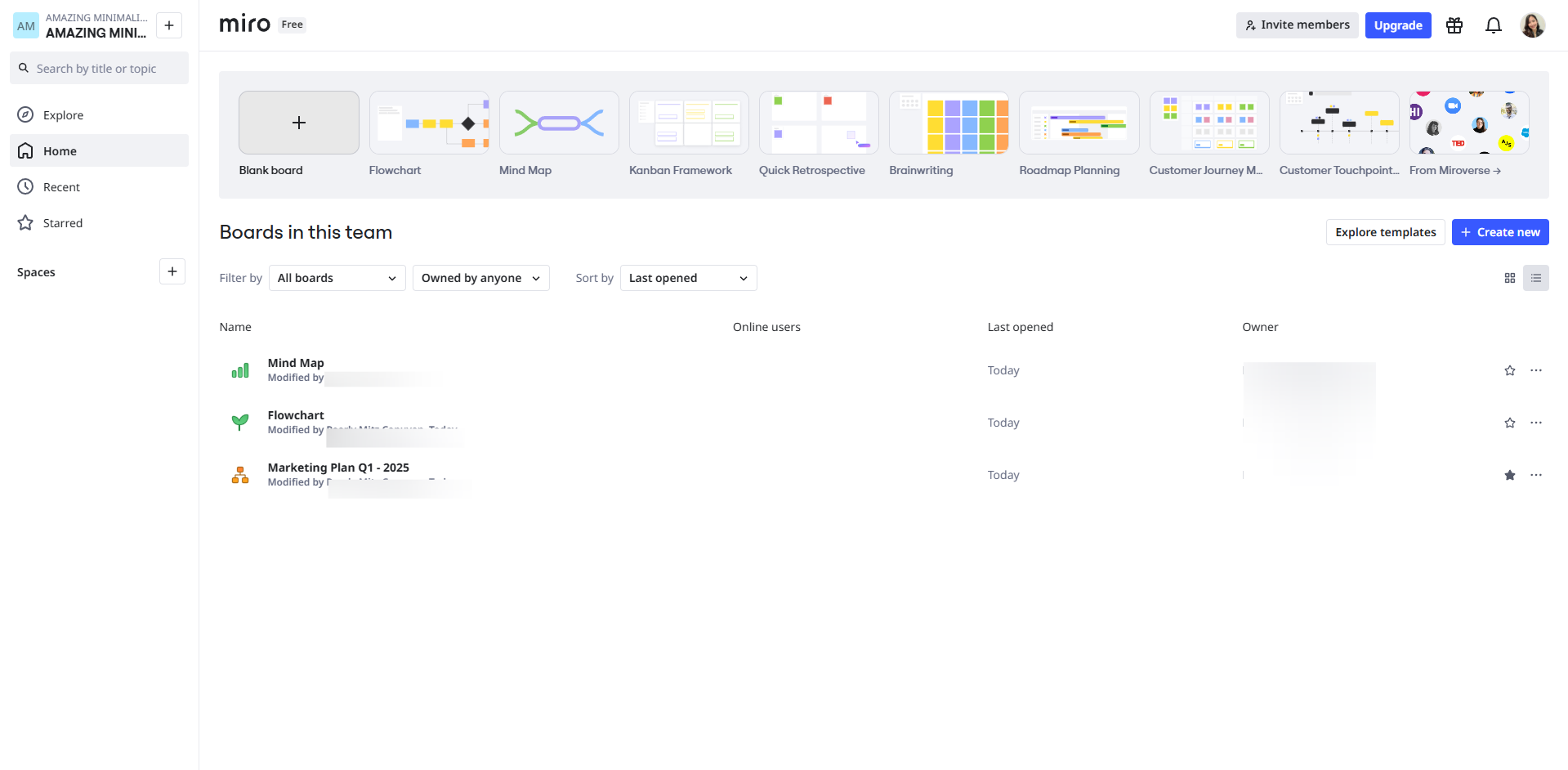
Log in to your Miro board and select '+ Blank board'.
Go to your Miro toolbar located on the left-side of your whiteboard.
Click the template tool for pre-built layouts for common use cases.
Click the text icon to add titles or notes.
Click the sticky notes icon for quick thoughts and brainstorming.
Add shapes to your whiteboard by clicking the shapes icon.
Click the pen tool for freehand drawing.
Click the undo button, the curved arrow pointing left.
You can co-create, comment through the comment icon or vote during live sessions.
Click the frame icon to group content like slides.
Click and drag to add elements. Arrange objects using gridlines and snap-to alignment.
Click 'Share' to invite team members.
Quick answer: To use Miro Whiteboard, log in and select a blank board, access the left-side toolbar, use templates, add text and sticky notes, insert shapes, draw with the pen tool, undo actions, co-create and comment, group content with frames, arrange elements by dragging, and share the board.
About this Miro tutorial
Collaborate visually in Miro by adding text, sticky notes, shapes, and templates, then share your interactive whiteboard with team members. This guide shows how to use Miro Whiteboard in 12 steps, starting with "Log in to your Miro board and select '+ Blank board'" and finishing with "Click 'Share' to invite team members". The interactive demo above is a click-through copy of the real Miro interface, so you can rehearse each step before doing it in your own account.
Frequently asked questions
How many steps does it take to use Miro Whiteboard?
12 steps. Each one is listed in order above, and the demo highlights exactly where to click.
Can I try it without changing my own account?
Yes. Clicking through the demo doesn't touch your Miro data or settings. Once you know the flow, repeat it in your own workspace.
This tutorial is filed under Miro. Related guides: How to vote in miro, How to Zoom in Miro and Miro ChatGPT Integration. Last reviewed 05 Oct 2026.

Create your first interactive demo in minutes
No credit card required • Start building today