How to Use SurveyMonkey to Schedule a Meeting
- George Apostolov
How to Use SurveyMonkey to Schedule a Meeting: step-by-step guide
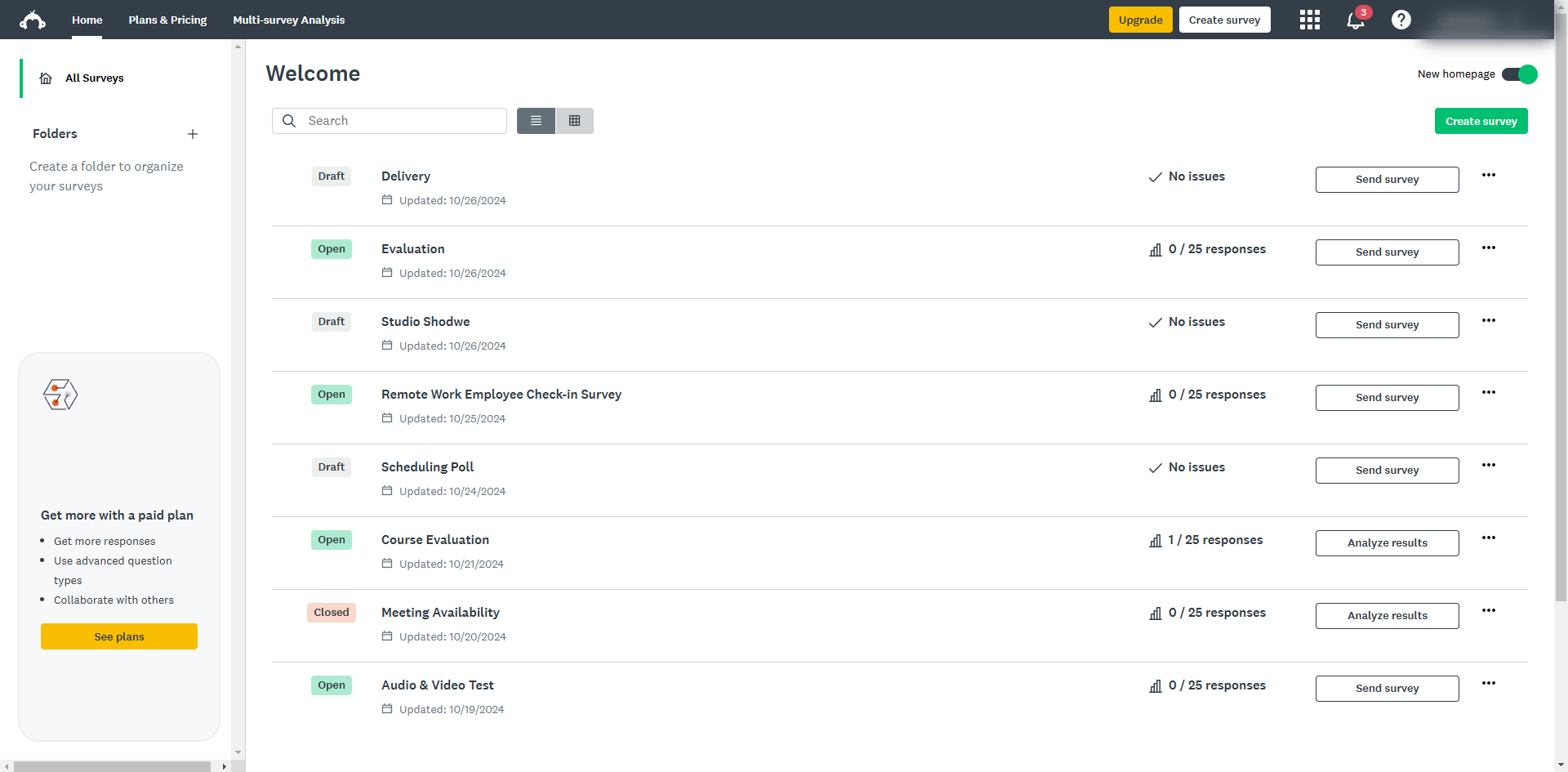
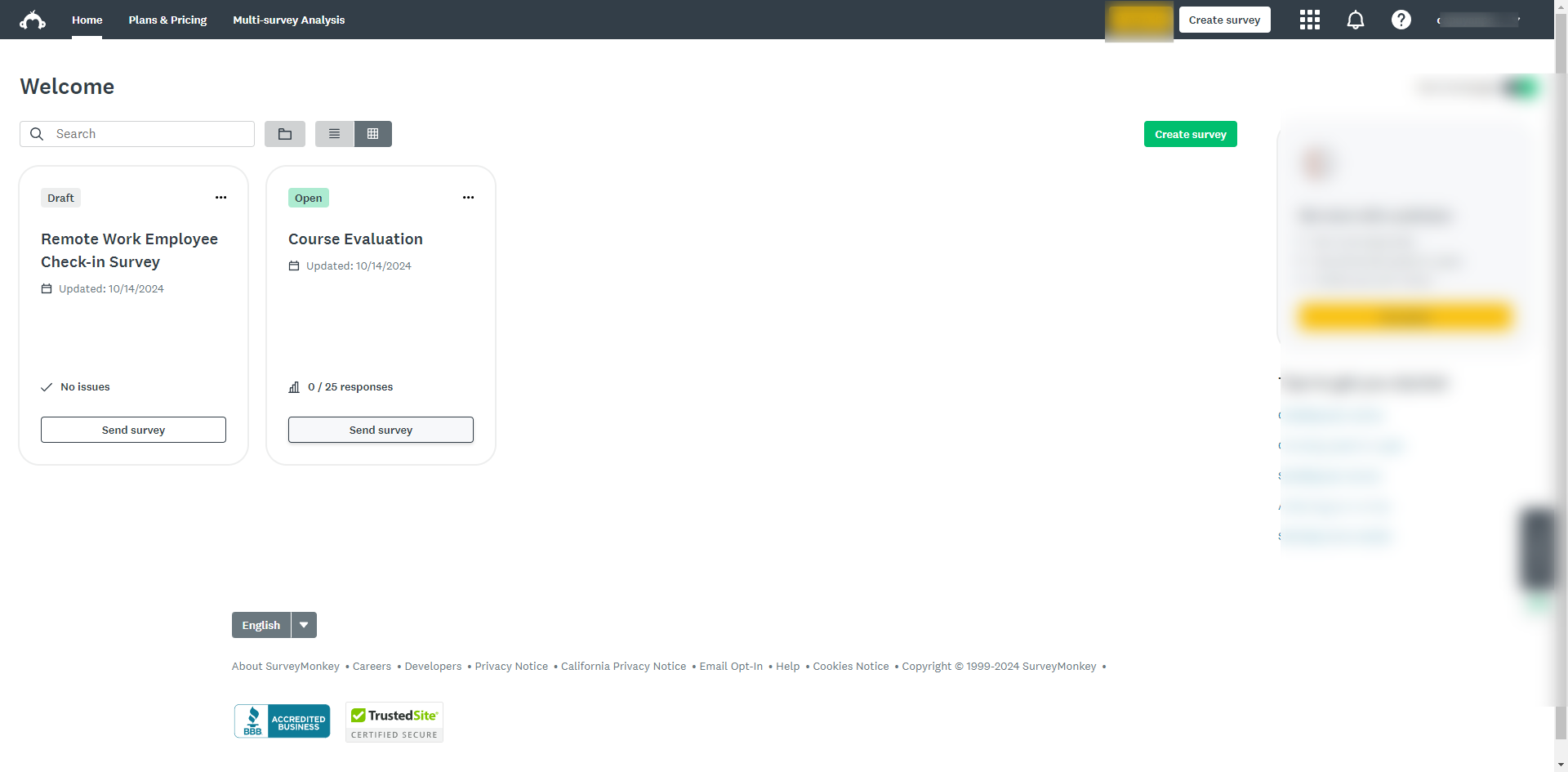
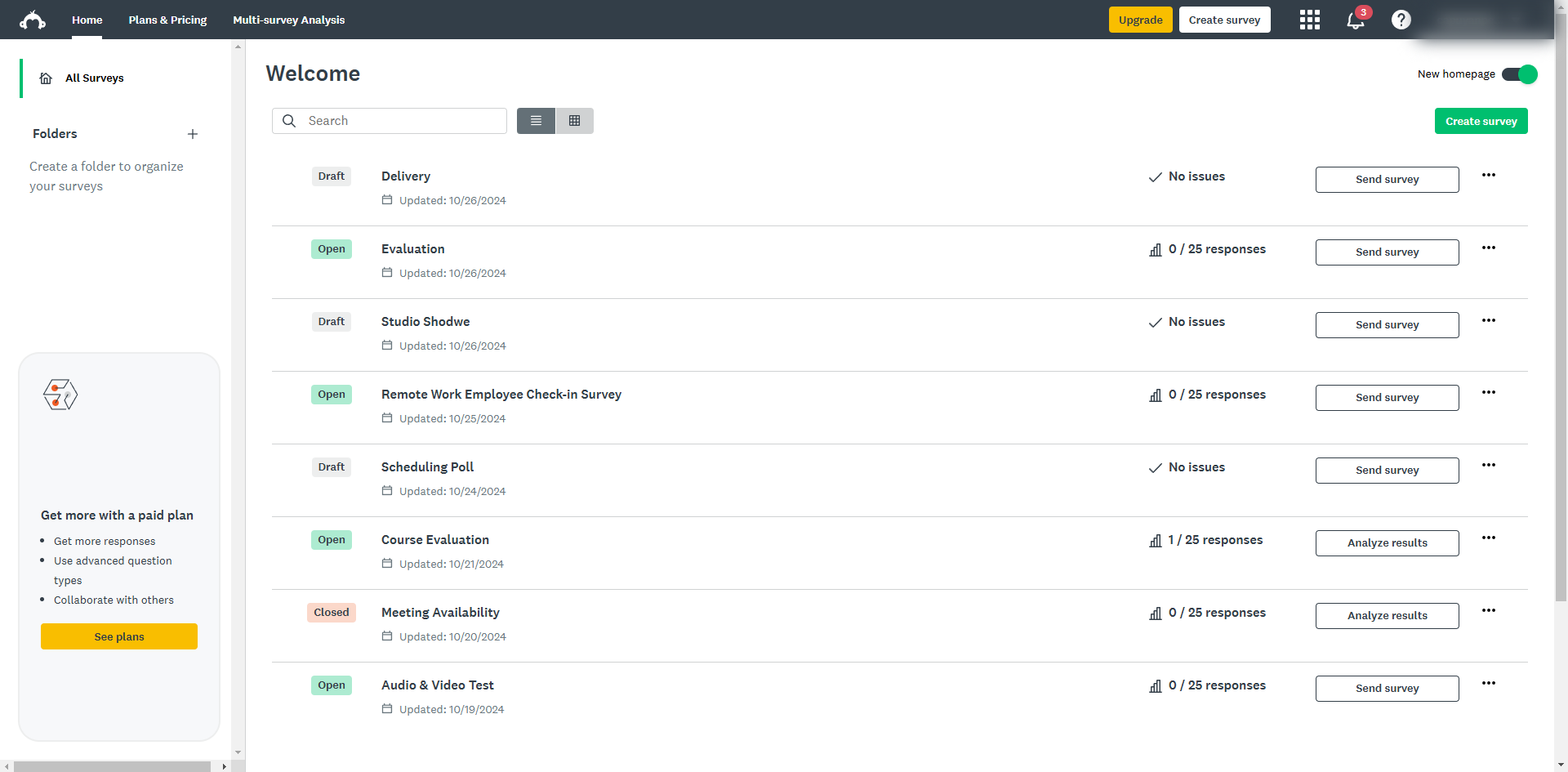
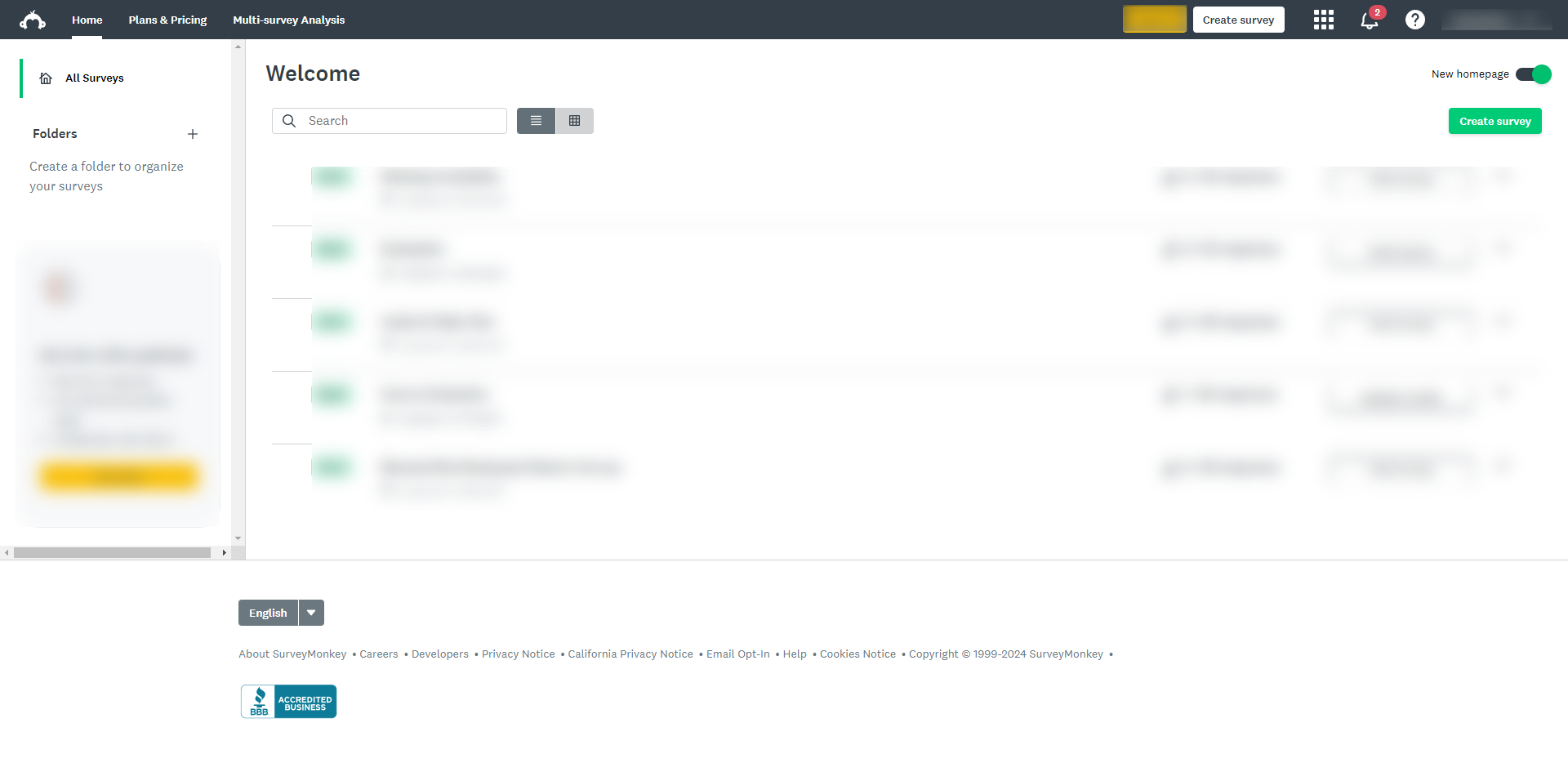
Click on the 'Create Survey' button to start a new survey.
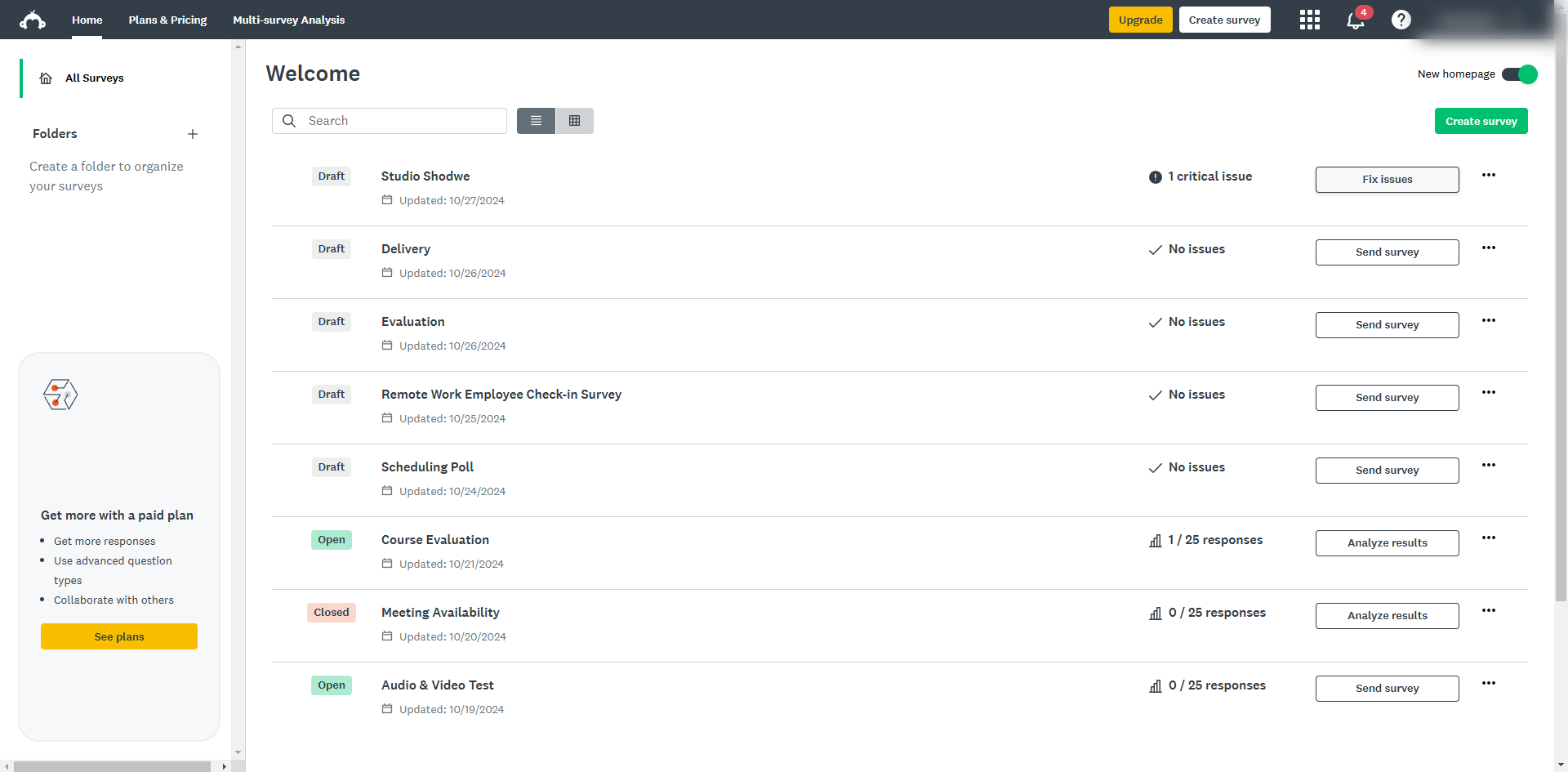
Give your survey a clear title.
You can add open-ended questions to ask for additional preferences, such as whether they prefer a virtual or in-person meeting.
Click 'SAVE'.
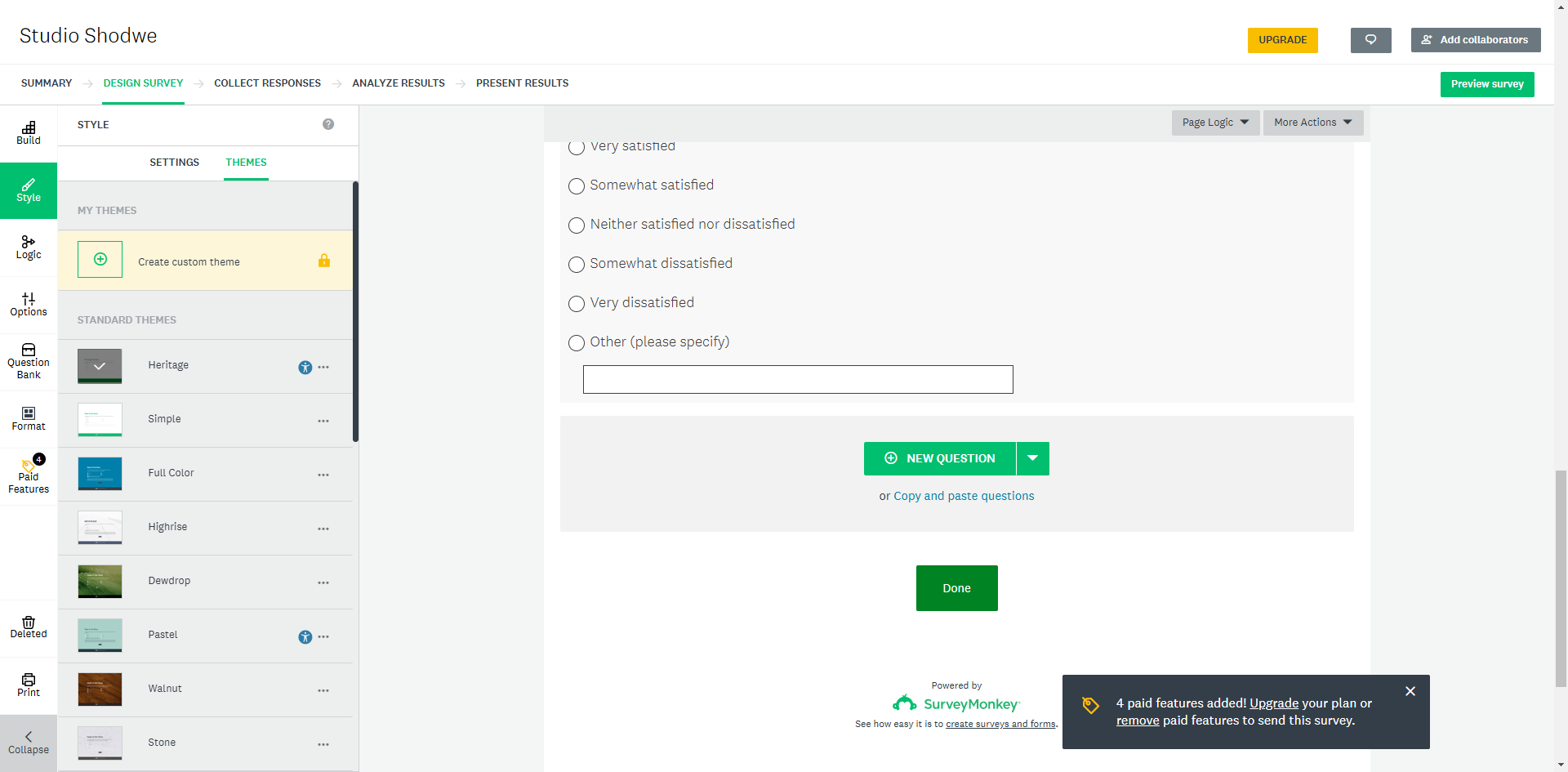
Add multiple-choice questions that allow participants to indicate their availability on specific dates and times.
Once you have added the time slots, click 'SAVE'.
Once your survey is ready, click 'Preview survey'.
Click 'Continue'.
Send your survey via web link and click 'Copy'.
Once copied, you can now share the link to your groups.
Once you have collected the responses, click the 'Analyze results' tab.
As people respond to your survey, you can view the results to determine the best time and date for your meeting based on the availability of the majority of participants.
Quick answer: To schedule a meeting using SurveyMonkey, create a survey with a clear title, add optional open-ended preference questions, and include multiple-choice availability questions, saving after each. Preview and continue the survey, copy the web link to share, and view responses under the analyze results tab to determine the best time.
About this SurveyMonkey tutorial
Find the best meeting time and date by creating an availability survey in SurveyMonkey, sharing the link, and analyzing participant responses. This guide shows how to use SurveyMonkey to Schedule a Meeting in 12 steps, starting with "Click on the 'Create Survey' button to start a new survey" and finishing with "As people respond to your survey, you can view the results to determine the best time a...". The interactive demo above is a click-through copy of the real SurveyMonkey interface, so you can rehearse each step before doing it in your own account.
Frequently asked questions
How many steps does it take to use SurveyMonkey to Schedule a Meeting?
12 steps. Each one is listed in order above, and the demo highlights exactly where to click.
Can I try it without changing my own account?
Yes. Clicking through the demo doesn't touch your SurveyMonkey data or settings. Once you know the flow, repeat it in your own workspace.
This tutorial is filed under SurveyMonkey. Related guides: How to Use SurveyMonkey Youtube, How Can I Customize a Closing Page in SurveyMonkey and How Can I Send My SurveyMonkey to Responders. Last reviewed 05 Oct 2026.

Create your first interactive demo in minutes
No credit card required • Start building today