Sync HubSpot contact info to Mailchimp email lists
- George Apostolov
Sync HubSpot contact info to Mailchimp email lists: step-by-step guide
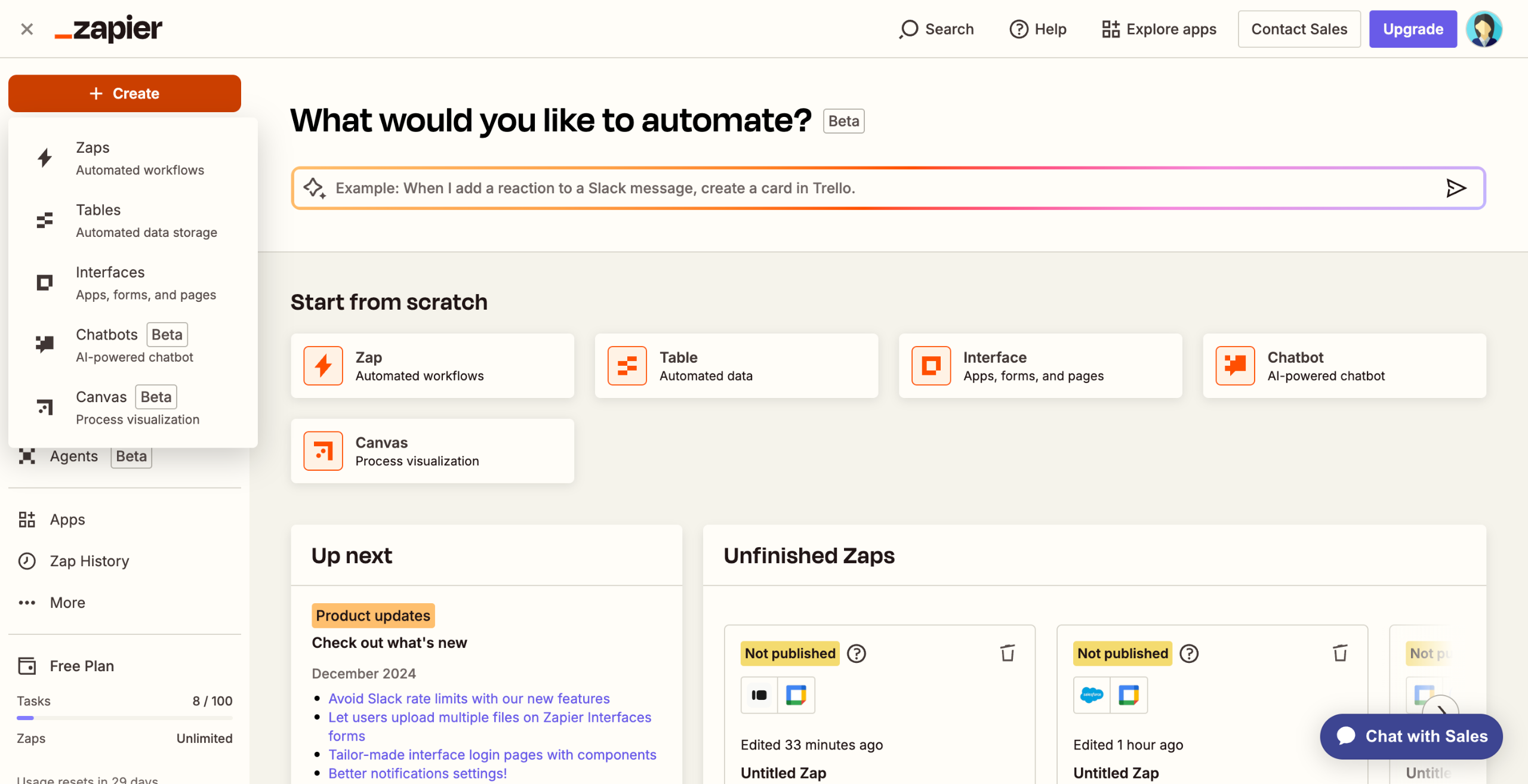
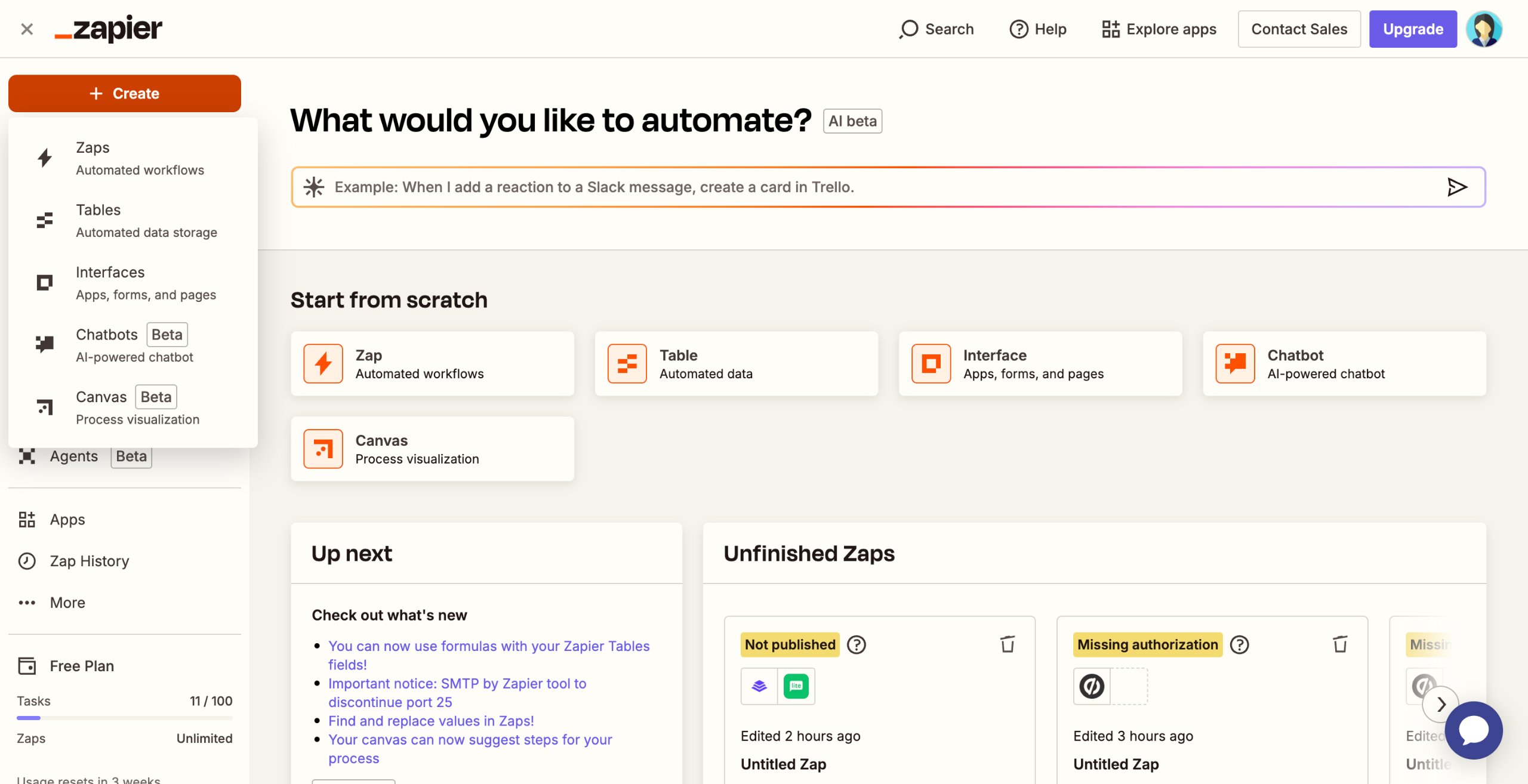
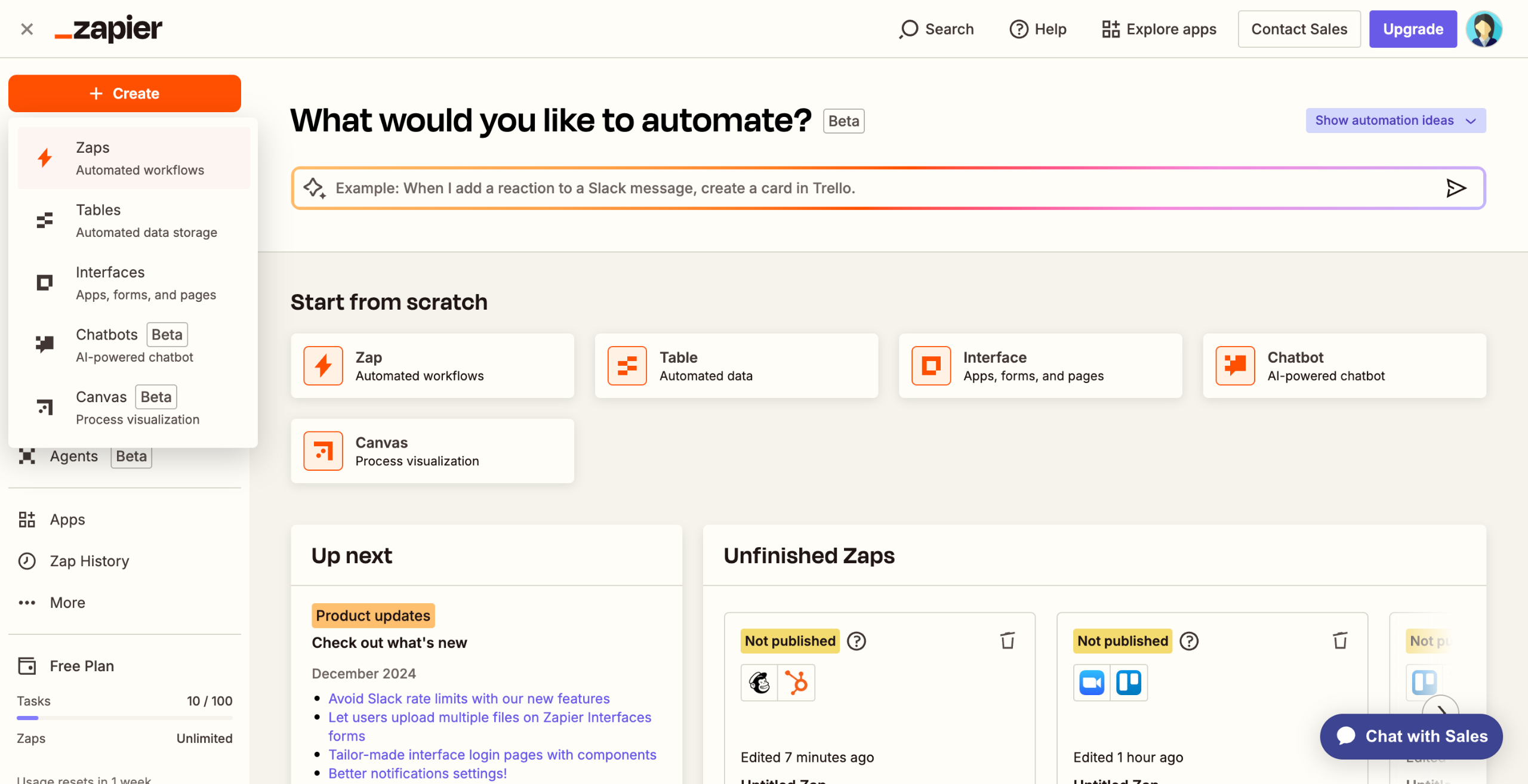
Log in to Zapier, click on "Create" and select "Zaps" to begin the automation process.
Click "Trigger."
Search for and select HubSpot as the trigger app.
Choose a trigger event such as "New Contact" or "Updated Contact," depending on when you want to sync the data.
Connect your HubSpot account to Zapier.
Select the HubSpot contact list or properties you want to monitor for new or updated contacts.
Run a test to ensure that Zapier detects HubSpot contact information correctly.
Add Mailchimp as the Action App.
Choose an action event like "Add/Update Subscriber" to sync contacts to your Mailchimp list.
Connect your Mailchimp account to Zapier.
Map the HubSpot contact properties (e.g., email, first name, last name) to the corresponding Mailchimp fields.
Run a test to verify that the contact info from HubSpot is synced correctly to your Mailchimp list.
Click "Publish" to turn on your Zap and automate the sync between HubSpot contacts and Mailchimp email lists.
Quick answer: To sync HubSpot contact info to Mailchimp email lists, log in to Zapier, select HubSpot as the trigger app with a contact event, connect your account, and test. Next, add Mailchimp as the action app, connect your account, map the properties, test the connection, and publish the Zap.
About this HubSpot tutorial
Automate contact syncing between HubSpot and Mailchimp using Zapier by mapping properties and publishing your Zap. This guide covers sync HubSpot contact info to Mailchimp email lists in 13 steps, starting with "Log in to Zapier, click on 'Create' and select 'Zaps' to begin the automation process" and finishing with "Click 'Publish' to turn on your Zap and automate the sync between HubSpot contacts and...". The interactive demo above is a click-through copy of the real HubSpot interface, so you can rehearse each step before doing it in your own account.
Frequently asked questions
How many steps does sync HubSpot contact info to Mailchimp email lists take?
13 steps. Each one is listed in order above, and the demo highlights exactly where to click.
Can I try it without changing my own account?
Yes. Clicking through the demo doesn't touch your HubSpot data or settings. Once you know the flow, repeat it in your own workspace.
This tutorial is filed under HubSpot and Mailchimp. Related guides: Sync Mailchimp audience data to HubSpot contacts, Trigger HubSpot lead scoring from Typeform survey responses and Trigger HubSpot workflow automation from Trello board changes. Last reviewed 05 Oct 2026.

Create your first interactive demo in minutes
No credit card required • Start building today