Framer Newsletter Integration
- George Apostolov
Framer Newsletter Integration: step-by-step guide
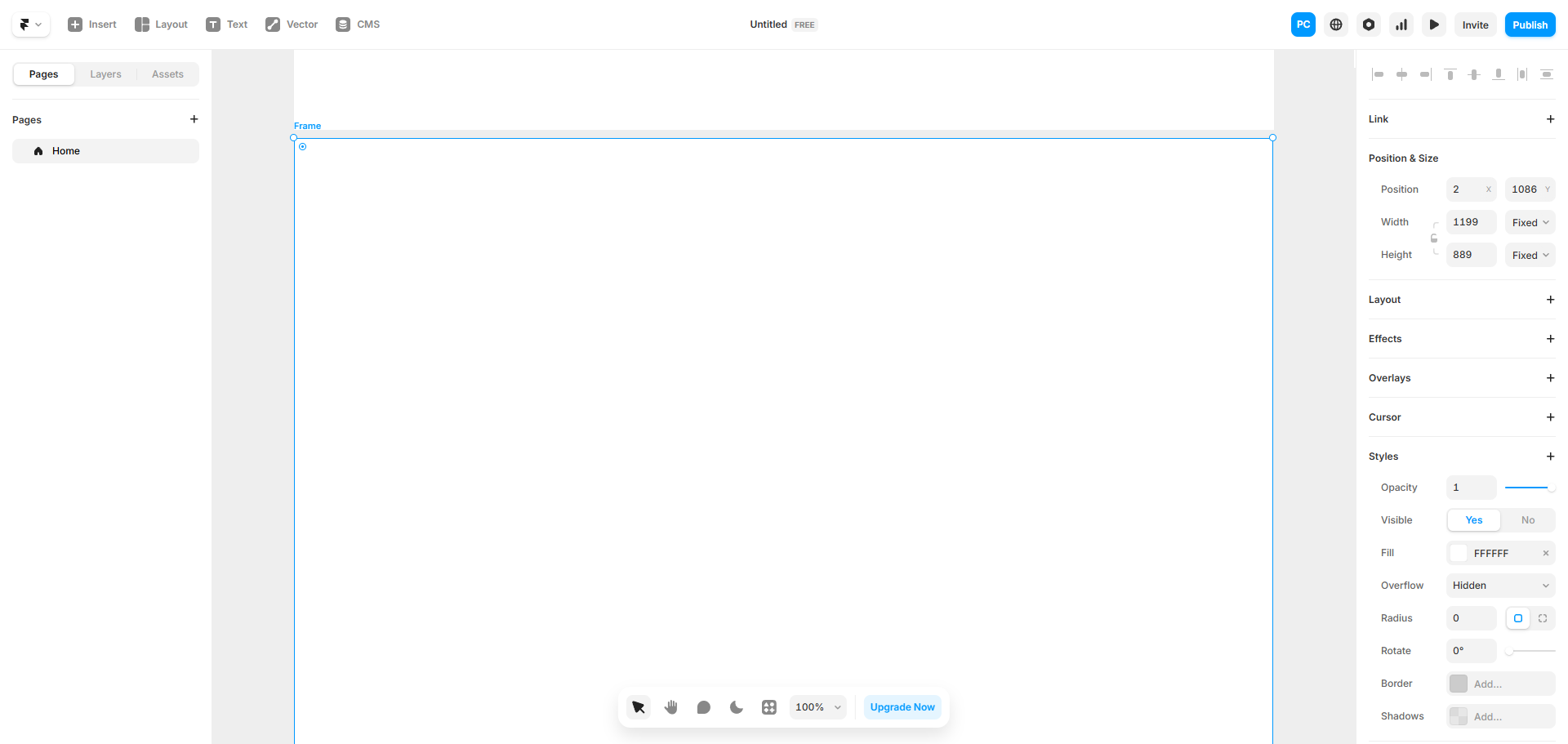
Start by opening your Framer project where you want to add the newsletter form.
Hit 'Insert' to add the newsletter component to your canvas—it's ready for customization.
Navigate to 'Forms' to set up the interactive elements of your newsletter signup.
Click 'Newsletter' to access email collection options for growing your subscriber list.
Adjust the newsletter component's colors and typography to match your site's look and feel.
Drag to position your newsletter form where it'll get the most visibility and sign-ups.
Paste your newsletter service endpoint URL here to connect your subscription form.
Add a URL for where subscribers should land after submitting their email address.
Send yourself a test submission to verify the form is capturing emails correctly.
Double-check that your form submits properly and redirects to your thank-you page.
Quick answer: To integrate a newsletter in Framer, open your project, insert the newsletter component from Forms, and customize its appearance. Position the form on your canvas, connect your service endpoint URL, set a redirect destination, and send a test submission to verify proper functionality.
About this Framer tutorial
Add and configure a newsletter signup form in Framer by connecting your service endpoint, customizing the design, and testing the redirect. This guide covers framer Newsletter Integration in 10 steps, starting with "Start by opening your Framer project where you want to add the newsletter form" and finishing with "Double-check that your form submits properly and redirects to your thank-you page". The interactive demo above is a click-through copy of the real Framer interface, so you can rehearse each step before doing it in your own account.
Frequently asked questions
How many steps does framer Newsletter Integration take?
10 steps. Each one is listed in order above, and the demo highlights exactly where to click.
Can I try it without changing my own account?
Yes. Clicking through the demo doesn't touch your Framer data or settings. Once you know the flow, repeat it in your own workspace.
This tutorial is filed under Framer. Related guides: Framer Notion Integration, Framer Payment Integration and Framer Salesforce Integration. Last reviewed 05 Oct 2026.

Create your first interactive demo in minutes
No credit card required • Start building today