Salesforce - How to Add Account in Salesforce Authenticator
- George Apostolov
Salesforce - How to Add Account in Salesforce Authenticator: step-by-step guide
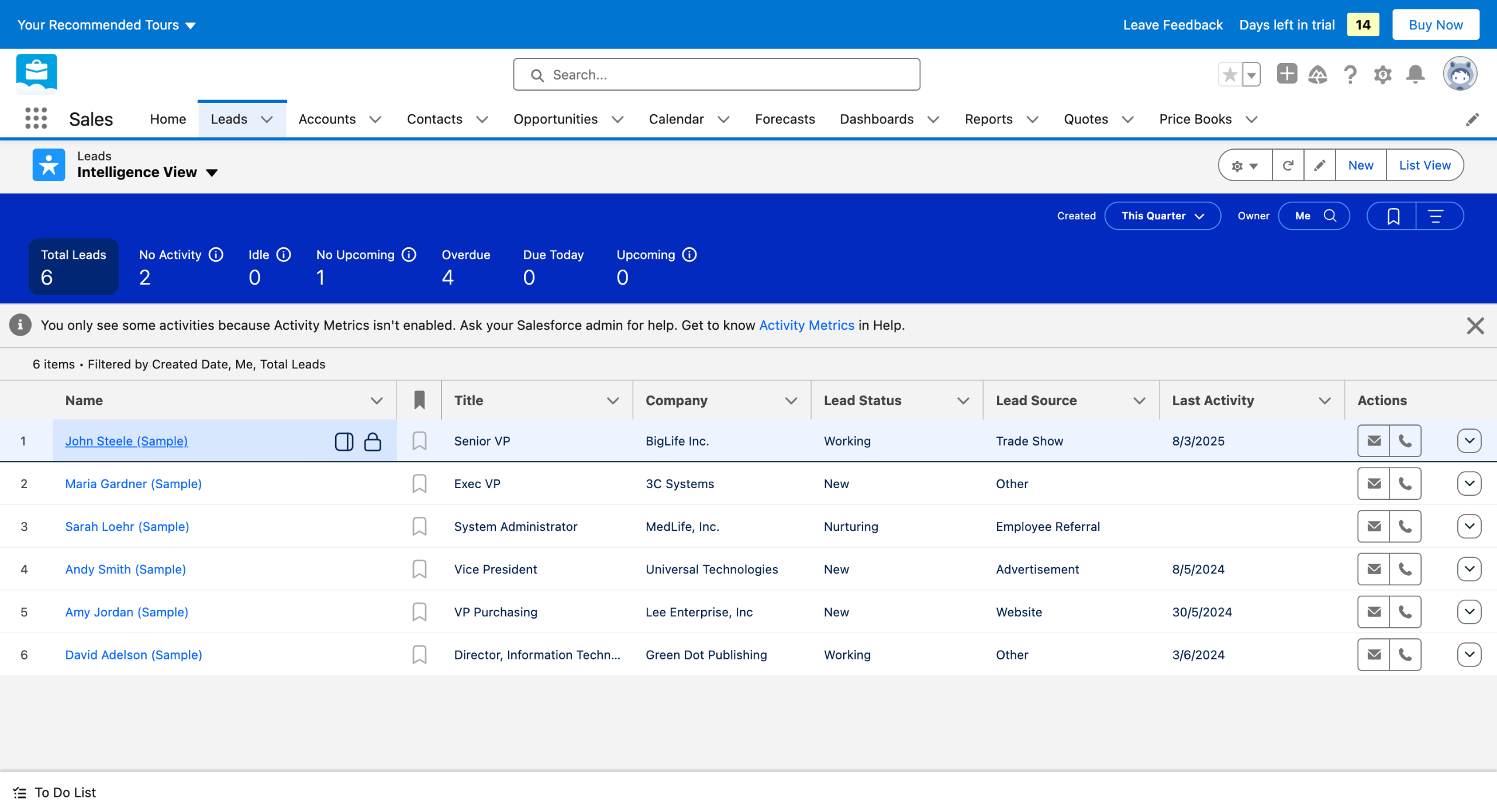
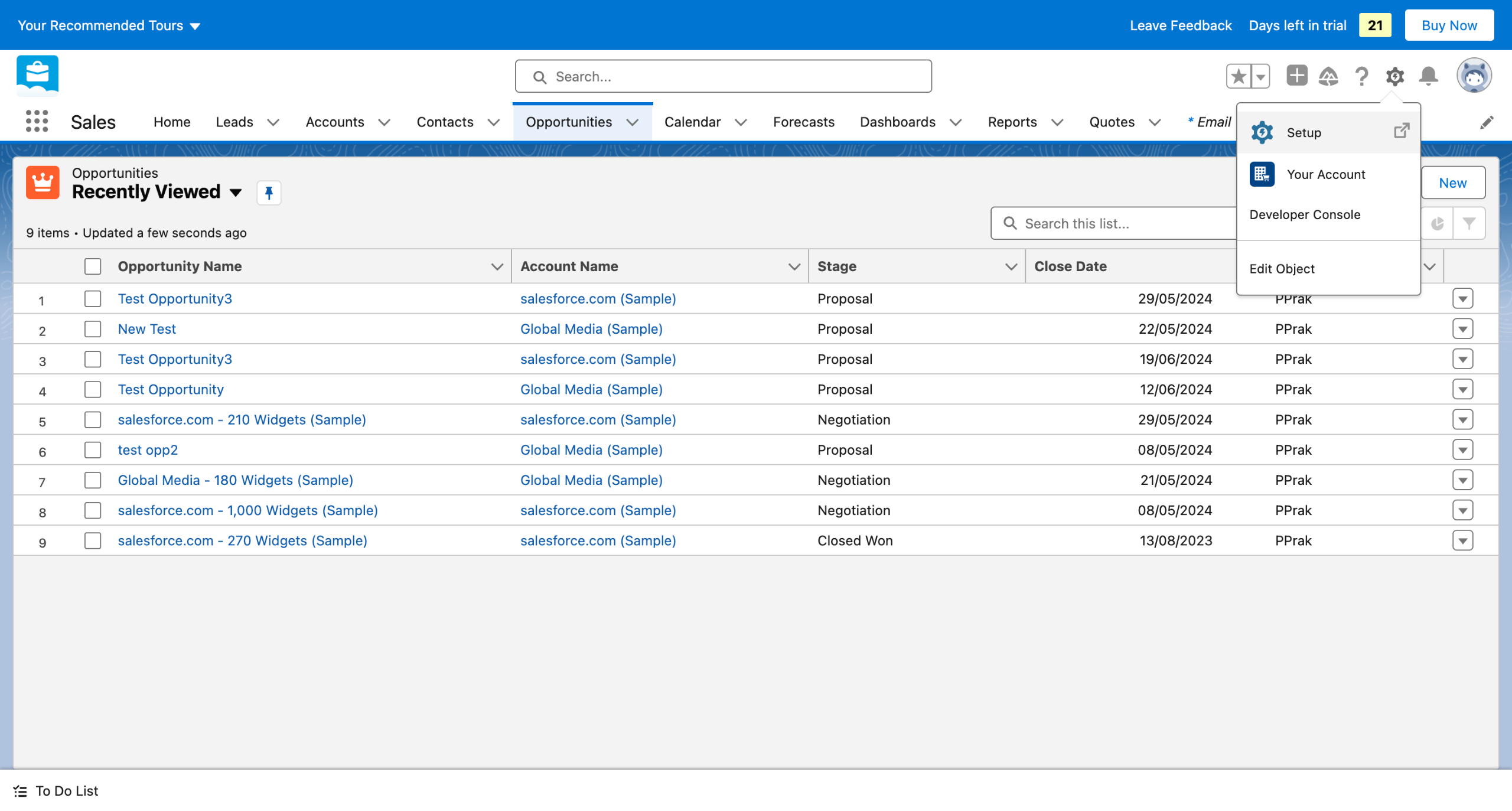
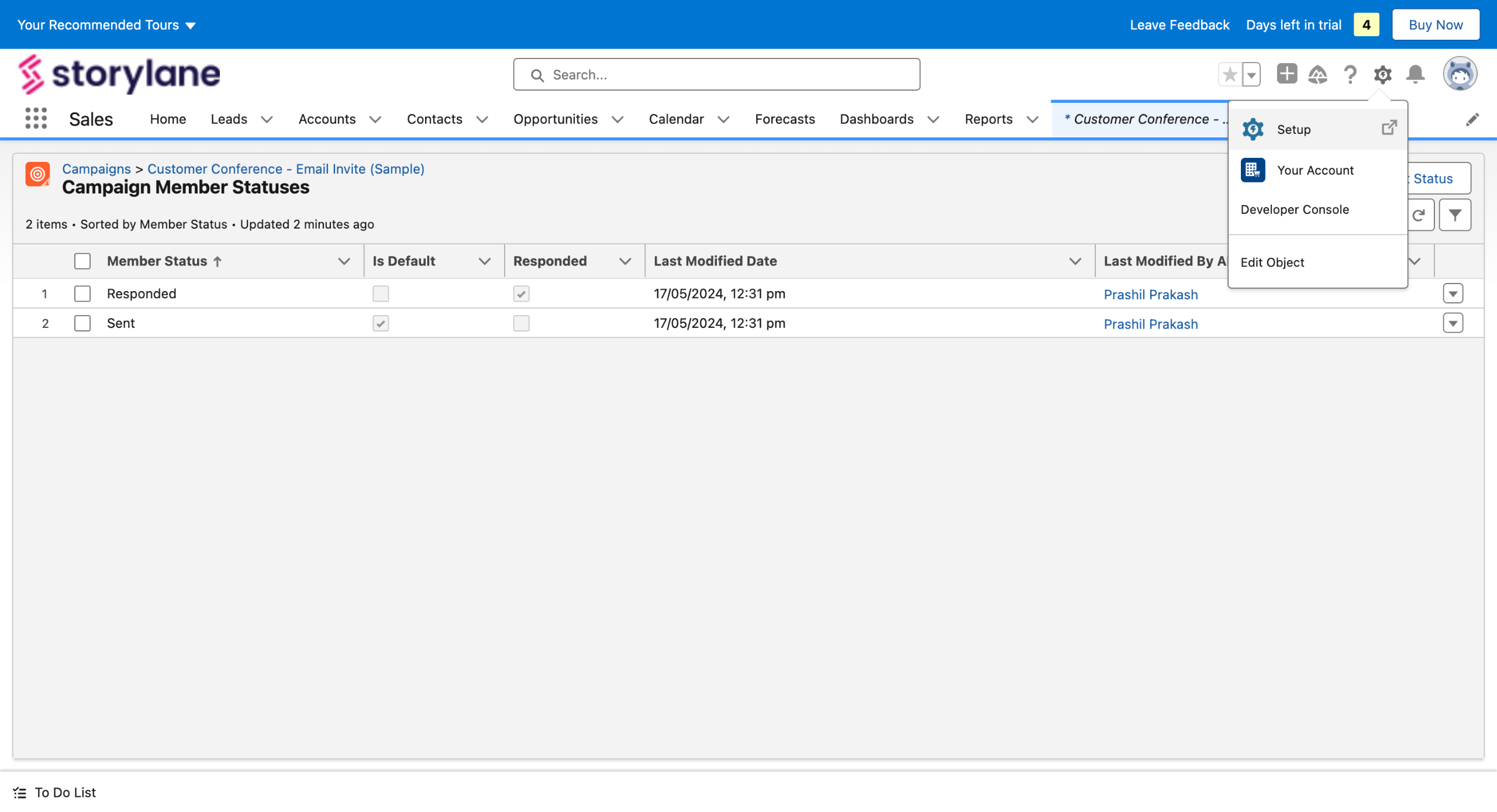
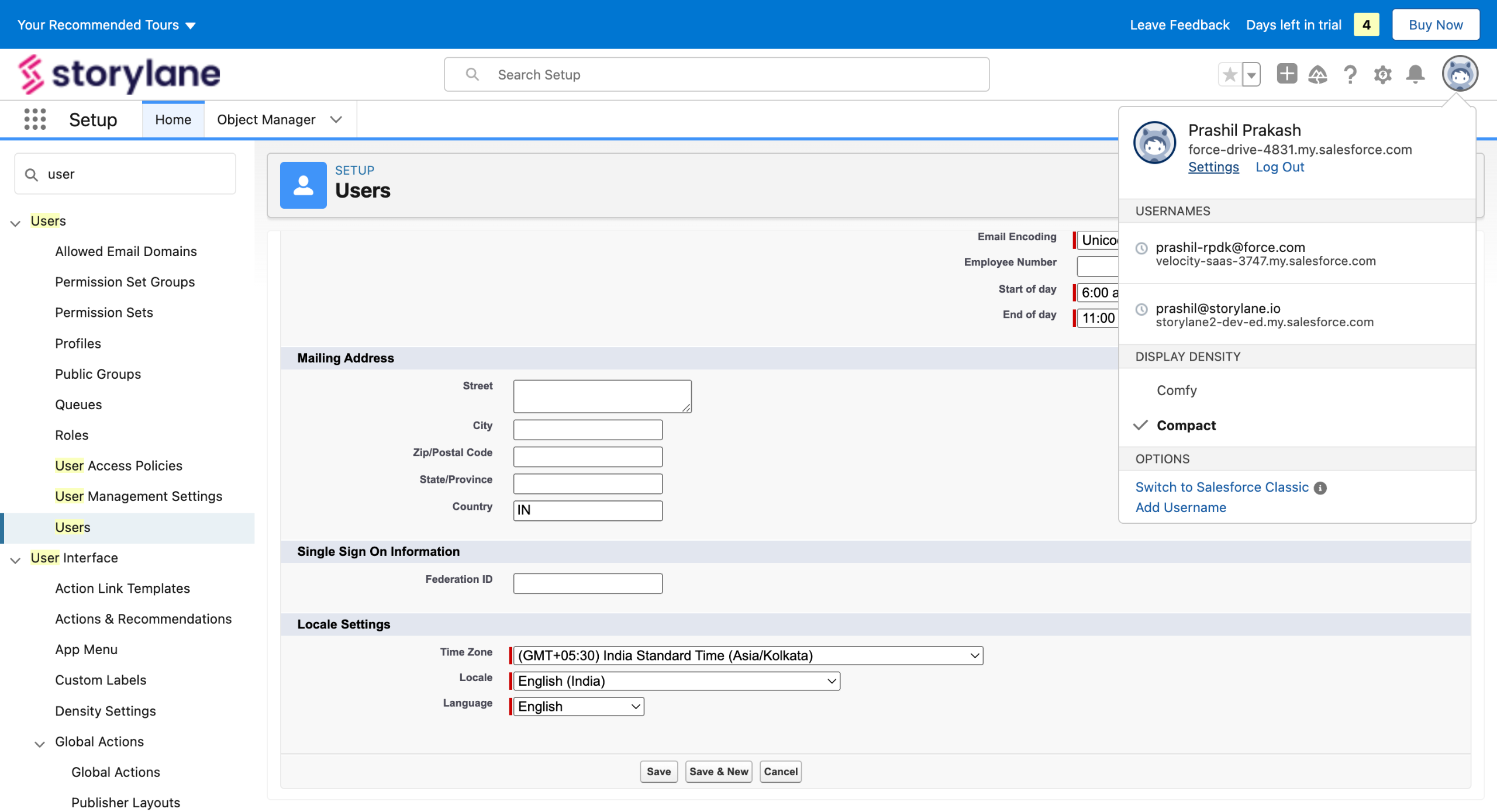
Click on your Avatar Icon on the top right and click on Settings.
Go to Advanced User Details under My Personal Information.
Click on Connect beside App Registration: Salesforce Authenticator.
A verification code will be sent to your email address, enter the code here and hit Verify.
Download the Salesforce authenticator from the App Store or Play Store. Add your account to the app. You will see a 2-word phrase, which you enter on this page and hit Connect.
You will see this screen while your authenticator connects to your account.
If you get a green checkmark you have successfully added the Salesforce authenticator.
Quick answer: To add an account in Salesforce Authenticator, access your Settings and Advanced User Details. Click Connect beside App Registration, enter your email verification code, and verify. Download the app, enter the 2-word phrase shown into Salesforce, and wait for the green checkmark confirming successful connection.
About this Salesforce tutorial
Secure your Salesforce account by connecting the Salesforce Authenticator app using your settings, email verification, and a 2-word phrase. This guide covers salesforce - How to Add Account in Salesforce Authenticator in 7 steps, starting with "Click on your Avatar Icon on the top right and click on Settings" and finishing with "If you get a green checkmark you have successfully added the Salesforce authenticator". The interactive demo above is a click-through copy of the real Salesforce interface, so you can rehearse each step before doing it in your own account.
Frequently asked questions
How many steps does salesforce - How to Add Account in Salesforce Authenticator take?
7 steps. Each one is listed in order above, and the demo highlights exactly where to click.
Can I try it without changing my own account?
Yes. Clicking through the demo doesn't touch your Salesforce data or settings. Once you know the flow, repeat it in your own workspace.
This tutorial is filed under Salesforce. Related guides: Salesforce how to add activity in salesforce lightning, Salesforce - How to Add Attachment Field in Salesforce and Salesforce - how to add banner in salesforce. Last reviewed 05 Oct 2026.

Create your first interactive demo in minutes
No credit card required • Start building today